

New Participant
January 3, 2023
Question

Combining files prefills radio buttons

  • January 3, 2023
  • 3 replies
  • 1179 views

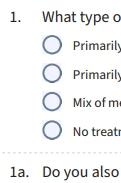
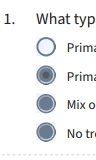
When combing 3 blank pdfs into one, the resulting file has what looks to be prefilled radio buttons selected and are not removable.


Pre combine: 
 

Post combine: 
This topic has been closed for replies.

3 replies

Amal.
Community Manager
Community Manager
January 12, 2023

Hi @Clarence277855854ry6 

Hope you are doing well and sorry to hear that

Is this an issue with a particular PDF file or with all the PDFs? Please try with a different PDF file and check.


Have you started experiencing this issue recently after the new update for Adobe Acrobat?

What is the version of the Acrobat DC you are using? To check the version go to Help > About Acrobat and make sure you have the recent version 22.3.20310 installed. Go to Help > Check for updates and reboot the computer once.

Also, try to repair the installation from the help menu (Win Only) and see if that works.

Please try to reset the Acrobat preferences as described here https://community.adobe.com/t5/acrobat-discussions/how-to-reset-acrobat-preference-settings-to-default/td-p/4792082


Let us know how it goes.


Regars

Amal

Dave__M
Community Expert
Community Expert
January 3, 2023

Are the radio buttons at all interactive, or are they just images of radio buttons?

Dave

New Participant
January 11, 2023

yes, they're interactive. I was able to combine cleanly using a different application but have not figured out how to do this with Adobe Pro.

Bernd Alheit
Community Expert
Community Expert
January 3, 2023

Does you use radio buttons with the same name in the files?

New Participant
January 3, 2023

I don't believe so. The files being combined were created by my client. When I open the combined file in Adobe Pro or Reader the radio buttons are blank. When openned through any browser (Chrome, Edge) they display pre-filled.

Bernd Alheit
Community Expert
Community Expert
January 3, 2023

Use Tools > Prepare Form and look at the field names.
