


New Participant
April 12, 2021
Answered

Digital Signature - Sign Button Not Working

  • April 12, 2021
  • 5 replies
  • 64986 views

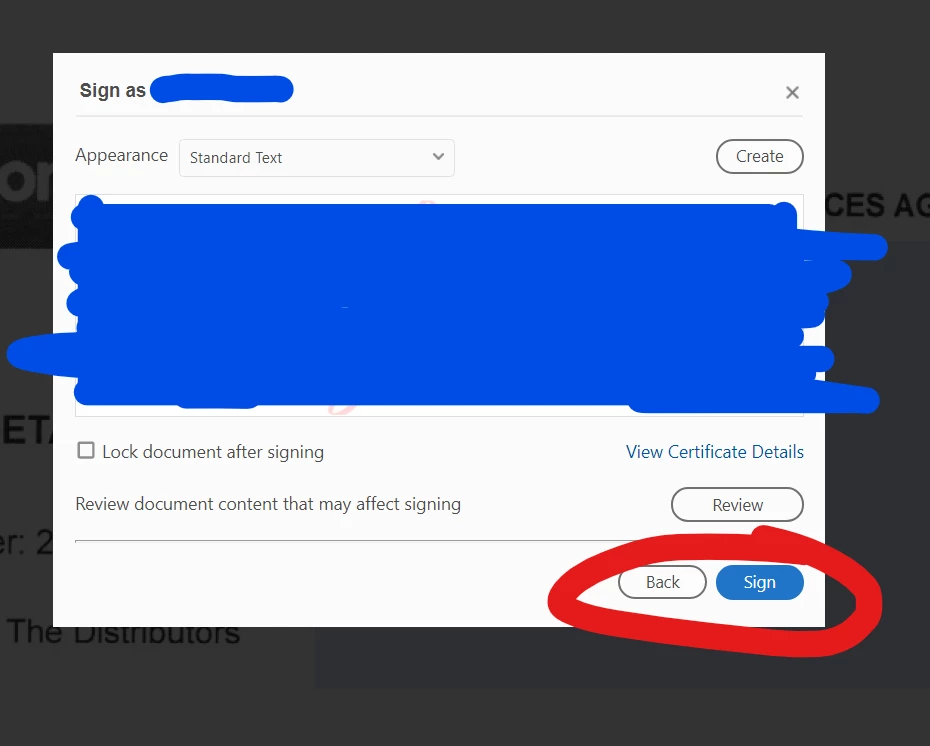
When I go to complete my Digital Signature, it wont allow me to Sign.


I have tried Saving the Doument, Checking for Update, Uninstalling and Reinstalling Adobe, Creating a new Digital Signature......


Correct answer Kai342601618827

I am also facing the above described issue on a CC installation on a Win10 PC.

Due to the CC installation, i cannot use the Acrobate Cleaner based solution.

5 replies

New Participant
January 27, 2025

I know these posts are fairly old, but I did find a fix for this problem that worked for me and didn't involve uninstalling anything.  Unfortunately I don't know exactly what did the trick, but I went to Edit > Preferences > Signatures > Creation & Appearance.  And took the following steps:

1.  Ensured the Default Signing Method was set to Adobe Default Security
2.  Signing Format set to CAdES-Equivalent
3.  Made sure all boxes were unselected.  Unselected "Include signature's revocation status"
4.  I changed "Enable Review of Document Warnings" to "Never"
5.  I changed "Prevent Signing Until Warnings Are Reveiwed" to "Never"
6.  I deselected "Use modern user interface for signing and Digital ID configuration.
7.  I then created a signature under "New" 

After I hit ok, the document immediately allowed me to sign.  I did not need to restart the program or my computer or re-install anything.  It took about 60 seconds to complete. 

New Participant
October 10, 2023

I am also facing this issue on a fresh new installation of CC on a Windows 11 PC. I'll confirm if the highlighted answer fixes this for me, but wanted to make ditto the above and make Adobe aware there seems to be a problem here!

Kai342601618827Correct answer
New Participant
December 14, 2023

I am also facing the above described issue on a CC installation on a Win10 PC.

Due to the CC installation, i cannot use the Acrobate Cleaner based solution.

S_S
Community Manager
Community Manager
September 12, 2024

Since my statement of an issue was selected as "correct answer" for some reason, let me elaborate, both the issue and the now found solution. The appearance of the "issue" was exactly as presented above (sign button didn't work).


Deeper issue: I had two certificates in my PC, the system certificate (windows login), and one based on a national identity provider. I solved the issue  by a) deleting the national identity provider certificate (via the Windows/Internet options programm), and b) creating a new certificate in Acrobat (described here, among others, under preferences>Signatures>Identities & Trusted Certificates), then c) associating that new certificate with my existing digital signature. In this way, when digitally signing the document, I needed to enter the certificate password before pressing the "sign" button. Then the signature was created.


There may be an unneccessary step here in creating a new local certificate - but it may well be that the password prompt created by the new internal certificate made things more straightforward for the software (that's an untested hypothesis).


Hello Everyone, 


We are live with the next release(2024.003.20112).


Please update the app to the latest version and let us know if the issue is fixed.


Thanks,

Souvik

MALDIVES  EXPERTS
New Participant
August 16, 2023

I had the same problem. and have tired all the listed below however i still have not yet able to sign the documents. 

please help! 

Amal.
Community Manager
Community Manager
August 18, 2023

Hi there


What happens when you try to sign the PDF? Do you get any error messages? If yes, please share the screenshot or a small video recording to better understand.


What happens when you try to sign the PDF online via the link https://acrobat.adobe.com/link/home/ ?


~Amal

New Participant
August 29, 2023

I have had the same problem as well.  It is only on one particular device.  It works if I sign on elsewhere, but that does not help me.  Also, if I sign in on another device, the layout is different, as though it has been updated, but no matter how many times I uninstall and reinstall on my main device, I still get the old style with the inability to use the esign facility.  What is happening?

Participating Frequently
June 9, 2022

I have the same problem on Windows 10: I get to this step, I click on the blue "Sign" button, it seems to react (color slightly changes) but nothing happens afterwards. I tried both ways, in a signature field or by drawing a rectangle.

This is so frustrating, this functionality worked a few weeks ago and I signed a PDF document. Now I need to sign a very important financial document and I'm stuck...

Adobe, please help!

Amal.
Community Manager
Community Manager
June 10, 2022

Hi there


Hope you are doing well and sorry for the trouble. As the issue still occurs, please remove the application using the Acrobat cleaner tool https://www.adobe.com/devnet-docs/acrobatetk/tools/Labs/cleaner.html reboot the computer and reinstall the application using the link https://helpx.adobe.com/acrobat/kb/acrobat-dc-downloads.html


Also try to sign the documents via document cloud https://acrobat.adobe.com/link/home/  and see if that helps.


Regards

Amal

New Participant
March 15, 2023

I have tried all the suggestions.  Clean, uninstall, download zip file, etc.  Install, etc.  Nothing.  I have a critical document that needs a digital signature.  I have used this before.  My Adobe is a stand alone desk version.

Amal.
Community Manager
Community Manager
April 13, 2021

Hi Trent


Hope you are doing well and sorry for the trouble. As described you are unable to digitally sign the PDF.


Is this a behavior with a particular PDF file or with all the PDFs? Please try with a different PDF file and check.


As mentioned you have tried Saving the Document, Checking for Update, Uninstalling and Reinstalling Adobe, Creating a new Digital Signature but still the sign button is not working.


Please try to reset the Acrobat preferences to default as described in the help page https://community.adobe.com/t5/acrobat/how-to-reset-acrobat-preference-settings-to-default/td-p/4792082 and reboot the computer once and check if that helps.


If it still doesn't work, please create a new test user profile or enable the root account in Mac and try using the application there and check.


Regards

Amal


Trent5FBEAuthor
New Participant
April 13, 2021

Hi,


I have reset Acrobat Preferences, but no luck......


What do you mean about test user profile? In Acrobat?