Ash_Smith
New Participant
October 18, 2022
Question

Help - Reading Order tool is not picking up my tags!

  • October 18, 2022
  • 4 replies
  • 6753 views

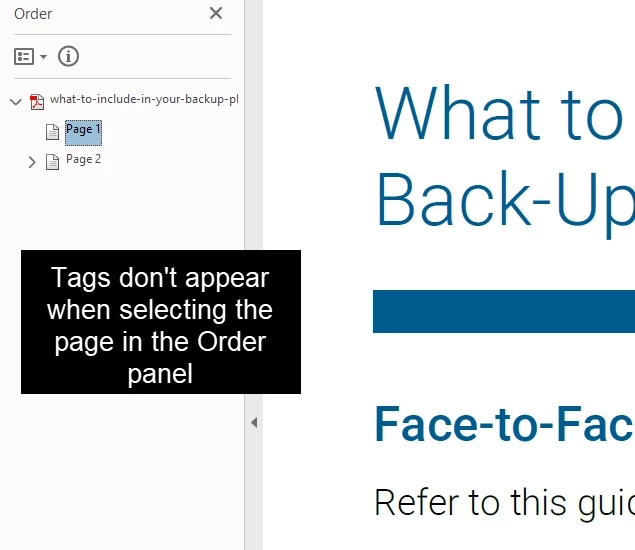
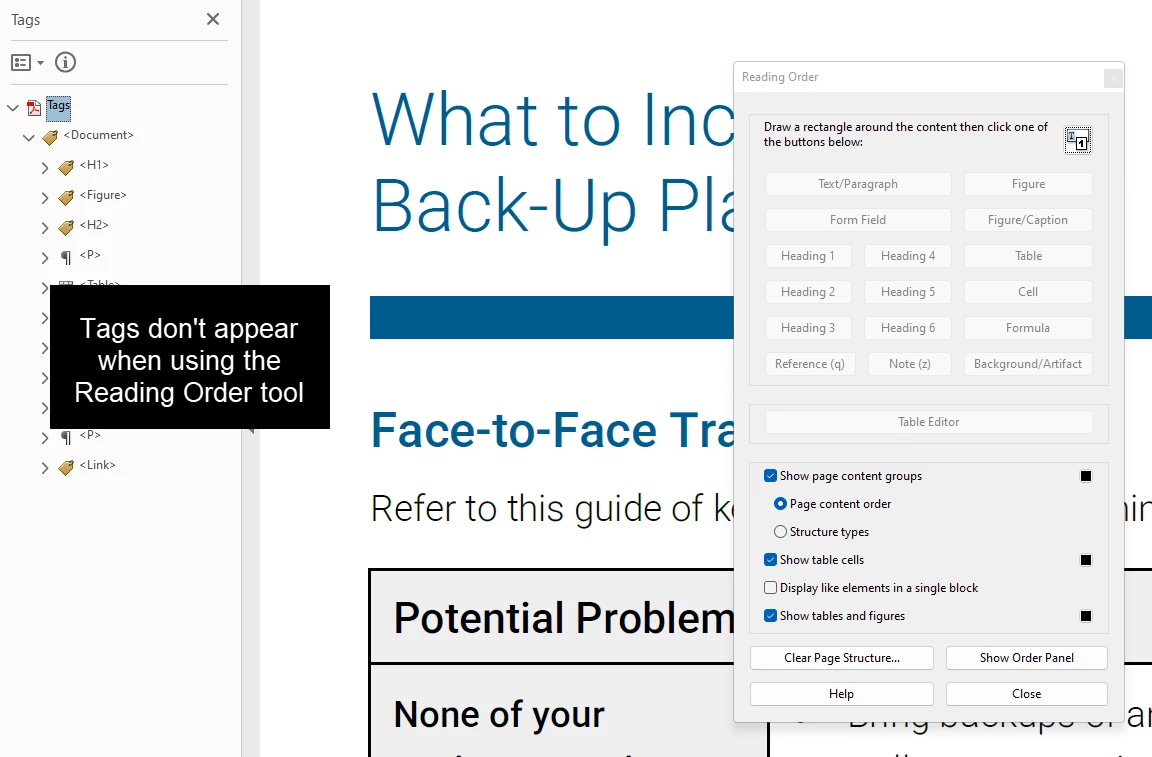
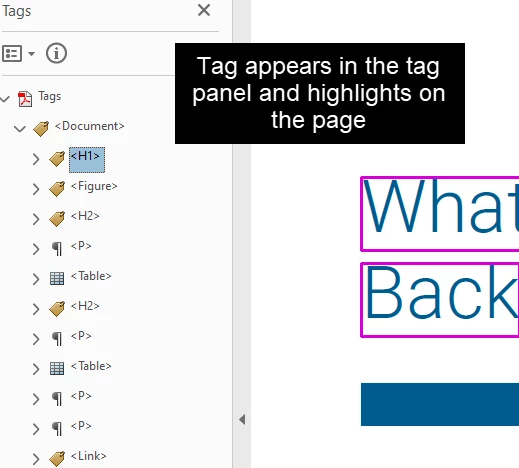
My PDF has all the items tagged and I can access the tags when in the tag panel. But if I try to use the Reading Order tool or view the tags in the Order panel the tags don't show up. Has anyone seen this? Is there a way to fix this?

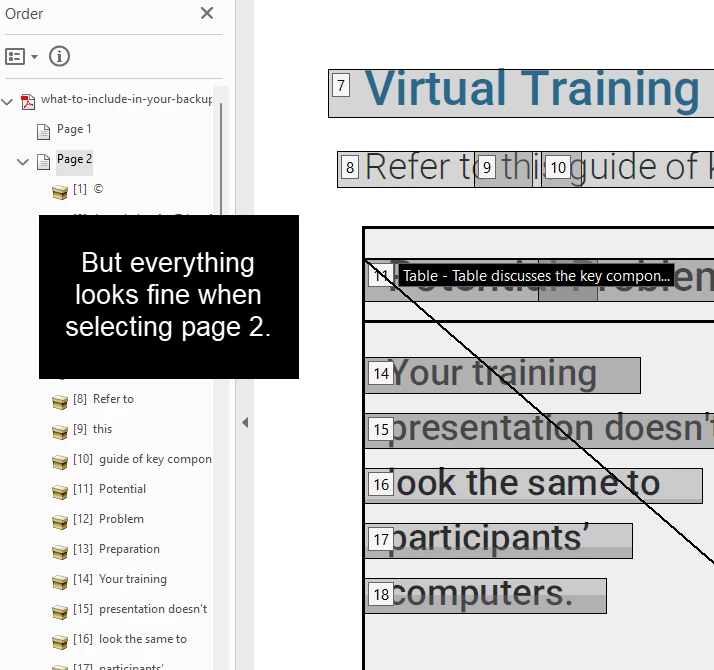
My biggest concern is figuring out if this needs to be fixed being that we are trying to ensure the PDF is accessible. This is a problem I am seeing with just the first page and not the second page. I know I could clear the page structure from Page 1 and re-tag the one page from scratch, but trying to avoid that since I have several docs with this issue.


All input is appreciated thanks!!


Page 1 Screenshots:
 

Page 2 Screenshot:
 

4 replies

New Participant
June 27, 2024

I am have the same problem. I tried using reading order tool to tag the document. It didn't work.

  1. I opened readind order panel
  2. Selected the element
  3. Assigned a tag to the element
  4. Check tag panel
  5. nothing is tagged


I tried it with different files. Nothing works. Please solve the problem.

New Participant
June 27, 2024

My Macbook pro is brand new as of two weeks ago and I am running the latest version of Acrobat. 


I have similar issues (really have always had issues with Acrobat Pro being super buggy). Adobe has always been terrible with accessibility. It is unclear to me whether screen readers use the tags panel or the reading order panel to read a document, though I go by the tags panel most often as that is what I have been told. Still, I try to get both right, but there seems to be no real pattern to how items appear in the reading ORDER panel when I create them in the TAGS panel. That has always been the case. Whenever I try to move any element in one to get the order to match, elements in the other get messed up. No matter what I do. And there is no way to reverse these mistakes once they are done. You gotta start over with a previous save. 


Right now the whole first page of my document does not show items in the reading ORDER panel though they are tagged and show up in the TAGS panel. 

Because of this, I cannot fix an issue that shows up in the accessibility checker. All of these elements are links from the page that shows no items in the ORDER panel.

I am physically unable to “tag annotations” on this first page even though the links have been tagged as such in the TAGS panel. The elements do show up under annotations in the CONTENT panel but I cannot move them under their correct content and I cannot right click to somehow tag them.

Adobe, please hear me when I say this. It's not me, it's YOU. You have the best and brightest working for you, right? Why can't you get PDF accessibility functions working in a way that makes sense?

New Participant
April 23, 2024

It appears that Adobe has completely broken their Accessibility tools with the latest updates. I am having a version of this problem on a long 80 page document. On pages with reading order issues, I clear the page and try to tag it manually--something I have managed to do for years--but now, when I select text and try to tag it, nothing happens. I am completely unable to tag the page now, and therefore unable to complete an accessibility check on my document, which is a BIG problem. Considering the premium price that Adobe charges for their products, this is incredibly infuriating. Congratulations, Adobe, you've completely ruined Acrobat's accessibility functions in your quest to redo your UI (which, by the way, is NOT an improvement. It's just an annoyance to long-time users).

New Participant
April 23, 2024

Amal -

I'm running the latest version of Acrobat. I've run the repair you suggested. Couldn't reset a new Preferences folder (probably because my firm controls my installation.)

The problem persists. I'm beyond annoyed at this. At its best, Acrobat's accessibility feature has been very buggy. Now it is unusable. The trouble is, I have contracts that require my documents be accessible.

Kevin Ottem
Assistant Visual Communications Supervisor

[P.I Removed by Moderator]

ValérielArtiste
New Participant
December 13, 2023

Was this resolved? did it work? I am having the same issue with ONE word in my document. 

Amal.
Community Manager
Community Manager
October 18, 2022

Hi @Ash_Smith 


We are sorry to hear that. Please try to reboot the computer once and see if that works. You may also try to reset the Acrobat preferences as described here https://community.adobe.com/t5/acrobat-discussions/how-to-reset-acrobat-preference-settings-to-default/td-p/4792082


Is this an issue with a particular PDF file or with all the PDFs? Please try with a different PDF file and check.


Also, have you started experiencing this issue after the recent release of version 22.3.20258?  What is the version of the Acrobat DC you are using? To check the version go to Help > About Acrobat


We are here for help, just need more information


Regards

Amal

New Participant
July 16, 2025

I am having a similar issue - only five item seem to be showing on the reading order, but none in the reading order panel. All tags are there in the tags panel.


How do I fix this?


Amal.
Community Manager
Community Manager
July 16, 2025

Hi there,

Hope you are doing well and sorry for the trouble you are experiencing. 

Yes, this is a common issue. Sometimes the Tags panel and the Reading Order or Order panel don’t match. The Tags panel shows the structure used by screen readers, while the Order panel shows how the content is arranged for reading.

If tags show up in the Tags panel but not in the Order panel ( Page 1 for example), it means something is off in the page’s reading structure.


Please check the followings:

  1. Check if the content is marked as background (artifact) – If it is, it won’t show in the Order panel.

  2. Use the Reading Order tool (https://adobe.ly/40Y7VDc) – Select the content on Page 1 and mark it as text, heading, etc.

  3. Run the Accessibility Checker (https://adobe.ly/4mhwbZx)– It can help you find issues that need fixing.

  4. Try reordering items manually – You can use the Order panel to drag items into the right order.

If nothing works, the best option might be to clear the tags on Page 1 only and auto-tag (https://adobe.ly/44BC9yo) just that page. This way, you don’t have to fix the whole document.


Hope this information will help.