


Participant
October 19, 2023
Answered

Some notes about Combine Files

  • October 19, 2023
  • 1 reply
  • 2037 views

Some notes about Combine Files:


Setup:

  • Acrobat is running.
  • The MDI (multiple document interface) is closed (i.e. switching to Acrobat as the foremost application shows just the menubar).
  • Cmd-tab switch to any application, then back to Acrobat, e.g. I am constantly switching between Acrobat and the Finder.


Combine Files:

  • Go to Acrobat » File » Combine Files.
  • MDI window appears with instructions to add files.
  • Drag and drop some JPGs into the window.
  • Thumbnails of the JPGs appear.


To the upper right, we have two buttons, Close and Combine (see attached picture).

  • Close looks active but not selected.
  • Combine is greyed out.
  • Can't Combine, but also can't Close; neither button does anything.


Two ways out:

  1. Close the "New document" tab. MDI remains. File » Combine Files and repeating the process now allows me to add the files again and actually combine them.
  2. Close the whole MDI window via the close button in the title bar. File » Combine Files again. MDI opens and, lo, my JPGs are there and Combine button is highlighted and able to be pressed.
  3. Or, quit and restart Acrobat allows it to work as it should always.


Also worth mentioning:

  • No keybind for Combine Files, and no way to add one. 
  • No way to rearrange the "Recommended tools for you" section of the MDI home window to include Combine Files so that accessing it is a one click instead of two (via menubar File » Combine Files, or, "See all tools » Combine files").
  • Painful because I use this function a lot.


Chris

specs:
Adobe Acrobat Pro 2023.006.20360
macOS Ventura 13.6 on M2 Pro
This topic has been closed for replies.
Correct answer Amal.

Hi @dhs-pro-curare 


Hope you are doing well and thanks for reaching out.


As you already have the latest version of the Acrobat inplace, please try to reset the Acrobat preferences as described here https://community.adobe.com/t5/acrobat-discussions/how-to-reset-acrobat-preference-settings-to-default/td-p/4792082 and see if that helps.


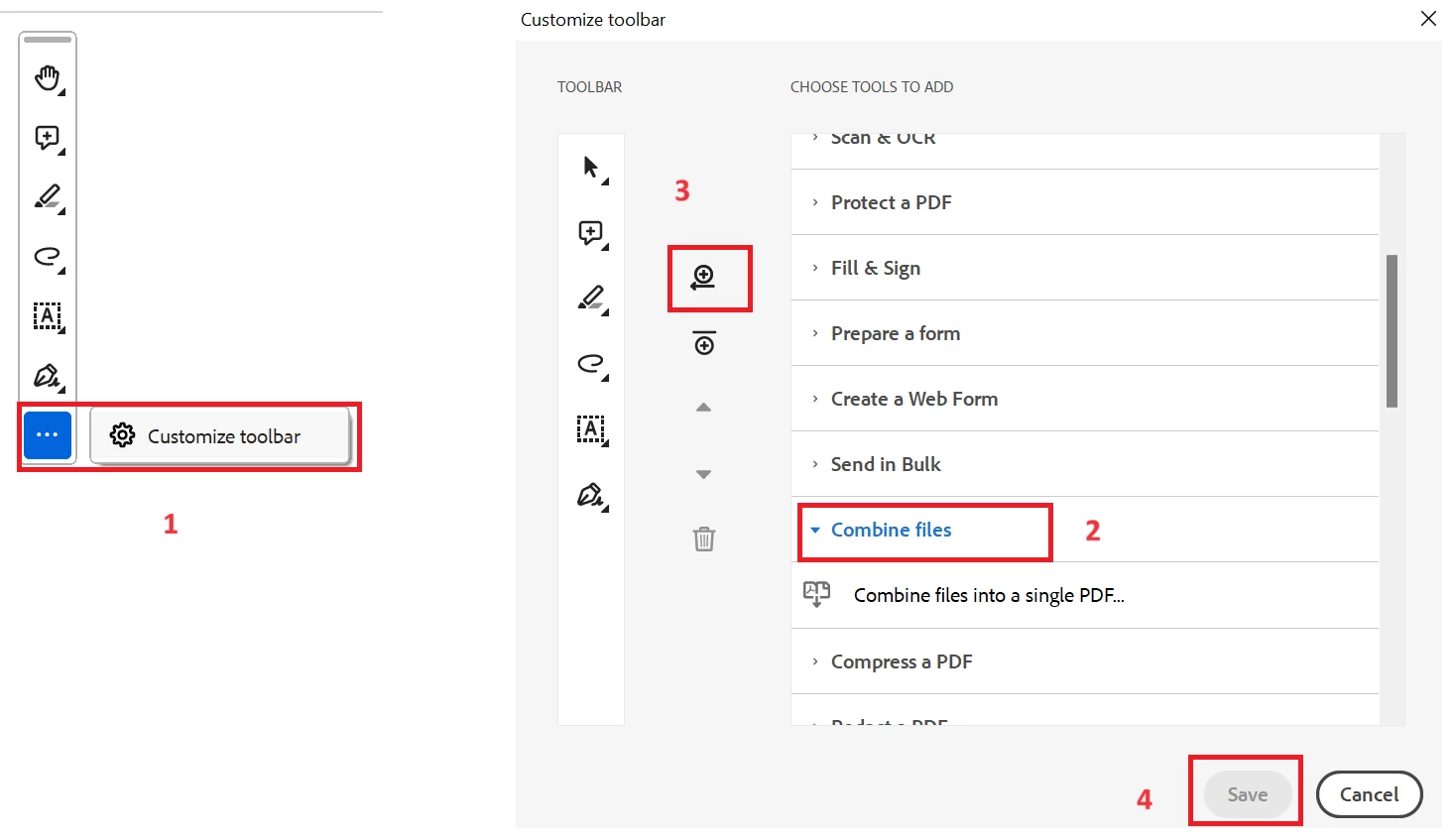
Also, you can add the combine tool shortcut to the quicktool bar as shown in the screenshot below and see if that works for you.


Let us know if you experience any trouble and need more help.


~Amal

1 reply

Amal.
Community Manager
Amal.Community ManagerCorrect answer
Community Manager
October 19, 2023

Hi @dhs-pro-curare 


Hope you are doing well and thanks for reaching out.


As you already have the latest version of the Acrobat inplace, please try to reset the Acrobat preferences as described here https://community.adobe.com/t5/acrobat-discussions/how-to-reset-acrobat-preference-settings-to-default/td-p/4792082 and see if that helps.


Also, you can add the combine tool shortcut to the quicktool bar as shown in the screenshot below and see if that works for you.


Let us know if you experience any trouble and need more help.


~Amal

Participant
October 31, 2023

Additional data point: This happened again, but I resized the window and suddenly the Combine button became clickable. So perhaps the application needs to reset something programmatically to enable the button properly.

Participant
October 31, 2023

Oops, spoke too soon: the Combine button looks clickable/enabled, but you cannot acutally use it. Close doesn't work either. 😞