davidr17924565
New Participant
June 26, 2016
Answered

My Adobe PDF form appears blank

  • June 26, 2016
  • 8 replies
  • 102726 views

My Adobe PDF form is being sent as an email attachment. With the prior version in IOS IPhone when I opened the PDF through Adobe Acrobat the form would show all the populated fields.

With the new update, the form show up blank....the fields do not appear Populated unless I highlight the cell.  Once the cell is closed, the cell it goes blank again.

FYI on a Windows or Mac laptop the PDF is populated.   It appears to be an IOS issue. How can I modify or fix to allow the form to be fully visible on the IPhone?

Correct answer MobileDeveloperCK

Hi,

We received your PDF form via email.  Thank you!

First, I opened your PDF form in the desktop version of Acrobat Reader DC on a Mac computer.  The populated fields appeared blank as well.

The Document Properties dialog (File > Properties...) shows that the PDF form was generated by Mac OS X 10.11.1. Quartz PDFContext.
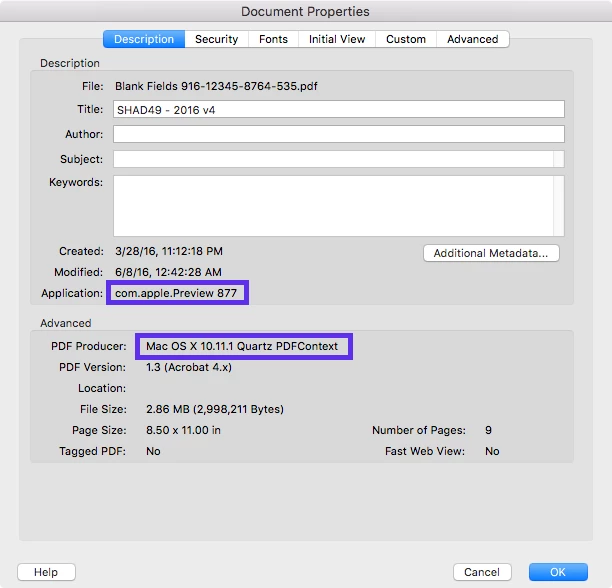
The PDF forms generated by Apple products or filled out in Apple Preview (desktop app) contain invalid entries that cause populated fields to appear blank.

To repair the existing faulty PDF form

  • Open the PDF form in Acrobat Reader (desktop or mobile app), click/tap each populated field, append space, and remove the space.  (This repairs an individual field.)
  • Open the PDF form in Acrobat Pro or Standard (paid desktop app), clear all of the text fields, then fill out the form again.

In the future, it is recommended to

  • Avoid using Apple Preview (desktop app) on a Mac computer to fill out PDF forms.
  • Use the Acrobat Reader mobile app for iOS or Android to fill out PDF forms.
  • Use the desktop version of Acrobat Reader DC on a Mac or Windows computer to fill out PDF forms.

Please let us know if you have further questions.

Thank you.

8 replies

Maggie I
Known Participant
April 15, 2025

I am having a similar issue with a fillable form I have produced. When receiving the completed fillable form, some text appears blank and can only be seen when I click on the field. This disappears again and won't print. A workaround but not a solution is to change the font on each field. On the example attached form, there is text missing that appears when clicked on, in the large field on Page 1. The 3rd large field on Page 2 and the 1st and 2nd field on Page 3. The other fields appear to be ok. Any help with this problem would be gratefully received. Maggie

Amal.
Community Manager
Community Manager
April 21, 2025

Hi there


Hope you're doing well, and thank you for reaching out.

To better assist you, could you please let us know if this issue occurs with a specific PDF file or with all PDFs? If you haven’t already, please try opening a different PDF to see if the issue persists.

Additionally, could you share the version of the Acrobat mobile app and the operating system you're using? You can find this information by tapping on the profile icon > About Acrobat. Also, please check for any pending updates in the App Store or Play Store and restart your device once the updates are installed.

If the issue continues after updating, kindly share a sample PDF file along with a short screen recording showing the steps you’re taking and the issue as it occurs. This will help us investigate further and provide a more accurate solution.


Participating Frequently
April 27, 2022

Printing to PDF does NOT resolve it for me. Interestingly enough Adobe Acrobat reader DOES display the data, but its Acrobat DC that doesn't display any data. Of course chrome, firefox, edge, iphone, etc all work but Acrobat does NOT. Going to create a ticket with Adobe. Maybe there is an update that can address this issue.

Participating Frequently
April 28, 2022

@defaultjy06atlv3d01 


Hello,


Hope you are doing well. Thank you for bringing this to our attention.


Would you mind sharing a few details with us?

1. The form that you are trying to open through a private message.

To do that, click on my name-> it should open my profile-> click on the blue box that says send a message.

2. The version of Acrobat you are using.

3. Whether you are working on a Windows or a Mac and its version.


Please help us with the details so that we can check on our end as well.


Thanks,

Souvik.

Participating Frequently
April 28, 2022

Hi Souvik, I just shared the form with you and included the Acrobat version. I forgot to mention we are running it on Windows.


thanks for your attention to this.

New Participant
January 14, 2021

Just so everyone knows, the Adobe tech advice above is incorrect because of their mistaken premise that Apple Preview editing is the cause of the blank fields. The example of the OP was NOT edited in Preview, it was edited in Adobe Acrobat, as the document information clearly shows. I created an editable document in Acrobat Pro on my MacBook Pro from a saved PDF that was created with Adobe InDesign, added text fields and filled them in Acrobat, and the saved PDF also displays empty fields in Acrobat. The file looks fine in Preview, it doesn't display correctly in Adobe Acrobat. What Adobe is saying is, don't enter data in PDFs using a Mac, and that's simply unacceptable.

New Participant
January 21, 2021

100%  Agree

New Participant
December 11, 2020

I'm seeing the exact same problematic behavior on a PC with Adobe Acrobat Pro DC on a form created in Adobe InDesign CS6 (Macintosh).  The file opens correctly in Adobe Acrobat Pro DC, can be filled out and saved.  However, when I open it up again the Adobe Acrobat Pro DC, the form flickers, redraws itself, and all of the fields are automatically cleared out.  When I go to close the file, it asks if I want to save it.  I can open these same files in Adobe Acrobat Pro CS5.5 WITHOUT this behavior.  This is clearly NOT an issue with Apple Preview but a problem with the Adobe upgrade.  Screenshot attached to show it's NOT Apple Preview.  Please advise on how this problem will be resolved.  


New Participant
September 29, 2020

Quick work around to this is to print to pdf the form that appears to be blank, it will print with all the fields filled out. This works from adobe pro dc. 

New Participant
October 11, 2020

its not working. this is not MAC issue as well, because i am using an android device and its giving me same problem

annieh70512094
Participating Frequently
October 15, 2020

same. I use PC. Can't get it to work

New Participant
August 13, 2020

That "solution" doesn't work for me either. Adobe Reader is the problem. It is opening PDFs as blank when the same pdf can be opened in Chrome or other applications completely populated. Clicking on the cells where there should be text doesn't reveal anything. This seems to be a new development in Adobe Reader; I haven't had the issue before today.

New Participant
August 26, 2020

Just talked wtih a support rep from Adobe. Sounds like it has to do with changing over to Adobe Sign. Will need that to view and fill forms out from now on I guess. Happened to us too and we already pay for Adobe Pro DC. 

New Participant
September 1, 2020

**My workaround to view a completed form that comes back "blank"**

I created an adobe fillable form for my clients, and they must have completed it in another app because their responses came back blank. Adding a space into the fields when viewing didn't work for me as they disappeared again as I continued down the form. My workaround is to right click and open the completed form in Preview (mac), and export it, choose jpg format and save it as a jpg. Then the form is viewable with the data. Hope this helps.

MobileDeveloperCKCommunity ManagerCorrect answer
Community Manager
July 2, 2016

Hi,

We received your PDF form via email.  Thank you!

First, I opened your PDF form in the desktop version of Acrobat Reader DC on a Mac computer.  The populated fields appeared blank as well.

The Document Properties dialog (File > Properties...) shows that the PDF form was generated by Mac OS X 10.11.1. Quartz PDFContext.

The PDF forms generated by Apple products or filled out in Apple Preview (desktop app) contain invalid entries that cause populated fields to appear blank.

To repair the existing faulty PDF form

  • Open the PDF form in Acrobat Reader (desktop or mobile app), click/tap each populated field, append space, and remove the space.  (This repairs an individual field.)
  • Open the PDF form in Acrobat Pro or Standard (paid desktop app), clear all of the text fields, then fill out the form again.

In the future, it is recommended to

  • Avoid using Apple Preview (desktop app) on a Mac computer to fill out PDF forms.
  • Use the Acrobat Reader mobile app for iOS or Android to fill out PDF forms.
  • Use the desktop version of Acrobat Reader DC on a Mac or Windows computer to fill out PDF forms.

Please let us know if you have further questions.

Thank you.

New Participant
November 27, 2019

This seems to be an Adobe  bug - not an Apple preview bug.


I've been completing PDF forms with Apple Preview for literally years and never had a problem until recently with one customer. They found this bug report online and pointed me here.

Apple Preview SHOULD be compatible with Acrobat and PDFs in general and vice versa.


Dov Isaacs
Brainiac
November 28, 2019

You are responding to a three year old thread but to address your comments …


Apple's Preview program does not fully comply with the ISO PDF specification and is known to corrupt PDF formsIt is not an “Adobe bug” …


            - Dov

- Dov Isaacs, former Adobe Principal Scientist (April 30, 1990 - May 30, 2021)
Community Manager
June 27, 2016

Hi,

I created a new forum thread for you.

Have you used any other non-Adobe apps on your mobile device or computer to create or fill out the form?  In particular, have you used Apple Preview on your Mac laptop to fill out the form?

To properly diagnose the problem, we would like to examine your PDF form.

Would you be willing to share your PDF form with us (Adobe)?  I sent you a private forum message with the instructions on how to share your PDF form with us.

Thank you for your help!
