Actually I would quite like you to post screenshots, if you would be so gracious. I do get OneDrive in the list of apps I can open from, which certainly does half what we were looking for - I guess I just wasn't looking hard enough and your instructions were a great help!
However, I don't get OneDrive as an option for "Save a copy", and it definitely saves a local copy. Your screenshots will likely help out there.
One question though - have you ever tried connecting a Google, Dropbox or Adobe account? The experience is hugely different - with those providers the integration is tight, and simply by modifying a file and then closing the file, it automatically gets saved back to cloud storage. You don't have to "download a local copy" (though obviously it does in the background). That is what we are looking for, but with OneDrive. That is certainly for Adobe to develop, not Microsoft.
+++ EDITED REPLY, I missed an important slide using the "Save" option of the OneDrive app (which answers what Georgii5C72 was asking. I also corrected some typos and grammar erros to the best of my ability.
Sure, here you go:
Based on the original inquiry in this thread and the subsequent questions, I found that there are two undocumented situations, and this is probably where the confusion comes from ( specifically in the case of using an Android device).
The first case is how to upload a PDF to the Microsoft OneDrive cloud service directly from the Acrobat Reader Mobile app.
In the following slides I am editing the Adobe Acrobat Reader mobile "Welcome.pdf" file.
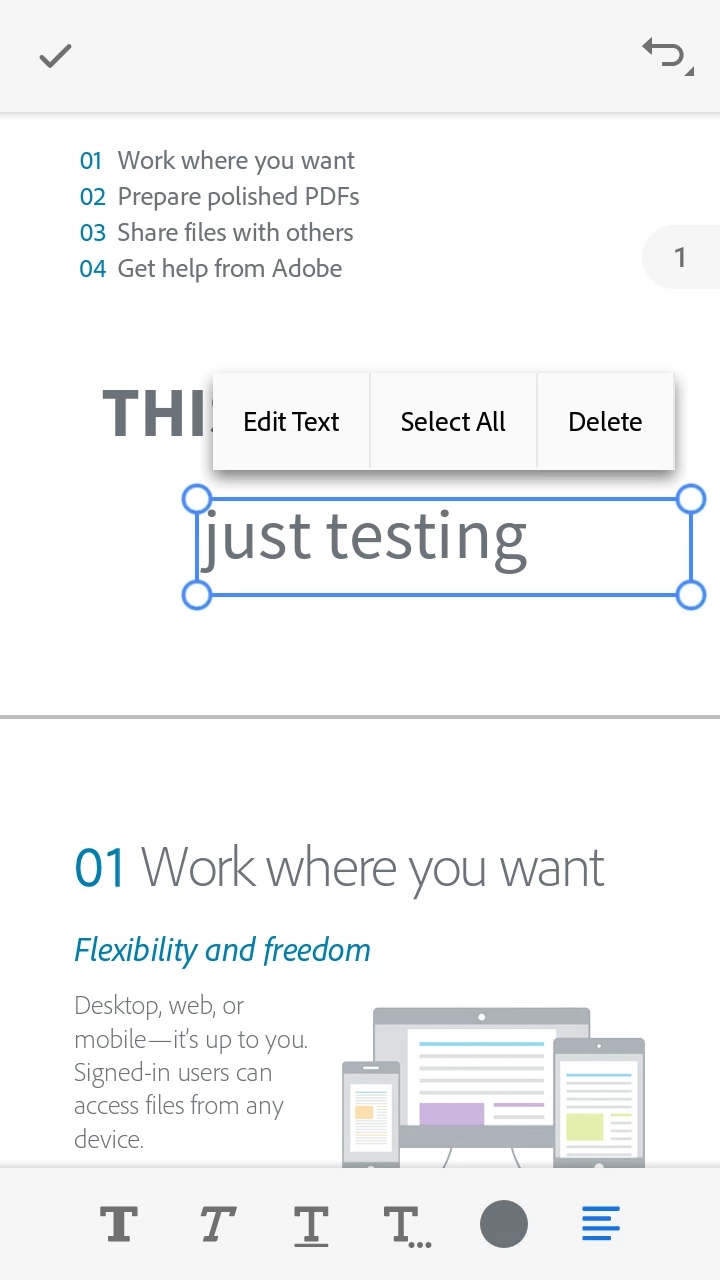
After the edits are done, the next sequence of steps will explain and show how to successfully upload a copy of this edited file to OneDrive for the first time.
To do so, open the PDF document that we just edited with the Reader mobile app and tap on the "Share" icon.
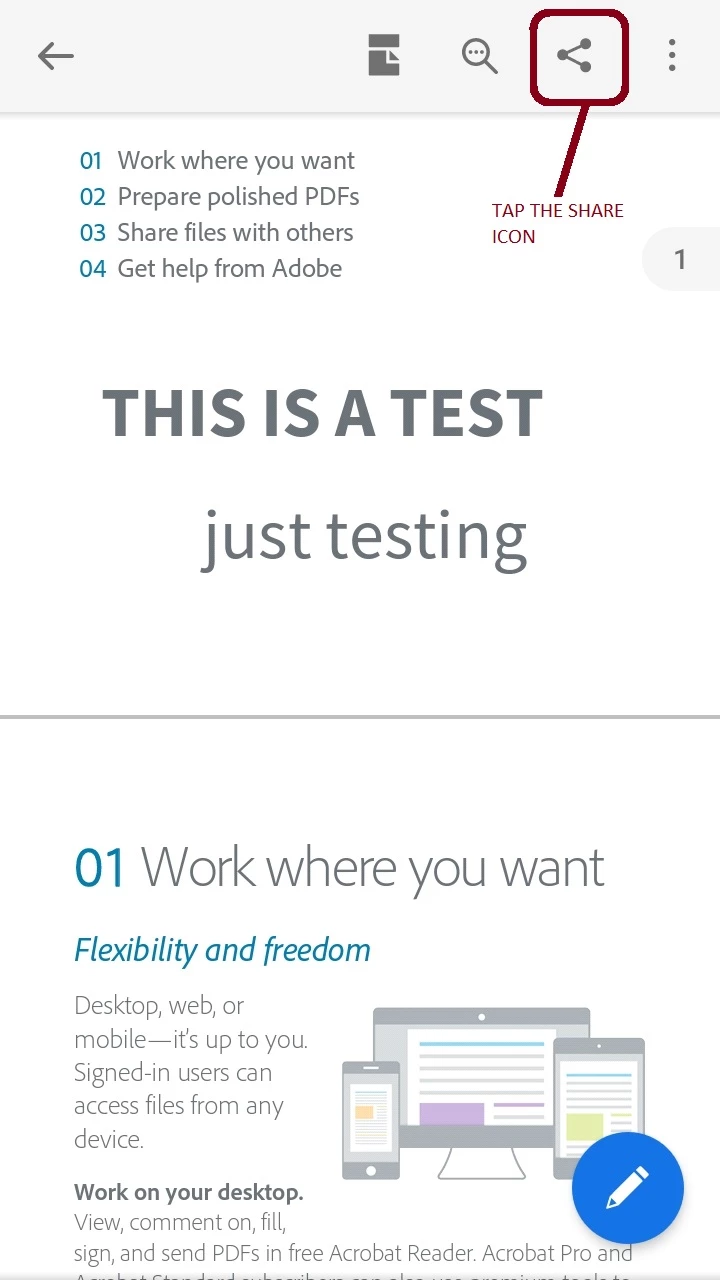
Soon after you tap on this icon another dialogue window will take over the screen: it will give an option to share the file via URL link or share a copy of the file.
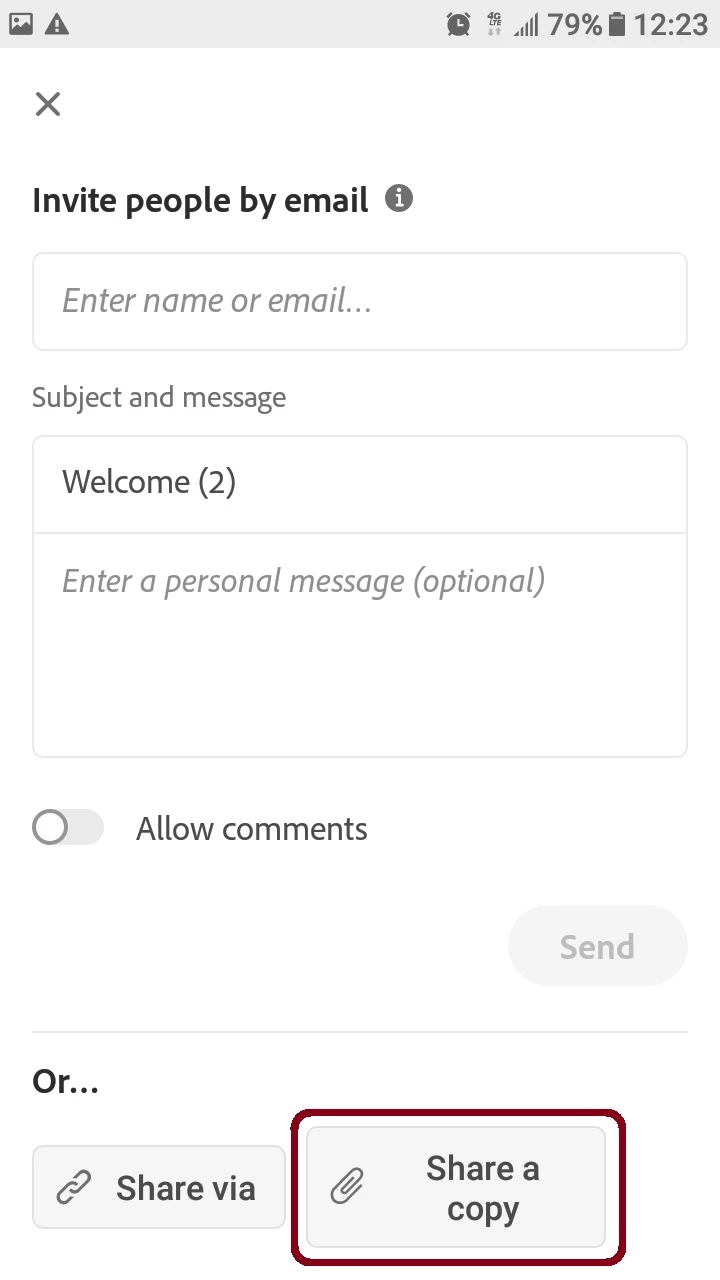
We want to tap on "Share a Copy" since selecting this option will offer other options to upload this file, such as OneDrive. So, on the next screen let's tap on the OneDrive icon.
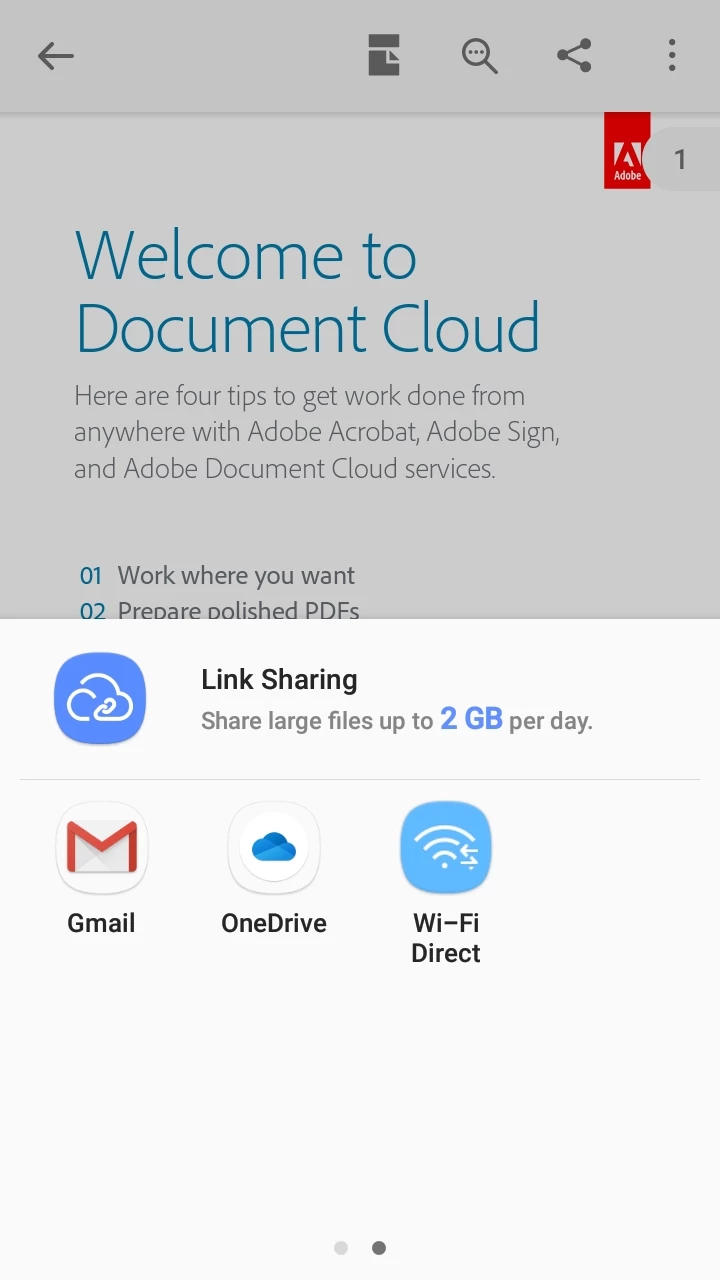
This will open the OneDrive app.
NOTE: Just remember that the app won't appear listed here unless you install the app first, AND, more importantly, set it up as a local file destination in your Android device (how to do this is beyond the scope of this thread, but if you also need some slide to show how its done let me know).
Also keep in mind that this is not a tight service integration (such as Dropbox for example), so the next step will be done with the OneDrive app to finalize the upload of this file onto the OneDrive cloud.
When the OneDrive app opens up, go ahead and tap on the checkmark icon. This is the action that will actually execute and finalize this upload.
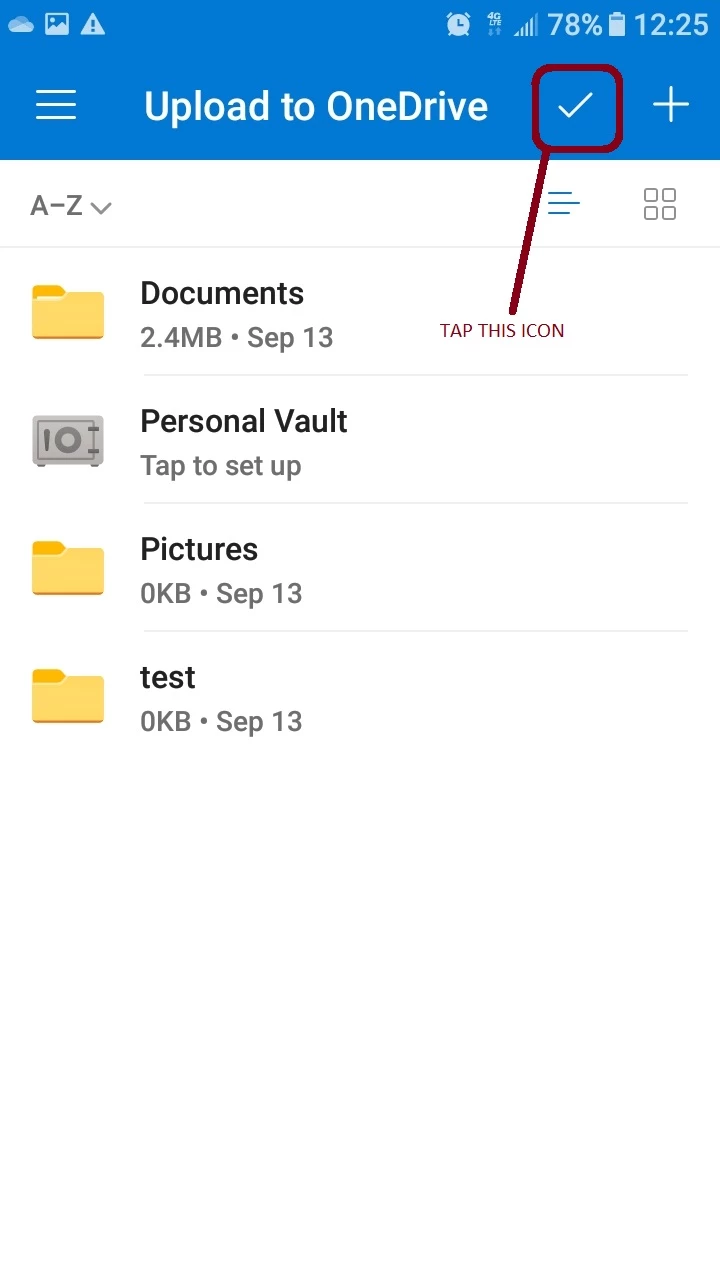
If you're unsure that this upload was successful or not, you can confirm by swiping or rolling down the status and notification bar of your Android device, which is illustrated below in the next slide:
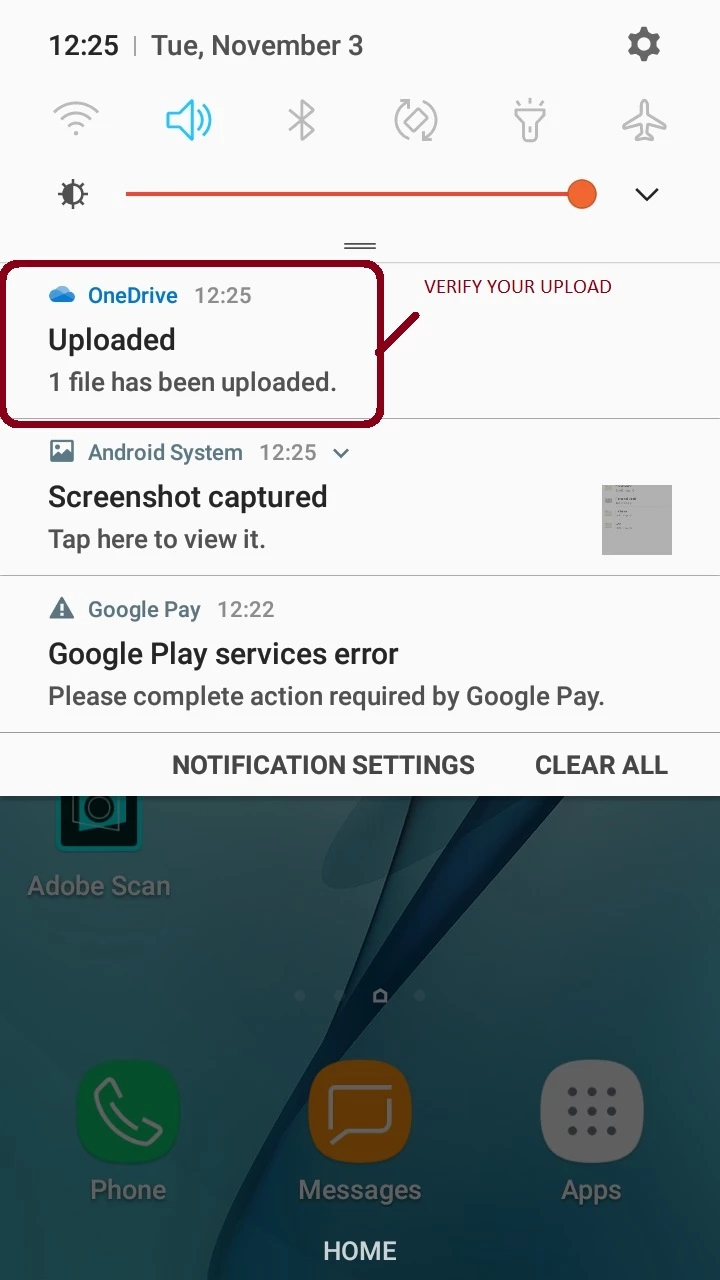
After this upload completes (which is almost instantaneously), you will notice that the PDF file that you've previously opened in the Acrobat Reader Mobile app will appear listed in the "Files" section your OneDrive app.
Next slide:
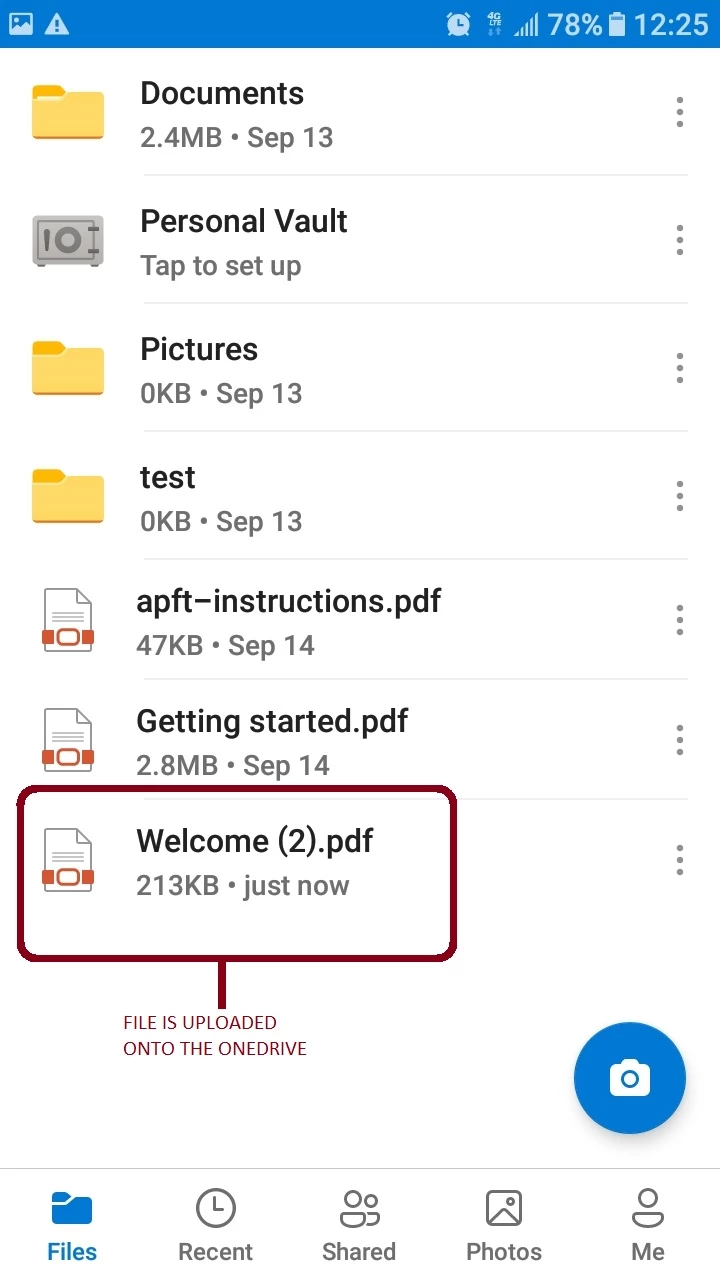
This concludes the first case (Uploading an edited PDF from Acrobat Reader mobile to OneDrive).
Now, here comes the tricky part, which is the second case:
Editing a PDF that resides in the OneDrive cloud space with the Acrobat Reader mobile app
Let's say that now you want to edit a PDF that is already stored in one of the file folders of your OneDrive cloud space.
You will not be able to edit this file with the Acrobat Reader mobile app.
NOTE: When you're working with the OneDrive's "File" screen and you tap directly on any of the PDF files listed there, the selected PDF(s) will be launched in OneDrive's native PDF viewer (shown below in the next slide):
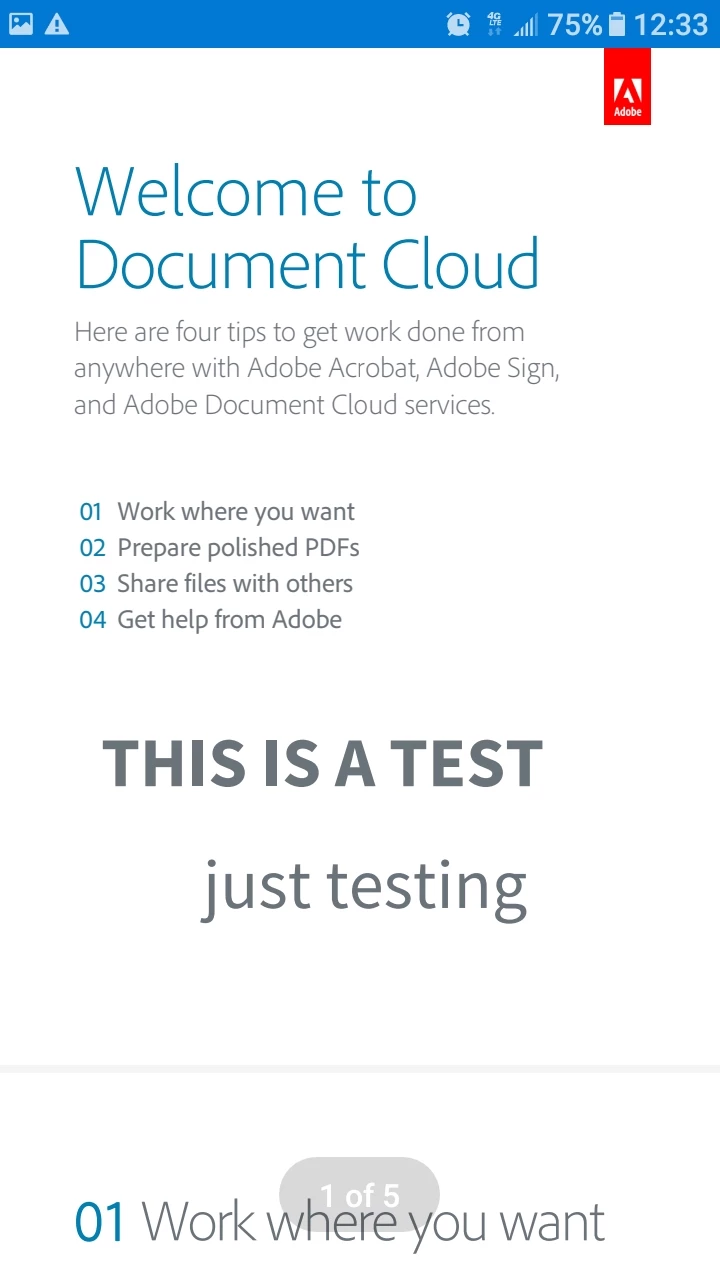
NOTE (continued) : To avoid this, you need to tap on the "three dots" menu item instead (also known as the "more options" icon).
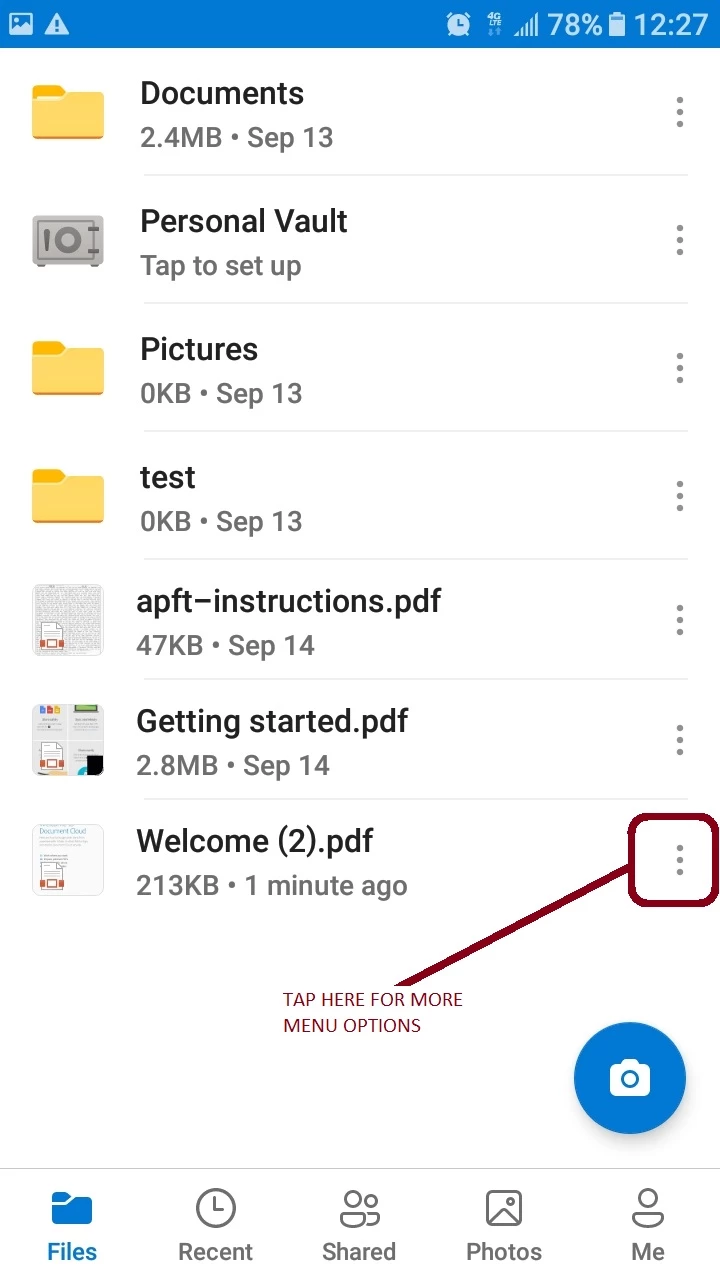
Then select "Save" from the dialogue window that will open next.
See next slide:
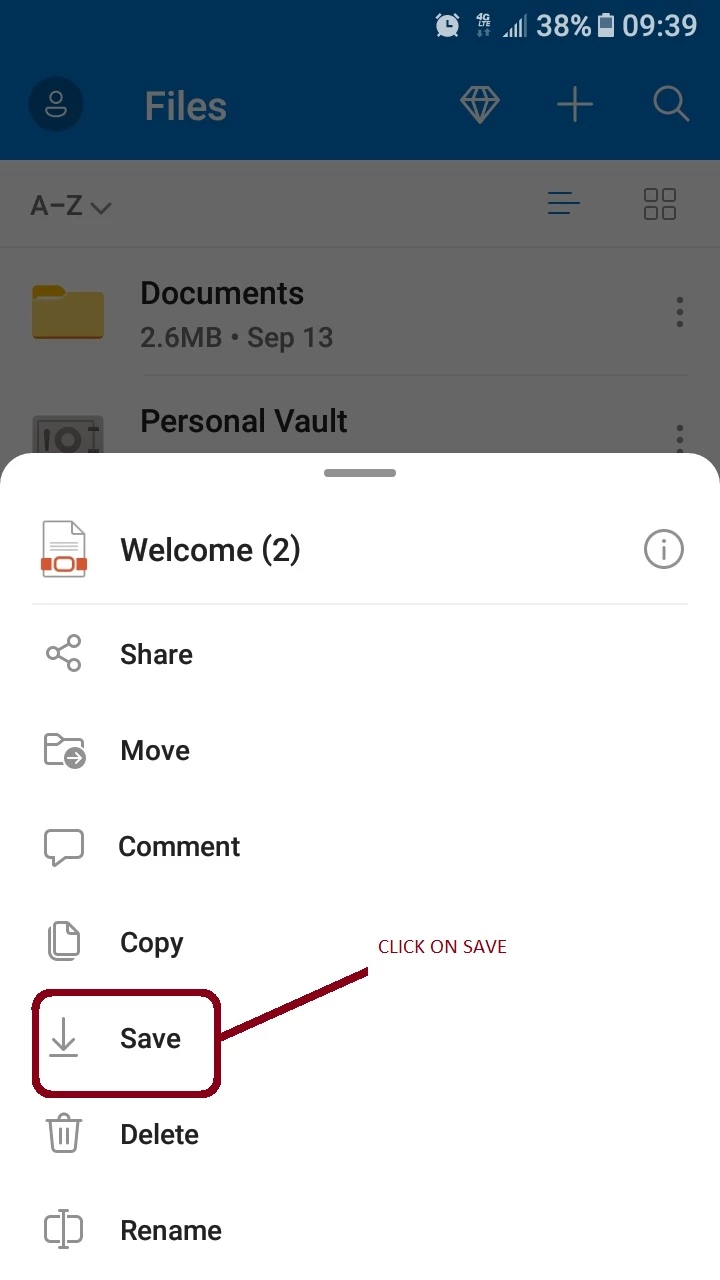
The following slides below are a sequence of steps where I am navigating through the folders in my Android device, and it illustrates how and where I want to save this file.
After I clicked on "Save" (prior slide above) you're presented with the directory structure of your Android device.
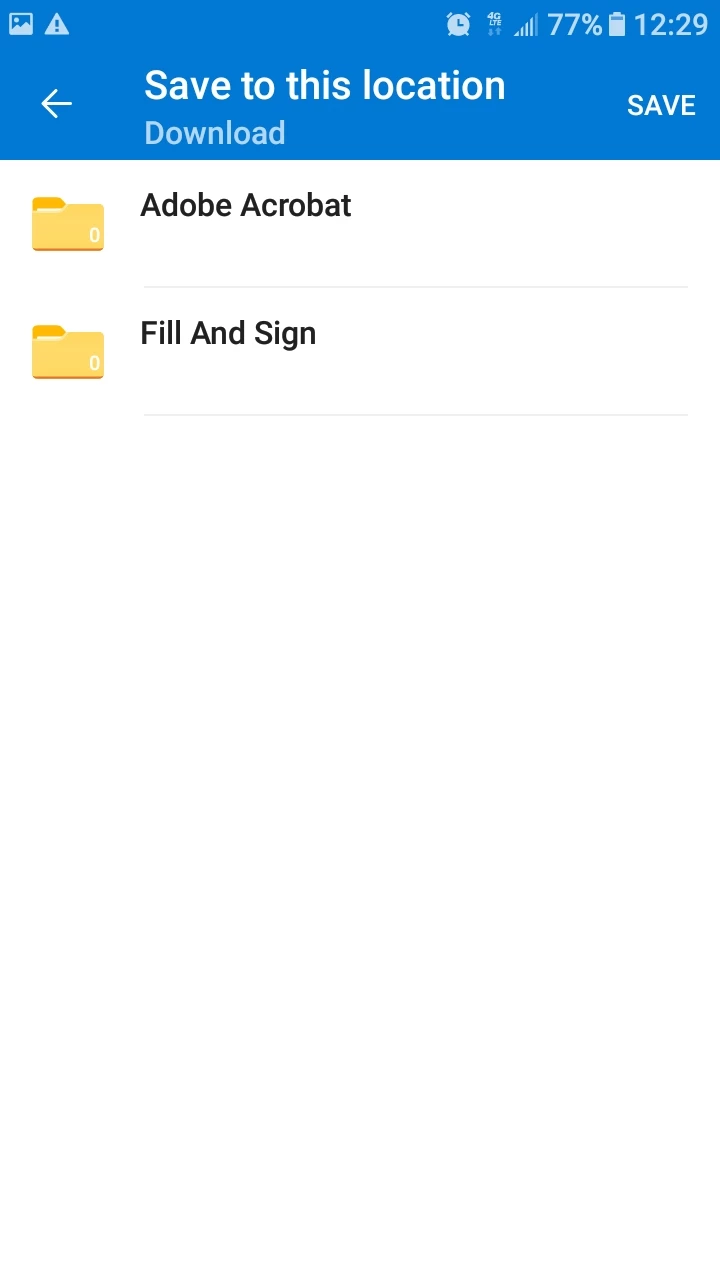
In my example below, I navigated to the "Download" folder of my Android device as my final saving destination.
NOTE: Prior to to accessing this folder I created a sub folder named "Adobe Acrobat" in the Download folder just to be able to easily identify where exactly do I want my file(s) to be moved or transferred to.
Once I navigate to the Adobe Acrobat subfolder that I created, I tapped on "SAVE"
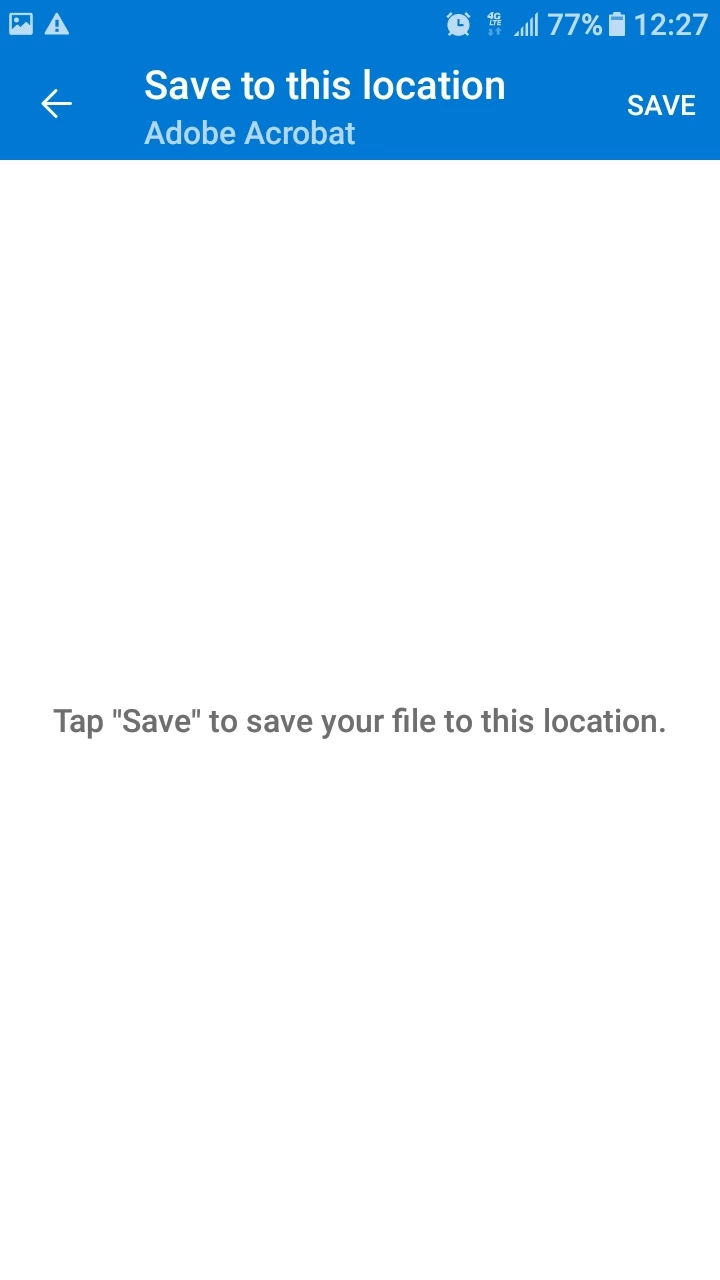
NOTE: As mentioned before in this conversation, this is not a tight integration; sadly, you'll only be able to achieve the editing in the Acrobat Reader Mobile app by saving the file first on a desired local folder of your Android device (as shown in the sequence of steps above).
Additionally, you may also confirm the download (optional) by swiping or rolling down the status and notification bar of your Android device (shown in the slide below).
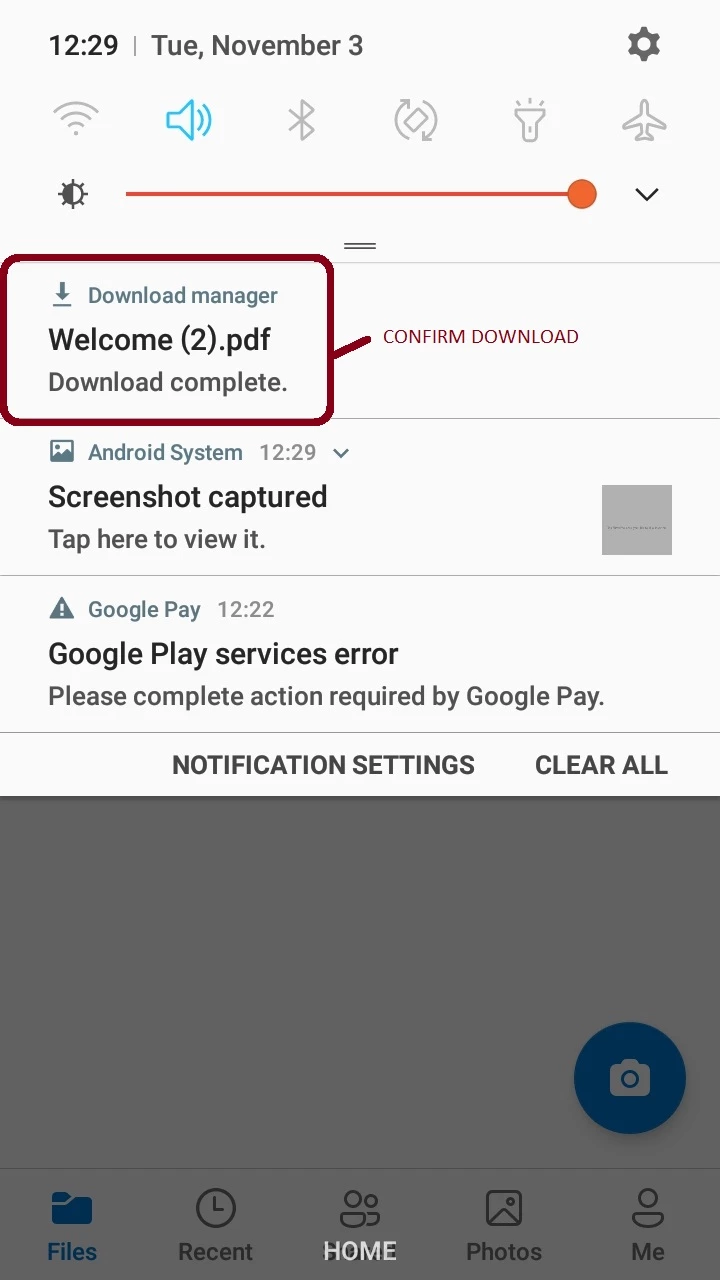
The download manager should show this file has been downloaded .
All you have to do at this point is to tap once on the listed file that is identified by the download manager notification, and the PDF will open natively in the Acrobat Reader mobile app.
NOTE: This will work as long as you've set the Acrobat Reader Mobile app as the default PDF handler/viewer in your Android device. If you don't take this precaution the file will open in a web browser, for example, or it may open with any other program that is marked as default PDF handler in your Android device.
Now, you will be able to work on that PDF.
I hope this helps.
As you can see this was no easy peas to explain nor to figure out. But as Georgii5C72 mentions, this is something that Adobe should develop.
However, that could be taken as a bold statement if we take into account that, as recent as last summer, Adobe, IBM and Red Hat Linux announced a multibillion dollar partnership to lead the hybrid cloud market and hybrid datacenters.
https://www.zdnet.com/article/armed-with-red-hat-ibm-launches-a-cloud-war-against-amazon-microsoft-and-google/
https://blog.adobe.com/en/publish/2020/07/21/adobe-ibm-and-red-hat-partner-to-advance-customer-experience-transformation.html#gs.kfjdpl
https://www.redhat.com/en/about/press-releases/adobe-ibm-and-red-hat-announce-strategic-partnership-advance-customer-experience-transformation
https://www.fiercetelecom.com/telecom/ibm-red-hat-and-adobe-team-up-to-help-regulated-industries-such-as-banking-and-healthcare
https://www.zdnet.com/article/red-hat-and-ibm-announce-a-hybrid-cloud-software-marketplace/
That said, let's meditate profoundly on what is the posture of giants like "Amazon Web Services - Free Cloud Computing with AWS", versus Google Drive, versus Microsoft Azure and OneDrive, AND, more importantly, IF/ SHOULD / WOULD Microsoft be willing to release their cloud technology blueprints to Adobe just to make this app work with the Acrobat Reader app (specially after the deprecation of Microsoft SharePoint while migrating users and customers to OneDrive ; let’s not forget about their Office 365 roadmap too!).
https://docs.microsoft.com/en-us/onedrive/transition-from-previous-sync-client
https://docs.microsoft.com/en-us/onedrive/developer/rest-api/concepts/direct-endpoint-differences?view=odsp-graph-online
In my opinion, I don't even know if this integration is even possible at this time.




 AdChoices