

treyg57705052
Participant
January 8, 2018
Answered

Download all documents from account

  • January 8, 2018
  • 5 replies
  • 23817 views

Hello,

I am trying to download ALL the documents that have been signed from my adobe sign account. How do I do this?

This topic has been closed for replies.
Correct answer Meenakshi Negi

Hi Isaacc,

Please find below the screenshot of the Adobe Sign window with question mark icon marked by the red box:
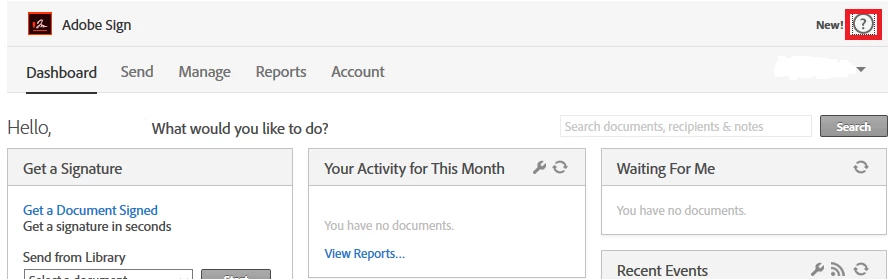
If the option does not appear at your end, try to clear the cache and cookies of the browser.

Then open a new browser window and sign-in into the Adobe Sign account.

You may also open the application in the new incognito window in Chrome browser.

Let us know if you still experience the issue.

Regards,

Meenakshi

5 replies

Participant
June 1, 2023

This is one of the worst implementations of a great feature set i have ever seen.  Is there an alternative program that worlks with esign that is not adobe?  Just getting this thing to work has been an eye opening experience.  Compeltely BS limitations and setting tweaks, unclear limitations based on license level etc, I havent tracked how much time myself and IT have spent searching these help boards, this is just horrible.. Will take our 6000 person organization and use an altenative product the day it is available.  DO better Aadobe

adobi_wan
Participating Frequently
June 1, 2023

One great solution I have found is if your organization has Microsoft Power Automate there is templates for downloading completed Adobe Sign agreements to SharePoint or MS Teams. Try visiting https://make.powerautomate.com/ and search for an Adobe Acrobat Sign flow template. This isn't a retro active change so it won't download past completed agreements but is an automated solution moving forward.

rodzonic
Participant
June 30, 2022

I found a solution:


1. Open 'Adobe Acrobat Pro'

2. Click on 'E-Sign' and Select 'Manage All Agreements'

Here you will find the list of Completed/Expired/Pending Documents; use the filter to get the desired results and then.. From here only use the Keyboard.

3. Hit 'Enter' (to open the file)

4. Use the Shortcut 'Ctrl+Shift+S'

(This will save the document to a desired folder (select for the 1st time if needed to move all downloaded files to a seperate folder)

4. Hit 'Enter'

(This will save the Documents on your Hard Drive)

5. Use the Shortut 'Ctrl+W'

(This will close the opened document and you will automatically return to the 'Manage All Agreements' screen; use the arrow key to navigate and follow the same steps.


Adobe doesn't have an option to download all files at one go; but trust me this method is worth trying; save a lot of time.

Cheers

Rodney Oswin DCruz

(DM me on instagram if you found this useful, thanks; my insta handle id is: rodzonic)

Participant
January 19, 2023

How about if you don't have adobe acrobat pro? Any ideas? 


Participant
January 20, 2021

Where can I find the Dashboard. I'm on page https://na1.documents.adobe.com/public/agreements


Participant
January 20, 2021


isaacc1885905
Participating Frequently
January 19, 2018

Hi Meenakshi,

After I login, I do not see a question mark icon on the upper right corner. Can you take a screenshot of it?    

Meenakshi Negi
Community Manager
Meenakshi NegiCommunity ManagerCorrect answer
Community Manager
January 22, 2018

Hi Isaacc,

Please find below the screenshot of the Adobe Sign window with question mark icon marked by the red box:

If the option does not appear at your end, try to clear the cache and cookies of the browser.

Then open a new browser window and sign-in into the Adobe Sign account.

You may also open the application in the new incognito window in Chrome browser.

Let us know if you still experience the issue.

Regards,

Meenakshi

treyg57705052
Participant
January 15, 2018

I have not received any reply about this - can someone follow up with me?

Meenakshi Negi
Community Manager
Community Manager
January 18, 2018

Hi Treyg,

Sorry for the delay in response.

You can create the PDF of the documents signed by you and then download the file to save on your system.

Take help of the steps mentioned below:

-Sign-in into your Adobe Sign account and go to Manage tab.

-Select the document under the "Signed" tab.

-On right, at the top of the preview window click on PDF. Check the screenshot below:

-Once the file converted into a PDF, download the file and save it.

Check if that helps.

Let us know if you have any questions.

Regards,

Meenakshi

isaacc1885905
Participating Frequently
January 18, 2018

Hi Meenakshi,

Thanks for the quick reply. That method does not work for me, and only allows me to download 1 PDF at a time. Is there a way to download all the signed PDFs in my account? Thank you!