


New Participant
June 28, 2023
Answered

How do I Prevent Automatic Data Fields in E Signatures?

  • June 28, 2023
  • 5 replies
  • 10454 views

Hi,


I am trying to make leases for a few of my tenants (Canada, NS). Whenever I send E-signatures the Data Fields are already present in all sections of the 15 page lease and I need to manually delete each one except for the intended sections. How do I stop Adobe from automatically making data fields and I can just manually add my own?


I have attached a screenshot for reference. The yellow sections automatically fill up and it takes me so much time trying to get rid of it with every lease. The "Save as a Template" does not work either for future use either. 
Correct answer Meenakshi Negi

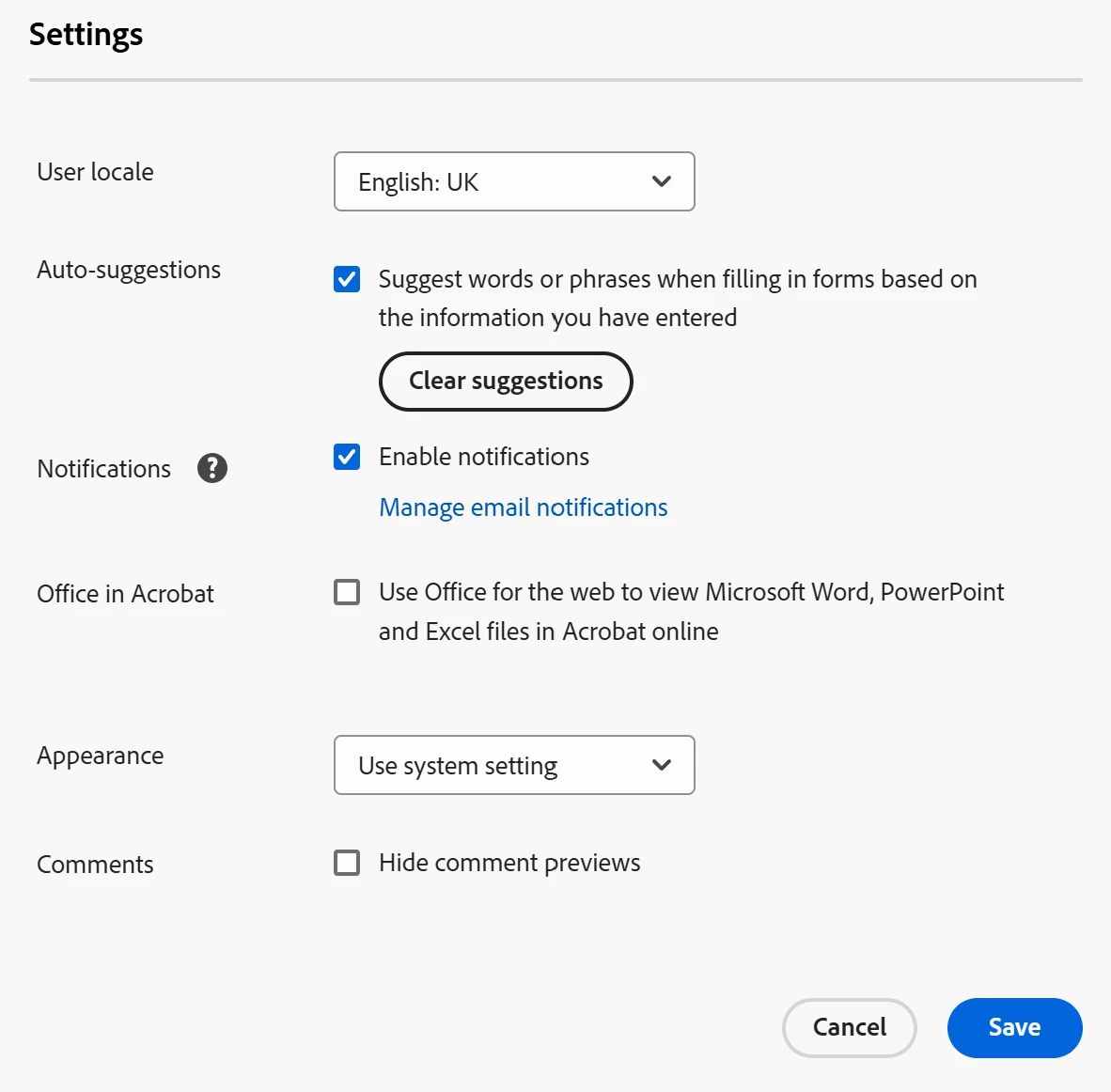
With Pharma version of Adobe, I don't get the E-signing settings showing


Hi smiro,


Thank you for reaching out.


We have checked your account and see that you have the Acrobat Sign Enterprise service plan provided. If you have administrator rights for the account, you can access the settings. Otherwise, please check with the Administrator for your Acrobat Sign account or the IT team in your company. 

For more information on how to access the settings, refer to the following help document: https://adobe.ly/440GXMc


Feel free to let us know if you need any help.


Thanks,

Meenakshi 

5 replies

New Participant
July 21, 2025

I don't have the E-Sign menu in my settings.  Any ideas?

New Participant
July 18, 2024

SOLUTION.
You may not like it - but it works.

Print to "Adobe PDF" in your printer. It flattens the PDF (removes all fields from being fillable).


Then save this "Printed PDF" wherever you need it saved. 

Then e-sign this newly created PDF - all the previously fillable fields are locked in/non-fillable and you're good to add Signature field, maybe Date & Name - and you're away!!


NB: don't use "Save As" - as it'll most likely not work properly - you have to use the printer "Adobe PDF" (an option in the little printer icon)!


New Participant
March 21, 2025

This did not work for me.
The document is already a PDF, so I do not have the option to "Print to PDF" from within the PDF print interface..

New Participant
March 21, 2025

The only real solutions is to use the E-Signatures in "LEGACY MODE" this does not put automatic fields in. So that's what I've been doing since this problem continues for well over a year. 

New Participant
May 3, 2024

this is the worst upgrade Adobe has made so far. Did not work for me either


New Participant
March 21, 2025

I agree. This change makes Adobe unusable.
If I can not turn this off (which I have attempted three times following the steps above), then the software is useless to me and I will have to find an alternate solution for e-signatures.

AkanchhaS8194121
Braniac
June 30, 2023

++adding on to the expert's suggestion.

This is a fillable PDF that you have been trying to send for E-signature. That is the reason it automatically detects the form fields available on it.


Following the above steps, disabling the detection of form filed in Acrobat's preferences will help you to achieve what you are willing to do.


Thanks,

Akanchha  

ericn43237979
New Participant
March 5, 2024

this did not work for me.  I did not create a fillable form...just a word doc with Name:______________________. but Adobe make it a fillable form.  Fine for the customers name but my name is typed in and it wants to put a box over it that i cannot delete.  I unchecked the box as mentioned above then restarted adobe but it still detects the fields??

New Participant
April 21, 2024

I am having this same issue. I keep deleting the field and it doesn't go away. Form field detection is disabled. I am at a loss.

Bernd Alheit
Braniac
June 28, 2023

In the preferences of Adobe Acrobat disable the detection of form fields.