



Learn more about all the Signing orders in Adobe Sign.
Sending documents and collecting signatures and approvals is what Adobe Sign is all about!
Every customer has different requirements regarding who needs to interact with the document and in what order, so there are a number of workflow features available in the Send page interface you should know about.
- Sequential signing workflow
- Parallel signing workflow
- Hybrid workflow (Enterprise only)
- Recipient Groups (Enterprise only)
- Sequential signing workflow:
Signers receive and sign the document in the order that their e-mail addresses were entered into the To: field. Once the last signer completes the signing process, then all parties receive a Signed & Filed e-mail with the signed PDFs attached.
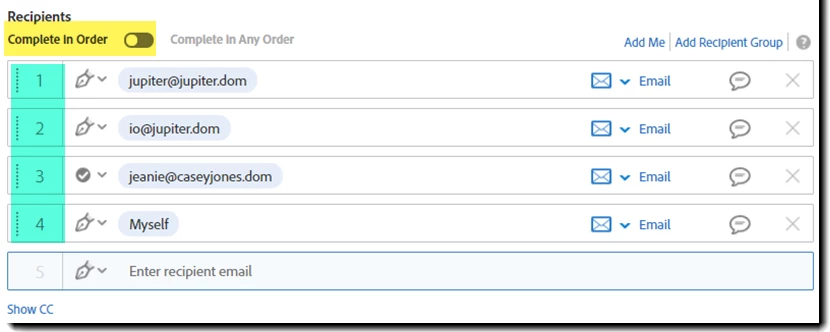
2. Parallel signing workflow:
Click Complete in Any Order to start a parallel workflow.
All the recipients receive the document at the same time and can sign in any order. Once the last signer has completed the signing process, then all parties receive a Signed & Filed e-mail with the signed PDFs attached.
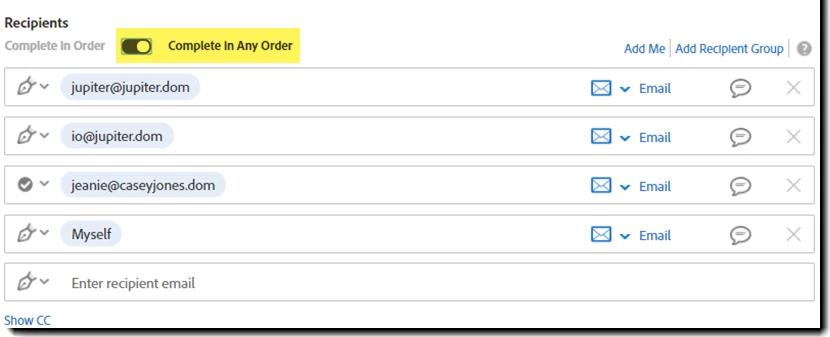
3. Hybrid workflow (Enterprise only)
A “Hybrid” workflow is an instance of the sequential participation order where one or more of the steps includes two or more recipients gaining access to the document at the same time. All of the signers/approvers of the “parallel” step will need to complete their part before the sequential process moves to the next step.
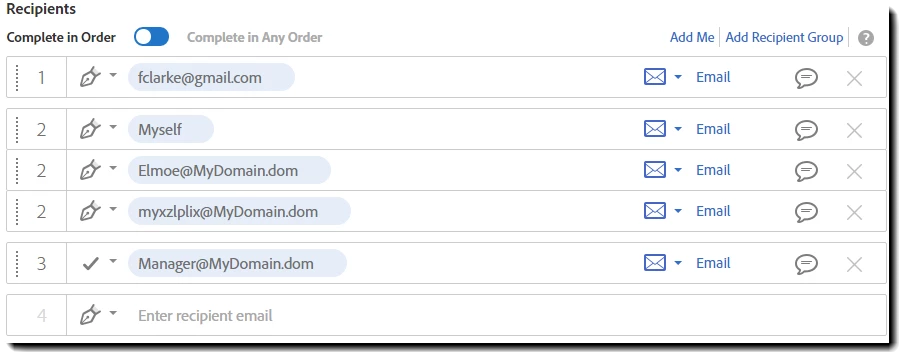
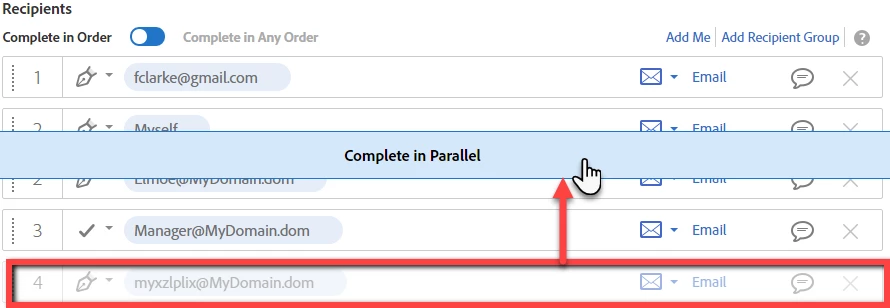
To create a hybrid group, enter the email addresses of each party as if they were individual recipients, and then click and drag the recipient field over another one in the hybrid group. You will see on screen the message that you are creating a parallel group. Manually changing the index numbers to the same value will also create the hybrid group.
Are you someone who loves the Tutorial, rather than reading the steps? Watch the video
4. Recipient Groups (Enterprise only)
Recipient Groups are useful when you need sign-off from a team or an organization, but not from a specific individual in that group. Any member in the group is authorized to sign or approve on behalf of the entire group.
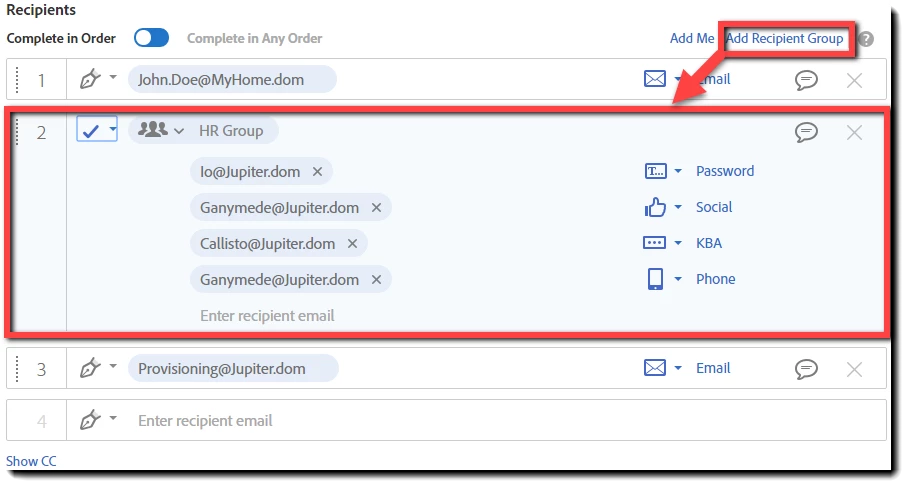
To understand this with an example, click here
Additional, yet useful information:
- Signing order account settings:
An account administrator can set the default signing order or remove this option for the sender.
Navigate to Account > Account Settings > Send Settings > Signing Order or Recipient Groups
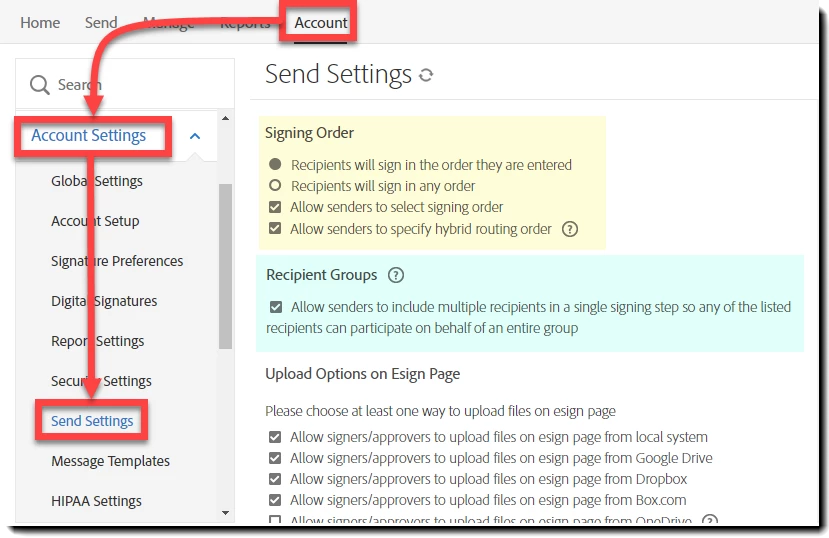
Hope this gives a better clarity of all the Signing workflows of Adobe Sign. Have any further question in mind? join the conversation here. We are listening!
To discover a host of other great features – Go straight to: Adobe Sign Get Started guide | Manage, track, and change agreements | Looking for an option to delete document from Adobe Sign? We can help you!| Sent a document for signature to an incorrect email? Here’s how you can make correction.
 AdChoices