


New Audio Plugins for After Effects in AE 26.0x8
Starting with After Effects Beta build 26.0x8, we are introducing 3 new built-in audio effects, the first time in more than 20 years that new audio effects have been added to After Effects.
Gate - Your Audio Noise Door
The Gate effect silences audio that falls below a certain volume threshold. It's perfect for cleaning up noisy recordings, removing background hiss, or creating dramatic audio cuts.
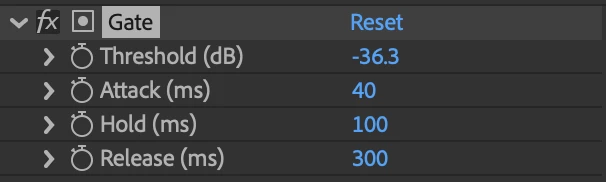
Key Parameters:
- Threshold (dB): Range -60dB to 0dB (default: -60dB). Audio below this level gets muted. Set it just above your background noise level.
- Attack (ms): Range 0-1000ms (default: 10ms). How quickly the gate opens when audio exceeds the threshold. Fast attack = immediate opening, slow attack = gradual fade-in.
- Hold (ms): Range 0-2500ms (default: 40ms). How long the gate stays open after audio drops below threshold. Prevents rapid on/off switching.
- Release (ms): Range 5-4000ms (default: 220ms). How quickly the gate closes once the hold time expires. Fast release = abrupt cutoff, slow release = gentle fade-out.
Tip: Start with the default -60dB threshold and adjust upward until background noise disappears, but be careful not to cut off the natural decay of your main audio.
Compressor - The Volume Leveler
Compression reduces the difference between the loudest and quietest parts of your audio, making everything more consistent and punchier. It's essential for dialogue, music, and professional-sounding mixes.
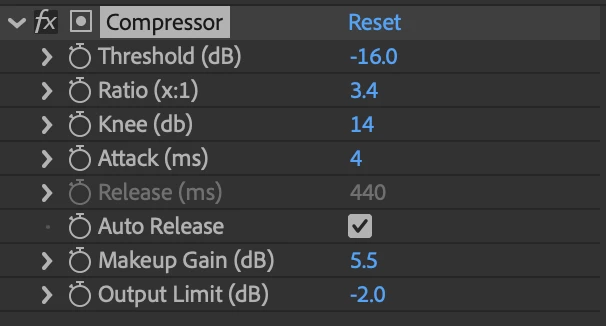
Key Parameters:
- Threshold (dB): Range -60dB to 0dB (default: -16dB). The volume level where compression kicks in. Audio above this gets compressed, audio below stays untouched.
- Ratio (x:1): Range 0.4:1 to 30:1 (default: 3:1). How much compression is applied. A 4:1 ratio means for every 4dB above threshold, only 1dB comes out.
- Knee (dB): Range 0-30dB (default: 15dB). Smooths the transition at the threshold point. Larger values = gentler compression onset.
- Attack (ms): Range 0-400ms (default: 6ms). How quickly compression starts working once audio exceeds threshold. Fast attack tames sharp peaks.
- Release (ms): Range 1-4000ms (default: 440ms). How quickly compression stops after audio drops below threshold. Affects the "breathing" feel.
- Auto Release: Checkbox (default: ON). When enabled, automatically calculates optimal release time and disables manual release control.
- Makeup Gain (dB): Range -30dB to +30dB. Since compression reduces overall volume, this adds it back to maintain proper levels.
- Output Limit (dB): Range -30dB to 0dB. Acts as a final limiter to prevent clipping.
Sweet Spot: For dialogue, try the default 3:1 ratio with fast attack. For music, try gentler 2:1-4:1 ratios with slower attack times.
Distortion - The Creative Destroyer
This effect clips and saturates your audio signal, creating harmonics and overtones that weren't there before. Use it for everything from subtle warmth to full-blown destruction.
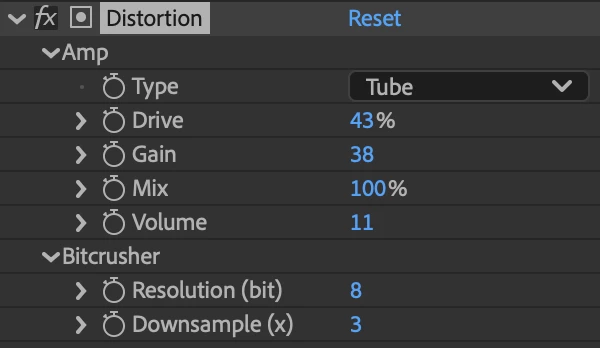
Key Parameters:
Distortion Section:
- Type: Dropdown menu with options: Soft Clip, Hard Clip, Saturation 1, Saturation 2, Tube, Fuzz (default: Soft Clip). Different approaches to distortion.
- Drive: Range 0-100% (default: 25%). How much you're "overdriving" the effect. Higher values = more distortion intensity.
- Gain: Range 0-300 (default: 25). Pre-distortion amplification boost.
- Mix: Range 0-100% (default: 100%). Blends between original (dry) and distorted (wet) signals. 100% = fully distorted, 0% = no effect.
- Volume: Range 0-100 (default: 11). Controls the final output level after distortion is applied.
Bitcrusher Section:
- Resolution (bit): Digital bit reduction for lo-fi effects
- Downsample (x): Sample rate reduction multiplier
Creative Uses:
- Subtle warmth: Soft Clip or Tube type with low drive (10-30%)
- Radio voice effect: Hard Clip with medium drive and reduced mix
- Aggressive sound design: Fuzz or Hard Clip with high drive (70-100%)
- Lo-fi effects: Use the Bitcrusher section to reduce resolution/sample rate
Putting It All Together
These effects work great in combination! A common chain might be:
- Gate first to clean up noise
- Compressor to even out dynamics
- Distortion for creative flavor
Remember, audio processing is all about serving the story. Don't add effects just because you can - make sure each one has a purpose in your project.
Why Audio Effects Matter in After Effects
Before you ask... "Why are you spending time on audio effects and not all the other things missing from AE?". Here's the thing:
Existing Audio Effects Are Actually Used!
- 350,000+ instances of the existing audio effects are used in projects every month.
- AE may not be a dedicated audio app, but users are still managing audio in their compositions daily. These 3 effects are missing and often drive users out of AE to fix their audio elsewhere.
Real Problems We Keep Hearing About
- Rough dialogue tracks: Users tell us working with less-than-perfect audio is difficult to compose against. A Gate and Compressor would make listening to, and working with, that audio a much better experience - way easier than keyframing workarounds.
- Creative audio needs: Sometimes your music tracks feel a little dull. A little distortion with some saturation is often exactly what you need to give that audio the character you're looking for.
- Retro aesthetics: Chip tunes are still a thing. 8-bit graphics are still a thing. Use that bit crusher to knock the audio down to match the visual style perfectly.
- It has been way too long since AE added any new audio plugins. Honestly, we wondered if we knew how to still make them!
- We're still working on many of the other things you want - these just happen to be ready now and address immediate user needs.
Give them a try on your next project with audio and let us know what you think!
Thanks!


 AdChoices