



New in Beta: Shadow Catchers and Shadow Colors
Version 24.5x4 of After Effects Beta introduces support for two new 3D features in the Advanced 3D renderer: shadow catchers and shadow colors.
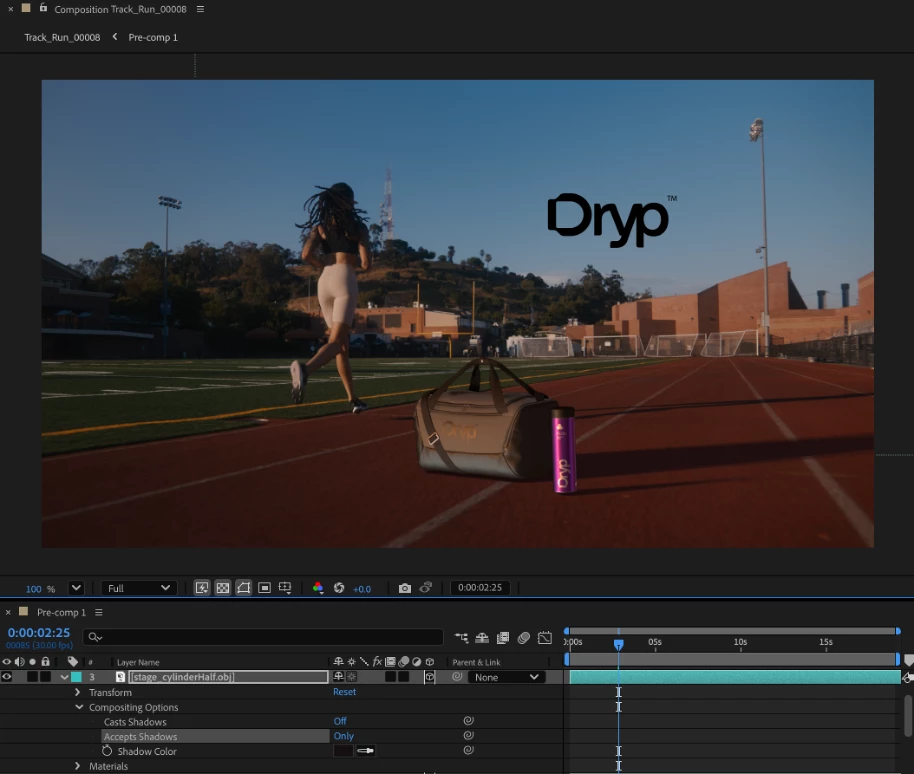
Shadow catchers are 3D layers that “catch” shadows cast by 3D models but are otherwise transparent. They’re a great way to make a 3D model look like it’s part of a 2D video or image.
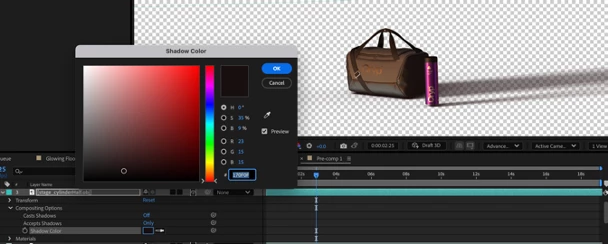
Beta users can also customize a shadow’s color tint and opacity for a more realistic composite. Color can be set per-layer rather than per-light, which makes it possible to do things like cast pink-toned shadows on a model while the model casts blue shadows onto the ground. Shadow Color also works with shadow catchers.
Getting Started
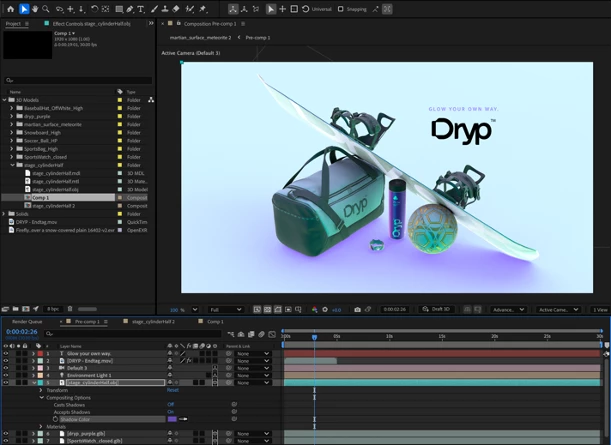
Shadow catchers and shadow colors work with any 3D layer that can accept shadows using the Advanced 3D renderer. The Accepts Shadows and Shadow Color properties can be found under Compositing Options for 3D model layers and Material Options for native AE 3D layers (3D text, shapes, solids).
To create a shadow catcher, set your 3D layer to Accepts Shadows – Only. This mode renders shadows cast by other 3D layers over an otherwise-transparent layer, allowing for the seamless integration of 3D objects into a 2D scene.
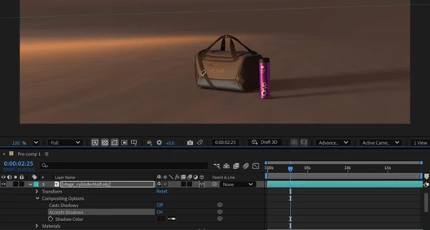
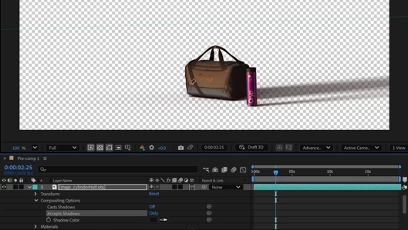
To change the color of a shadow, adjust the Shadow Color property to give your shadows a more natural or creative hue. Shadow Color defaults to black, but real-world shadows are rarely true black and even subtle shifts in tone can create a much more realistic composite.
You can adjust shadow quality and where shadows are cast in Advanced 3D’s Renderer Options.
Known Issues and Feature Limitations
- Shadow Colors are not currently retained when round-tripping projects between beta and release versions of After Effects and back.
- Shadows cast onto shadow catchers are not visible if the shadow catcher layer is referenced in an effect or used as a luma-based Track Matte.
- Multiple overlapping (coplanar) shadow catchers may result in artifacting.
- Shadow properties cannot be used as Essential Properties.
- If shadows disappear, you may need to reset the shadows’ Casting Box in Renderer Options. Let us know if this is an issue for you.
Please give these new options a try; we're looking forward to your feedback (and to seeing your projects)!
 AdChoices