




New in Beta: Unmult effect (about time, right?)
Hello compositors and fans of transparent backgrounds! The After Effects team is excited to introduce a brand-new plug-in: a native Unmult effect.
We know... it's about time.
Starting in After Effects Beta version 26.0.08, you’ll find Unmult under the Effect > Keying menu or in the Effects & Presets panel > Keying category.
How Does it Work?
Unmult removes solid black or white backgrounds from a layer to restore the original transparency from when your footage was captured.
For example, if you want to composite this fire element over a grill while people enjoy a barbecue in the background, Unmult converts the black areas to transparency and restores the original colors in semi-transparent regions. Instead of black fringing around the fire, you’ll see vibrant reds, yellows, and oranges.


Effect Parameters
Some Unmult effects you may have used have one or two parameters, while others have none. These plug-ins work best with clips where the background is perfectly black, but we know not all footage is ideal—so we’ve included flexible controls:
- Background Color: Traditionally Unmult is for black backgrounds, but some stock elements are shot against white, so we’ve got you covered.
- Black Level / White Level: A threshold to remove pixels above or below the selected value. This control changes name based on the Background Color setting. Set the Softness to “0” to clearly see how the threshold works.
- Black Level: Drag the slider up until all the black in the image is gone. Any color values below the Black Level will become transparent.
- White Level: Drag the slider down until all the white in the image is gone. Any color values above the White Level will become transparent.
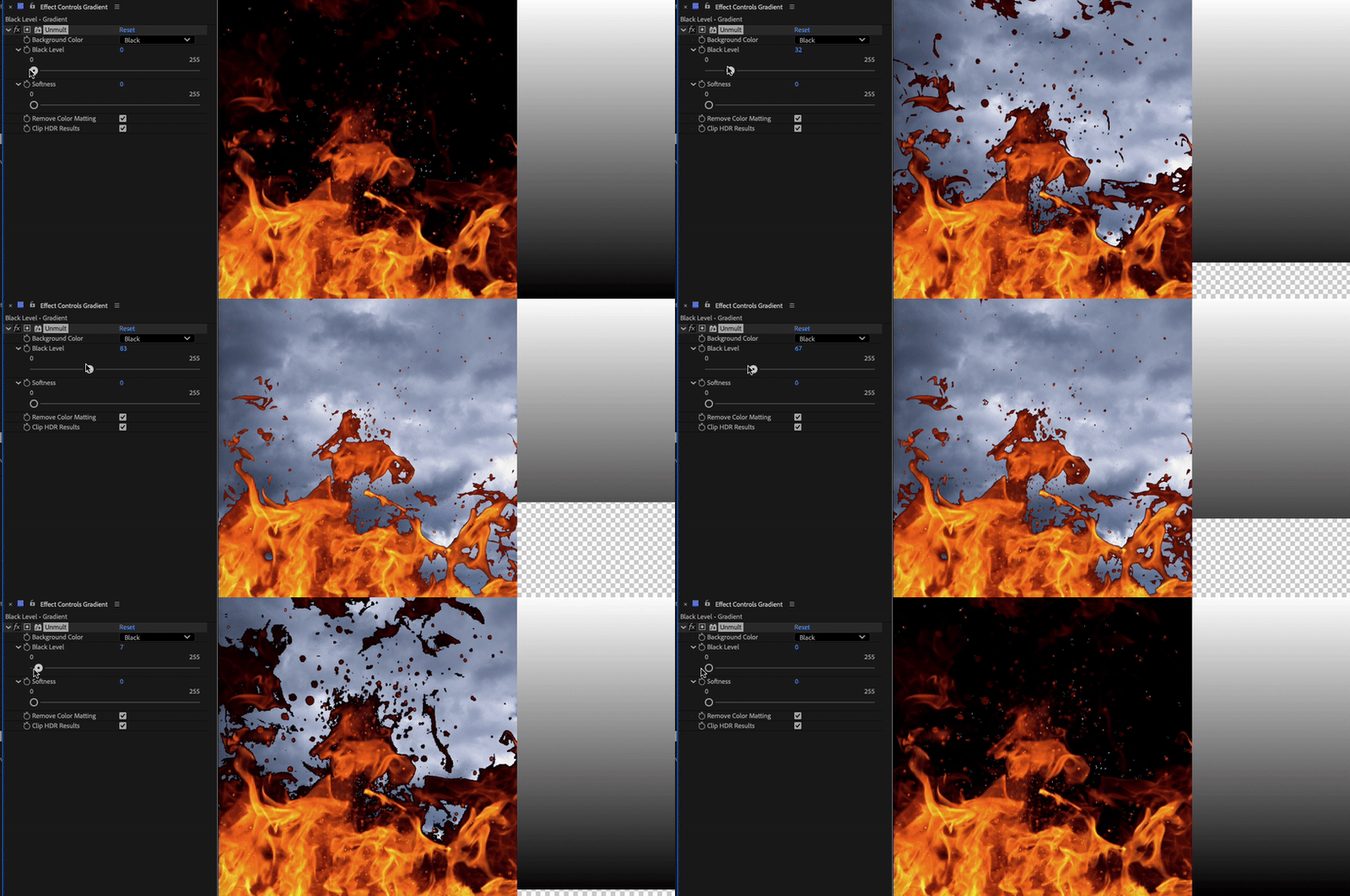
With Softness at “0”, raising the “Black Level” removes darker areas and reveals the sky behind the fire. The gradient on the right shows how the threshold affects values from 0–100.”
- Softness: Increase the value to create a smoother gradient between transparent and opaque areas.
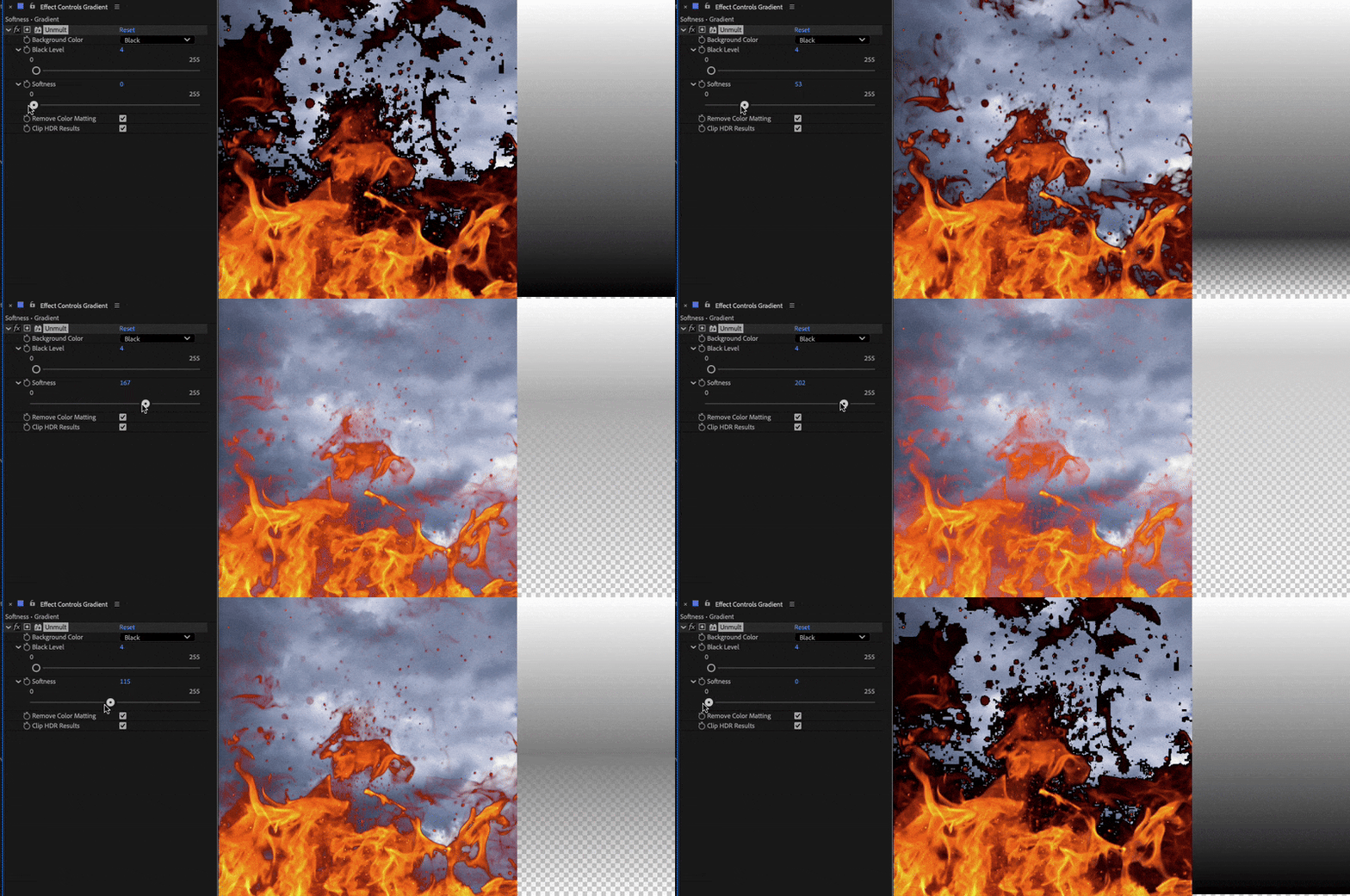 With the Black Level set to “4”, increasing the Softness slider smoothly blends outward from the threshold.
 - Remove Color Matting: Removes the background color from semi-transparent areas, then restores colors to what they likely were before blending with the background.
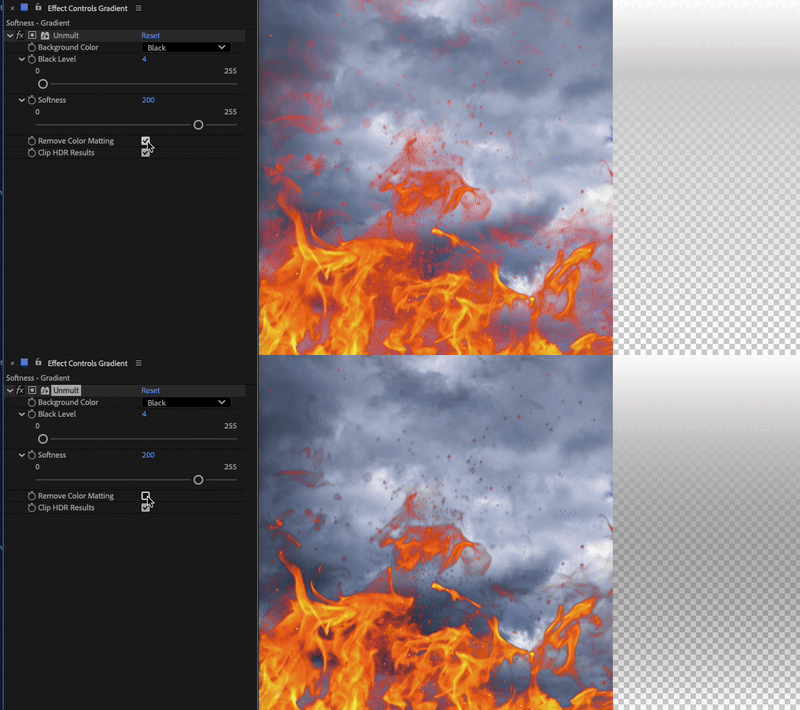
- Clip HDR Results: Limits color values in HDR footage to prevent extreme results when working with negative values or values greater than “1” during the Remove Color Matting process.
Supported Features
- 8-bpc, 16-bpc, and 32-bpc color
- CPU and GPU rendering
- HDR footage
 AdChoices