


Known Participant
July 17, 2024
Answered

3D Tracking And Inserting Object With Element 3D Doesn't Work Correctly

  • July 17, 2024
  • 2 replies
  • 5380 views

Hello people,


I'm working on a project where I'd like to incorporate 3D models via Element 3D. In this particular case it's an old tower in the desert. Here's what I did according to what I've learnt in the tutorials I've watched:


1 - I did the 3D tracking and created a solid and a camera. I played with the solid to match the alignment of the ground. I imported the tower model in Element and set the Auxilary Animation on Channel 1.


2 - Back in After Effects I Opened Element's Effect Controls on Group 1 and created a Group Null.


3 - I then copied the 3D tracked solid's position value to that group null, after which you can see the tower significally changes its sizes maybe due to being further away in Z space.


4 - I changed the position and scale values in the Group 1 > Auxilary Channels > Channel 1 to make the tower look natural for the spot I'm trying to place it.


In the end when I hit play, You can see the tower sliding off the point where it's supposed to be, while the group null stays exactly where it should be over the solid. So my question is why is this happening? Isn't the object supposed to follow the group null and if the null stays in one spot, shouldn't the tower stay there as well, rather than drifting off?


I'm uploading a screen recording video to show the process I'm describing above so you can see the problem. Any help will be greatly appreciated!
Correct answer Rick Gerard

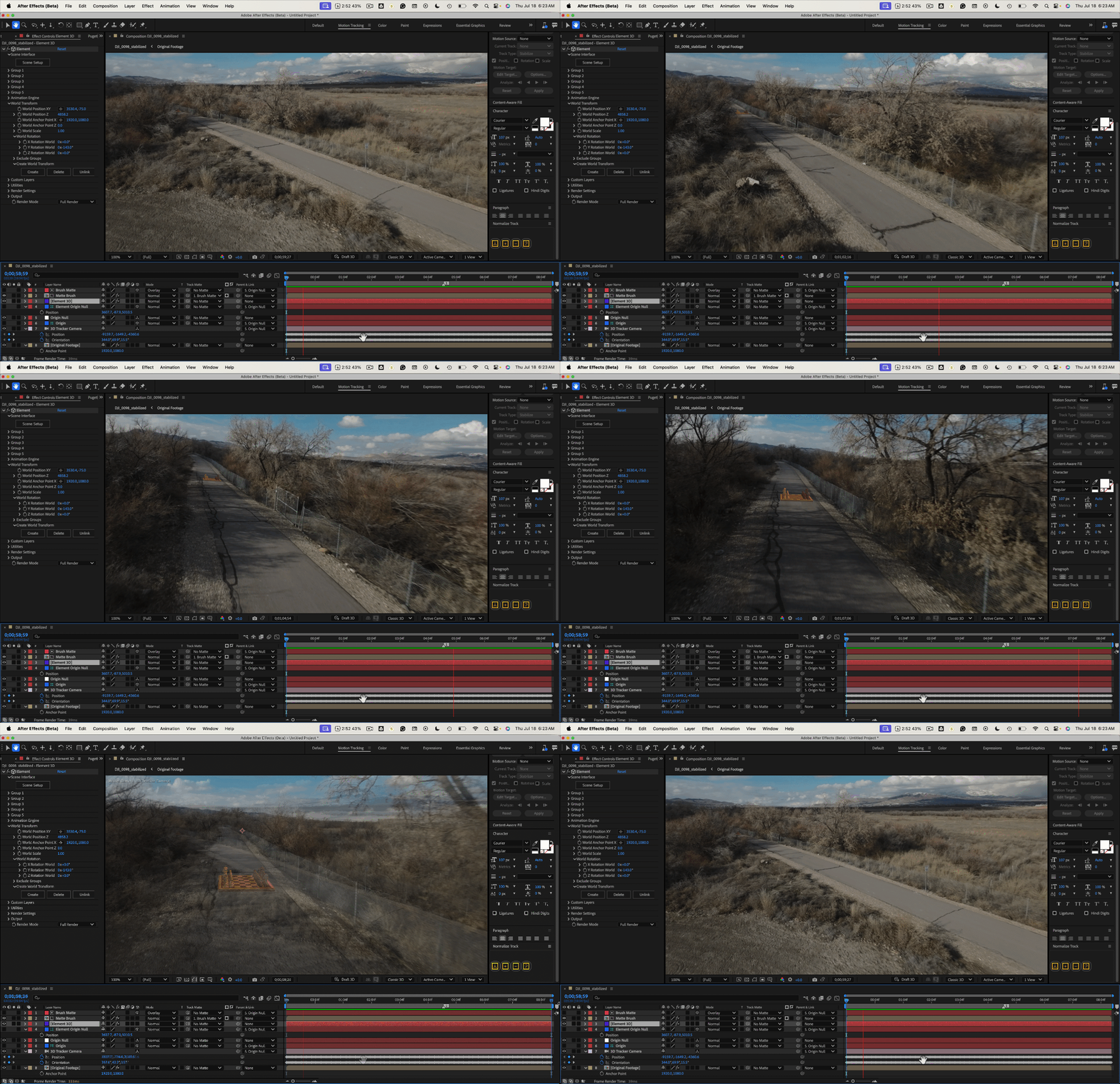
Setting an origin and ground plane is critical when using AE's Camera Tracker. When the tracking is complete, the first keyframe sets the reference layer (solid preferred instead of a null) at 0, 0, 0. The workflow to get things lined up with AE's world center is as follows:

  1. Run the Track Camera tool using the Motion Tracking workspace using Detailed Analysis first
  2. Set an origin and ground plane, then add a Solid and a Camera using the same target (using a solid allows you to see if the tracking is accurate), name the layer Ground, set the layer as a Guide Layer
  3. Add a new 3D null to the composition, name the layer Origin Null, and position the null at 0, 0, 0
  4. Use the Camera Tracker again to position a target and create a solid where you want the center of the Element object to be, name it Element Origin and make it a guide layer
  5. Parent the 3D Tracker Camera and all 3D Tracker layers to the Origin null
  6. Open the position property of the Center null layer and reset the null's position to Comp Center
  7. Add your 3D Element object
  8. Spin down the World Transform properties in the Element 3D layer and copy the Position X, Y, Z, and Rotation Y values from the Element Origin layer to the Element/World Transform properties (or use an expression)
  9. Make final adjustments to the position of your Element Object using the Effects Control Panel


That should do it. You can also use other Camera Tracker/Track solids as Track Mattes for a copy of the footage to easily fix any other problems with the layers. 


A free script called Normalize Track will simplify the process. The link to the free script will also point you to a tutorial.

2 replies

Community Expert
July 20, 2024

I have not had time to create the tutorial, but I have some animation presets to help you align your Element 3D model to a "target" layer that you have placed using AE's Camera Tracker. If the "target" solid is precisely where you want the World origin of your Element 3D models.


This is the expression for World Position XY;

c = [thisComp.width/2, thisComp.height/2];
p = thisComp.layer("target").transform.position;
[p[0] - c[0], p[1] - c[1]];

This is the expression for World Position Z;

z = thisComp.layer("target").position[2];


I will let you know when the tutorial is up.

Known Participant
July 21, 2024

Thank you, I'll take a note with those expressions and will be keeping my eyes open for the tutorial as as well to better understand things. I think I managed to stick the Element model exactly where it should be staying when I play the video. I did nothing different than what you already described in your initial comment. I just added the Element layer all over again on a new solid and it suddenly worked correctly. By the way, would you also give me a tip on the question about the light and shadow? It'd be very grateful for that too.

Known Participant
July 24, 2024

Update: Regarding the light, it was a silly mistake - seems I forgot to check Enable on the shadows in the Render section of Element's layer.

Mylenium
Brainiac
July 17, 2024

Transforms are relative to the group's origin. You probably make a mess by not having everything zeroed out at the world originband then the discrepancies add up.


Mylenium 

Known Participant
July 18, 2024

Hi Mylenium and thank you for your reply to the thread.


I tried to do something about this, but with no different result. I made the Element layer fit to comp so it can be centered, then I created the group null. Then I pasted the 3d tracking solid's position values to the null, and scaled/changed the Tower's position from the auxilary options, but again I see it drifting off. It seems I didn't quite understand what you mean, could you please give me more specific advice what I should do?

Rick GerardCorrect answer
Community Expert
July 18, 2024

Setting an origin and ground plane is critical when using AE's Camera Tracker. When the tracking is complete, the first keyframe sets the reference layer (solid preferred instead of a null) at 0, 0, 0. The workflow to get things lined up with AE's world center is as follows:

  1. Run the Track Camera tool using the Motion Tracking workspace using Detailed Analysis first
  2. Set an origin and ground plane, then add a Solid and a Camera using the same target (using a solid allows you to see if the tracking is accurate), name the layer Ground, set the layer as a Guide Layer
  3. Add a new 3D null to the composition, name the layer Origin Null, and position the null at 0, 0, 0
  4. Use the Camera Tracker again to position a target and create a solid where you want the center of the Element object to be, name it Element Origin and make it a guide layer
  5. Parent the 3D Tracker Camera and all 3D Tracker layers to the Origin null
  6. Open the position property of the Center null layer and reset the null's position to Comp Center
  7. Add your 3D Element object
  8. Spin down the World Transform properties in the Element 3D layer and copy the Position X, Y, Z, and Rotation Y values from the Element Origin layer to the Element/World Transform properties (or use an expression)
  9. Make final adjustments to the position of your Element Object using the Effects Control Panel


That should do it. You can also use other Camera Tracker/Track solids as Track Mattes for a copy of the footage to easily fix any other problems with the layers. 


A free script called Normalize Track will simplify the process. The link to the free script will also point you to a tutorial.