


Inspiring
February 26, 2025
Answered

Advice for 3D modeling beginners

  • February 26, 2025
  • 2 replies
  • 341 views

Howdy, I'm experienced in video editing but am an After Effects virgin. I was told that the 3D modeling aspect of After Effects is still pretty new. So I am unsure if my current issue is just me being new or the new software being jank.


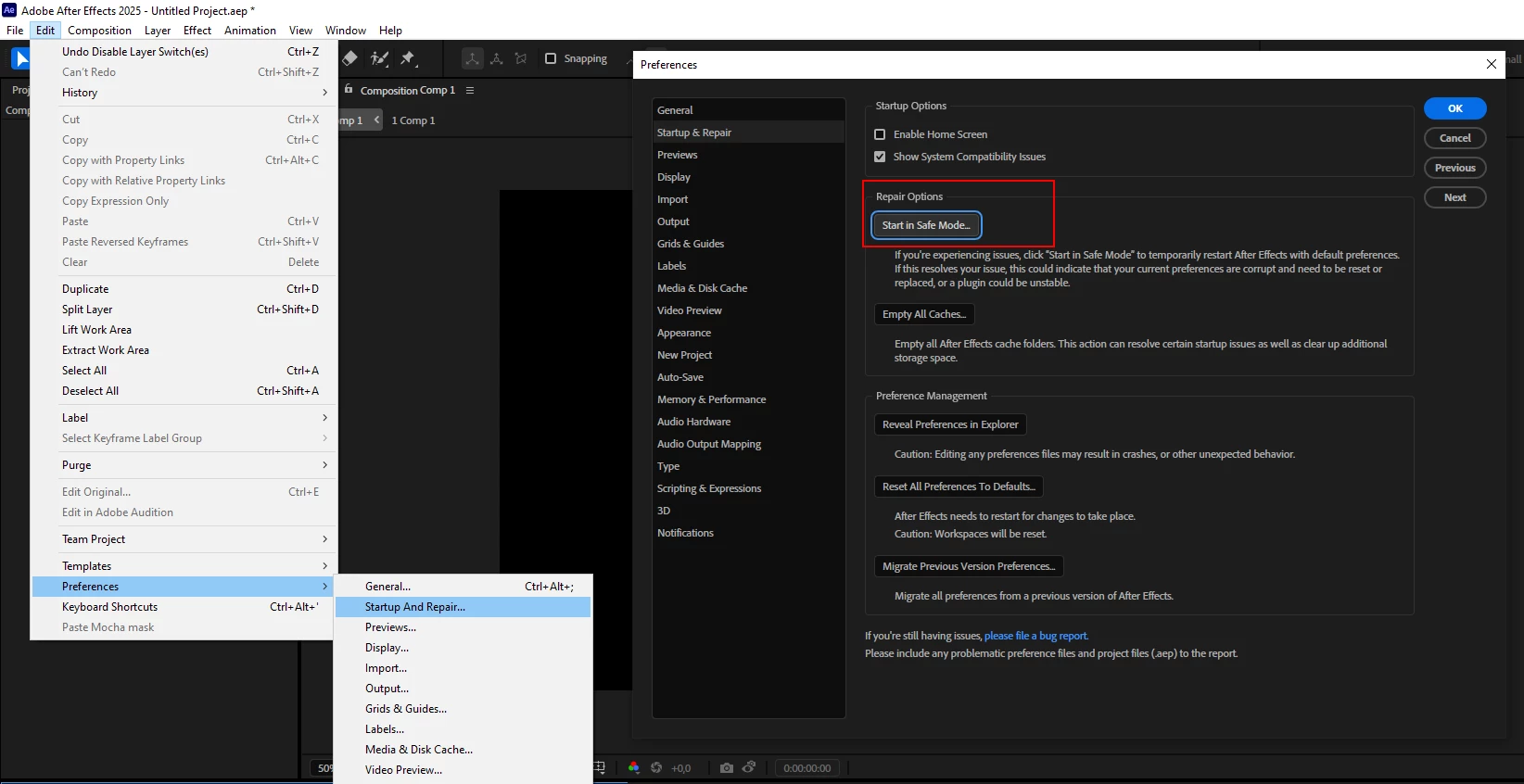
I was working on an animation in After Effects today using 3D models (Object files) and got everything imported and added to a composition, but nothing was viewable? I was able to select the objects I added and manipulate them but couldn't actually see them. I added a colored background, transparent background, etc to see if it was hiding under something. I get the usual rotation and manipulation X Y Z axis for the object itself, but no visual? See screenshot included. Is there a box I didn't tick or something? I am new to AE so still not sure what everything is or does. 
2 replies

Participant
March 18, 2025

It sounds like you're dealing with a common issue when working with 3D models (.obj files) in After Effects. Here are a few things to check:

1. Ensure You’re Using the Right Renderer

Go to Composition Settings (Ctrl+K or Cmd+K on Mac) > 3D Renderer and check which renderer is active.

  • If it's set to Classic 3D, change it to Cinema 4D because Classic 3D doesn’t support 3D models.
  • If it’s already on Cinema 4D, try switching to Draft 3D in the Composition panel to see if it appears.

2. Check the Camera & View Options

  • If you're using a custom camera, ensure it's not positioned too far away or facing the wrong direction.
  • Try switching to Active Camera or different views (Top, Side, Front) in the Composition panel to locate your model.

3. Verify the Model’s Scale & Position

  • The imported object may be too small or too large to be visible. Try scaling it up or down.
  • Select the object and reset its position and scale (Transform > Reset or manually adjust in the Timeline).

4. Check Material & Visibility Settings

  • Make sure your 3D object layer is not set to 'Solo' (a tiny circle in the Timeline panel).
  • Go to Scene Settings and ensure the materials are not set to fully transparent or turned off.

5. Enable 'Draft 3D' & Refresh Your Viewport

  • Click on the Draft 3D button (cube icon in the Composition panel) to see if it renders in a simpler mode.
  • If all else fails, try purging the cache (Edit > Purge > All Memory & Disk Cache).


Dan OBAuthorCorrect answer
Inspiring
February 26, 2025