


Inspiring
August 8, 2018
Question

animating multiple strokes on a single shape layer in after effects

  • August 8, 2018
  • 2 replies
  • 6604 views

IDEA Logo Animation

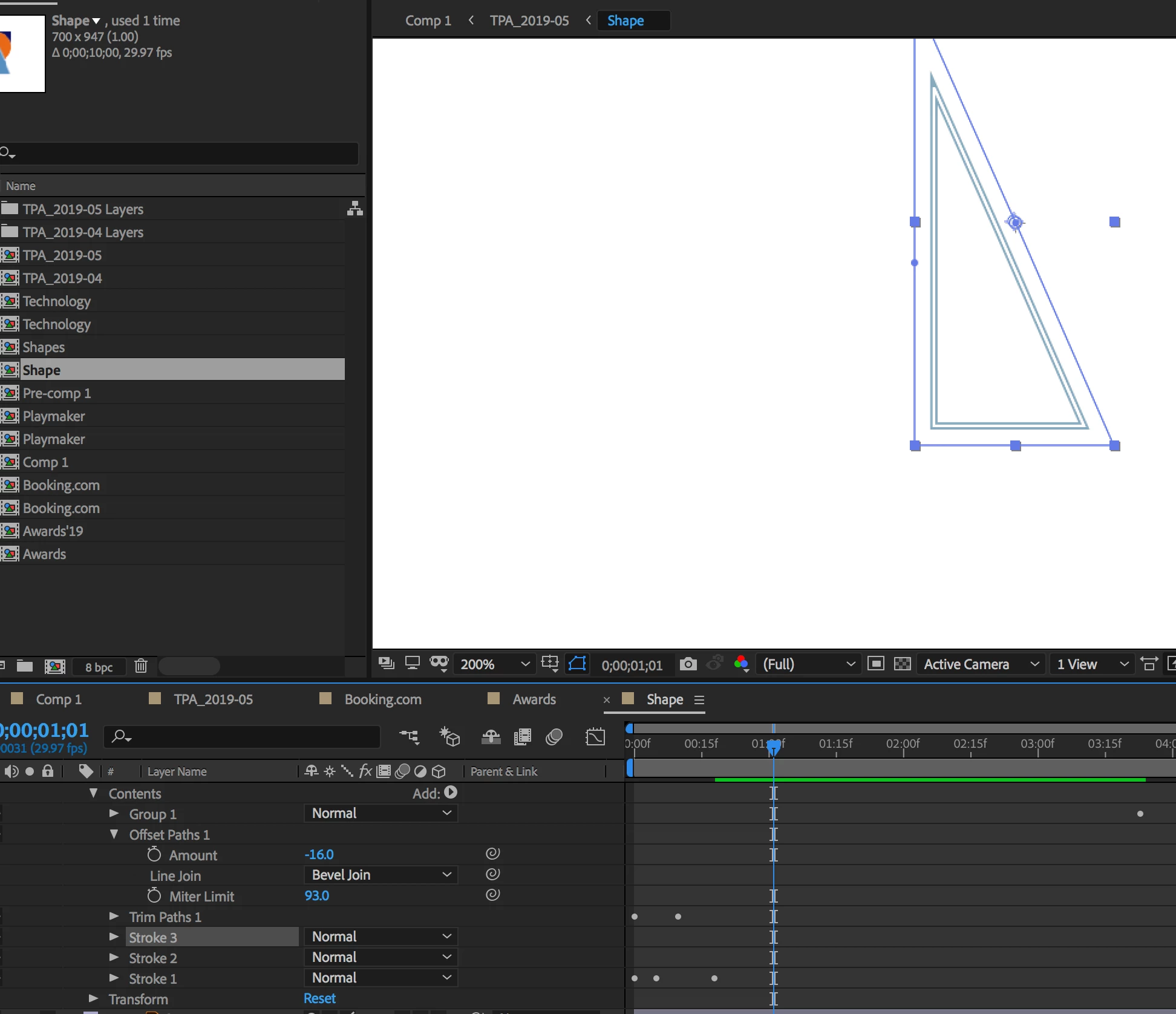
I have a shape layer here that I have added 3 different strokes too. I would like to animate each stroke separately, and apply each offset path layer to each stroke. IE offset path that applies to stroke 1, offset path to stroke 2 and so on. How do I do this?
https://www.dexigner.com/video/46297

    This topic has been closed for replies.

    2 replies

    P.M.B
    Brainiac
    August 8, 2018

    The effectors effect everything above it in the stack.   If the effector is beneath all the shapes it will effect all three.

    If you drag it up above the bottom shape (under two shapes now) it will effect the two shapes above it...etc.

    OK so just put an offset and trim path effector beneath each shape, right?  No because they effect everything above them.

    So the one under the top shape will effect only it.  But the one under the middle shape will effect it AND the top shape.

    And the effector beneath the bottom shape will effect all three.

    This is where you use grouping.

    Place the effectors you want beneath each shape and then group the shape and the effectors.  This will isolate the effect of the effectors

    to what's in it's group.

    Hope that made sense

    BTW  the order that the effectors themselves are stacked within the group will also effect how they work.

    Having the TrimPath above the Offset will have a different effect than having the Offset above the TrimPath

    Playing around I've found you could also drop the effectors inside the individual shape stacks themselves.  Meaning you don't necessarily need the groups.

    ~Gutterfish
    __PixelPusher__
    New Participant
    January 29, 2021

    I would consider myself a novice in After Effects, and this comment has so much meat in it! It really helped me out with my project and left a greater understanding. Thank you so much! 

    Adobe Expert
    August 8, 2018

    You can add Trim Paths to each path. You just have to organize them in the timeline properly. I strongly suggest that you start by typing "animate shape layer" in the Search Help field in the top right corner of After Effects and do some studying. It will save you a bunch of time. I don't have time to create a screenshot for you right now but once you understand the interface what you want to do is pretty straight forward.

    Inspiring
    August 8, 2018

    Hi Rick,

    Thanks for your comment. Unfortunately there doesn't seem to show anything when I type in ''animate shape layer'' into the help section. Could you point me to a useful video tutorial or website perhaps?

    Thanks.

    Adobe Expert
    August 8, 2018

    Wrong box... The search help field is in the upper left corner of the After Effects UI