GWR71
Inspiring
December 8, 2017
Answered

Any way to resize a masked image without resizing the mask?

  • December 8, 2017
  • 5 replies
  • 34157 views

Is there any way to resize/reposition an image that has had a mask drawn directly onto it *without* the mask being affected? So that I can alter what parts of the image are visible through the mask without needing to redraw it?

I used to do this a lot in Apple Motion, but I can't seem to see any obvious way of doing it in AfterEffects.

    Correct answer P.M.B

    OK.   Well while you can animate a mask independently of the layer it's applied to in AE unfortunately you can't animate the layer independently of the mask.   So apart from trying to manually "counter-animate" the mask, which is fine way to waste time, the worlflow is to use a track matte which is pretty simple.

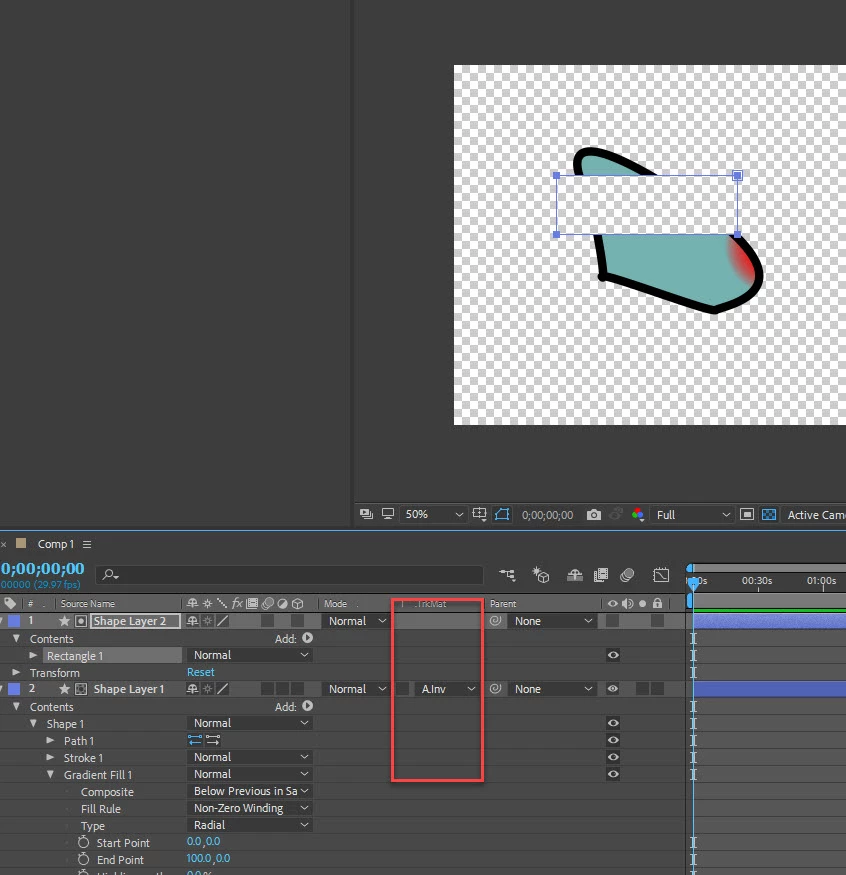
    You just create a black or white (0 or 1, true or false) layer in the shape of the mask directly above the layer you want to mask and set the TrkMat drop down.

    To avoid having to recreate the mask you can duplicate the mask above the layer and use a fill effect on it or you can convert the mask to a shape using

    "Masks to Shapes" script available here redefinery.com: rd: scripts

    The matte needs to stay directly above the layer so if you run into problems due to the stacking order you'll have to pre-compose the layers.

    Use alpha channels, masks, and mattes in After Effects

    On the help page I linked look to the right where it lists links of what is on the page and down toward the bottom you should see the link for "track mattes & travelling mattes"

    5 replies

    Participant
    January 2, 2024

    Hey, super easy fix that I did was I just swapped the mask off to an empty layer, resized the image, and then swapped the mask back.

    Community Expert
    October 13, 2023

    A free script called Create Nulls From Paths Extended will allow you to attach nulls to points and the handles of a mask path. If you select the Points Follow Nulls and add Handle Controls, you can scale any layer with a mask or shape layer path without changing the size of the mask path. This is the only easy solution to the problem.


    Community Expert
    August 30, 2022

    If you have a layer with a mask and you need to keep the mask the same size but change the layer's size and/or position, duplicate the layer, set the top duplicate as an Alpha Track matte for the bottom layer, delete the mask on the bottom layer or turn it off, then resize the bottom copy. It will take about 10 seconds. 


    If the mask is not animated, try this:

    Select the Mask, go to Window/Create Nulls From Paths/Points Follow Nulls, then animate any of the transform properties, and the mask will not change shape.


    A third option:

    Pre-compose the layer with the masks but do not move all attributes to the new composition. The mask will stay in the Main comp. Right-click in a blank part of the composition panel and select New Viewer, open the pre-comp, and edit the transform properties of the layer. 


    Participant
    August 30, 2022

    Bring up the image you are using behind the mask. Go to EFFECTS and add Search for TRANSFORM and use the one under VIDEO EFFECTS - DISTORT. Now use the transform to scale change location and rotate your image without affecting the mask. 


    P.M.B
    Legend
    December 8, 2017

    Not in any sort of "automatic" way.   Sounds like you might want to use a track matte rather than a mask.

    If you gave more specifics about what exactly you're trying to do or exactly what your workflow in Motion used to be

    then you might get a more specific solution.  

    ~Gutterfish
    GWR71
    GWR71Author
    Inspiring
    December 8, 2017

    I've drawn a fairly complex mask on an image using the pen tool. I would now like to be able to move the image around "behind" the mask while the mask isn't affected. Does that make sense? I want to be able to resize and reposition the image while the mask doesn't move. But it seems that any transformations applied to the image affect the mask too.

    In Motion, once you've drawn a mask on an image, you have the option to transform both the image and mask together (which seems to be the only option in AE), or you can transform either of them separately - so you can transform the mask without affecting the image, or you can transform the image without affecting the mask.

    P.M.B
    P.M.BCorrect answer
    Legend
    December 8, 2017

    OK.   Well while you can animate a mask independently of the layer it's applied to in AE unfortunately you can't animate the layer independently of the mask.   So apart from trying to manually "counter-animate" the mask, which is fine way to waste time, the worlflow is to use a track matte which is pretty simple.

    You just create a black or white (0 or 1, true or false) layer in the shape of the mask directly above the layer you want to mask and set the TrkMat drop down.

    To avoid having to recreate the mask you can duplicate the mask above the layer and use a fill effect on it or you can convert the mask to a shape using

    "Masks to Shapes" script available here redefinery.com: rd: scripts

    The matte needs to stay directly above the layer so if you run into problems due to the stacking order you'll have to pre-compose the layers.

    Use alpha channels, masks, and mattes in After Effects

    On the help page I linked look to the right where it lists links of what is on the page and down toward the bottom you should see the link for "track mattes & travelling mattes"

    ~Gutterfish
