New Participant
July 24, 2022
Answered

Can't Change Text Colour - Template Expression

  • July 24, 2022
  • 3 replies
  • 976 views

Hi there everyone, 


I've tried my best to find the answer to this on the forum but can't see it so hopefully, someone can point me in the right direction. 


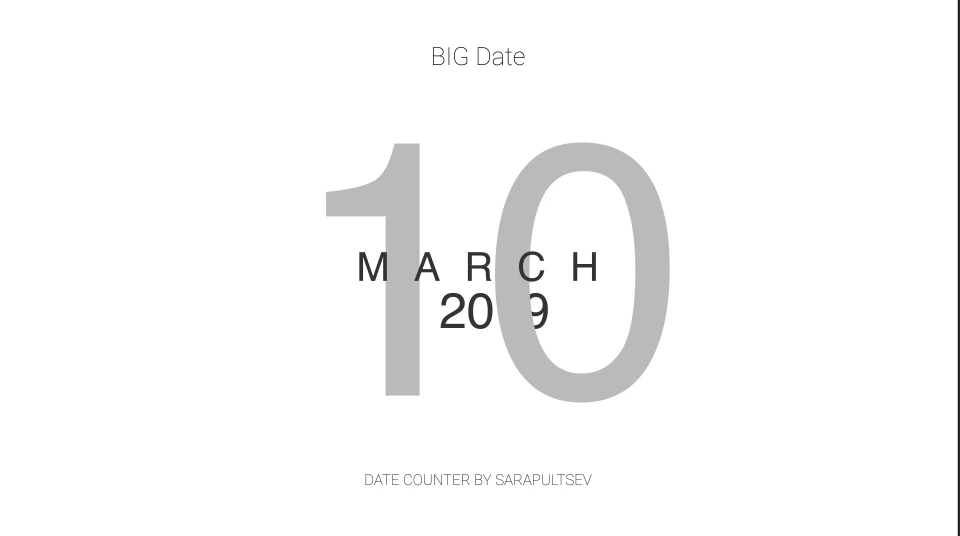
I downloaded a template for after effects which lets you input dates and create a timer at whatever speed you want. All I need to do is change the font colour. It's currently black but needs to be white so I can overlay it onto a black background. I've tried changing this in the character panel and also in the effect properties by pressing UU, but there isn't actually a setting for the colour here. Perhaps it's because the text is actually a value being pulled from elsewhere in the expression. 


Some attached screenshots below!


Thanks, 


Tom
 

This topic has been closed for replies.
Correct answer Kyle Hamrick

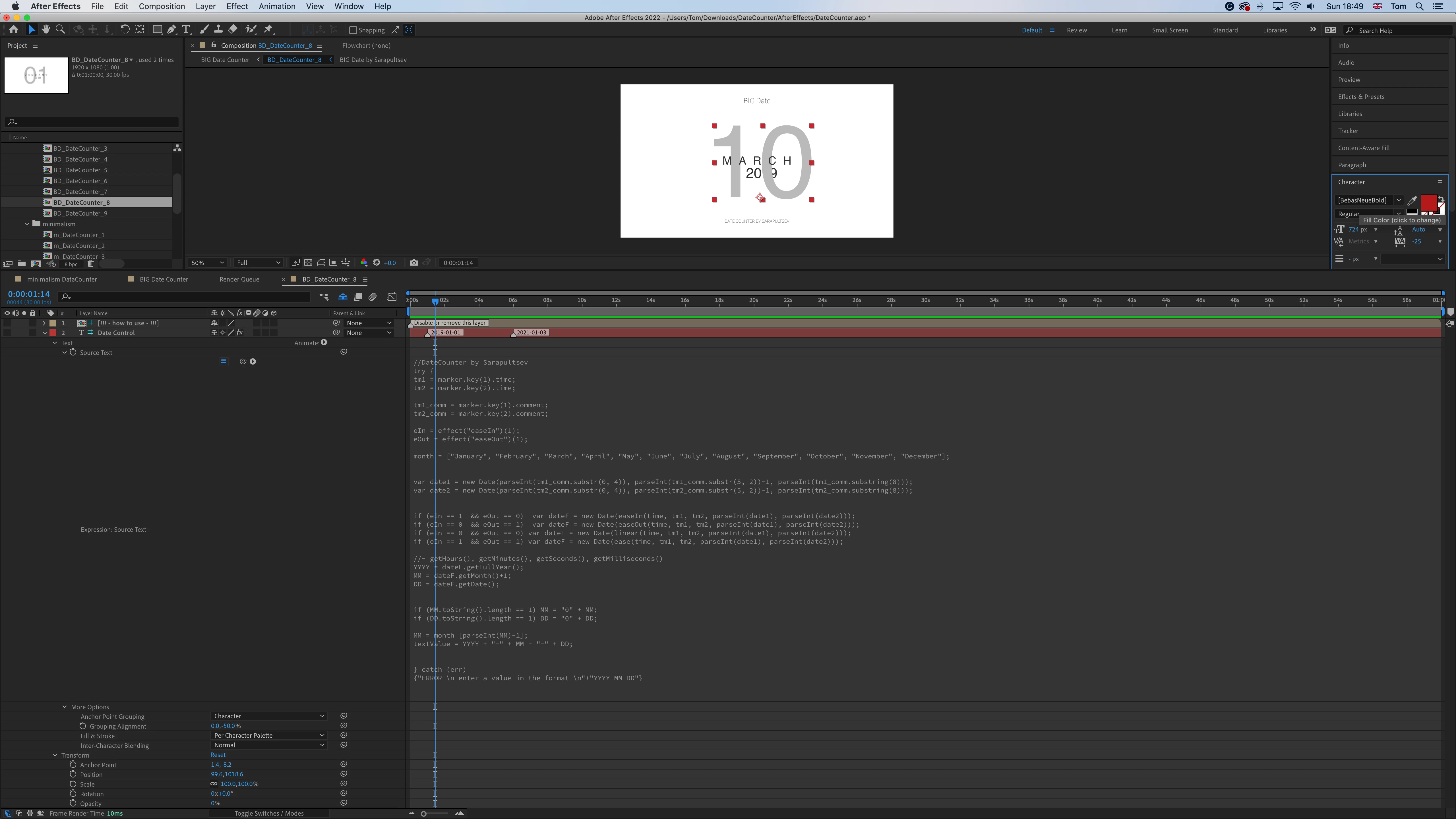
The text layer you're showing us above isn't actually what's being displayed in the viewer. It's an input layer (feeding the text layers you can actually see) - this is apparent because:

  1. It's set as a guide layer (indicated by blue grid icon next to name).
  2. The layer's visibility switch (eyeball) is turned off.


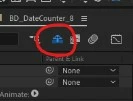
You need to disable Shy Layers - the blue "peeking guy" icon at the tope of your timeline.

You'll now see additional layers that have been visible in your viewer, but were hidden on the timeline. It's likely these layers may also be locked, so you'll need to disable that to edit them. 


Find the text layers that are actually visible in your viewer - these should be more directly editable. If you find yourself still unable to edit the color, it's probably being controlled from somewhere else in the project, which should have been made obvious by the creator. 


Templates are often built for extremely specific uses, such that many layers are locked, hidden, etc. to prevent inexperienced users from accidentally changing things they don't intend to. That said, being able to change the text color seems like a pretty basic and common need, so unless you overlooked a very obvious "CHANGE COLORS HERE" layer, I'd put most of the blame with the template creator in this case. 🙂


Let us know if you need more guidance! 


3 replies

Kyle Hamrick
Kyle HamrickCorrect answer
Community Expert
July 24, 2022

The text layer you're showing us above isn't actually what's being displayed in the viewer. It's an input layer (feeding the text layers you can actually see) - this is apparent because:

  1. It's set as a guide layer (indicated by blue grid icon next to name).
  2. The layer's visibility switch (eyeball) is turned off.


You need to disable Shy Layers - the blue "peeking guy" icon at the tope of your timeline.

You'll now see additional layers that have been visible in your viewer, but were hidden on the timeline. It's likely these layers may also be locked, so you'll need to disable that to edit them. 


Find the text layers that are actually visible in your viewer - these should be more directly editable. If you find yourself still unable to edit the color, it's probably being controlled from somewhere else in the project, which should have been made obvious by the creator. 


Templates are often built for extremely specific uses, such that many layers are locked, hidden, etc. to prevent inexperienced users from accidentally changing things they don't intend to. That said, being able to change the text color seems like a pretty basic and common need, so unless you overlooked a very obvious "CHANGE COLORS HERE" layer, I'd put most of the blame with the template creator in this case. 🙂


Let us know if you need more guidance! 


melbendi
Inspiring
July 24, 2022

Good catch on the Shy guy, Kyle! 😉

melbendi
Inspiring
July 24, 2022

Or just grab these free templates to get the code from. They are more easily editable! 😉
https://blog.motionisland.com/after-effects-counter-templates-projects/ 

New Participant
July 24, 2022

They're good! But unfortunately, I need the date input and the design of the one I posted. It has to be overlayed onto a specific scene and this style fits the best, it just needs to be white!

melbendi
Inspiring
July 24, 2022

What's on the top layer called How to use?

New Participant
July 24, 2022

Not much lol


melbendi
Inspiring
July 24, 2022

And you said you've tried selecting the text and changing the color as normal.  How about if you duplicate the layer, and on the duplicate, hit UU and turn off the expressions, then change the text color as normal, and then copy and paste the expession back onto the layer?