


Inspiring
February 17, 2021
Answered

Chroma Key looks good in After Effects but BAD back in Premiere Pro (Dynamic Link)

  • February 17, 2021
  • 2 replies
  • 3371 views

Asked this in the Premier pro area, but perhaps its better asked here.


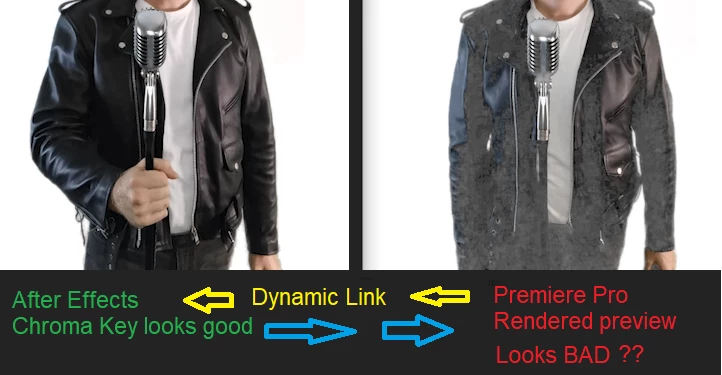
After getting a GREAT looking chroma key in After effects via Dynamic Link, when the clip is previewed back in Premiere Pro the video looks like white and noisy, like the background is ghosting through or something

Why is the Chroma key in Premiere Pro looking so bad but perfect in After Effects?

How do i fix this?
Correct answer Roland Kahlenberg

Don't set Keylight to Final Result; always use Intermediate Result as Final Result creates noise in the RGB area.

In PPro, try disabling Linear Light in Sequence Settings.

And ... if you have a picture lock from the client, keep the DL track in PPro as a backup and render the Comp from AE, for use in PPro. I will also double check the Alpha in AE prior to rendering - use Keylight's Alpha Tools or AE's Refine Matte Hard Edge to get a clearer Alpha.

HTH

2 replies

Roland Kahlenberg
Roland KahlenbergCorrect answer
Legend
February 18, 2021

Don't set Keylight to Final Result; always use Intermediate Result as Final Result creates noise in the RGB area.

In PPro, try disabling Linear Light in Sequence Settings.

And ... if you have a picture lock from the client, keep the DL track in PPro as a backup and render the Comp from AE, for use in PPro. I will also double check the Alpha in AE prior to rendering - use Keylight's Alpha Tools or AE's Refine Matte Hard Edge to get a clearer Alpha.

HTH

Very Advanced After Effects Training | Adaptive & Responsive Toolkits | Intelligent Design Assets (IDAs) | MoGraph Design System DEV
Inspiring
February 18, 2021
In PPro, try disabling Linear Light in Sequence Settings.
 
HTH
By @Roland Kahlenberg


BINGO. Fixed! Thank you so much. Why is "Linear Light" causing this? Is it a known bug?


Don't set Keylight to Final Result; always use Intermediate Result as Final Result creates noise in the RGB area.

 Thanks allso for the tip. On "Intermediate result" I could see some green spill, so i then applied AE's "Advanced spill suppressor" and it cleaned it right up.

Roland Kahlenberg
Legend
February 18, 2021

Thanks for reporting back.

PPro's the Linear Light option in the Sequence Settings has been known to cause untold misery and there doesn't seem to be a clear understanding of why it happens. Hence, as a general rule, when weird results occur, it's a good idea to disable it.

For the Keylight tip, this has been a very long, and known issue. And good job on applying AE's Advanced Spill Suppressor, I had forgotten to sugges that.

Very Advanced After Effects Training | Adaptive & Responsive Toolkits | Intelligent Design Assets (IDAs) | MoGraph Design System DEV
Mylenium
Legend
February 17, 2021

Probably some issue of AE treating footage always as RGB whereas Premiere supports YUV/ YCbCr natively. That and of course anything from color management differences to specific value ranges in the footage itself being treated differently, sequence settings for bit depth and whatnot. Since you haven't offered any exact info on the project and effects settings in both programs, nobody can advise specifically, but the simple truth may be to just render out the clip from AE and replace it on the Premiere timeline. Some things are simply beyond DL and figuring out the issue might take longer than just proceeding the old-fashioned way like we used to do it for decades befor DL even existed.


Mylenium

Inspiring
February 17, 2021

Great reply. Im still having the problem even if i render out from AE & import to PP. so could really do with some help trouble shooting this problem. Im brand new to Adobe software by the way.


After more testing i have here's an update:

  • If i apply a white solid background in AE, the preview in PP looks good pictured bellow. BUT the problem is i lose the alpha channel so can no longer overlay the subject on other images/video


  • In AE, if instead of applying a 'solid white background", I apply a white background via "Composition Settings" the subject looks good in AE, but ghosting problem happens when white background is applied in PP


  • If i render out export directly from AE with an alpha channel, it looks fine when playing the video in VLC (no ghosting), BUT if i take that same export with alpha and add to PP and add a white background, the ghosting happens again.


Here are my sequence settings premiere pro. Anything else you need?

Inspiring
February 18, 2021

Here is an EXPORT from PP with the side by side of the rendered output from AE with alpha on the left, and the linked clip with white solid background applied in AE on the right, playing in VLC.


Why is AE able to apply a white background flawlessly, but PP isnt?


I need to keep the apha channel properties in PP to overlay with other imagry, this is why applying the 'solid white background' in AE isnt a solution