I am assuming the anchor points are all in the center. Because the Lef and Top values are always zero with layers, they would have no influence on layer position, but they could be used to compensate for paragraph justification and baseline shift and could also fix shape layer transforms.
The first step is to create a left justified grid with rows no longer than the comp width and all layers the same height. If I change the expression for the second row, I can achieve this by modifying the Y in the else expression value to look at the height of a layer in the first row. I'd love to know how to automate that.
Carried to the extreme, the expression, or the script, would create a grid of different-sized layers with the same padding around each layer. For the graphic, I am visualizing, creating a grid of layers with the same height and consistent vertical padding would be sufficient.
If all the layers were 3D, you could set up a camera to move through the grid and pick out different layers to focus on. A couple of years ago, I created a similar graphic in Illustrator by hand. In AE, the final comp would look something like this. It's kind of a crude demo.
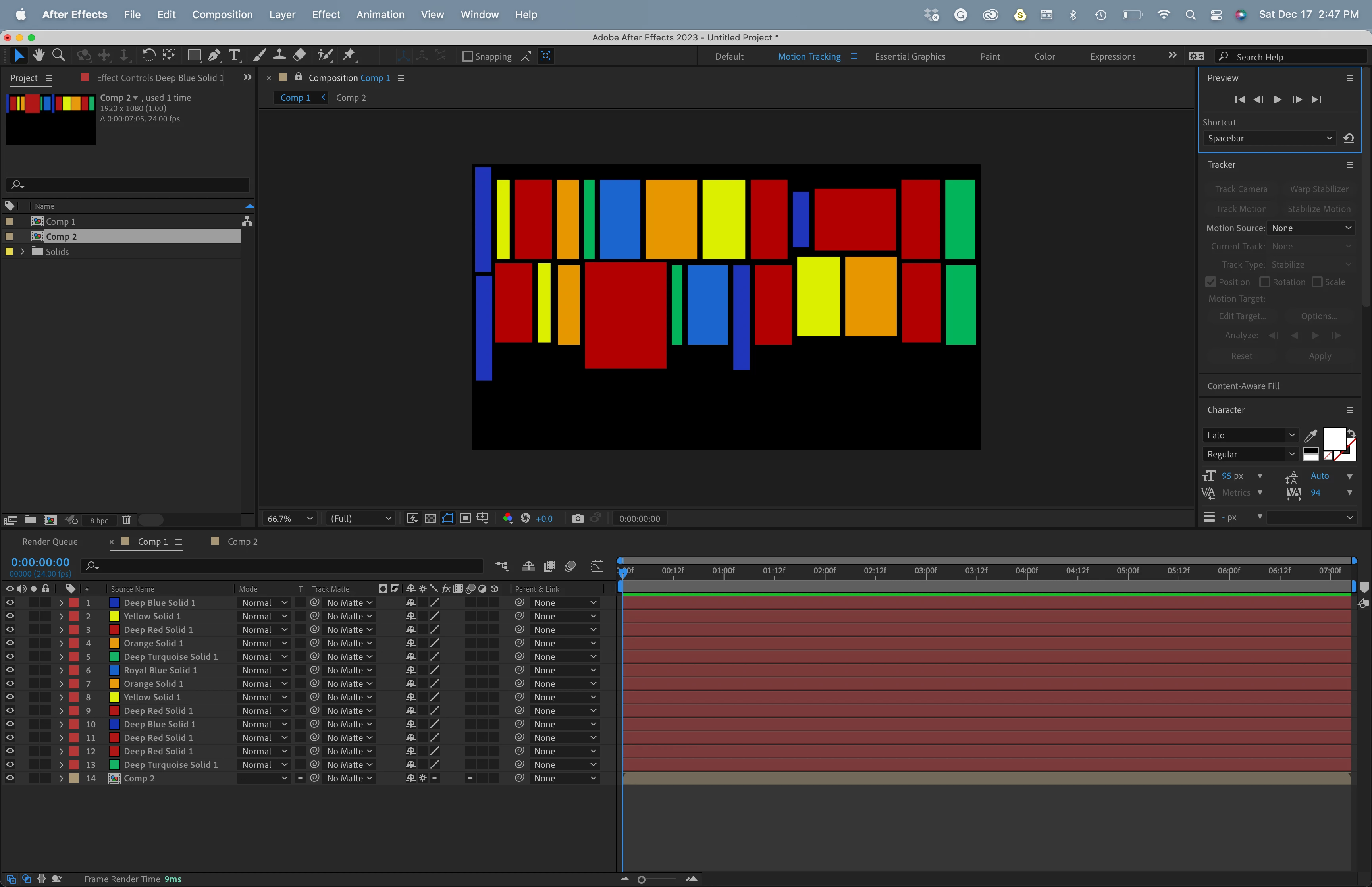
This turned out to be quite the adventure, but I did learn some stuff. To keep things from getting completely out of control, I did have to make a few assumptions. One is that the anchor points are centered. For layers where it isn't centered , you can just apply this anchor point expression (especially handy for text layers):
r = sourceRectAtTime(time,false);
[r.left + r.width/2, r.top + r.height/2]
I also assumed that the layers are all the same height. If they're not (or if you want to specify a different height), you have to define the height with a slider named "Height" on a layer named "Controls" and they need this scale expression:
h = thisComp.layer("Controls").effect("Height")("Slider");
r = sourceRectAtTime(time,false);
s = (h/r.height)*100;
[s,s]
I also assumed that the horizontal and vertical padding are defined by sliders named "H Gap" and "V Gap" on the "Controls" layer. Note that the Controls layer can be anywhere in the layer stack. All the other layers (those participating in the grid) need this position expression:
hGap = thisComp.layer("Controls").effect("H Gap")("Slider");
vGap = thisComp.layer("Controls").effect("V Gap")("Slider");

upperLeft = [hGap, vGap]; // start in upper left corner of comp
for (i = 1; i < index; i++){
  L = thisComp.layer(i);
  if (L.name == "Controls") continue; // skip the controls layer
  r = L.sourceRectAtTime(time,false);
  if (upperLeft[0] + hGap + r.width*L.scale[0]/100 > thisComp.width){
    upperLeft = [hGap, upperLeft[1] + vGap + r.height*L.scale[1]/100];
  }
  upperLeft += [r.width*L.scale[0]/100 + hGap, 0];
}
r = sourceRectAtTime(time,false);
if (upperLeft[0] + hGap + r.width*scale[0]/100 > thisComp.width){
  upperLeft = [hGap, upperLeft[1] + vGap + r.height*scale[1]/100];
}
upperLeft + [r.width*scale[0],r.height*scale[1]]/200
Realistically, to be able to handle layers of different heights, I think you'd to do it with a script, because it would be a lot of processing to do it with expressions. Anyway, I tested this with text, shapes, solids, and precomps and it seems work well.




 AdChoices