


Known Participant
August 9, 2019
Answered

Fill up shape with other shapes...

  • August 9, 2019
  • 3 replies
  • 899 views

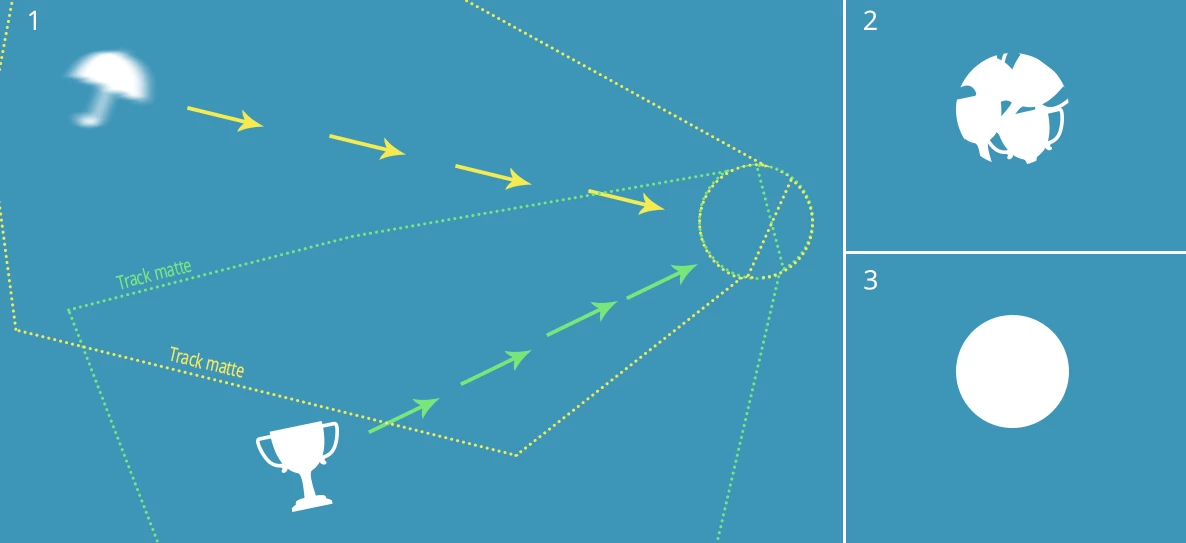
I'm trying to have various white shapes fly in towards a circular shape and fill it up like, say a wine glass, until the circle is completely white. Is there a better way to do this than to just create a custom track matte in the correct angle for each individual shape?

A problem with this solution is that shapes might stick out in the
direction they came from if not moved over the edge of the circle so shapes coming from the opposite direction will have to fill up the shape on that side, if you get what I mean. I guess this solution will work but I want to see if there's a better way to do it.
    This topic has been closed for replies.
    Correct answer Mike_Abbott

    Given that you've only got a relatively few layers, I think your original 'multiple track matte' option will work - but here's a suggestion on making a more 'efficient' matte:

    Use the pen tool to draw a single line shape layer, or if you want more space - a relatively thin triangle, with one end where you want the centre of your circle to be. Make the stroke white. Find the 'stroke' property in the shape layer and set it to the diameter of your required circle. Immediately beneath this property in the timeline is the 'line cap' and 'line join' properties - set these to round cap. You've now got a wide round cap line.

    With the shape layer selected, choose the anchor point tool and snap the anchor point to the end of your line - at the centre of your circle. Go back to the selection tool.

    You've now got a shape layer / matte that you can simply duplicate and rotate to point in the direction of the incoming object.

    3 replies

    Mike_Abbott
    Legend
    August 9, 2019

    Roughly how many shapes will you be putting in the circle?

    flyermclAuthor
    Known Participant
    August 9, 2019

    Perhaps about 10-12 shapes

    Mike_Abbott
    Mike_AbbottCorrect answer
    Legend
    August 9, 2019

    Given that you've only got a relatively few layers, I think your original 'multiple track matte' option will work - but here's a suggestion on making a more 'efficient' matte:

    Use the pen tool to draw a single line shape layer, or if you want more space - a relatively thin triangle, with one end where you want the centre of your circle to be. Make the stroke white. Find the 'stroke' property in the shape layer and set it to the diameter of your required circle. Immediately beneath this property in the timeline is the 'line cap' and 'line join' properties - set these to round cap. You've now got a wide round cap line.

    With the shape layer selected, choose the anchor point tool and snap the anchor point to the end of your line - at the centre of your circle. Go back to the selection tool.

    You've now got a shape layer / matte that you can simply duplicate and rotate to point in the direction of the incoming object.

    OussK
    Community Expert
    Community Expert
    August 9, 2019

    take a look for this script, it's little costly but it may it can help you

    https://aescripts.com/pastiche/

    flyermclAuthor
    Known Participant
    August 9, 2019

    Thanks OussK, that looks promising.

    Mylenium
    Legend
    August 9, 2019

    Seems you are overcomplicating this. As far as I can see there is no requirement for multiple track mattes. All that would be required is to do the actual animation in a pre-comp without any masking and then mask the result in the parent comp to get the circle effect. It may require a bunch of layer duplicates to avoid glitches when mutually masking stuff, but I tend to think that it would still be a lot quicker than treating each layer separately.

    Mylenium

    flyermclAuthor
    Known Participant
    August 9, 2019

    Thanks for your input Mylenium. I can't seem to get the effect to work correctly with a pre-comp though but perhaps the issue here is there will be several objects coming from different directions.