


lindam70661272
Participant
February 2, 2023
Question

How to adapt the autoscale text box expression

  • February 2, 2023
  • 4 replies
  • 2287 views

I can't seem to get the source rect expression to work for the text boxes I'm using in my project.

My project is 1080x1920, and I've been manually resizing my text boxes to slide out from the left before text animates left to right across each slider using the typewriter effect. Timing is matched to a voiceover and this is how they look:
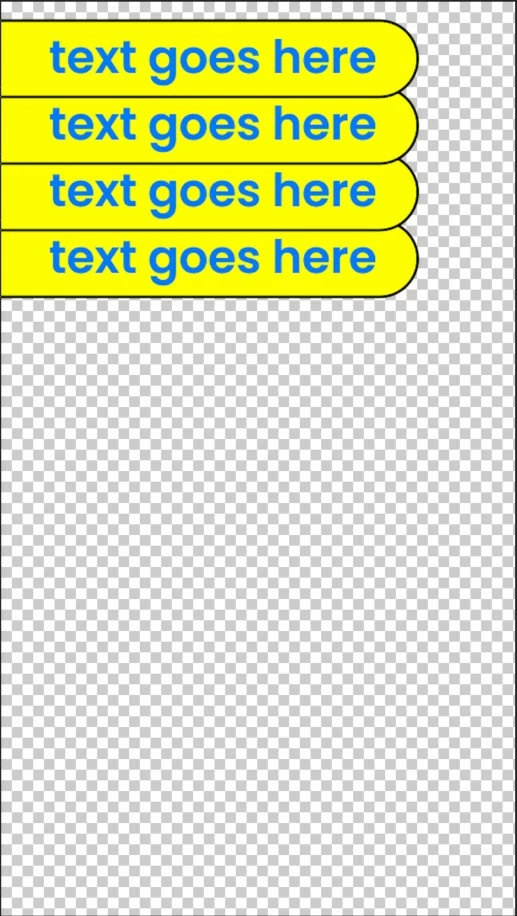
How do I create these sliders so they auto resize from left to right only? The text boxes must expand with the text across the page while height remains consistent.


I've been manually resizing each slider. They are twice the length shown and centred to the left hand side of the page. Happy to include a video example too if that helps understand my requirement?


Thanks for the help

Linda

This topic has been closed for replies.

4 replies

Mathias Moehl
Community Expert
Community Expert
February 2, 2023

Have you considered using my (paid) extension Pins & Boxes?

Here is a tutorial showing how to create boxes with a fixed height:


Mathias Möhl - Developer of tools like BeatEdit and Automation Blocks for Premiere Pro and After Effects
lindam70661272
Participant
February 2, 2023

Would I be able to add a rounded edge, extra buffering on the left of the text and would they be able to autosize with text that has the typewriter effect? I am interested in any plugin that can do this. Thanks!

Mathias Moehl
Community Expert
Community Expert
February 2, 2023

Yes, you should be able to do that.

- since the boxes are based on shape layers, you can use the normal corner roundedness control of shape layers rectangles
- the boxes have a separate margin control for top, left, right and bottom. Hence, you can simply add a larger margin on the left.

- The box auto-resizes when the text changes. Only in the unlikely case that the typewriter expression does not actually change the text but just sets the opacity of some letters to 0%, the source rect won't change and hence Pins & Boxes won't notice it. But if your typrwriter expression acts on the source text, it should work.

Mathias Möhl - Developer of tools like BeatEdit and Automation Blocks for Premiere Pro and After Effects
Mylenium
Legend
February 2, 2023

My bad:


xSize=thisLayer.property("Rectangle 1").property("Rectangle Path 1").size;

X=-xSize+0.5;
Y=value[1];

[X,Y]


Mylenium

lindam70661272
Participant
February 2, 2023

I'm not entirely sure where to put these expressions and I still get an error. I feel my problem is way more complicated than my understanding of the software. Would it be better if I attach a short video to show how they currently work? You might have a different solution when you see how I have them working at the moment.

Mylenium
Legend
February 2, 2023

Something liek this perhaps:


Position:


xRef=thisComp.layer(index-1);
xSize=xRef.sourceRectAtTime();

X=xSize.width;
Y=value[1];

[X,Y]


Anchor Point:


xSize=thisLayer.property("Rectangle 1").property("Rectangle 1").size;

X=-xSize+0.5;
Y=value[1];

[X,Y]


Mylenium


lindam70661272
Participant
February 2, 2023

Would both these expressions go on the text box (Slider) layer? When I paste the anchor point expression, I get an error:

Mylenium
Legend
February 2, 2023

If they are parametric shape layer rectangles, you may simply need to subtract the center position. It's really not clear what you mean since you haven't provided any screenshot of the timeline with the relevant properties open nor the expression code you're actually using.


Mylenium

lindam70661272
Participant
February 2, 2023

Thanks Mylenium, I haven't used any expressions for the text boxes yet. I've been manually resizing each slider but would like to find a quicker solution. Here is a screenshot of the layers to show how I've been keyframing them:

They're timed to sync with a video layer underneath.

Thanks again

Linda