


Participant
October 11, 2022
Answered

How to add ".value.toFixed(0)" to a Point Control

  • October 11, 2022
  • 3 replies
  • 6530 views

Hello,

I am trying to animate a number going from £0 up to £1,200,000. I have tried using the slider control but it only goes up to a million. Later I found that Point Control would work better for that.

 The current expression is:
"£" + effect("Point Control")("Point")[0]

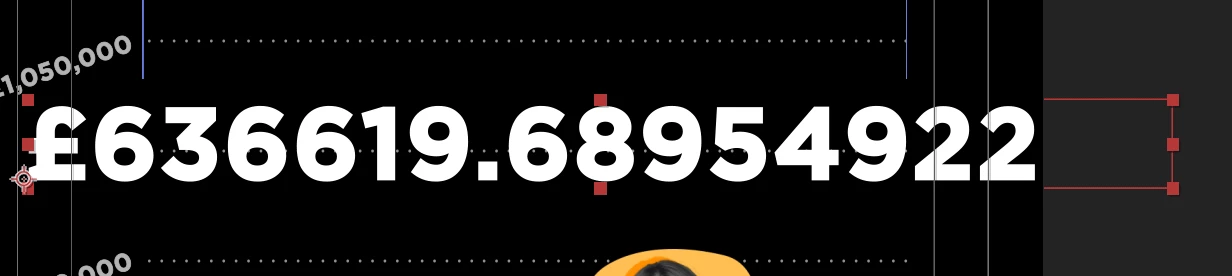
However, when it is being animated the number is not round and shows all of the digits after the decimal.

How do I fix that?

Thank you in advance.
This topic has been closed for replies.
Correct answer David Arbor

In this case "value" isn't necessary since you're pointing directly to a value. With a slider, you're actually pointing to the controller itself, so you have to specify you want the value it generates and then you truncate the decimals. So all you need here is:


"£" + effect("Point Control")("Point")[0].toFixed(0)

3 replies

Mathias Moehl
Community Expert
Community Expert
October 11, 2022

You can also use a slider and mutliply the slider value with 1000 or an even higher number.

That way, setting the slider to 636.619 results in £636619, for example.

Mathias Möhl - Developer of tools like BeatEdit and Automation Blocks for Premiere Pro and After Effects
David ArborCorrect answer
Inspiring
October 11, 2022

In this case "value" isn't necessary since you're pointing directly to a value. With a slider, you're actually pointing to the controller itself, so you have to specify you want the value it generates and then you truncate the decimals. So all you need here is:


"£" + effect("Point Control")("Point")[0].toFixed(0)

Participant
October 11, 2022

Thank you very much for your reply. I'm new to expressions and have a long way ahead to learn them. Just have one more question if you have a second: is there a way to add commas to the number?

Inspiring
October 11, 2022

You're welcome! There's definitely a lot to learn, and formatting numbers is a tricky one; commas can be especially tricky with the older methods that you might find online.

After Effects added a new, modern JavaScript expression a few years ago which means we now have access to modern JavaScript functions, including a super easy way of formatting numbers and currency. First, make sure you're using the JavaScript Expression Engine from Project Settings > Expressions (this is the default and you should always be using it).

The function is called toLocaleString() and it's incredibly powerful. Here's my template for this expression. You can replace the hard-coded variable values with anything you want, but the way this template works is that over a period of 10 seconds, you'll see the currency animate from 0 to 1000 automatically. The minDigits option is how many decimals you'll get, so you'll want to put "0" there. I swapped the locale and currency for pounds, but if you look at the URLs in the commented lines at the top, you can learn about how to use each of these options.


//locales and options: w3schools.com/jsref/jsref_tolocalestring_number.asp
//currency codes: iban.com/currency-codes

const startCount = 0;
const endCount = 1000;
const countDur = 10;
const count = Math.round( linear(time, 0, countDur, startCount, endCount) );
const minDigits = 2;

const locale = "en-GB";
const options = {
style: "currency",
currency: "GBP",
minimumFractionDigits: minDigits
};

count.toLocaleString( locale, options );


Mylenium
Legend
October 11, 2022

It works no different than with a slider.


mPoint=effect("Point Control")("Point");

mVal=mPoint[0];


"£" + mVal.toString().toFixed(2)


Mylenium