Inspiring
February 4, 2025
Answered

How to attach these shapes follow an animating line

  • February 4, 2025
  • 1 reply
  • 692 views

Hi community.


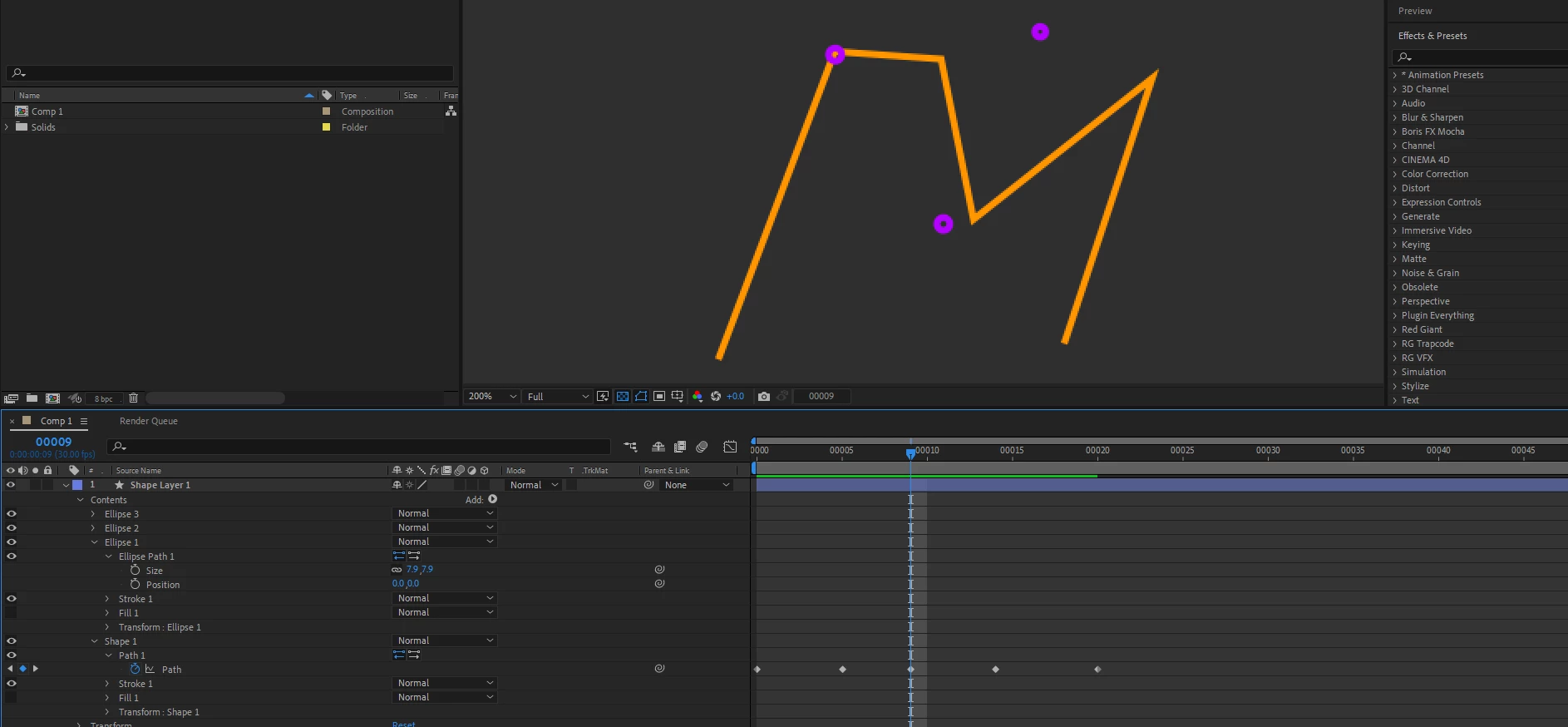
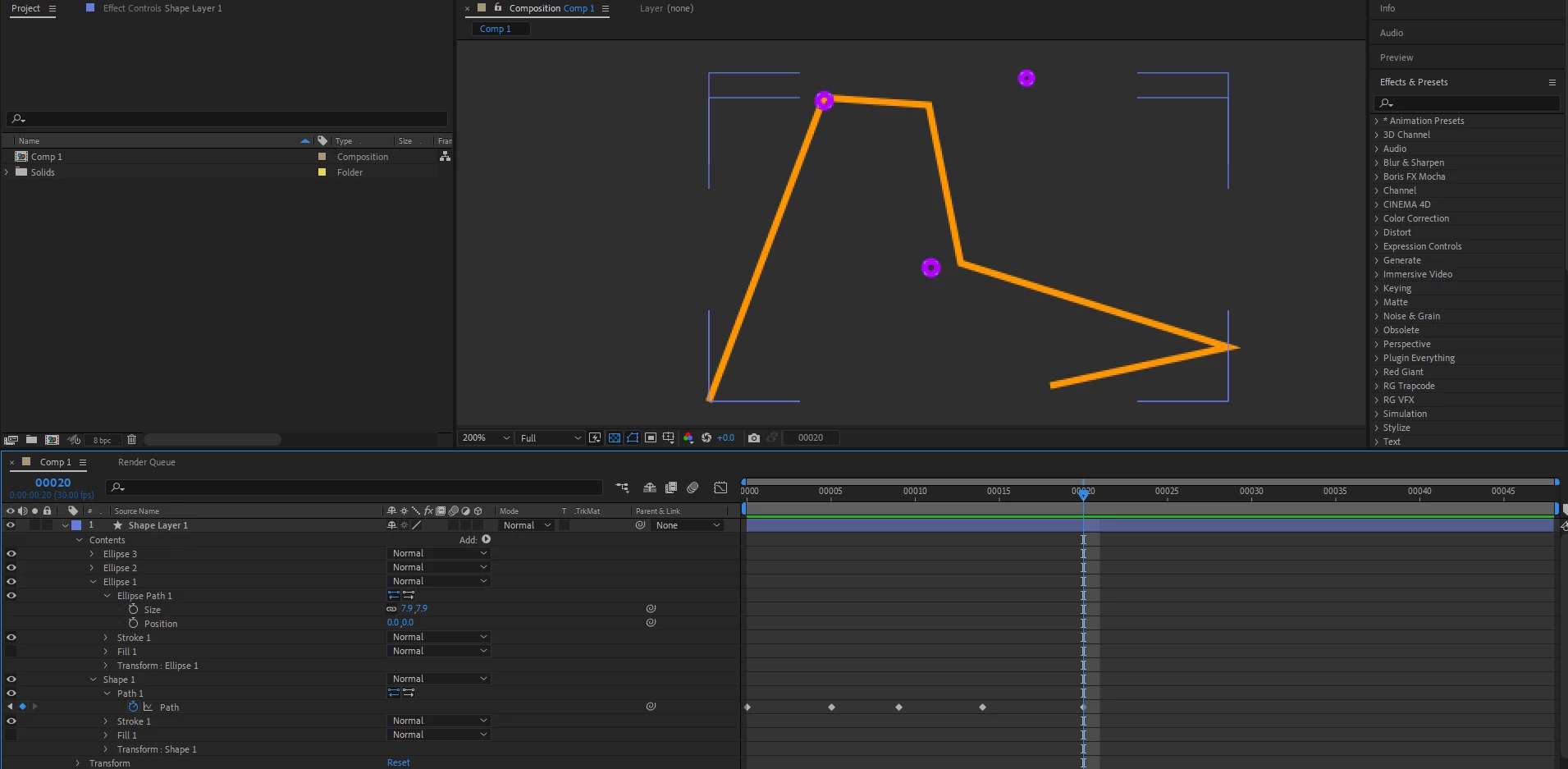
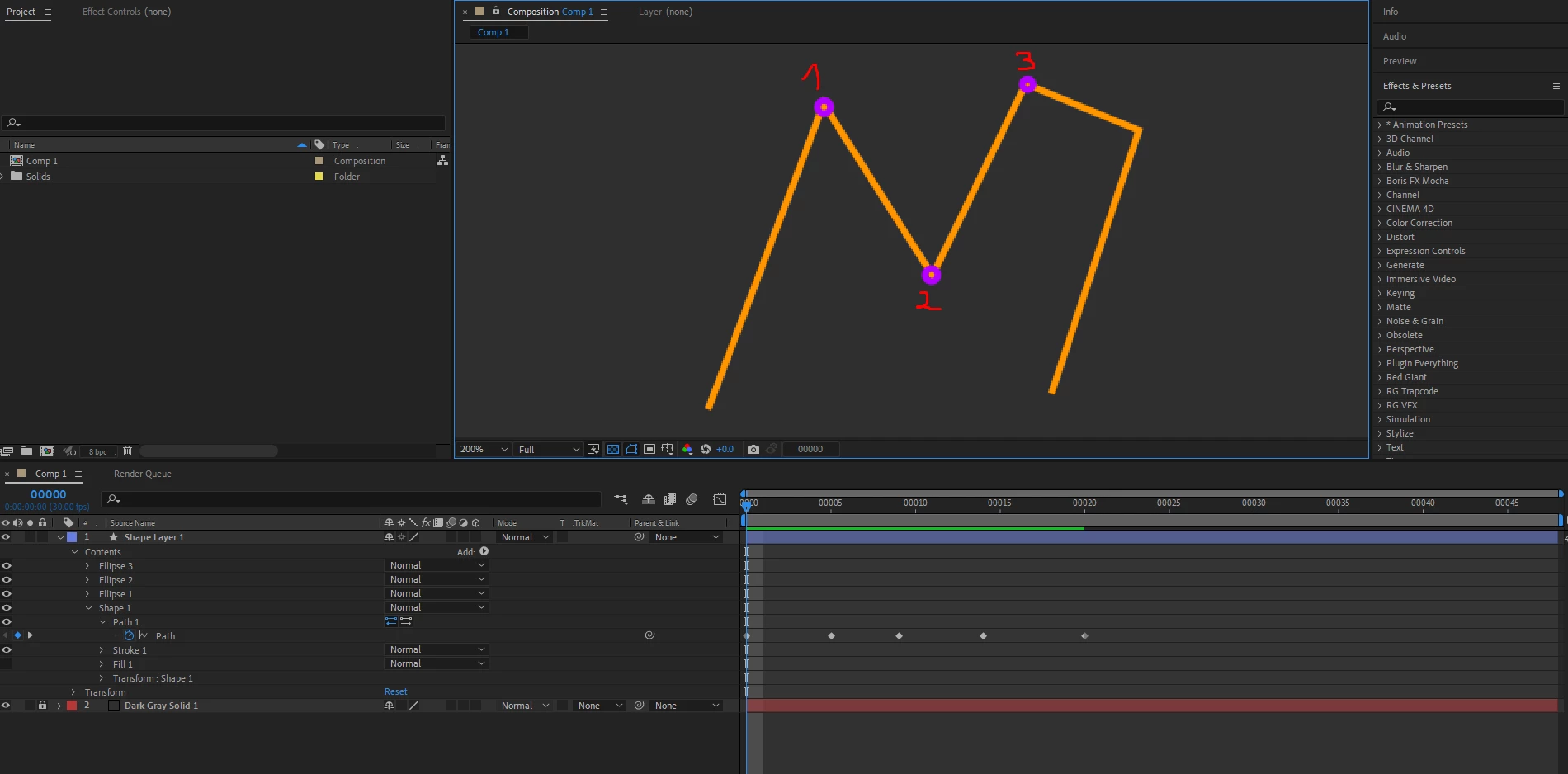
Is it possible to make these circles  1,2,3 follow the corners of these lines, where ever I position them on the canvas, they follow allong? My initial thought was draw the line animation, where the line changes shape, making zig zags and random wave shapes, and then add in the same shape 3 circle shapes, and I thought of using the pick whip to connect their position, but didnt work.


Whats the best method to achieve this?


Thank you.


Correct answer Rick Gerard

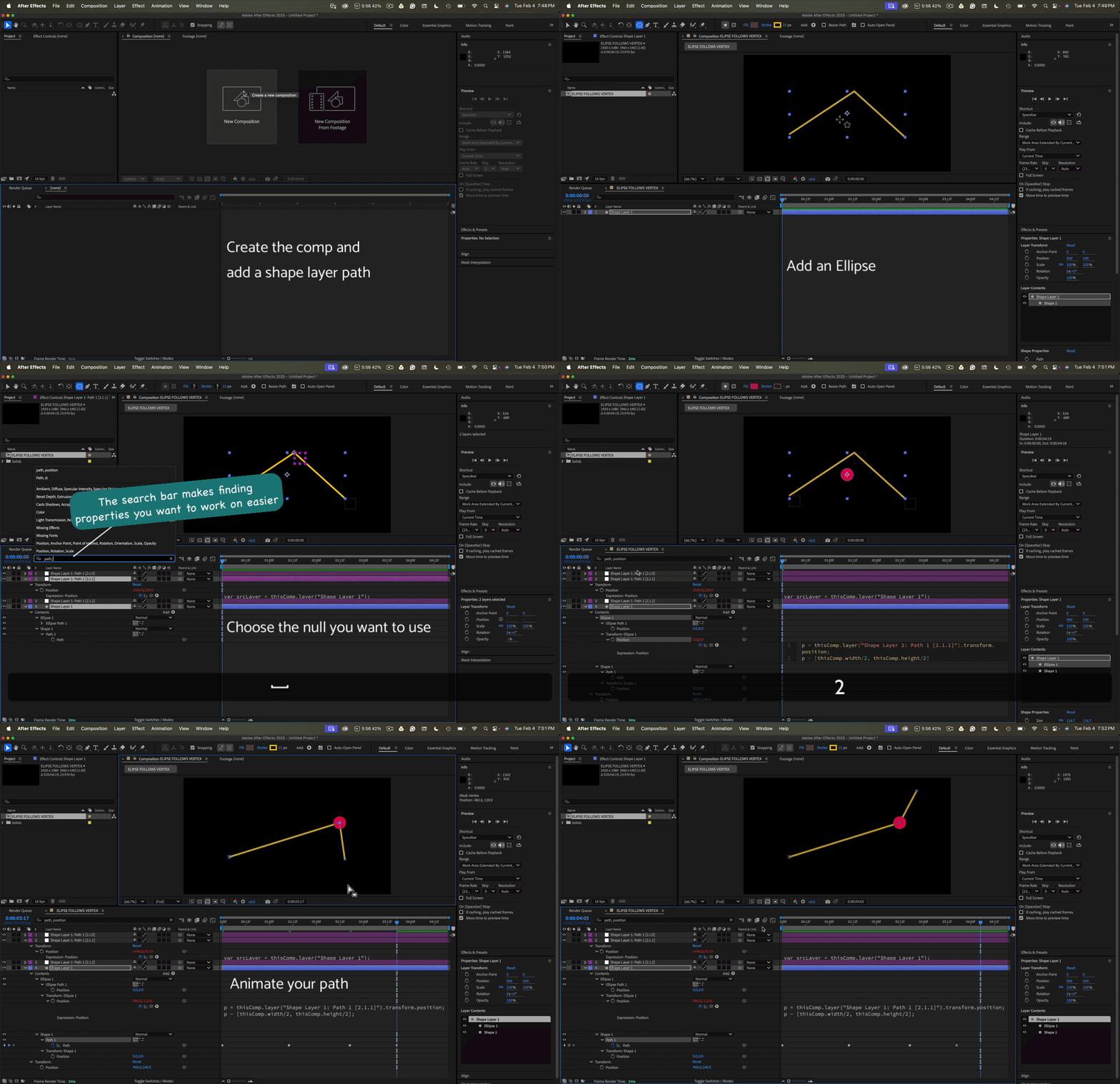
You have the wrong name for the null. You can use the Pickwhip to select the 'p =' value or start typing the null's name in the layer("name") field. Auto-complete will give you the option to choose the appropriate null name from a dropdown list. 


Also, clicking on the Layer Name column in the Timeline will switch the layer name from Null 1 and Null 2 to the Shape Layer name given by the Create Nulls From Paths/Points Follow Nulls script.


You also have to remember to reset all position properties. 


That should solve your problem.


Maybe this will help. The expression can be on either of the ellipse layer's position properties.


1 reply

Community Expert
February 4, 2025

A script at the bottom of the Window menu will allow you to attach nulls to mask or shape layer paths.


Here's the workflow:

  1. Select the path
  2. Open the Window/Create Nulls From Paths.jsx Panel
  3. Select Nulls Follow Points
  4. Figure out which nulls are attached to which vertices
  5. Attach the Shape Layer/Ellipse/Transform Elipse/Position to the appropriate null position with an expression like this:
    p =thisComp.layer("Shape Layer 1: Path 1 [4.1.3]").transform.position;
    p - [thisComp.width/2, thisComp.height/2];​

    The expression just subtracts the comp center from the position of the null.

Repeat for each ellipse you want to follow the path. The final comp would look something like this:


Inspiring
February 4, 2025

Hello Rick.

Thanks for your reply. 


Im getting an expression error, I believe Im confused at step 5, thats why its not working out. Please guide me a little bit more. This is what Ive done so far, I have created the nulls, and just used 1 path, 2 nulls to simplify thigs.


Ellipse path 1 is attached to Null 9


When entering the expression here is the error Im getting:


What did I miss?


Thank you.

Rick GerardCommunity ExpertCorrect answer
Community Expert
February 5, 2025

You have the wrong name for the null. You can use the Pickwhip to select the 'p =' value or start typing the null's name in the layer("name") field. Auto-complete will give you the option to choose the appropriate null name from a dropdown list. 


Also, clicking on the Layer Name column in the Timeline will switch the layer name from Null 1 and Null 2 to the Shape Layer name given by the Create Nulls From Paths/Points Follow Nulls script.


You also have to remember to reset all position properties. 


That should solve your problem.


Maybe this will help. The expression can be on either of the ellipse layer's position properties.