



S_ A
Inspiring
November 21, 2023
Answered

How to control decimal point when slider control doesnot work

  • November 21, 2023
  • 3 replies
  • 1434 views

Hello,


I am learning expressions. so I know that when I want to control decimal point I have to apply slidercontrol and also Math.round().


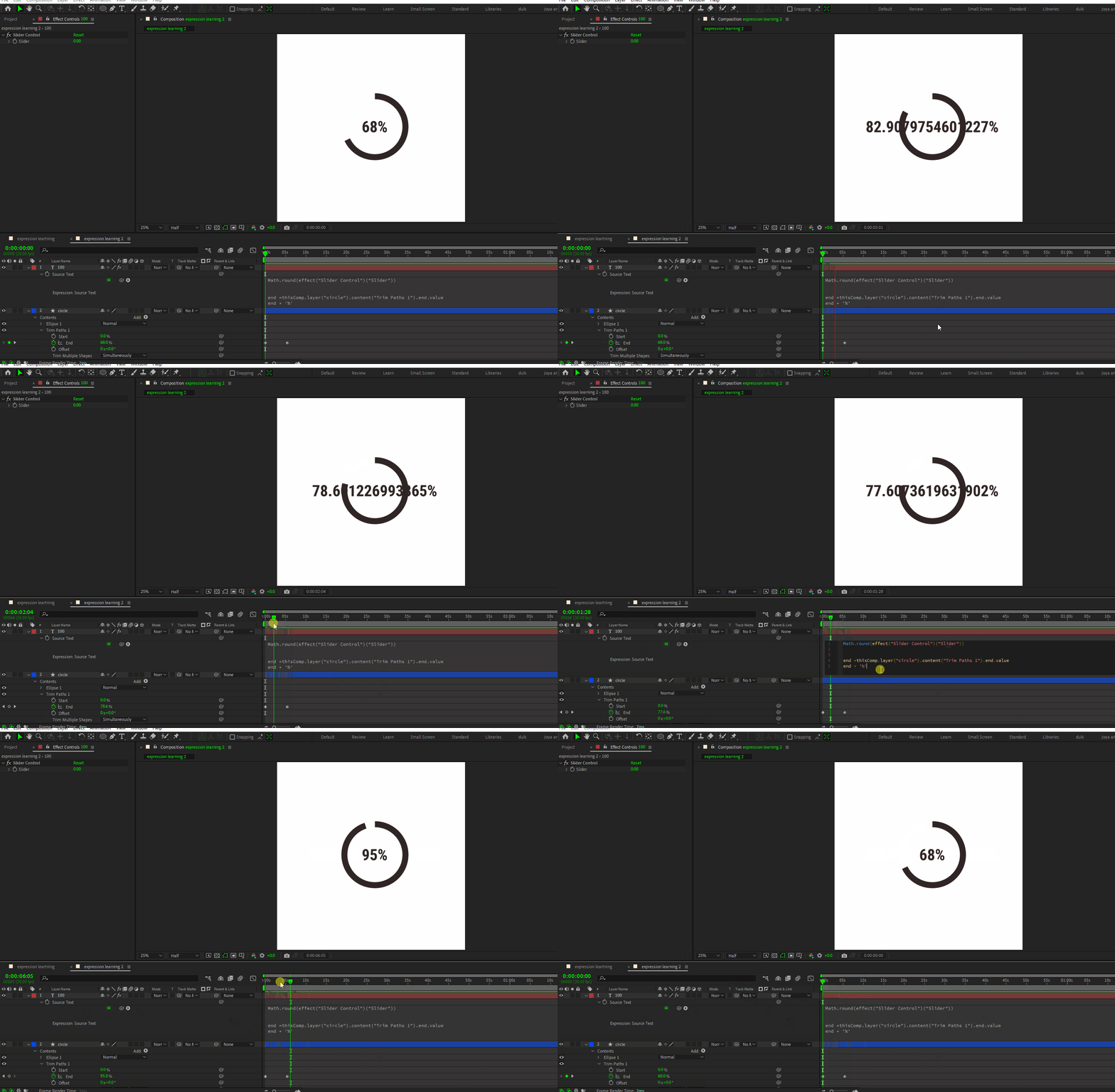
I want to animate a circle and a number, both togeather.  so I applied trim path and whip source text with ''end' of the 'trim path' . I also apply slider control to control decimal point and also apply Math.round()


Problem is when I put keframe to animate the trim path the decimal point comes back and I dnt know what I should do to get round figure like solid number.


Please guide me.
 

This topic has been closed for replies.
Correct answer Dan Ebberts

Your original expression was pretty close. Try it this way:

n = Math.round(effect("Slider Control")("Slider"));
end = thisComp.layer("circle").content("Trim Paths 1").end.value;
end.toFixed(n)+'%'

3 replies

Dan Ebberts
Dan EbbertsCorrect answer
Adobe Expert
November 21, 2023

Your original expression was pretty close. Try it this way:

n = Math.round(effect("Slider Control")("Slider"));
end = thisComp.layer("circle").content("Trim Paths 1").end.value;
end.toFixed(n)+'%'
S_ A
S_ AAuthor
Inspiring
November 21, 2023

I do no know enough english to thank you. I am so happy that It worked. You code works perfectly Thank you so much.  


Adobe Expert
November 21, 2023

If you want to control the number of decimal places, add .toFixed() to the expression. You should also avoid using reserved words like "value" "end," or "position" as variables. I would write the expression like this if I wanted the text layer to generate two decimal points:


v = thisComp.layer("Circle").content("Ellipse 1").content("Trim Paths 1").end.value;
v.toFixed(2) + "%";


You have to declare the value after the end property to get toFixed() to give you a number. I would also add CC Force Motion Blur set to use Native Motion Blur to the text layer to make the rapidly changing numbers a little easier to look at. I would also Right Justify the text layer to keep it from bouncing around as the value decreases from 100.00% to 0.00%


S_ A
S_ AAuthor
Inspiring
November 21, 2023

Thank you so much. I am really greatful, i will follow your advice about writting the code. 

Inspiring
November 21, 2023

Your first line isn't actually doing anything, it's being skipped. If you only had the first line then it would be executed in the expression. You coudl then add your percent symbol to the end of the slider value.


If you, however, do want to display the Trim Paths value, then you need to round that. Using proper variable declaration, good naming conventions, and semicolons after each line,  you can write you code like this:


const trimPathsEnd = thisComp.layer("circle").content("Trim Paths 1").end.value;
const roundedValue = Math.round(trimPathsEnd);

roundedValue + "%";


S_ A
S_ AAuthor
Inspiring
November 21, 2023

You are so right, The slider stopped working. Thank you so much. I ams till learning, I will follow your advice.