


Deaf_Guy
Inspiring
November 19, 2018
Answered

How to copy keyframes and their effects to new timeline layer?

  • November 19, 2018
  • 2 replies
  • 4546 views

I'm making a short animated GIF.  I created the comp then made a new comp and dropped the first version in it and then added a camera shake at the end.

After I did this, I needed to add a little more to it at the end so I expanded the duration of the original, added what I needed, and then made a duplicate of the camera shake version.

When I dragged the new one into the camera shake dupe, the actual keyframes for the shake can be seen in the first version. So what I wanted to do is copy and paste those shake keyframes onto the new one so I didn't have to manually make the shake again.

See the image below:
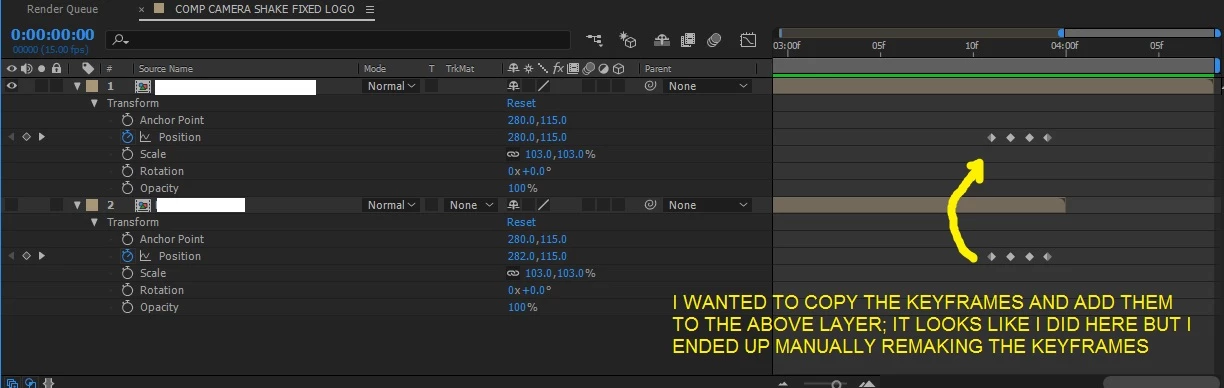
Can someone tell me how to do this? I tried highlighting the original keyframes and pasting but that didn't work.

    This topic has been closed for replies.
    Correct answer kirkeric

    There must be something simple you are not doing.  Here, just made this.  I made one layer, animated a square, copied layer, removed keyframes, then copied and pasted.

    After Effects - Copy Frames [Quick Tutorial for Adobe Forum] - YouTube

    Very straight forward.

    Hope this helps.

    Eric

    2 replies

    Community Expert
    November 19, 2018

    Please make sure that your play head is in the location where you would like to paste the new keyframes.

    Deaf_Guy
    Deaf_GuyAuthor
    Inspiring
    November 19, 2018

    I did that too - put it right on the same frame of the first KF you see below.  No luck.

    kirkeric
    kirkericCorrect answer
    Inspiring
    November 20, 2018

    There must be something simple you are not doing.  Here, just made this.  I made one layer, animated a square, copied layer, removed keyframes, then copied and pasted.

    After Effects - Copy Frames [Quick Tutorial for Adobe Forum] - YouTube

    Very straight forward.

    Hope this helps.

    Eric

    Martin_Ritter
    Brainiac
    November 19, 2018

    You mark the old keyframes, CTRL+C, click on the above layer's position and CTRL+V.

    OR

    Mark position of old layer, CTRL-C, click on the above layer and CTRL+V.

    Deaf_Guy
    Deaf_GuyAuthor
    Inspiring
    November 19, 2018

    I already that and it didn't work - I highlighted the KF's (they turned blue) Copy, go up to other layer, Paste...and nothing.

    Dave_LaRonde
    Inspiring
    November 20, 2018

    Here's an easy way to do it:

    Duplicate the layer with the effects.  Then use the Replace Footage command.  The replacement footage takes on ALL attributes of the duplicated layer, keyframes included, at the identical times in the comp.

    If you don't need the original layer, just delete it.