


Participating Frequently
June 4, 2020
Question

How to create an abstract 3D shape from 3 shape layers. HELP
  • June 4, 2020
  • 2 replies
  • 923 views

Hi. 

I ran in a bit of a problem today. I havnt worked much with 3D objects/space until today. Here's the problem.


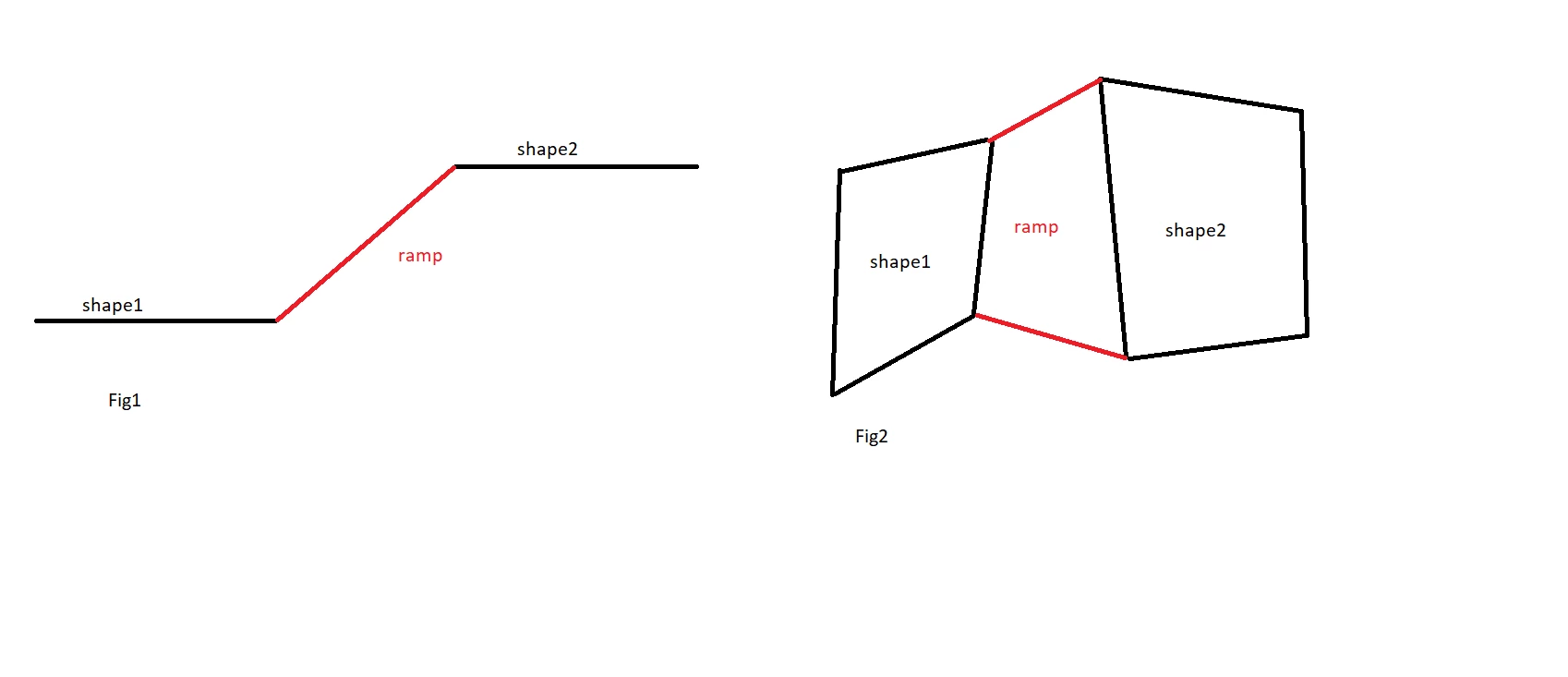
I want to connect two flat layers that sit on different levels (on the Z axis) with a ramp (for lack of a better description. see fig1 (side view).

The problem is (fig2 top view) that both flat layers (shape1/2) are irregularly shaped so the ramp layer must be too. That makes it difficult (if not impossible) to utilize the rotation and or scale properties to get the ramp layer into position. 

It seems I have to create the ramp from 4 individually placed points using the pen tool. However working with the pen tool in 3D space is (for me at least) awkward. I tried working with the different view modes (top, bottom, custom view 1 and so on) but without avail. I simply cant figure out how to place the points precisely where they need to go - or how to move them there since I have no position properties for each of the points that make up the ramp shape. 


Maybe someone can try to do it and then describe to me the process? That would be nice

This topic has been closed for replies.

2 replies

Community Expert
June 5, 2020

There is no snap to edge but there is a snap to path that you can use to position the anchor point, then adjust the rotation in 3D space to match up the layers. You'll have to rely on math as much as you can and it will help if you make the edges that you want to match up horizontal or vertical. Personally, I would start out with rectangles, pick an edge for the edges that match, drag the anchor point to the center of that edge, then record the length of the rectangle sizes. When you get the matching sides lined up it is time to convert the rectangles to bezier paths, make the layers 3D, and then start playing with rotation. Parenting will help keep things lined up. Start in 2D

Snap edges to each other in 2D, set up parenting, convert to Bezier, rotate in 3D, adjust path points on all layers, polish with lighting.

This took about 5 minutes. The biggest trick is parenting and matching edges with anchor points locked to the center of the matching edges before you convert to bezier paths. 


mariooo9Author
Participating Frequently
June 5, 2020

Thanks for the help again. I tried it your way but still the same issue. how do I line up the path points in 3d space?


I started with 3 rectangles and rotated the ramp into position. simple enough

then I changed the shape of the bottom flat layer. worked - everything stayed where it should. 

then I draged the corner of the ramp up (in the right view) which also worked. the point stayed on the same level as the white layer 

but then i tried to drag it over (to line everything up again) and it breaks. the point suddenly wont stay on the same level. 

which means even though everything looks good from above the corners dont line up again any more in 3d space


this should be so simple, yet after effects makes this so hard I dont understand it. Why wont it let me move path points on only one axis. especially when im on that specific view. 

Community Expert
June 5, 2020

You have to move the points in a straight line so the edges stay together. You can't move a point in 3D space because all layers in After Effects are 2D, just x and y. Get the basic shapes lined up in 2D, move the anchor points on the mating edges, then rotate as necessary letting parenting keep the layers attached to each other by their anchor points. 


Here's a very quick walkthrough. I copied and pasted position values to line up the 3D edges perfectly.   You have to be very careful when you start moving points around to keep the layers lined up.


Here is the Project File for you to play with.

(note: sometimes your browser will add a .txt extension to AEP files. If it does, just delete it)

mariooo9Author
Participating Frequently
June 5, 2020

No one?