DavidSweeneyBear
Inspiring
November 11, 2020
Answered

how to draw a line?

  • November 11, 2020
  • 3 replies
  • 2682 views

This may seem simple but... how do I draw an 45 degree angled line on a shape layer? I can draw a rectangle with the rectangle tool ok. The roto brush tool does do anything except draw a momentary grey rectangle, same with the brush tool. There doesn't seem to be a dedicated "line" or pen tool.

This topic has been closed for replies.
Correct answer Andrew Yoole

Apologies, I missed that you wanted to do this with a Shape Layer, my bad.


With regards to my previous suggestion, the instructions relate to drawing the mask onto a solid layer or a footage layer, not a Shape Layer.  They should work fine if you create a new solid and draw the mask there.  You can slect in the Stroke effect whether to draw onto the solid, or to make the solid transparent so you only see the stroked line.  (Byron has also provided instructions for this process below.  I'm not sure why his method adds a Fill effect to the process, but I'll let him discuss that if he'd like to.)


Now, to stroke a path in a Shape layer, create a new Shape Layer, then us the Pen Tool to draw your paths.  By default the Shape Layer should try to fill your path with red, even if you haven't closed it.


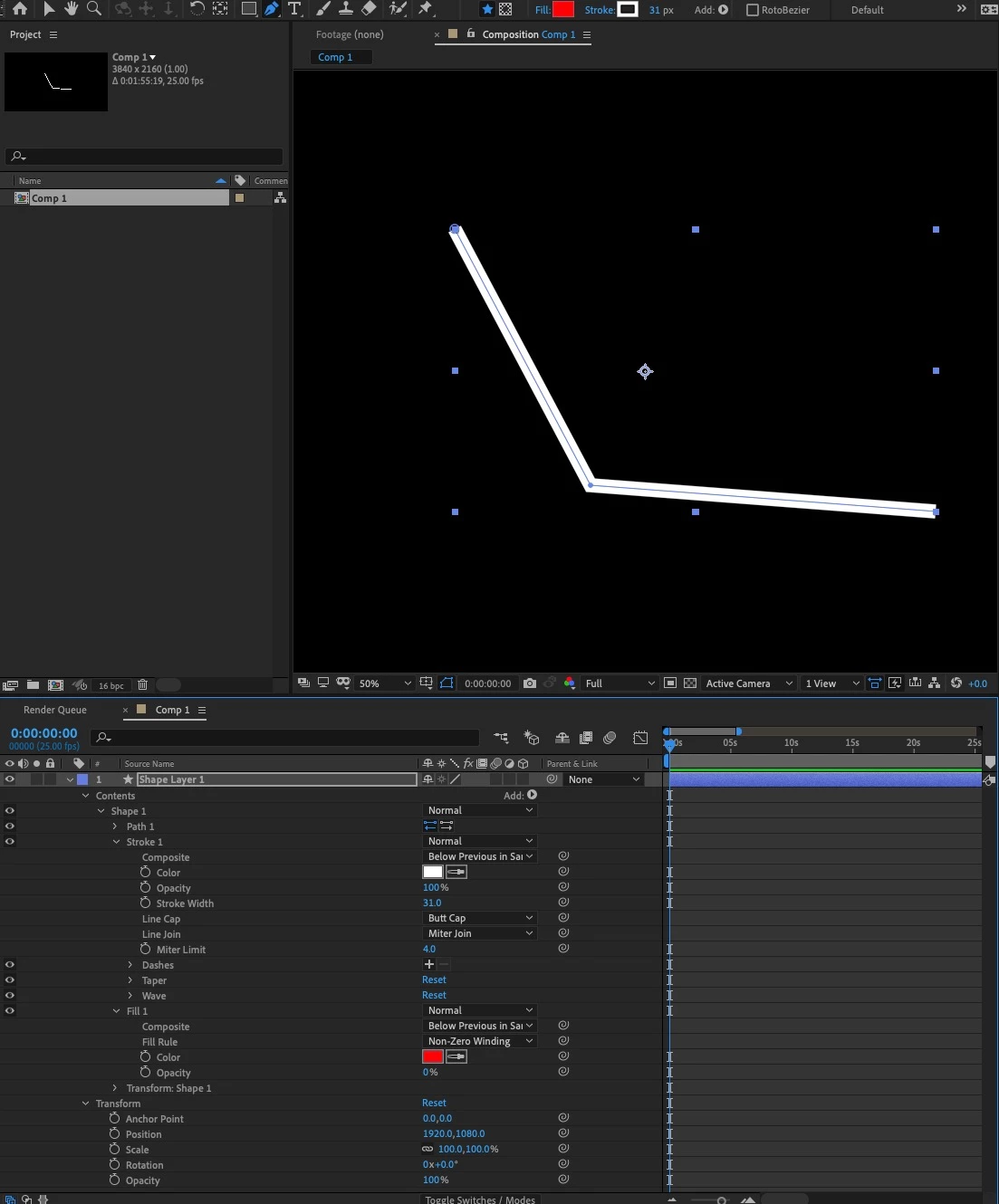
Twirl down the Shape Layer settings in the timeline window as shown below in the screengrab to reveal the Fill and Stroke settings for the Path.  Set the Fill opacity to 0% and adjust the Stroke Width to widen/thicken the stroke.  Fool around with the other settings to see what they do - you can add wave effects, taper the ends. make dotted and dashed lines etc.

3 replies

New Participant
July 9, 2021

you guys are making it sound more confusing than it already. there should be a straight off answer.. as yet. i still have no answer.. Next!

Community Expert
November 11, 2020

- Create a solid at the same size of the composition, select it in timeline.

- With the solid selected in timeline, choose Pen tool and draw your open mask (line in 45 degree).

- Apply Fill and Stroke effects from Effects panel.

- Go to Effects Control panel and set 0 in opacity of the Fill effect.

- Adjust the Stroke Effect like you need. 

There you have your line. 


Byron.
Andrew Yoole
Community Expert
November 11, 2020

There is a Pen Tool.  


The Pen Tool draws straight and curved paths onto layers, very much like the equivalent tools in Illustrator and Photoshop.  These appear as Masks in the timeline structure, but Masks which are not closed (joined into a closed object) have no visible effect on the layer/solid.


But if you apply the Generate > Stroke effect and choose the Mask you've drawn, you can effectively draw along the path.  You can animate the width, colour, start and end points etc.


The RotoBrush tool is not for drawing, it's for isolating things you want to "cut out" or rotoscope. The Brush tool does paint onto a layer, but you'll need to understand it's different modes and the fact that you must use it in a Layer SOurce window rather than the comp preview.

DavidSweeneyBear
Inspiring
November 11, 2020

Thanks Andrew,

So I found the pen tool hiding in the drop-down menu of the "feather mask tool".

Have drawn a line, then selected effect>generate>stroke

However, it doesn't seem to recognize the path, as there is only the option "none" in the path dropdown menu in the stroke effect panel. Have also tried "all masks" but that doesn't help.


<br>~ David Sweeney-Bear ~
Andrew Yoole
Andrew YooleCorrect answer
Community Expert
November 12, 2020

Apologies, I missed that you wanted to do this with a Shape Layer, my bad.


With regards to my previous suggestion, the instructions relate to drawing the mask onto a solid layer or a footage layer, not a Shape Layer.  They should work fine if you create a new solid and draw the mask there.  You can slect in the Stroke effect whether to draw onto the solid, or to make the solid transparent so you only see the stroked line.  (Byron has also provided instructions for this process below.  I'm not sure why his method adds a Fill effect to the process, but I'll let him discuss that if he'd like to.)


Now, to stroke a path in a Shape layer, create a new Shape Layer, then us the Pen Tool to draw your paths.  By default the Shape Layer should try to fill your path with red, even if you haven't closed it.


Twirl down the Shape Layer settings in the timeline window as shown below in the screengrab to reveal the Fill and Stroke settings for the Path.  Set the Fill opacity to 0% and adjust the Stroke Width to widen/thicken the stroke.  Fool around with the other settings to see what they do - you can add wave effects, taper the ends. make dotted and dashed lines etc.