


Inspiring
January 27, 2025
Answered

How to make pixel perfect stroke using shapes.

  • January 27, 2025
  • 2 replies
  • 409 views

Hi community.


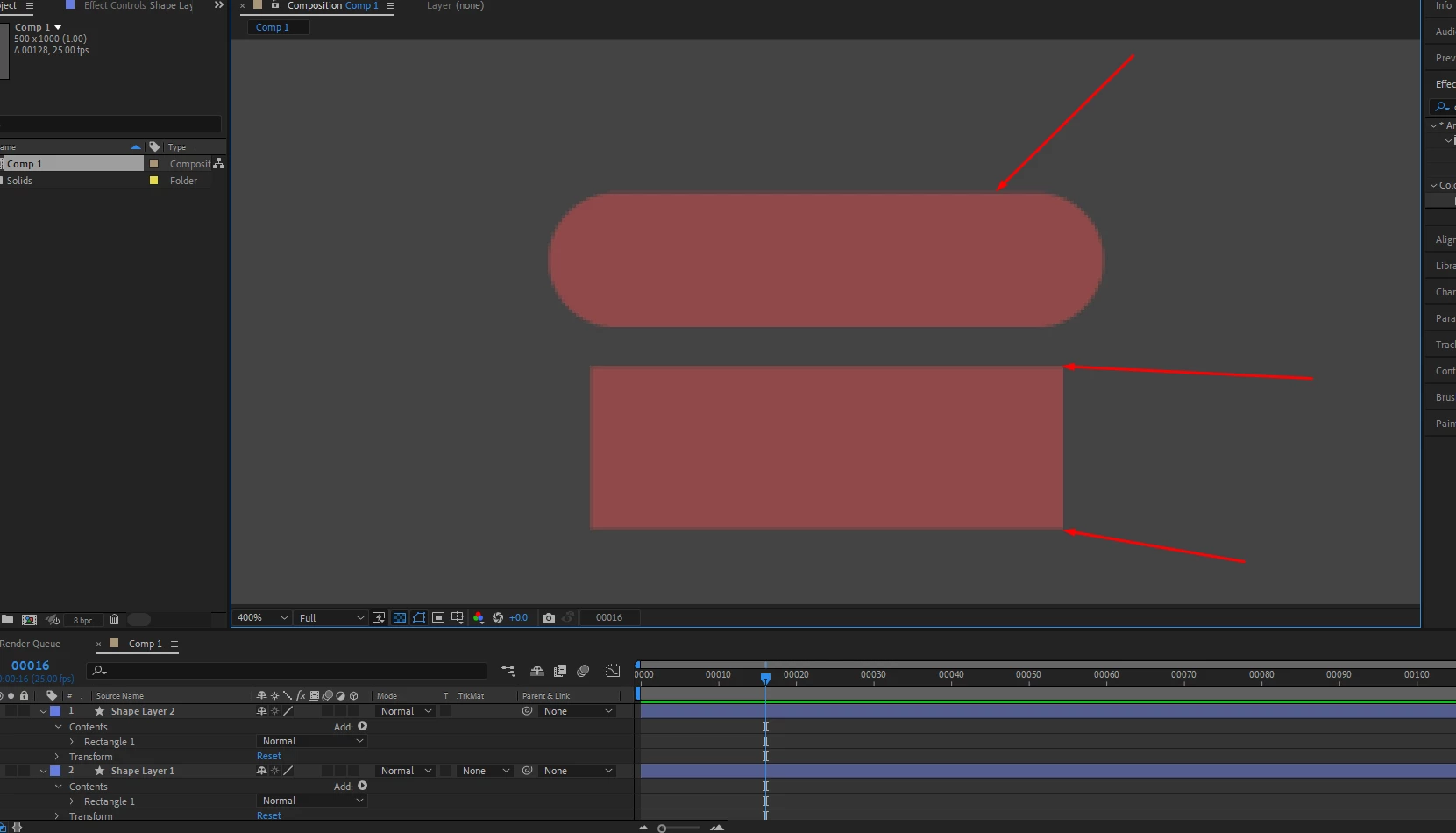
Ive noticed when using shapes, and adding a stroke, the stroke never sits pixel perfect. Is there a way to make it crisp, without one pixel looking as if it has half pixel?


No stroke applied to the shapes. and still half pixels are visible. 


1 pixel strokes applied to the shapes. results in more visible half pixels.
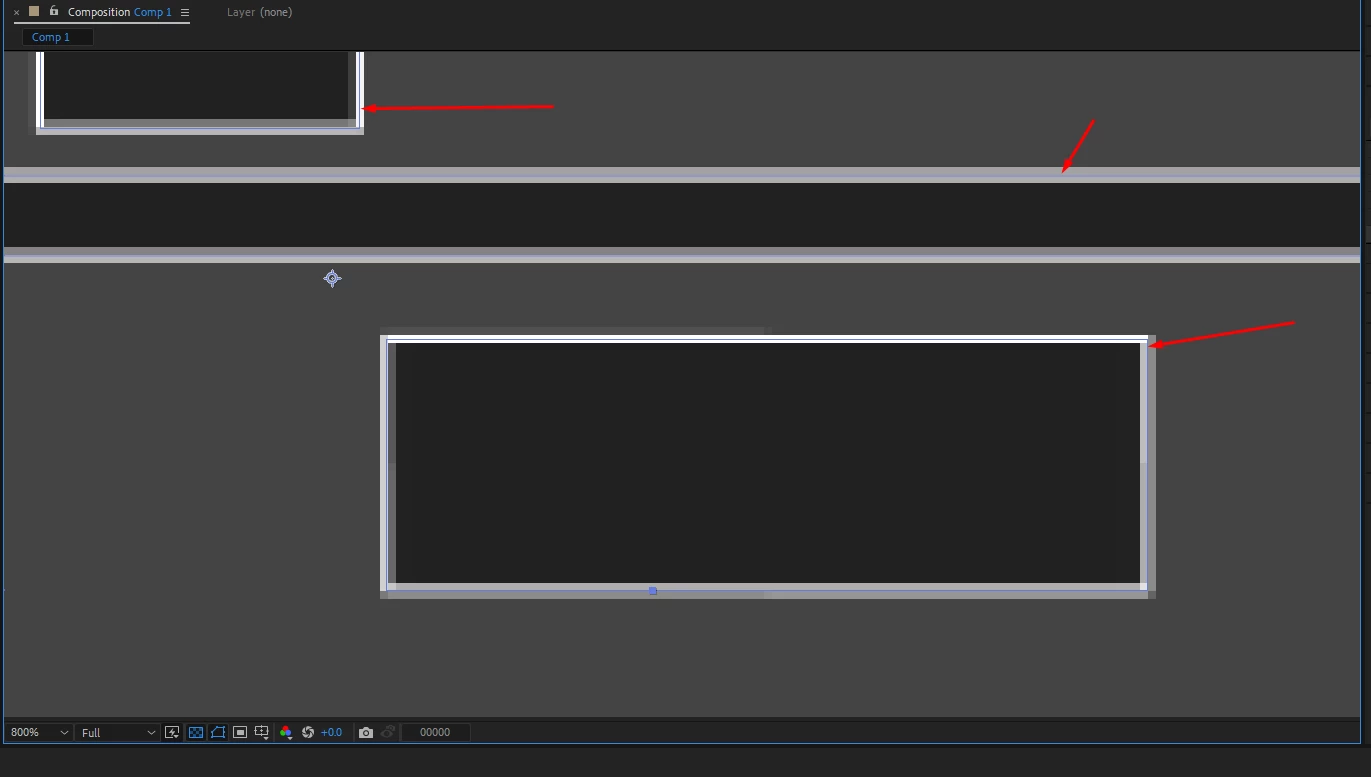


This would be the ideal solution to be pixel perfect like photoshop.



Thank you.


Correct answer Rick Gerard

A pixel-perfect shape with a stroke requires the shape and stroke width to be an even number of pixels along with all of the Content/Shape/Transform properties. If the size or stroke is an odd number of pixels, you must adjust the Shape Transforms or Layer Position transforms by half a pixel to keep the pixels lined up with the pixel grid. 


If you create artwork for video in Illustrator, make sure that you turn on Pixel Preview and Snap to Pixel in the view menu so your artwork lines up with the pixel Grid.


If you follow those rules, your artwork will not have anti-aliased horizontal and vertical edges when you zoom in on the Comp Panel to check alignment. Previewing animations at a zoom value (magnification) of more than 100% on a standard monitor or 200% on a high-resolution monitor will not give you an accurate representation of the quality of your animation. 

2 replies

Rick GerardCorrect answer
Community Expert
January 27, 2025

A pixel-perfect shape with a stroke requires the shape and stroke width to be an even number of pixels along with all of the Content/Shape/Transform properties. If the size or stroke is an odd number of pixels, you must adjust the Shape Transforms or Layer Position transforms by half a pixel to keep the pixels lined up with the pixel grid. 


If you create artwork for video in Illustrator, make sure that you turn on Pixel Preview and Snap to Pixel in the view menu so your artwork lines up with the pixel Grid.


If you follow those rules, your artwork will not have anti-aliased horizontal and vertical edges when you zoom in on the Comp Panel to check alignment. Previewing animations at a zoom value (magnification) of more than 100% on a standard monitor or 200% on a high-resolution monitor will not give you an accurate representation of the quality of your animation. 

nishu_kush
Community Manager
Community Manager
January 27, 2025

Thanks for writing in.

I think you're seeing pixelation because you're zooming in on the Composition panel. Do you see this when you view it at 100%?

Let us know.


Thanks,
Nishu