


New Participant
April 7, 2022
Answered

How to move a point with Pen tool: WHY IS IT CLOSING THE LOOP??

  • April 7, 2022
  • 1 reply
  • 3397 views

Okay, forgive me for asking a question that may have an obvious or incredibly simple answer, but I truly am stuck here.

I am trying to create some simple curved paths in AE with the pen tool. I want to move the points on the line around as I tweak the shape and position, but I am hitting this maddening issue: when I move one point on the line, it's fine, but when I try to move the other point, AE seems hell bent on trying to close the mask (meaning, the line becomes a looped shape). I just want to move this one point! This little circle icon appears next to the pen tool when hovering over the point: 

I have tried every variation on the pen tool, holding down every possible shift/ctrl/alt, and already waster about an hour googling this, with no success. What am I missing here?


Thanks in advance!!
 

This topic has been closed for replies.
Correct answer Rick Gerard

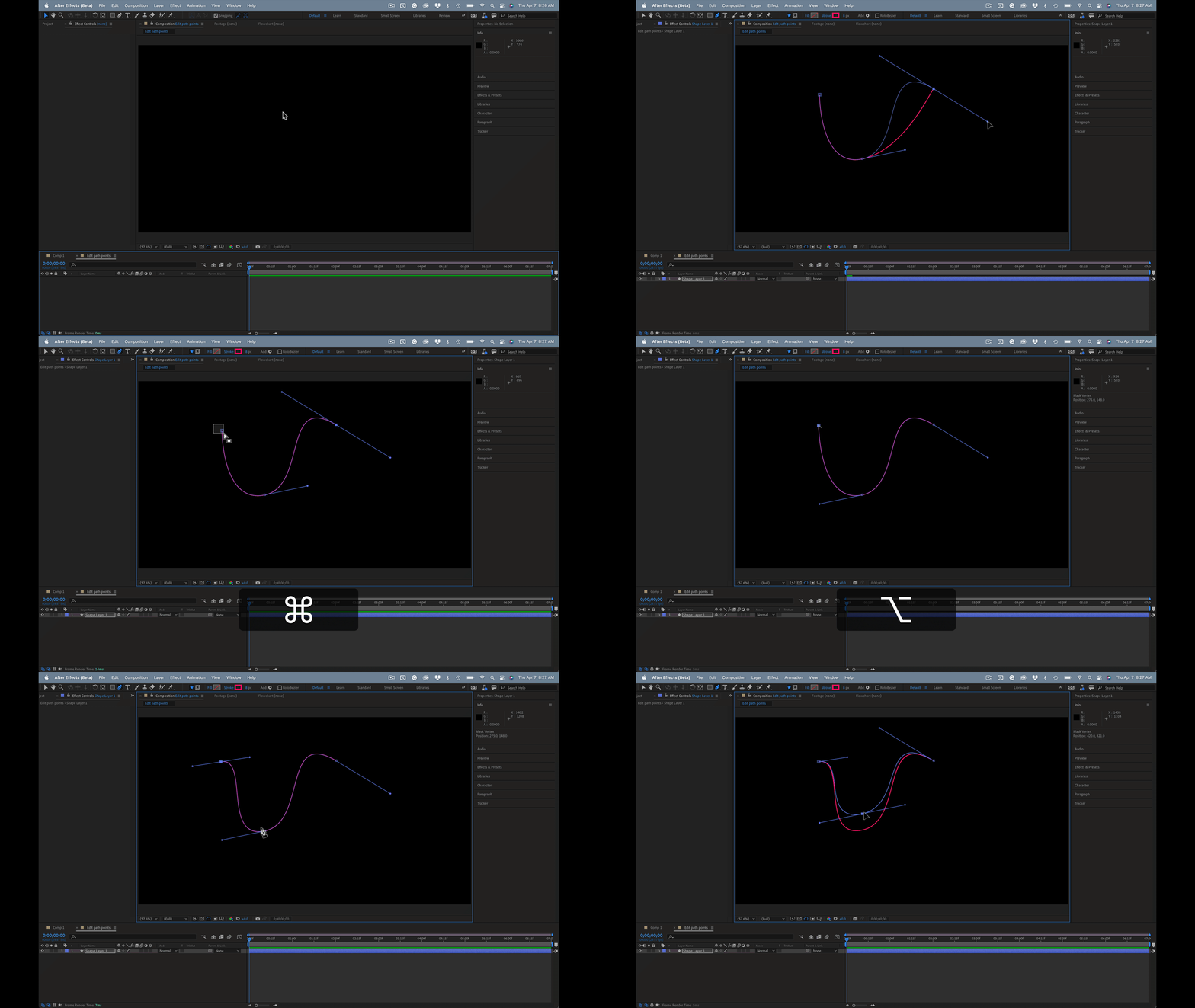
You need to hold down the Ctrl/Cmnd key and pay close attention to the cursor. It will change to a white selection tool that you can use to drag a selection around one or more vertexes.

A better option is to have the path revealed in the timeline, switch between the selection tool (v) and the path tool (g), and use the Alt/Option or Ctrl/Cmnd modifier keys to edit the path. Here is a short tutorial I produced showing how to edit a path:

I created the tutorial to respond to a thread on the forum a long time ago. I should update it to show more of the workflow techniques you can use.


1 reply

Rick GerardCommunity ExpertCorrect answer
Community Expert
April 7, 2022

You need to hold down the Ctrl/Cmnd key and pay close attention to the cursor. It will change to a white selection tool that you can use to drag a selection around one or more vertexes.

A better option is to have the path revealed in the timeline, switch between the selection tool (v) and the path tool (g), and use the Alt/Option or Ctrl/Cmnd modifier keys to edit the path. Here is a short tutorial I produced showing how to edit a path:

I created the tutorial to respond to a thread on the forum a long time ago. I should update it to show more of the workflow techniques you can use.


New Participant
April 7, 2022

Thank you so much! That works for me. Appreciate the help!