

Participating Frequently
May 7, 2023
Question

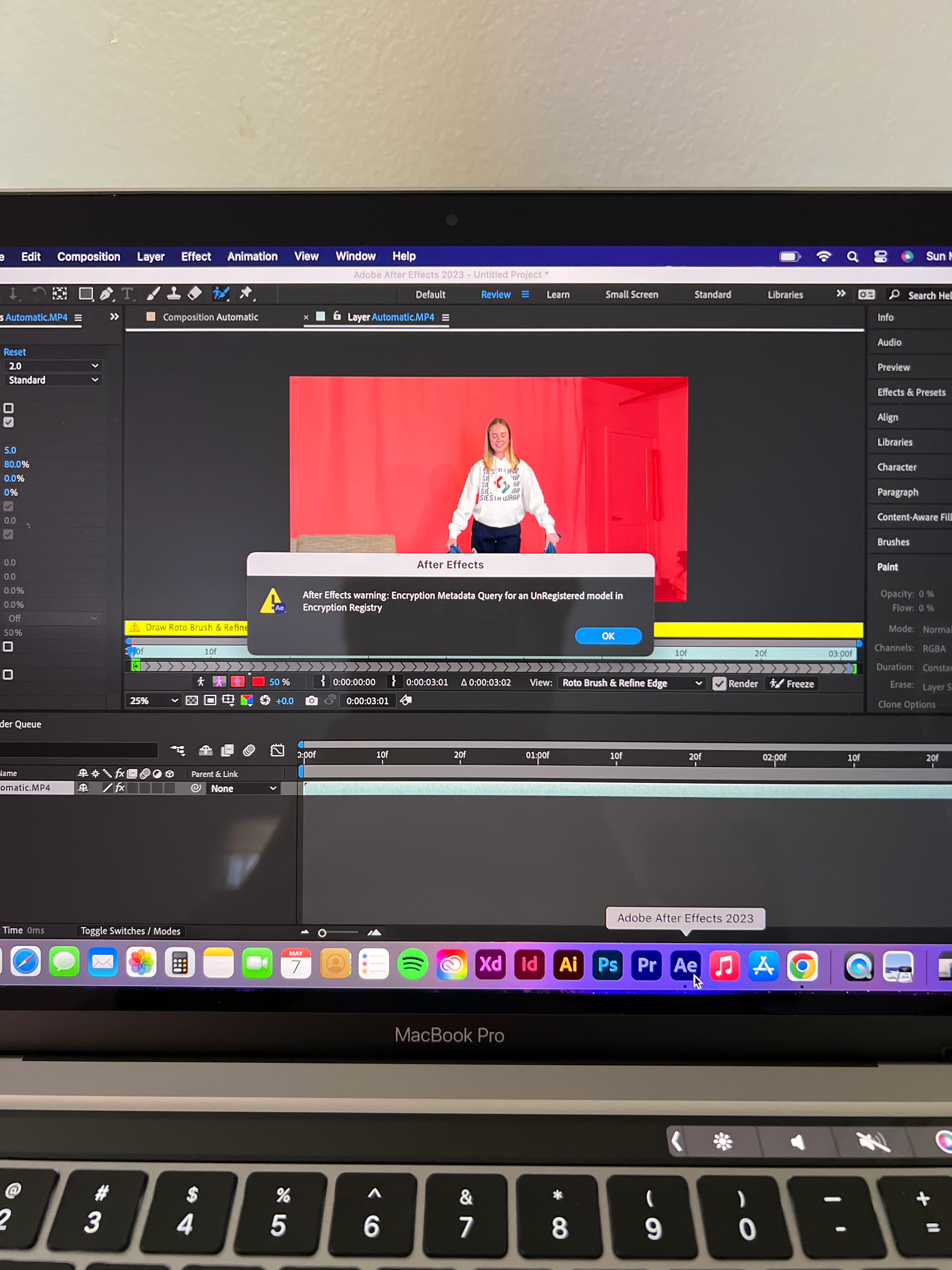
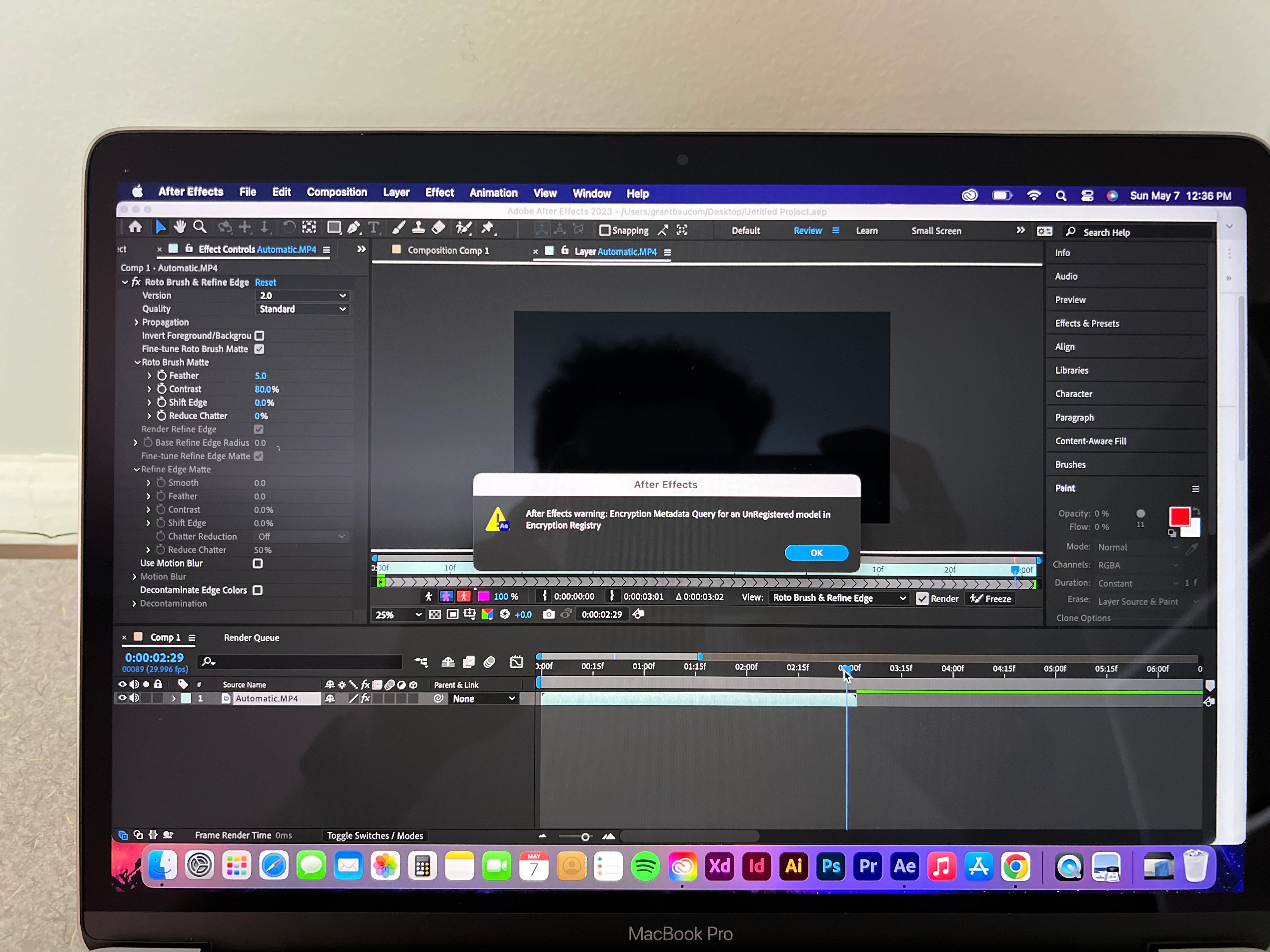
how to "after effects warning: encryption metadata query for unregistered model enryption registry

  • May 7, 2023
  • 5 replies
  • 3700 views

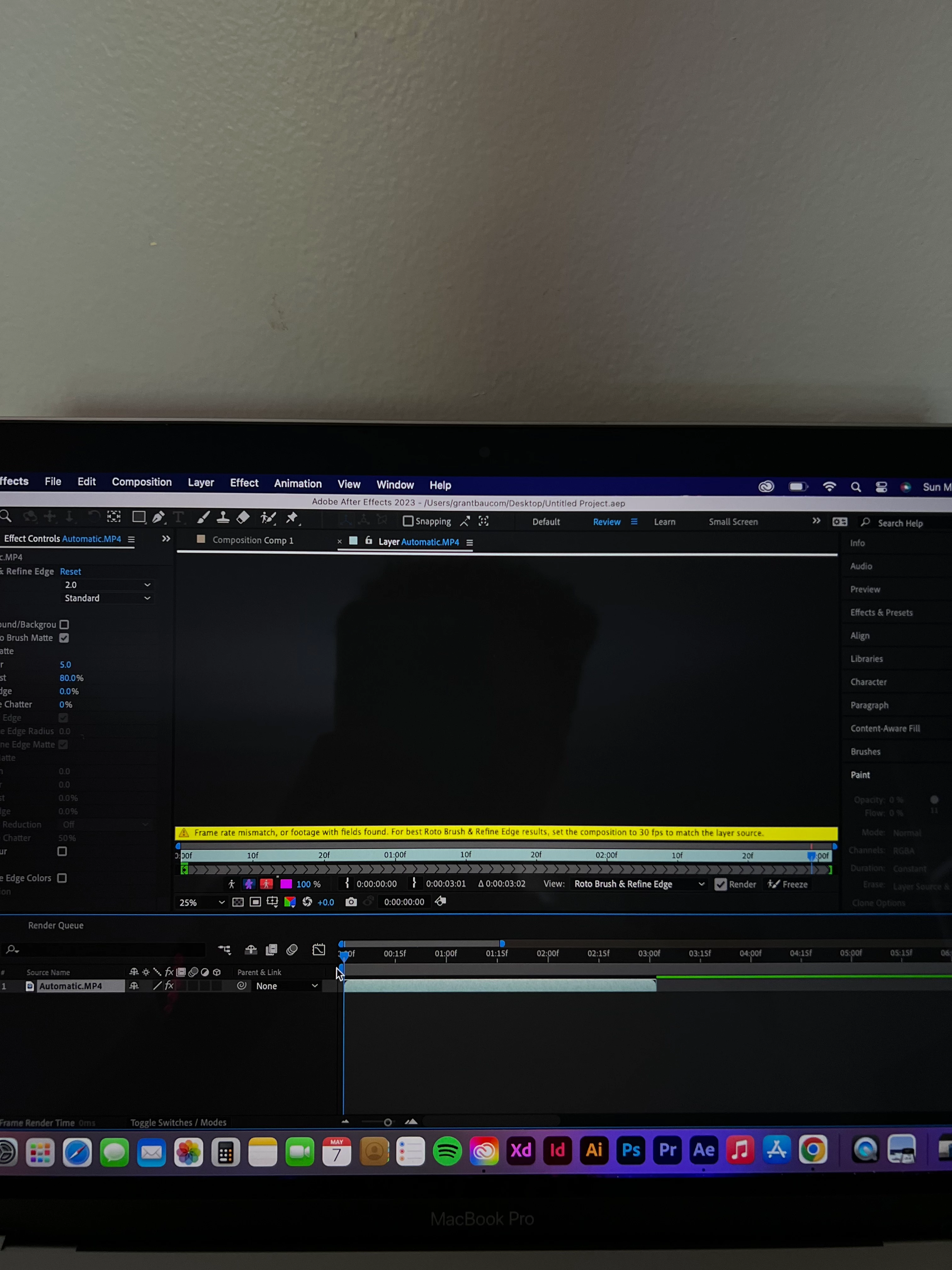
when i try and rotobrush any clip this shows up and I cannot get around it by matching fram rate, or unistalling my the software or anything
This topic has been closed for replies.

5 replies

Participant
November 29, 2024

I have the same problem. Then I found out why, It was because of a Roto-brush conflict. I opened a project on a different device. The solution is to open the original project on the first device, make sure to freeze all the results roto-brush first then save it. Now, you can open the project on a different device. Hope this help for everyone who has the same problem.

Participant
June 9, 2023

I experienced this on After Effects version 23.4, I believe if you downgrade to a lower version you won't get this problem. I downgraded to version 22.6.4 

Participating Frequently
June 13, 2023

how do you downgrade the software?

Participating Frequently
June 14, 2023

Just uninstall the new version, and install the old one... this is the "downgrade" that he is talking about.

By the way, you can also use both versions simultaneously. 

Participant
May 30, 2023

I'm facing the same problem. I'm curious about what caused it. I've used the tool extensively in previous projects, but now I encountered this error. Surprisingly, this isn't even the first time I've used the roto tool in my current project.

Participant
May 31, 2023

Update: I managed to resolve this issue by utilizing CC cleaner to uninstall After Effects and subsequently reinstalling it

Community Expert
May 7, 2023

Try this:

  1. Trim the clip you want to Rotobrush
  2. Precompose the trimmed clip moving all attributes to the new comp and trimming to the length of the layer
  3. Open the now nested Pre-comp in the Layer Panel using the Menu or by right clicking
  4. Run Rotobrush on the Pre-comp


If that does not work try this:

  1. Select the original footage in the Project Panel
  2. Right click or use the File menu to Interpret Footage
  3. Make sure that the frame rate is set to a standard frame rate
  4. Open the footage in the Footage Panel
  5. Set in and out points using Alt/Option + [ or ]
  6. Select the Footage in the Project Panel after you have set in and out points
  7. Create a new composition from selected
  8. Drop your new comp in your master comp - making sure that the frame rates match
  9. Open the New comp in the Footage panel and apply Rotobrush


The frame rate of the Rotobrushed layer must match the frame rate of the composition. MP4 footage from mobile or amateur devices is often highly compressed and has variable frame rates. This makes it unsuitable for Rotobrush. Transcoding to a Production format often solves that problem and setting the frame rate to a standard frame rate is critical to making the footage compatible with compositing apps like After Effects.

Participating Frequently
May 8, 2023

thank you, I will try this today, and update whether I am able tto ge this to work. 

Participating Frequently
May 11, 2023

Unfortunately you have only one option for solve your problem:
Change the "Version" in Rotobrush effect options to "1.0"...


Participating Frequently
May 7, 2023

I meant "how to fix this warning" and what it even means
