Known Participant
October 27, 2022
Answered

How to scale a shape based on dividing two numbers.

  • October 27, 2022
  • 2 replies
  • 488 views

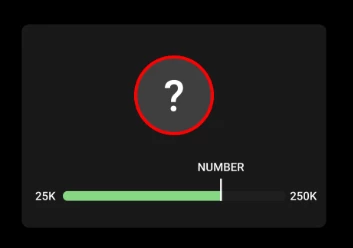
Allow me to specify! I am trying to allow the user to set four custom numbers A, B, C, and D, and have a progress bar show the specified amount of progress. A represents the lowest number (25K in the image below), and B represents the highest number (250K in the image below). C and D represent the starting progress and ending progress.


To elaborate, here's an example, let's say the low number (A) is set to 0, and the high number (B) is set to 200, I would like the user to be able to put in 40 for the starting count (in a mogrt), and the bar will start at 20 percent full (40 is 20% of 200). My ideas is as follows; we use an expression to grab the low and high number, we divide the low number by the high number (which will give us a percentage as a decimal), and we multiply the newly gained decimal by 10 to make it work in the scaling setting.


Any help is greatly appreciated. I am new to expressions so I'm excited to see where this'll take me.


Ethan


This topic has been closed for replies.
Correct answer Rick Gerard

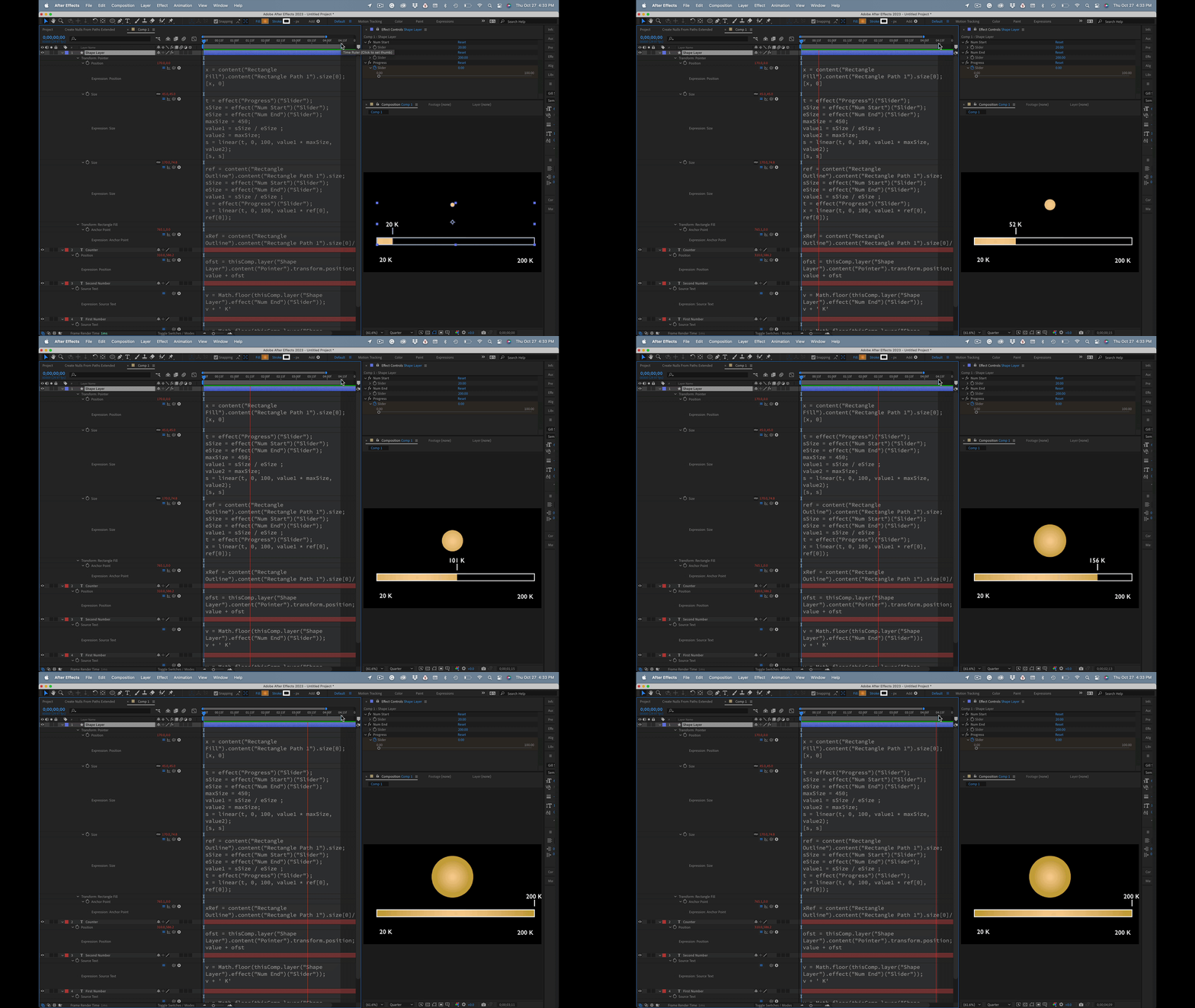
Three text layers and one shape layer with two rectangles one ellipse, a short stroked path, and  three sliders is all it takes to get what you want. Instead of sharing all of the expressions I'll jsut share a project file. 
I do this kind of thing all the time. 

The starting point and the workflow involve creating a Rectangle Outline and, below that, a Rectangle Fill. The size of the rectangle fill layer is controlled by a linear expression that calculates the percentage of the Start Value to the End Value, then looks at the Progress slider to grow the value so that it fills the Outline Rectangle. Here's the expression for Rectangle Fill/Rectangle 1/Size:

ref = content("Rectangle Outline").content("Rectangle Path 1").size;
sSize = effect("Num Start")("Slider");
eSize = effect("Num End")("Slider");
value1 = sSize / eSize ;
t = effect("Progress")("Slider");
x = linear(t, 0, 100, value1 * ref[0], ref[0]);

[x, ref[1]]

The Transform Rectangle Fill/Anchor point also needs an expression to keep the anchor point on the left edge of the shape so that it grows from the left. Here's that expression:

xRef = content("Rectangle Outline").content("Rectangle Path 1").size[0]/2;
x = - content("Rectangle Fill").content("Rectangle Path 1").size[0];
y = 0;

[x/2 + xRef, y]

A simple Math.round(Slider Value). expression gives you whole numbers for the text layers. That expression looks like this:

v = Math.floor(thisComp.layer("Shape Layer").effect("Num End")("Slider"));
v + ' K'

The value for the moving text layer is a little mor complex. It uses the same percentage calculation and linear method as the Rectangle Fill layer uses:

sSize = thisComp.layer("Shape Layer").effect("Num Start")("Slider");
eSize = thisComp.layer("Shape Layer").effect("Num End")("Slider");
t = thisComp.layer("Shape Layer").effect("Progress")("Slider");
v = Math.floor(linear(t, 0, 100, sSize, eSize));
v + " K"

The position for the moving text layer just uses the size value of the pointer, and the position for the pointer path just uses the size of the Fill rectangle. You just have to move the path so that it lines up with the right edge of the Rectangle Fill.


Hope this helps you figure it out.

 

2 replies

Rick GerardCorrect answer
Community Expert
October 27, 2022

Three text layers and one shape layer with two rectangles one ellipse, a short stroked path, and  three sliders is all it takes to get what you want. Instead of sharing all of the expressions I'll jsut share a project file. 

I do this kind of thing all the time. 

The starting point and the workflow involve creating a Rectangle Outline and, below that, a Rectangle Fill. The size of the rectangle fill layer is controlled by a linear expression that calculates the percentage of the Start Value to the End Value, then looks at the Progress slider to grow the value so that it fills the Outline Rectangle. Here's the expression for Rectangle Fill/Rectangle 1/Size:

ref = content("Rectangle Outline").content("Rectangle Path 1").size;
sSize = effect("Num Start")("Slider");
eSize = effect("Num End")("Slider");
value1 = sSize / eSize ;
t = effect("Progress")("Slider");
x = linear(t, 0, 100, value1 * ref[0], ref[0]);

[x, ref[1]]

The Transform Rectangle Fill/Anchor point also needs an expression to keep the anchor point on the left edge of the shape so that it grows from the left. Here's that expression:

xRef = content("Rectangle Outline").content("Rectangle Path 1").size[0]/2;
x = - content("Rectangle Fill").content("Rectangle Path 1").size[0];
y = 0;

[x/2 + xRef, y]

A simple Math.round(Slider Value). expression gives you whole numbers for the text layers. That expression looks like this:

v = Math.floor(thisComp.layer("Shape Layer").effect("Num End")("Slider"));
v + ' K'

The value for the moving text layer is a little mor complex. It uses the same percentage calculation and linear method as the Rectangle Fill layer uses:

sSize = thisComp.layer("Shape Layer").effect("Num Start")("Slider");
eSize = thisComp.layer("Shape Layer").effect("Num End")("Slider");
t = thisComp.layer("Shape Layer").effect("Progress")("Slider");
v = Math.floor(linear(t, 0, 100, sSize, eSize));
v + " K"

The position for the moving text layer just uses the size value of the pointer, and the position for the pointer path just uses the size of the Fill rectangle. You just have to move the path so that it lines up with the right edge of the Rectangle Fill.


Hope this helps you figure it out.

 

ethanhereAuthor
Known Participant
October 28, 2022

Absolutely amazing. Thank you so much Rick. I am so inspired to learn more now.


Thanks,

Ethan

Mylenium
Brainiac
October 27, 2022

linear(Slider goes here,A,B,C,D)


Really no reason to make it more complicated than that. Of course you need to fill in the actual values and references.


Mylenium

ethanhereAuthor
Known Participant
October 27, 2022

That didn't seem to accomplish the issue! That makes everything exactly related to the slider.

Dan Ebberts
Community Expert
October 27, 2022

As Mylenium suggests, linear is the key for translating one range to another:

A = 0;	// low number
B = 200;	// high number
C = 20;	// starting progress
D = 80;	// ending progress


low = linear(C,0,100,A,B);  // will be 40 in this example
high = linear(D,0,100,A,B); // will be 160 in this example