


Inspiring
February 12, 2021
Answered

How to seamlessly loop a series of line shapes?

  • February 12, 2021
  • 3 replies
  • 6157 views

This is probably a simple thing to do, but how can I make horizontal lines animate from bottom of the screen to the top and repeat in a seamless loop? I tried position keyframes on a single line (shape layer) with a time remap and a loopOut() expression, but I want the next line to start before the first gets all the way to the top of the screen. In otherwords, I want a continuous string of horizontal lines moving from bottom to top looping in the background.

Thanks
This topic has been closed for replies.
Correct answer Roland Kahlenberg

Hi,

Everything works except the loop, so I guess I'm not understanding that last part with the 50% offset.  When the time indicator hits the 2nd keyframe, then animation stops.


A more efficient method is required if you want a loopable sequence.

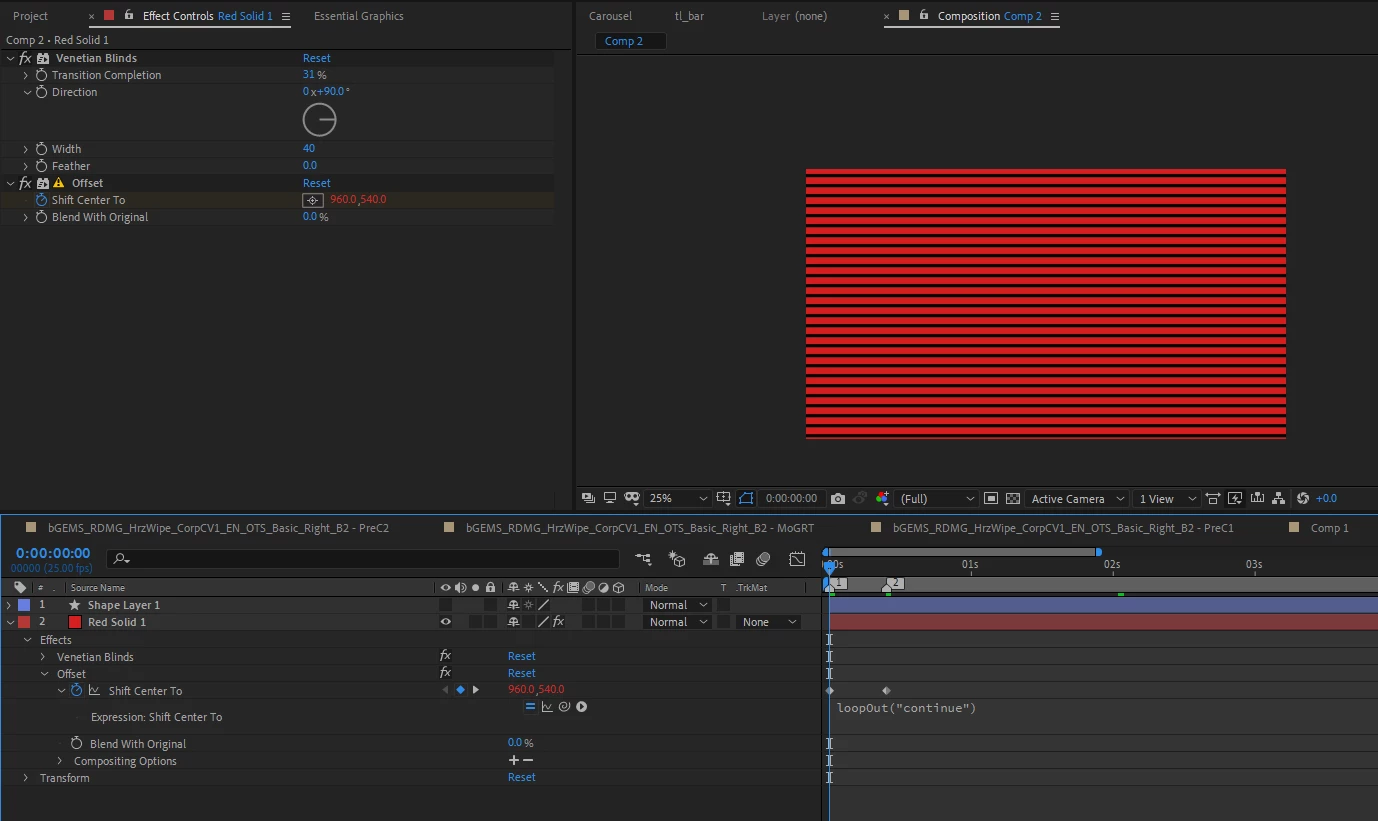
The Image Below shows the setup at the start of the loop. The second keyframe value for Shift Center To is [960,500]. This moves the lines upwars by forty pixels; and the two keyframes are 10 frames apart. You can adjust the time difference of the two keyframes to speed up or slow down the movement. The value change of 40 (going from 540 to 500 for the y-parameter) is based on the Width property of the Venetian Blind effect – with the y-movement set equal to the Width of the Venetian Blinds, we're ensured the two keyframes will provide identical visuals.


To complete the loop sequence, add the Expression,

loopOut("continue")


HTH

3 replies

Community Expert
February 18, 2021

My approach to this problem is a little different and extremely easy.

  1. Create one line at the top of a new shape layer
  2. Add the repeater and adjust the number of copies to fill the screen plus 1 line
  3. Animate offset to move the line up until copy 2 is in the exact same position as line 1 was on the first frame and park the CTI (time indicator) there (I use an expression that I will include)
  4. Set the out point of the layer
  5. Pre-compose trimming the comp to the length of the layer
  6. Apply Time Remapping to the nested comp
  7. Add a new Time Remapping keyframe on the last frame of the layer using the diamond icon in the timeline
  8. Press K again to go to the last time remapping keyframe and delete it using the diamond icon again
  9. add the expression loopOut() to time remapping - because the first and last frames are identical the animation will loop seamlessly forever.

There you go. Takes about 1 minute. 


The expression that makes the layer move exactly an even number of pixels per frame; very important to prevent judder, and it also works for title rolls. An expression slider controls the speed.


moveDistance = Math.floor(effect("Pixels Per Frame")("Slider")); //speed in whole numbers

t = inPoint - (time * thisComp.frameDuration);
y = - Math.round(moveDistance) * time;
[value[0], value[1] + y]


The screenshots - The animated lines comp:

The main comp; note how long it takes to render a speed change. Only the new frames then the whole timeline is ready to go.

The main advantage to this method:

  • You can adjust the timing of the nested comp by simply moving the time remapping keyframe and the motion will not result in judder problems
  • No judder or aliasing problems in the moving lines
  • Very fast to render because only a few frames and one shape needs to be calculated
  • Effects can be applied directly to the pre-comp also saving render time

Here's the project file: Rolling Scanlines.aep

Inspiring
February 19, 2021

Well I'm sure this is a much easier approach for an advanced user like you, but not so much for a beginner like me. lol

(Thanks for providing your file)

1. When I go to your shape layer, there's nothing on it, it's blank (see screenshot)

2. After I pasted in your expression, I got the error "Pixels Per Frame is missing or does not exits."

I see it on your file, but I can't find the Pixels Per Frame effect.

3. On your step #4, I'm not sure what you mean by set the out point. I'm not seeing where you did that on your file.


I do appreciate your attempt, but I probably should have stated that I'm just an AE beginner.


Thanks


Roland Kahlenberg
Legend
February 17, 2021

The Create Nulls from Paths script that is pre-installed with AE has a Trace Path option which includes a Loop option via a checkbox.

Very Advanced After Effects Training | Adaptive & Responsive Toolkits | Intelligent Design Assets (IDAs) | MoGraph Design System DEV
Inspiring
February 17, 2021

This is cool, I just tried it out. Thanks!

P.M.B
Legend
February 12, 2021

One way is to apply a Trim Paths operator to the line, adjust either the start or end or both so there's a gap.

And then put a time expression on the offset.  You'll need to play with settings to your liking and multiply by positive or negative depending on the direction.  Note the line I drew barely extends past the boundries of the composition.  If you need longer lines with bigger gaps extend the line further past the comps borders

~Gutterfish
Inspiring
February 17, 2021

Sorry, I didn't explain very well what I was trying to do.

This is more of what I was wanting (see screen shot). Then I want those lines to continuously loop from bottom to top seamlessly.


P.M.B
Legend
February 17, 2021

Ah.  You can use the Generate Grid effect on a solid and animate the

Y anchorpoint (in the effects settings, not the layer).

Actuallyit's the Grid effect under the sub-category Generate in the effects menu.

To get rid of the verticle grid lines just set the width slider to a very high number (youll have to enter it manually)

And then adjust the X Anchor position (again, in the effect settings) until the verticle lines are off screen.

To unlock the Width and Height sliders you'll need to set "Size From" to Width & Height Sliders.

That should do it.  Then whatever effects and final touches for the look


~Gutterfish