If you have Auto-Orientation set to Orient Along Path and the motion path is ending as shown then all you have to do is add two rotation keyframes to the person waling layer.
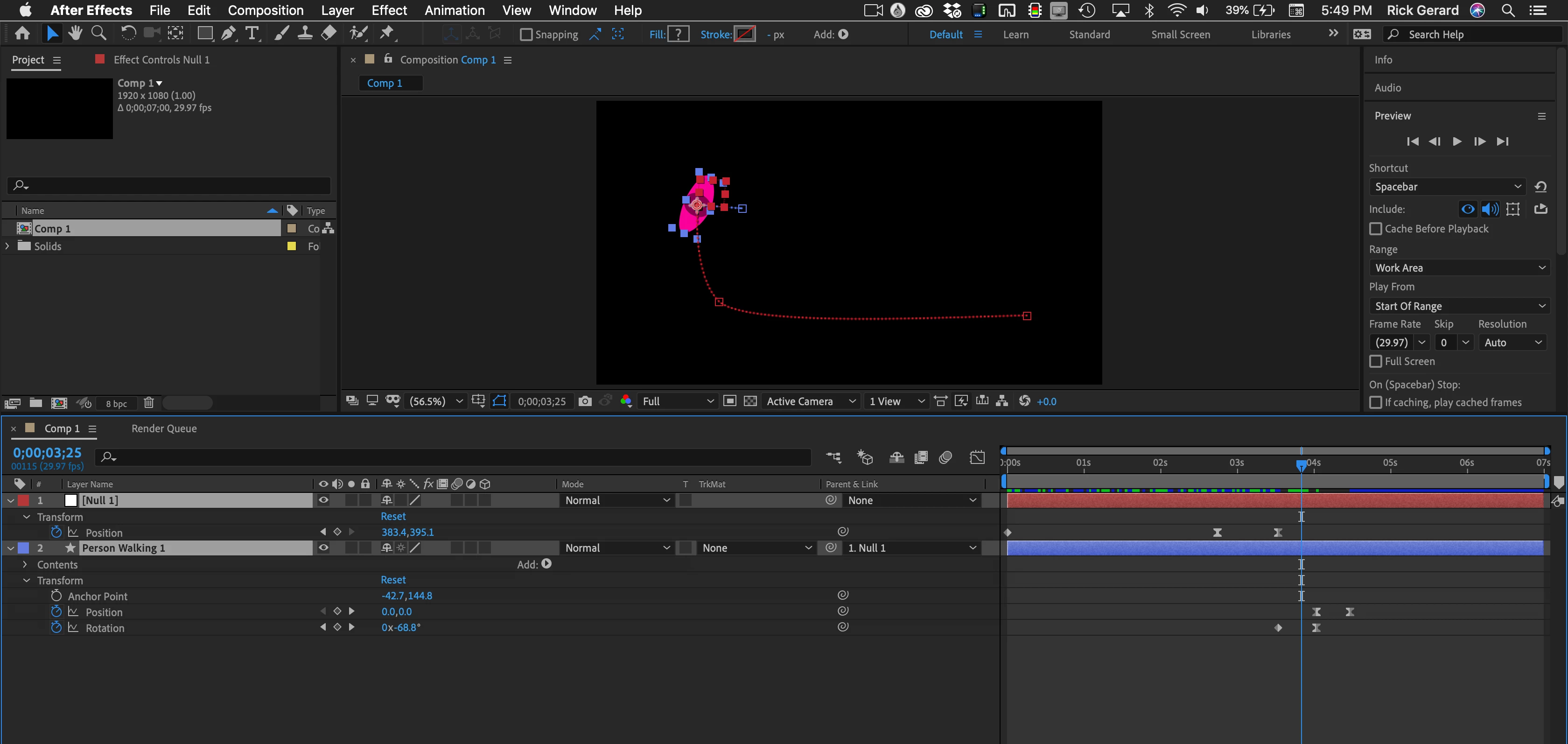
If you need the person to turn to face the stage and then move back to the seat then you should add a null, parent the layer to the null, set the null to Orient Along Path, turn off Auto-Orientation for the person walking layer use the Null to move the person, then add the rotation keyframes, then animate the position of the person walking layer to move it back to the seat. Something like this:
Trying to write an expression to keep everything on one layer is going to get complicated. You'll have to use the time of the last keyframe as the starting point for a rotation animation based on a linear method, throw in an extremely complex auto orient to motion path expression with an if statement, and then move the person walking back to their seat.
If the person walking layer is not going to get any more position keyframes then you could save an animation preset for just the rotation turn and apply it when you move the CTI to the last position keyframe. That would make all layers rotate the same direction.
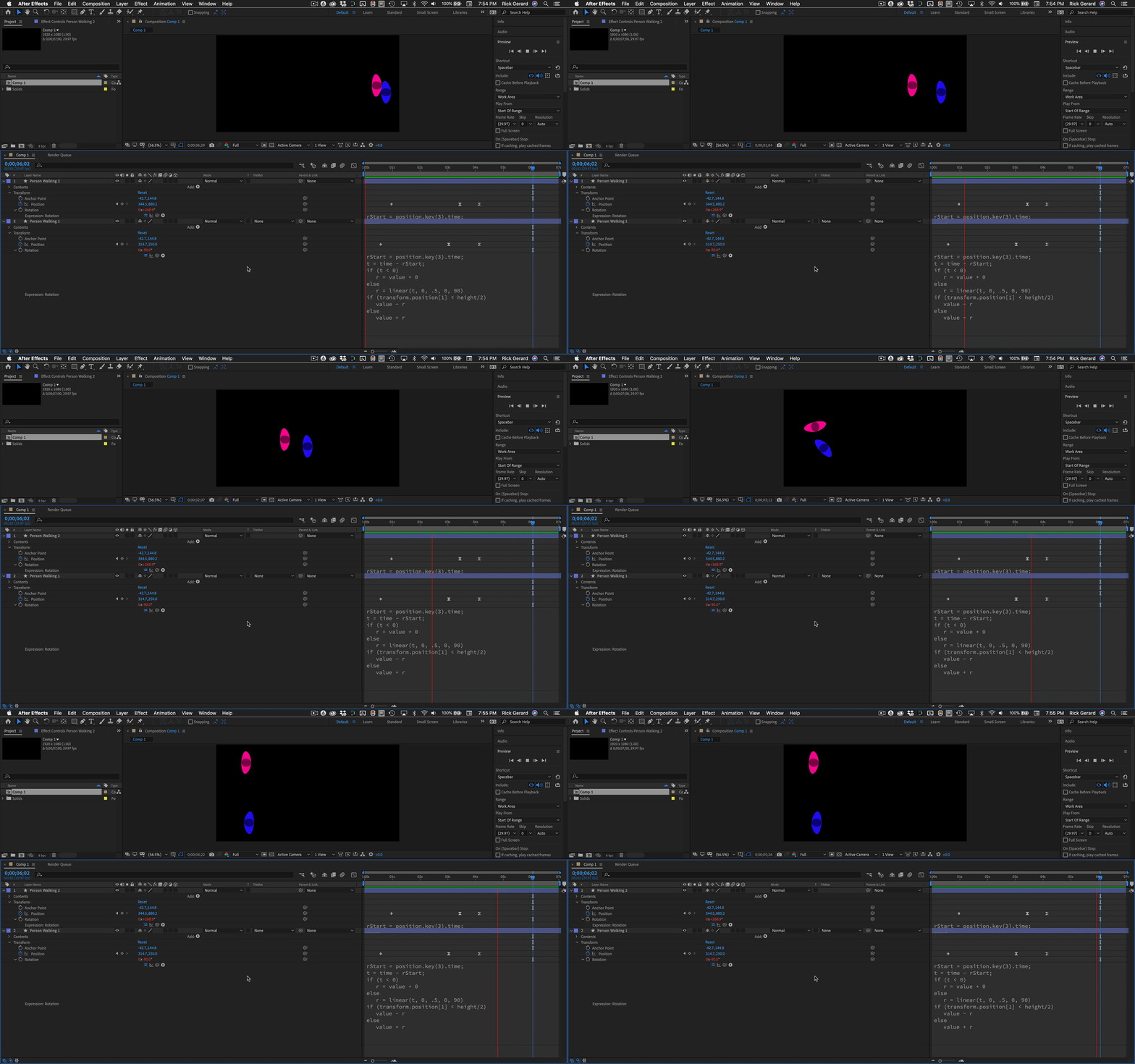
If all of the person walking layers are going to have the same number of keyframes and they just stop then turn to the stage, and you want the ones on the top side of the aisle to rotate counter-clockwise and the ones below the center of the aisle to rotate clockwise, you could write an expression that would rotate the layers like this:
rStart = position.key(3).time;
t = time - rStart;
if (t < 0)
	r = value + 0
else
	r = linear(t, 0, .5, 0, 90)
if (transform.position[1] < height/2)
	value - r
else
	value + r
- rStart is the third and last keyframe in the motion path. If you have 4 keyframes then rStart should be changed to rStart = position.key(4).time;
- t = starts counting time in seconds at the keyframe specified in rStart
- The if statement simply says if t (the time counter) is less than zero, the r-value will be the existing rotation value. The else statement says otherwise as the time in seconds (t) increases from zero to .5 (a half-second) scale the r-value from zero to 90.
- The second set of if statements says if the Y value of the position property of this layer is less than half the height subtract r from the rotation value to rotate the layer counter-clockwise but if the position value is not (else) less than half the height of the comp add r to the rotation value.
- To change the time it takes to rotate change the .5 in the linear method, to change the number of degrees the layer rotates, change the 90. To ease in and out of the move change linear to ease. To ease in on the rotation change linear to easeIn. To ease out of the rotation change linear to easeOut.
That should let you know how the expression works.




 AdChoices