

verypedro
Participant
March 7, 2023
Answered

Is there a way to automatic animate a layer scale when the position of another layer changes?

  • March 7, 2023
  • 2 replies
  • 913 views

I'm animating this YouTube avatar/persona and I've set up a slider that contains all the individual images. I would also like to have a little bounce animation whenever the image changes to better transition between them.

In the video example I've manually animated the bounce animation by moving only the Y scale, but I'd like to know if there is an eaiser way to so with expressions. So everytimethe X position on the Slider changes, the Y scale on the Null object that all images are linked to would have a little bounce.


I'm a completely noob when it comes to coding so I haven't found a reliable way to do so even after searching the Community.
This topic has been closed for replies.
Correct answer Rick Gerard

If the layer with the Y keyframes is named control and you did not separate dimensions (not often a good idea because the bezier handles go away and it's difficult to accurately define a curved path). this expression will give you a .2 second expand and .1 second contract on the Y scale value of another layer.


c = thisComp.layer("Control");
p = c.position;
kt = p.nearestKey(time).time;
if (time - kt > 0)
	t = time - kt;
else
	t = 0;

y = ease(t, 0, .2, 0, 50);
y2 = ease(t, .2, .3, 0, -50);

[value[0], value[1] + y + y2]


The expression looks for the time of the next keyframe and then eases (you could use linear) between zero and a 50% change in scale and adds that to the current scale value of the layer with the expression. 


If you want the expansion to be 10% change the 50 and the -50 to 10 and -10. 


If you want the timing to be faster, change the .2 to .15 in the first ease expression and .15 and .2 in the second. 


The basic interpolation function is ease(t, tMin, tMax, value1, value2). The st of the expression is just simple math. If you want to keep separated dimensions, change the c = to c.transform.yPosition.

(note: the low frame rate of the animated gif is not showing all of the movement. It is all equal)

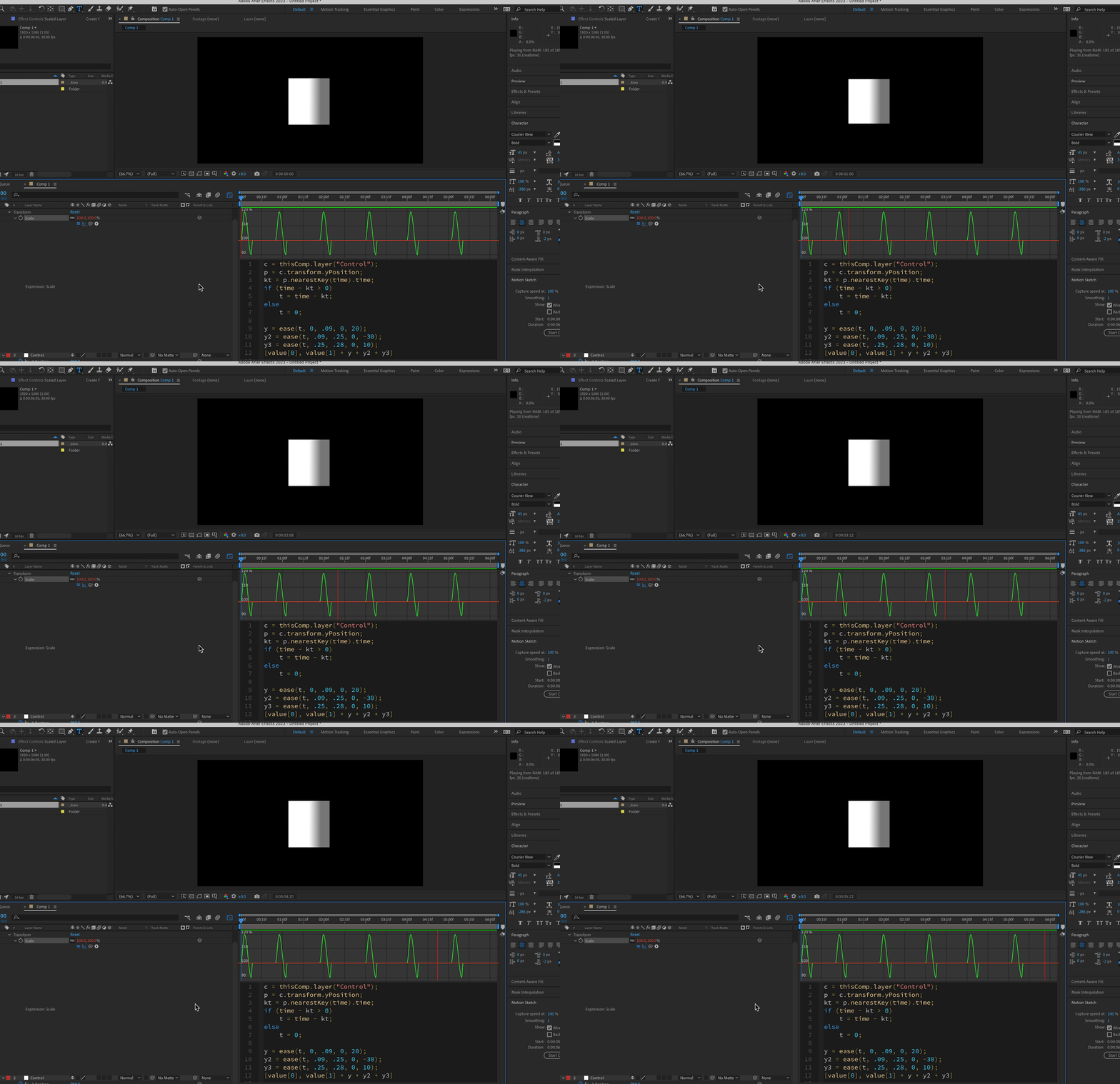
Here's the expression with a slight recoil using 3 y values and separated dimensions.


c = thisComp.layer("Control");
p = c.transform.yPosition;
kt = p.nearestKey(time).time;
if (time - kt > 0)
	t = time - kt;
else
	t = 0;

y = ease(t, 0, .09, 0, 20);
y2 = ease(t, .09, .25, 0, -30);
y3 = ease(t, .25, .28, 0, 10);
[value[0], value[1] + y + y2 + y3]


It's been kind of fun to play with this.


2 replies

Rick GerardCommunity ExpertCorrect answer
Community Expert
March 7, 2023

If the layer with the Y keyframes is named control and you did not separate dimensions (not often a good idea because the bezier handles go away and it's difficult to accurately define a curved path). this expression will give you a .2 second expand and .1 second contract on the Y scale value of another layer.


c = thisComp.layer("Control");
p = c.position;
kt = p.nearestKey(time).time;
if (time - kt > 0)
	t = time - kt;
else
	t = 0;

y = ease(t, 0, .2, 0, 50);
y2 = ease(t, .2, .3, 0, -50);

[value[0], value[1] + y + y2]


The expression looks for the time of the next keyframe and then eases (you could use linear) between zero and a 50% change in scale and adds that to the current scale value of the layer with the expression. 


If you want the expansion to be 10% change the 50 and the -50 to 10 and -10. 


If you want the timing to be faster, change the .2 to .15 in the first ease expression and .15 and .2 in the second. 


The basic interpolation function is ease(t, tMin, tMax, value1, value2). The st of the expression is just simple math. If you want to keep separated dimensions, change the c = to c.transform.yPosition.

(note: the low frame rate of the animated gif is not showing all of the movement. It is all equal)

Here's the expression with a slight recoil using 3 y values and separated dimensions.


c = thisComp.layer("Control");
p = c.transform.yPosition;
kt = p.nearestKey(time).time;
if (time - kt > 0)
	t = time - kt;
else
	t = 0;

y = ease(t, 0, .09, 0, 20);
y2 = ease(t, .09, .25, 0, -30);
y3 = ease(t, .25, .28, 0, 10);
[value[0], value[1] + y + y2 + y3]


It's been kind of fun to play with this.


verypedro
verypedroAuthor
Participant
March 7, 2023

Thank you so much, @Rick Gerard! That is EXACTLY what I needed!

I'm still very inexperienced in expressions and I'm not sure how you got to this result, but I'd love to learn.
Do you recommend anywhere I could start with?

Community Expert
March 7, 2023

You'll need a specialized expression that looks at the time of the nearest keyframe you use as the trigger and then converts that time to a bounce in another property. I don't have time to work it out right now, but it's possible. If you want an actual bounce instead of a simple scale up and down, you must incorporate some decaying trigonometry in the expression. Dan Ebberts, the expression master of the universe, has the start of what you need for that on his website Realistic Bounce and Overshoot - MotionScript.


verypedro
verypedroAuthor
Participant
March 7, 2023

Hey @Rick Gerard thank you for the reply! It's nice to know that it is possible!
Could you give me some directions when you have some spare time? It can be a simple Y scale down and up

Thank you again!