


New Participant
January 23, 2021
Answered

Mocha AE and After Effects workflow: Exporting Track data issue!

  • January 23, 2021
  • 1 reply
  • 8914 views

I'm trying to rotoscope my subject so I can place text behind him afterwards. But every tutorial I follow when it gets to the exporting of the track into after effects, instead of rotoscoping my subject itself mocha seems to track to my footage and warp it. How do I stop this?


My computer: Windows Omen by Hp laptop 15-dc1xxx

After effects version: 17.5.1


Here i'm trying to just rotoscope his ear to show an example. https://www.dropbox.com/s/sv9wndt7o66ocz3/mocha%20ae%20problem%20more%20detailed.mp4?dl=0

I don't know why my screen record wasn't showing u my mocha AE screen, but basically i saved it, and exited to After effects. Skip to 40 seconds!


When I make a AE mask it does seem to work but it's still slightly off my subject, also I heard it's better to export the track data into the layer anyway. This is my first time using Mocha AE so I'm still learning the ropes. Thanks in advance.
This topic has been closed for replies.
Correct answer Rick Gerard

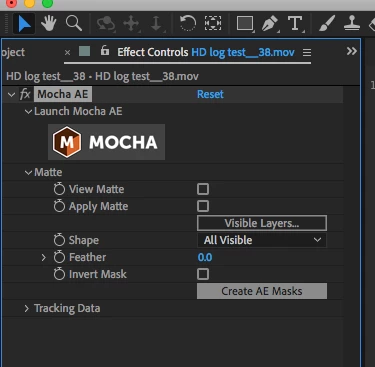
Everything happens in the Effects Control Panel. That is an excellent tutorial on roto work, you just have to use the latest workflow and apply your results using the Mocha AE UI in the Effects Control Panel. The current build of Mocha AE does not support exporting tracking data. Mocha Pro does, Mocha AE does not so there is an error in the tutorial. The proper technique is explained at 7:30 in the tutorial.


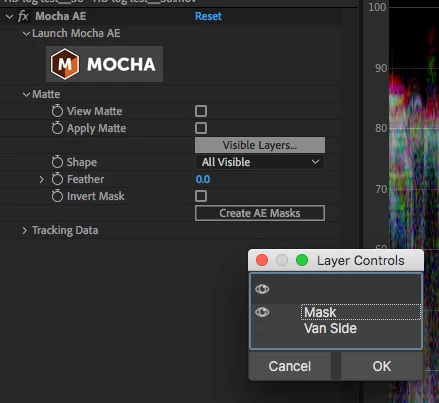
If all you want is to rotoscope and create a mask (or Matte), then back in the Effects Control Panel expand the Matte option, click on Visible Layers,  Pick the layer or layers that you want to use as a mask (matte), then click Create AE Masks. This will create an animated mask on the current layer. You can then copy and paste or cut and paste that mask to another layer or just use it on your Mocha Layer. Here's the sequence:


The introductory tutorial I posted above is 10 minutes long and goes over both tracking and creating mattes. Spending 10 minutes there would have solved your problem the first time you opened Mocha AE if you had clicked on the tutorial link that pops up with the splash screen.  

1 reply

Community Expert
January 23, 2021

Your workflow does not make much sense. There are some really good Mocha AE tutorials and you can get to them right from Mocha AE.

Spend some time on the tutorials. Here's a Quick Tip on rotoscoping in Mocha AE. If you have not already watched the introductory tutorial for Mocha AE 2020 you can find it here.


You applied (Apply Export) the track data from Mocha as Transform data to the source footage. This makes the target layer follow the track. I don't think that is what you wanted to do.


Please give us a better understanding of what you are trying to do. I am guessing that you just wanted to stabilize the rotoscoped ear and put it over the logo. If that is the design goal then there are a few more steps you need to go through. You'll have to apply the Transform data to a null then link the Null's position, anchor point, scale, and rotation to the footage layer's Anchor Point, rotation, and scale property to motion stabilize the shot around the track. 


I have a tutorial series coming out very soon that focuses on Mocha AE, Tracking, Stabilizing, and Rotoscope. I'll post a link when the series is ready. There will be sample footage, projects and some animation presets in the package.

New Participant
January 24, 2021

I'm actually trying to exactly this, but on my Mocha AE it doesn't give me the option to "export shape data" and then "copy and paste" this data to my clip in After Effects like she did in the tutorial. What's the way to do this now?


Thank you!


New Participant
January 26, 2021

Everything happens in the Effects Control Panel. That is an excellent tutorial on roto work, you just have to use the latest workflow and apply your results using the Mocha AE UI in the Effects Control Panel. The current build of Mocha AE does not support exporting tracking data. Mocha Pro does, Mocha AE does not so there is an error in the tutorial. The proper technique is explained at 7:30 in the tutorial.


If all you want is to rotoscope and create a mask (or Matte), then back in the Effects Control Panel expand the Matte option, click on Visible Layers,  Pick the layer or layers that you want to use as a mask (matte), then click Create AE Masks. This will create an animated mask on the current layer. You can then copy and paste or cut and paste that mask to another layer or just use it on your Mocha Layer. Here's the sequence:


The introductory tutorial I posted above is 10 minutes long and goes over both tracking and creating mattes. Spending 10 minutes there would have solved your problem the first time you opened Mocha AE if you had clicked on the tutorial link that pops up with the splash screen.  


Thank you this worked, I only followed Mocha pro tutorials it seems.
