If you are going to be copying and pasting paths you need to import as a composition. When you retain layer size the layer's anchor point is in the geographic center of the shape but the position is altered to keep the artwork lined up. This means the behavior is normal.
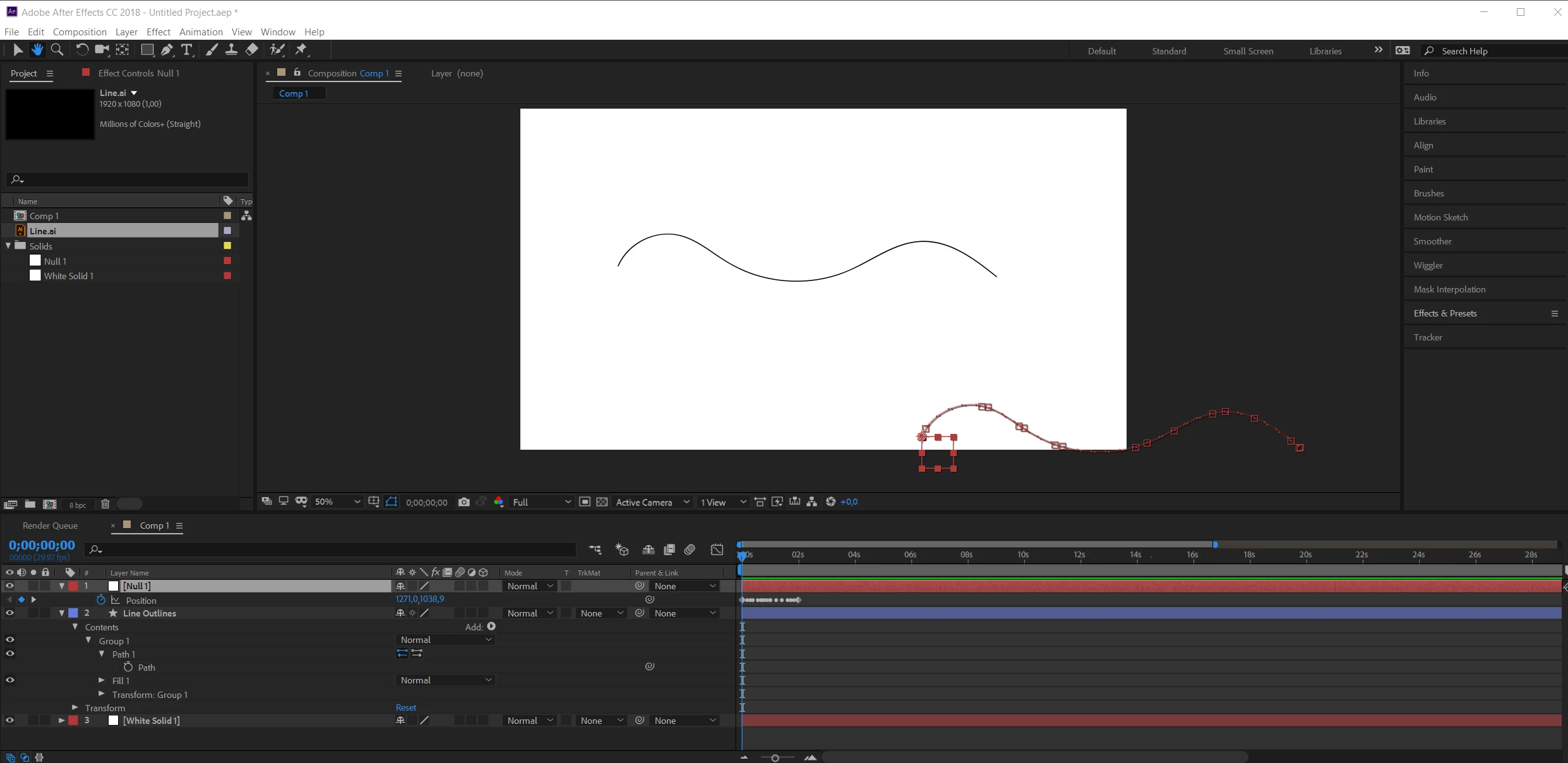
If you need to convert AI layers to shape layers and copy and paste the paths to position properties I would recommend that you create a separate illustrator file by making a duplicate, eliminating any layers that you are not going to use for motion paths, make sure there are no fills applied to any of the lines, then save that file as motion path.ai. Import that as a composition, convert the shape layers to paths, copy the paths, add nulls, paste the paths to the null's position then copy that layer and paste it into your original file. As long as your version of AE is up to date you should have no problems with the paths matching if you import as a comp and the transform properties are all normalized.
In most cases, you do not gain anything by converting vector layers to shapes. The only real good reason to do so is to be able to animate the path, copy the path for use as a motion path, or to use shape animators. I probably create a couple dozen AI files a month to use in AE and except for needing motion paths from my AI files, I would bet that I have not converted every layer in an AI to AE comp to a motion path since the feature was introduced. Only on rare occasions will I create a shape layer from a vector layer. It's a complete waste of time unless you absolutely cannot do with you need to do with the original vector layer.
If you still have problems duplicate your shape layer, reset the position and anchor point on the duplicate, copy and paste the path to your null's position, parent the null to the copy then hold down the shift key and parent the copy to the original shape layer, press the A key to reveal the anchor point of both the duplicate and the copy then copy and paste the anchor point of the original to the copy of the shape layer. Everything will snap into position. You can then delete the copy of the shape layer.
It took me a minute to figure out but it works just fine. It even works if the original layer has been scaled and rotated.



 AdChoices