


Known Participant
June 14, 2017
Answered

Rendering/Exporting with Dynamically Linked Compositions- a LOT of them

  • June 14, 2017
  • 4 replies
  • 2782 views

Hello, I have a project in Premiere pro with 150ish linked compositions.. I know. I am curious if there are any suggestions aside from "render and replace" I can use to speed up the rendering process, because as of now, I am sitting at a 45 hour render time.

I am running the newest version of Premiere pro cc on windows 7. (excluding today's update)
processor: Intel(R) Core(TM) i7-4790k CPU @ 4.00GHz

Ram: 16gb

64 bit op system

graphics card: a p.o.s raedon R7 200 series with a 2016 driver

using mercury software

Also using ridiculously high Bitrate

Please let me know of any additional information I could provide that might help
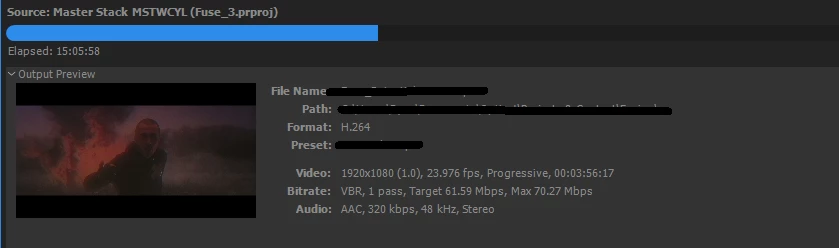
e1: Time drastically improved following one of the information heavier shots, although I'm still at 27 hours remaining, which tends to idle instead of decrease
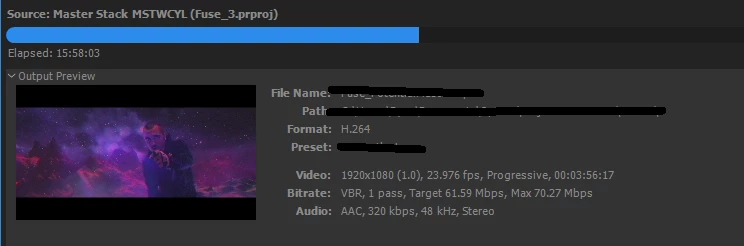
e2: Blue screen of death at 20 hours in, rinsing and repeating

I've spent an absurd amount of time and energy working to make this.. needless to say, this project means a lot to me. I would greatly appreciate any suggestions!

This topic has been closed for replies.
Correct answer Dave_LaRonde

I propose NOT using a high-bit rate H.264, but rather a lossless intermediate codec, like JPEG 2000.  Furthermore, I propose using Adobe Media Encoder, then just replacing shots in PP.

Do you have a short comp that's already been rendered?  You can set it up in AME and compare export times.

It might not be as nifty-cool as your method -- which sidesteps & automates what I propose above -- but c'mon!  You're talking 150 comps!  I for one do not have the confidence in Adobe software to perform your task flawlessly.

4 replies

phloysyAuthor
Known Participant
September 11, 2017

Hello I've returned!

Feeling slightly triumphant considering my encoding woes have been defeated. I finished this project tonight. My final render time was around 1.2 hours with a two pass. Not a bad improvement. I appreciate everyone's input! The image sequence workflow has proven to be tremendously useful!

Somewhere above is the first draft's link on YouTube, going to link the final product here: Fusion Dance | zach johnson - YouTube

Thanks again!

phloysyAuthor
Known Participant
June 24, 2017

Just finished the final revisions. I'm going to be rendering out my master stack from Premiere in AME as a lossless PNG sequence, then I'll replace the dynamically linked compositions in Premiere with the image sequence and render that out with the HVEC codec, while up scaling to 1440p to force YouTube/Vimeo to process(Re-encode) the video at a higher bitrate than it would if I exported at 1080p.

It appears as though rendering out as a PNG sequence makes only a minor improvement in render speeds, at most perhaps it's 10% more efficient.. Although, if I were to make any changes now, I would only have to replace the PNG frames I've changed as opposed to re-exporting every frame again like I would have had to do if I were not using the image sequence workflow.

Thanks for the advice and suggestions!

Community Expert
June 24, 2017

I'll replace the dynamically linked compositions in Premiere with the image sequence and render that out with the HVEC codec, while up scaling to 1440p to force YouTube/Vimeo to process(Re-encode) the video at a higher bitrate than it would if I exported at 1080p.

I don't think you understand codecs, frame sizes or bit rates. You also don't seem to have a good understanding of YouTube and how they handle compression. 1440p is sometimes called quad HD - it's twice as big but if you scale up your comp 200% you'll loose a lot more resolution and quality than if you encode at the highest recommended bit rate for YouTube using muti pass encoding. Throw a 1440p file to YouTube and they will re-compress for 1080 playback and do a mediocre job of it. While you may get the higher bit rate with the 1440p file it will not look as good as sending YouTube a properly prepared HD file.

If you want to work in Quad HD (1440P) then you need to start there rather than scale up. If you insist in scaling up then you should not ever scale up when rendering, you should drop your completed HD render in a 1440p comp or sequence and then use the best scaling plug-in you can afford to resize the video. AE's content preserving upscale is pretty good. Premiere does a fair job, but for really good results look for other solutions from folks like Red Giant. Just dropping a 1080 file in the encoder and scaling it up by 200% will not produce anything close to professional results. There is no free lunch when it comes to encoding.

phloysyAuthor
Known Participant
June 27, 2017

The original comps are 1440p.

Szalam
Community Expert
June 14, 2017

I would suggest rendering to a production codec (DNxHD, Cineform, etc.). They're a lot less heavy on a computer vs. H.264

You can then take the resulting file back into AME to make the H.264.

That may be faster, but it might not. I would definitely have been doing render and replace along the way.

Alternatively, it might go faster if you render via After Effects into a production codec and then drop those clips in. It all kind of depends on the nature of your compositions.

You could also consider going with yesterday's update. There were a number of improvements in the AE to Premiere workflow including speed improvements.

phloysyAuthor
Known Participant
June 15, 2017

Szalam, Thank you for your help! I recently reran the render after cleaning up my system and if this doesn't complete, I am moving on to your method. Thank you again!

Szalam
Community Expert
June 15, 2017

No problem. Looks like Dave and I had some similar thoughts!

Please let us know how things go one way or the other!

Dave_LaRonde
Dave_LaRondeCorrect answer
Inspiring
June 14, 2017

I propose NOT using a high-bit rate H.264, but rather a lossless intermediate codec, like JPEG 2000.  Furthermore, I propose using Adobe Media Encoder, then just replacing shots in PP.

Do you have a short comp that's already been rendered?  You can set it up in AME and compare export times.

It might not be as nifty-cool as your method -- which sidesteps & automates what I propose above -- but c'mon!  You're talking 150 comps!  I for one do not have the confidence in Adobe software to perform your task flawlessly.

phloysyAuthor
Known Participant
June 15, 2017

Thank you, Dave! I am going to try your suggestion, I hadn't considered that option!