New Participant
May 20, 2022
Answered

Responsive center-align two text layers next to each other

  • May 20, 2022
  • 7 replies
  • 7600 views

Hi, I'm struggling with what I think could have an easy solution.


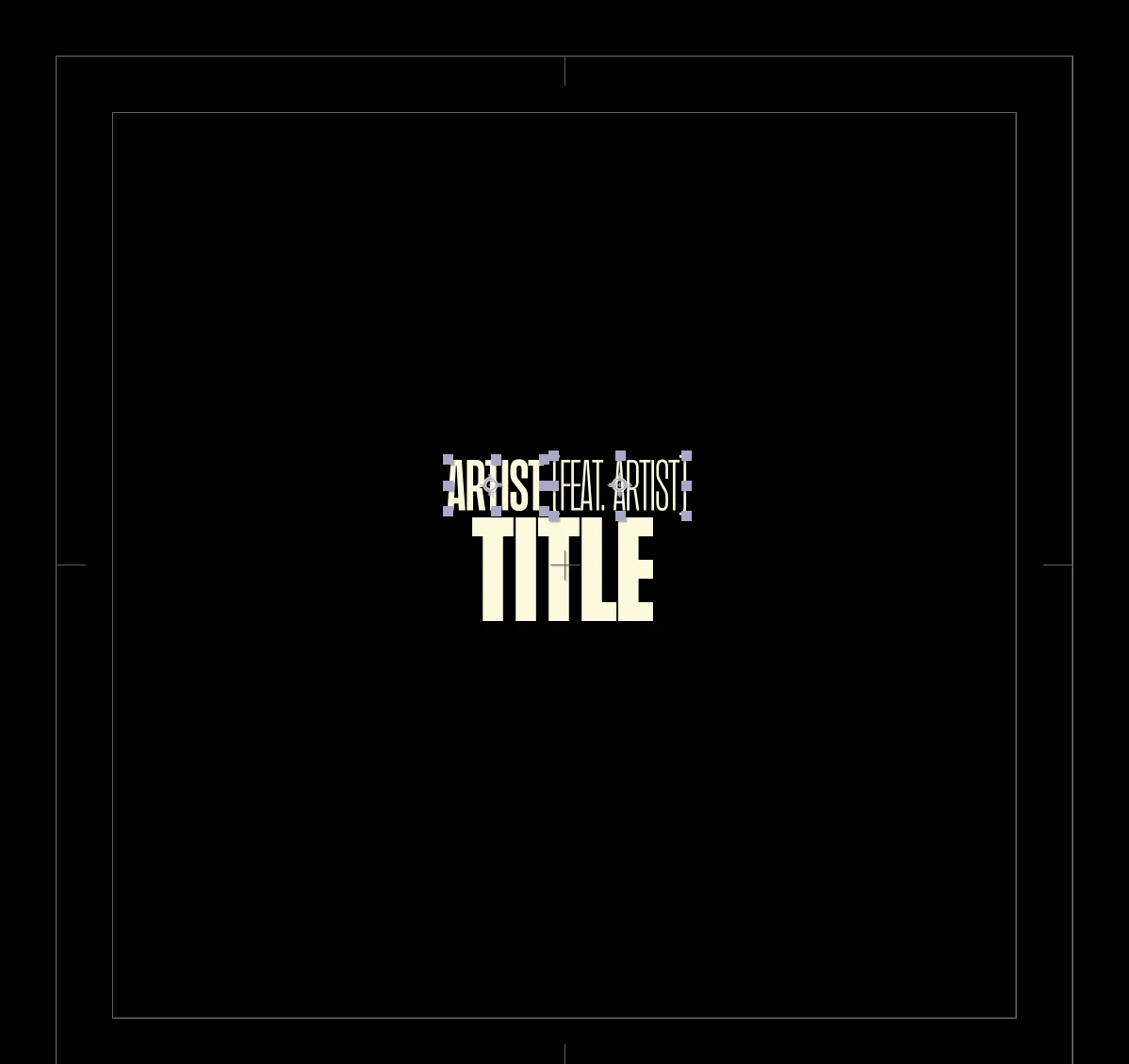
I have linked my project to a spreadsheet to enter the Artist, Featuring and Title. The featuring needs to be in the thin font style while the artist needs to be in the regular font style. Hence why I need to use two seperate layers. See example below:


This is the result I'm trying to make responsive. 


The problem is that I want these two layers to be centered as a group. I know how to align the featuring to the artist text, but I can't seem to center the two to the comp width. When there is no featuring, the Artist name need to be centered.


It needs to be responsive as the input data changes with every track.


I hope somebody can help me 🙂


Kind regards,


This topic has been closed for replies.
Correct answer Rick Gerard

The most efficient way to line up text layers is to use the sourceRectAtTime() function in an expression on the position property of the first two text layers. The Anchor Point of a text layer combined with the height, top, left, and width values can be combined with the layer's position and even scale to tell you exactly where the text layer is in the comp frame and how big it is. All that is left is a little math. 


I. would stack all text layers on top of each other in order, with the top layer being the first layer, then use the layer index instead of the layer names to line up all of the layers and set the horizontal and vertical padding between words. With your design, the bottom line would be the master layer, so it would not have any expressions, and the other two layers would be offset by the bottom layer's height and centered above it by their combined width. 


If the first two layers are left-justified and the bottom layer is center-justified, these expressions should work:


// apply to the first text layer layer position property
secondTxt = thisComp.layer(index + 1);
sSize = secondTxt.sourceRectAtTime();
vPad = - 50;
p = secondTxt.position;
s = secondTxt.scale * .01;
t = sSize.top * s[1];
h = sSize.height * s[1];
w = sSize.width * s[0];
l = sSize.left * s[0];

src=thisLayer.sourceRectAtTime();
srcS = scale * .01;
srcT = src.top * srcS[1];
srcH = src.height * srcS[1];
srcW = src.width * srcS[0];
srcL = src.left * srcS[0];


x = p[0] + l + w - srcL - srcW - w  + vPad;
y = p[1] + t + h - srcT - srcH;

[x, y]


// apply to the second text layer position property
firstTxt = thisComp.layer(index - 1);
sSize = firstTxt.sourceRectAtTime();
vPad = - 50;
hPad = - 50;
p = firstTxt.position;
s = firstTxt.scale * .01;
w = sSize.width + sSize.left;
h = sSize.height + sSize.top;


srcSize = thisLayer.sourceRectAtTime();
srcScale = scale * .01;
srcWidth = srcSize.width - srcSize.left;

cntrOfst = vPad + srcWidth + w - thisComp.width;

thirdTxt = thisComp.layer(index + 1)
mstrPos = thirdTxt.position;
mScale = thirdTxt.scale * .01;
mSize = thirdTxt.sourceRectAtTime();
mt = mSize.top;


x = mstrPos[0] - (srcWidth - w) / 2;
y = mstrPos[1] + mt + vPad;

[x, y]


 Save those position expressions as animation presets, and you can apply them to any set of text layers. All you have to do is animate the position of the third layer in the stack.


I didn't take the time to fully optimize the expressions for scale, baseline shift, and paragraph justification. If I get time later, I'll do that.


I have also included a project file for you to fiddle examine.

7 replies

Adam24585301qycn
Inspiring
June 2, 2022
New Participant
August 31, 2022

This was so incredibly helpful for me, thank you so much!

Adam24585301qycn
Inspiring
June 2, 2022

here are 2 projects. one with messy math, the other i think i managed to have a slider for your gap between the 2 texts, there is also a rcenter on the artist in case you dont use the featuring layer

New Participant
May 29, 2022

Thanks for welcome me

Rick GerardCorrect answer
Community Expert
May 20, 2022

The most efficient way to line up text layers is to use the sourceRectAtTime() function in an expression on the position property of the first two text layers. The Anchor Point of a text layer combined with the height, top, left, and width values can be combined with the layer's position and even scale to tell you exactly where the text layer is in the comp frame and how big it is. All that is left is a little math. 


I. would stack all text layers on top of each other in order, with the top layer being the first layer, then use the layer index instead of the layer names to line up all of the layers and set the horizontal and vertical padding between words. With your design, the bottom line would be the master layer, so it would not have any expressions, and the other two layers would be offset by the bottom layer's height and centered above it by their combined width. 


If the first two layers are left-justified and the bottom layer is center-justified, these expressions should work:


// apply to the first text layer layer position property
secondTxt = thisComp.layer(index + 1);
sSize = secondTxt.sourceRectAtTime();
vPad = - 50;
p = secondTxt.position;
s = secondTxt.scale * .01;
t = sSize.top * s[1];
h = sSize.height * s[1];
w = sSize.width * s[0];
l = sSize.left * s[0];

src=thisLayer.sourceRectAtTime();
srcS = scale * .01;
srcT = src.top * srcS[1];
srcH = src.height * srcS[1];
srcW = src.width * srcS[0];
srcL = src.left * srcS[0];


x = p[0] + l + w - srcL - srcW - w  + vPad;
y = p[1] + t + h - srcT - srcH;

[x, y]


// apply to the second text layer position property
firstTxt = thisComp.layer(index - 1);
sSize = firstTxt.sourceRectAtTime();
vPad = - 50;
hPad = - 50;
p = firstTxt.position;
s = firstTxt.scale * .01;
w = sSize.width + sSize.left;
h = sSize.height + sSize.top;


srcSize = thisLayer.sourceRectAtTime();
srcScale = scale * .01;
srcWidth = srcSize.width - srcSize.left;

cntrOfst = vPad + srcWidth + w - thisComp.width;

thirdTxt = thisComp.layer(index + 1)
mstrPos = thirdTxt.position;
mScale = thirdTxt.scale * .01;
mSize = thirdTxt.sourceRectAtTime();
mt = mSize.top;


x = mstrPos[0] - (srcWidth - w) / 2;
y = mstrPos[1] + mt + vPad;

[x, y]


 Save those position expressions as animation presets, and you can apply them to any set of text layers. All you have to do is animate the position of the third layer in the stack.


I didn't take the time to fully optimize the expressions for scale, baseline shift, and paragraph justification. If I get time later, I'll do that.


I have also included a project file for you to fiddle examine.
OnnoSureAuthor
New Participant
May 23, 2022

Much appreciated, thank you so much for taking the time to help me!

Mylenium
Brainiac
May 20, 2022

The comp is just a third value that needs to be considered, so I'm not sure what you are really having issues with. Could be as trivial as subtracting thisComp.width*0.5 somewhere.


Mylenium

Jqke
Brainiac
May 20, 2022

You could probably use an expression but that could get annoying. Check this out: https://creativecow.net/forums/thread/align-two-layers-across-comp/ You can use a null layer and parent your layers to that. 


When testing around, I also found that just simply using different alignments in the Paragraph panel could work for you. Let me know if this helps with your problem!

~Jake
OnnoSureAuthor
New Participant
May 23, 2022

Thanks!

Mylenium
Brainiac
May 20, 2022

There's literally hundreds of tutorials on using sourceRectAtTime() to align and resize things and just typing this as a search term in your web browser will bring them up.


Mylenium

OnnoSureAuthor
New Participant
May 20, 2022

I've already looked at a lot of these tutorials. I know how to align and size object using those expressions but can't figure out how to center two object next to each other to the entire comp size.