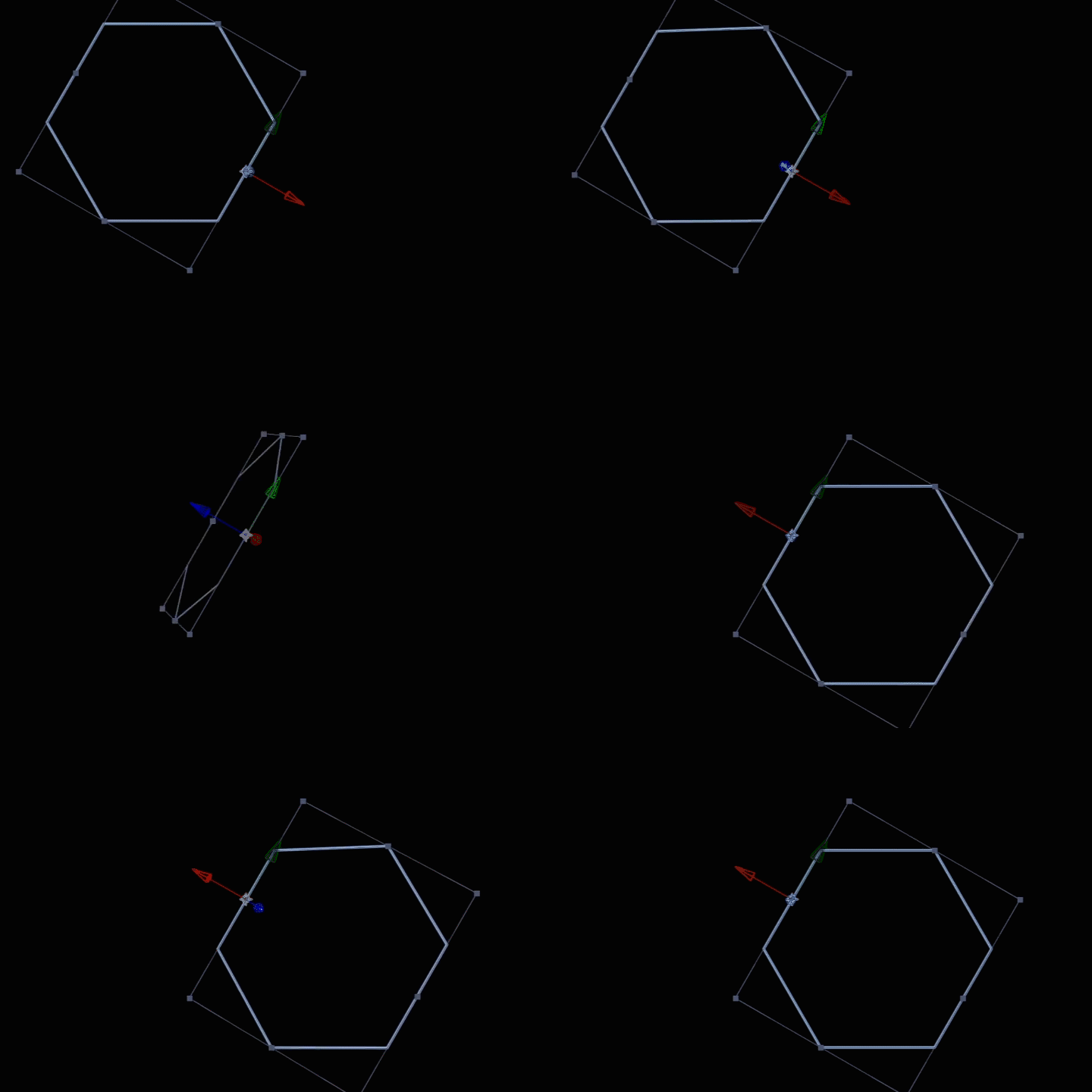
3D layers have both rotation and orientation properties. They do similar things, but the benefit of two controls is that you can set the orientation of your layer independently and then rotate around the layer's own major axes. So for the hexagon you'd do something like this:
- start with a hexagon that is standing up—with points at the top and bottom and parallel lines on the sides.
- put the anchor point on the right hand side
- adjust the Z orientation to 30°
- animate the Y rotation (note, rotation NOT orientation) from 0° to 180°
If you're using a polystar shape as your hexagon, you can precisely line up the anchor point with the right hand side with an expression. The width of the hexagon will be different from its radius, if you look you'll see that a line from the center to the center of the right edge, to the top of the right edge and back to the center creates a right-angled triangle.
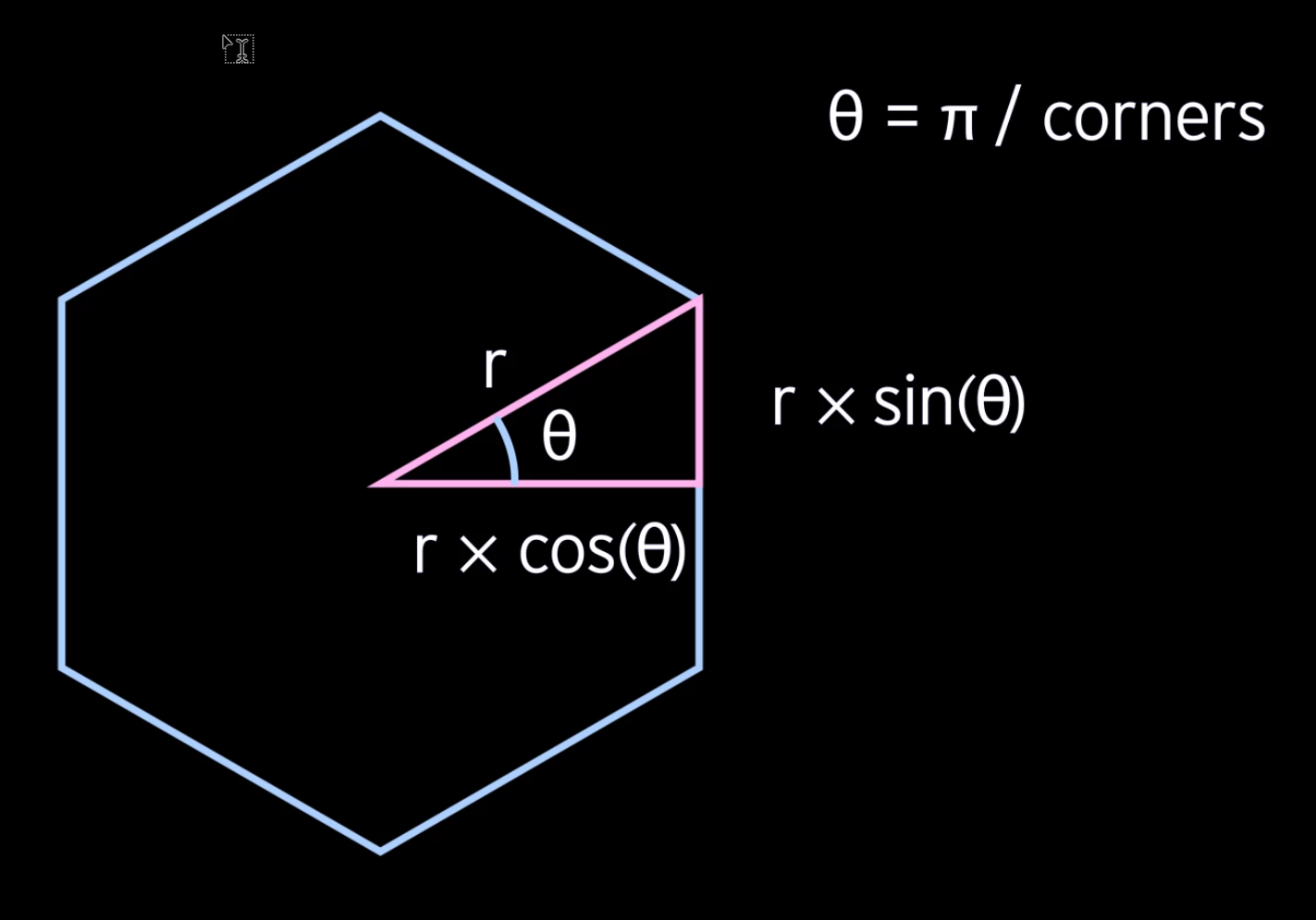
The long side is the radius and the width will be the cosine of the angle × the radius of the hexagon. The angle expressed in radians is π/(number of points in the polygon), so the expression on the anchor point just needs to find polygon radius × π / number of points, or something like:
[Math.cos(Math.PI/content("Polystar 1").content("Polystar Path 1").points)*content("Polystar 1").content("Polystar Path 1").outerRadius, value[1]]
that's assuming the polystar is called "Polystar 1"

 AdChoices