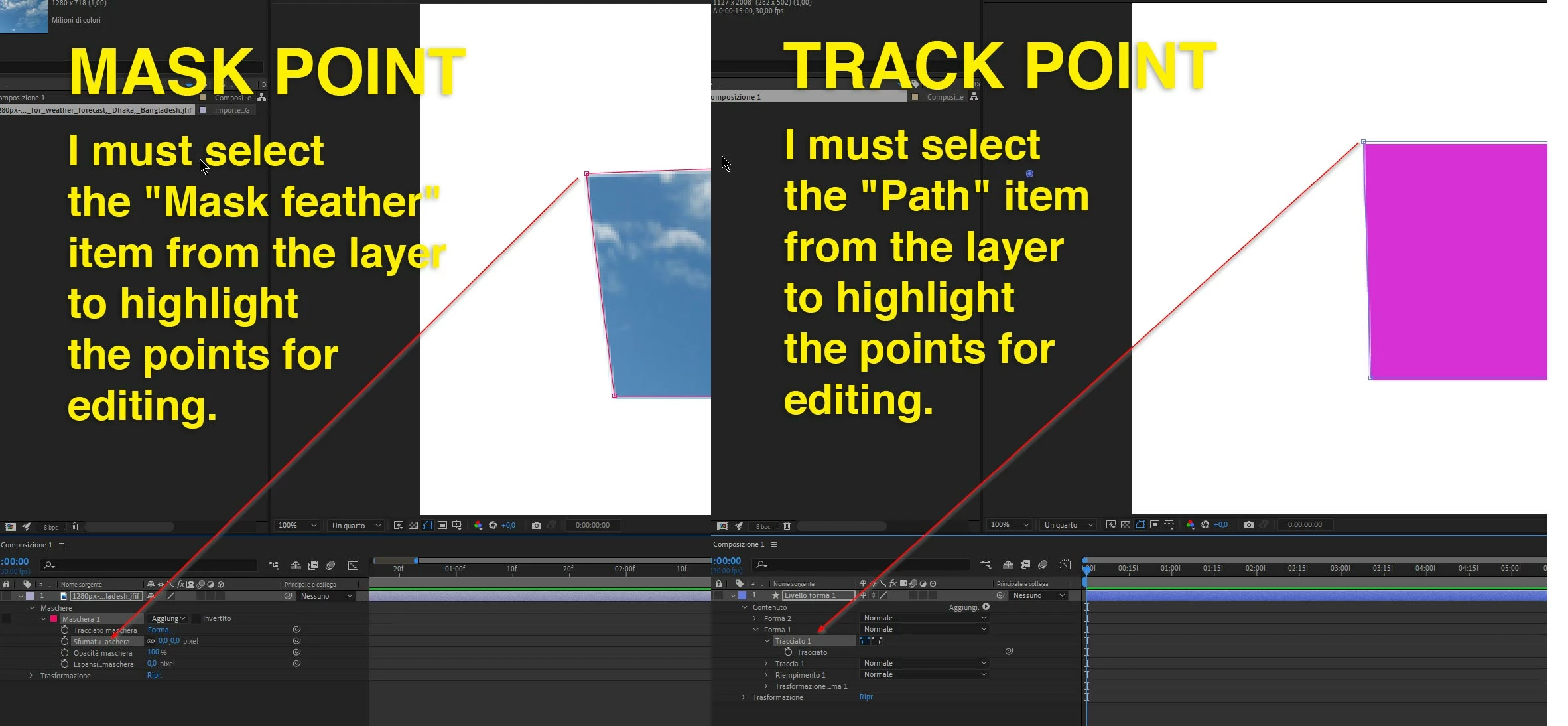
You wanted to know how to work quickly. That is how the tool works. Sorry I did not include the feather tool in the old tutorial. If you want to modify a point, a path, a bezier handle, rotobezier tension, or any other parts of a path you can use the keyboard and the Alt/Option or Ctrl/Cmnd modifier keys to select or modify one or more of the path properties by clicking and dragging. You never have to go to the toolbar. Never.
If you want to manipulate each of the path properties by dragging or entering values then you have to use the Create Nulls from Paths script or the extended version from AE Scripts that also attaches nulls to control handles to connect the path properties to nulls so you can manually edit the numeric properties. You could also write your own scripts, but if all you are doing is modifying and editing paths all you need is the pen tool (g), or the feather tool (g again), or the selection tool, which works much better if a specific path is selected, and the Alt/Option or Ctrl/Cmnd key and a click or a click and drag. I do it every day and I would guess, except for pointing out the toolbar when I'm teaching, I don't think I have clicked on any of the tools in about 15 years.




 AdChoices