Participating Frequently
November 9, 2020
Answered

Text Characters Uniform 3D Rotation

  • November 9, 2020
  • 3 replies
  • 4372 views

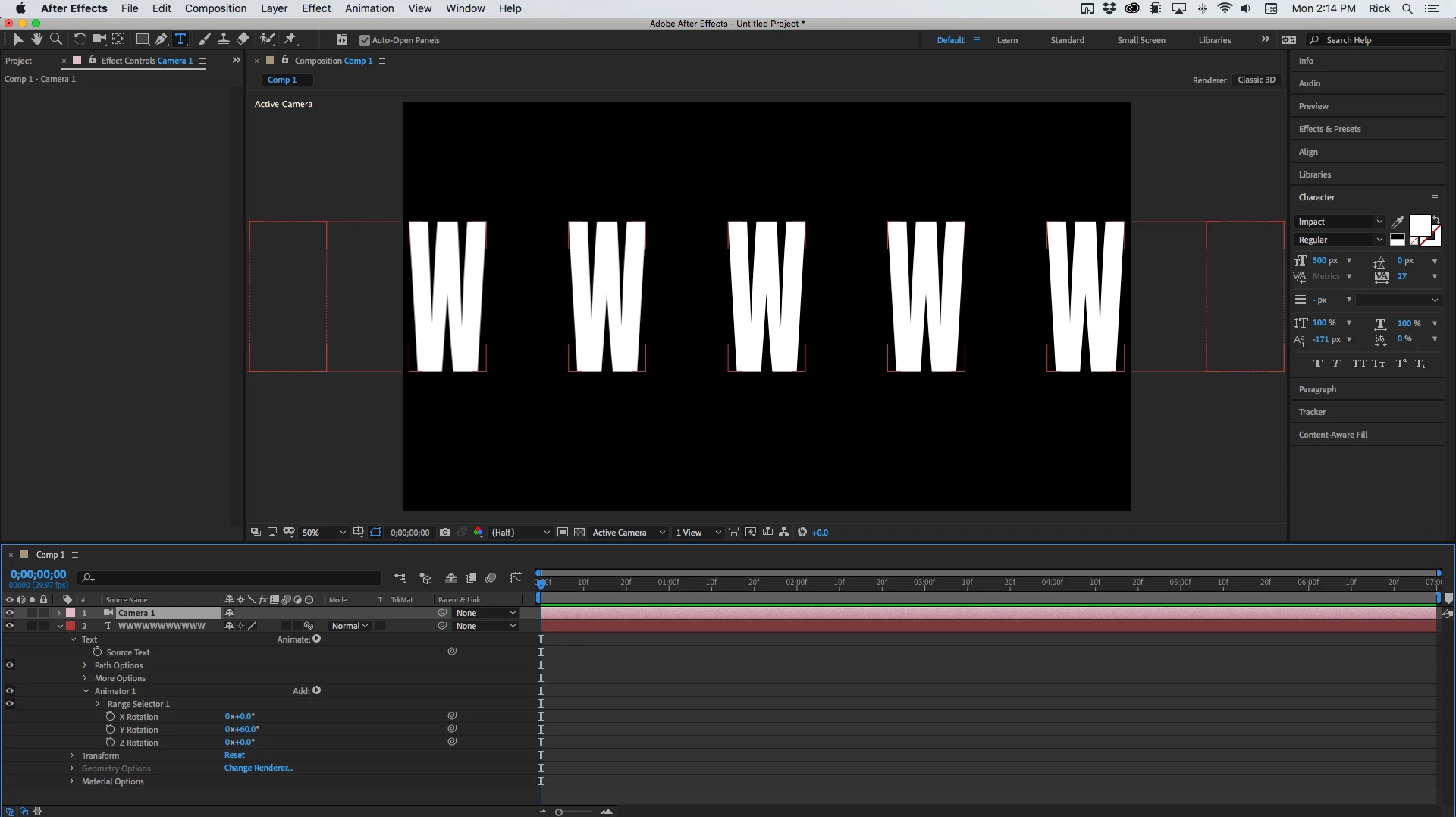
Let say I have a simple text  (first image) :


It's all in 3D and I enabled the "Enable Per-Character 3D" of its Text property as my goal would be to have all individual letters to rotate on Y axis.


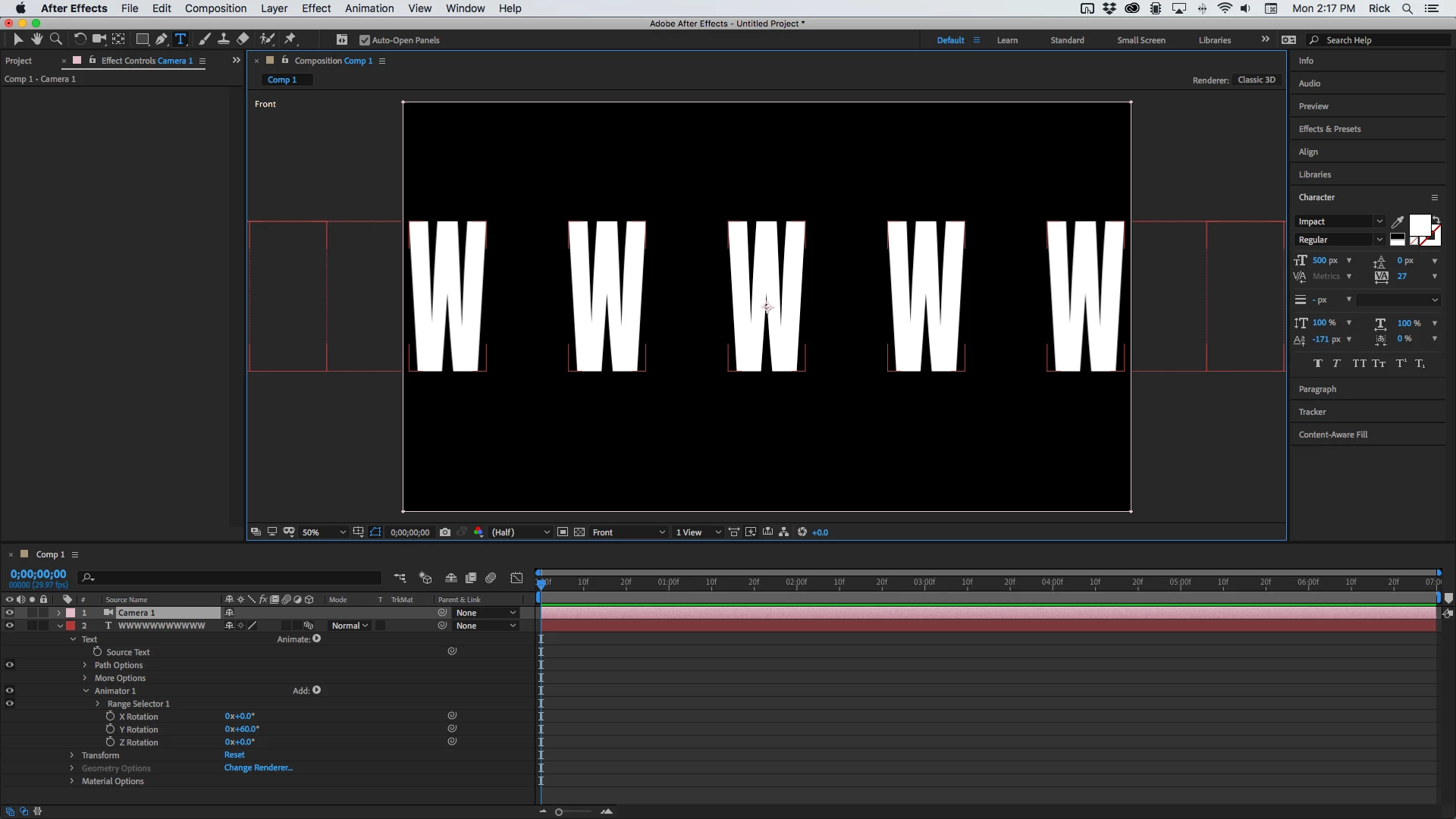
The problem is I can't do otherwise than get each letter which its own angle, due to the kind of view of the camera with a vanishing point (2nd image).

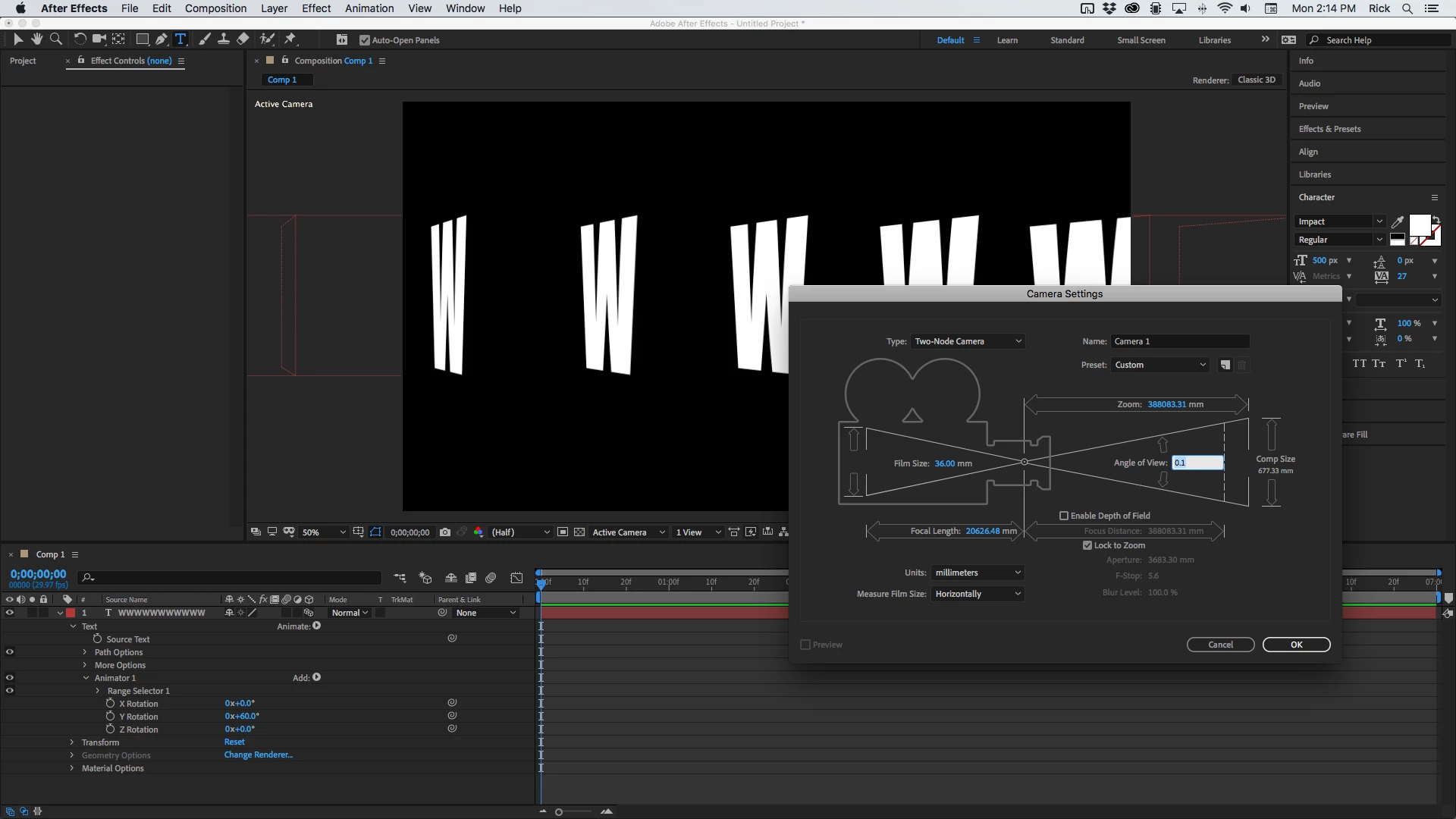
I'd like to get what's in the 3rd image, with all letters rotating totally simultaneously with the same angle (with a somehow vanishing point set to infinite).


Would that still be possible without separating each letter and moving each one separately ? How could I perform this?


Thanx to everybody that can bring me some help, I'm very beginner on AE.
Correct answer Rick Gerard

By far the easiest way to get close to an isometric camera in After Effects is to just add a new camera with an angle view of .1º then immediately lock the camera so you don't move it. Here's a series of screenshots with a bunch of W's, Per-Character 3D enabled, and a Rotation animator added with the Y rotation set to 60º. You can see the perspective with the default camera, then the perspective with the camera added to the scene, then a comparison to the Front view which is isometric. 

This is about as close as you can get to an isometric camera in AE. You can also go the other way and set the angle of view to as much as 179º. Perspective is controlled by the camera position. The narrow-angle of view will move the camera a long way from zero Z and an angle of view approaching 180º will put the camera very close to 0 Z. 

3 replies

Adobe Expert
November 12, 2020

I failed to consider how the text animator works. Turns out the right workflow is to add an Anchor Point property to the text animator and add the offset by the index value to that instead of using a position. That's why your characters are not properly positioned with an offset. Here is a screenshot of how I set up the first two text layers.

I multiplied the index value by .5 because a whole pixel offset gave me an undesirable moray pattern when the characters were rotated 90º. I also tied the material options in the top copy to the material options in the bottom text layer with a pickwhip expression so I could control material options for all text layers at the same time. The expression for Animator 1/Anchor Point looks like this:

[0, 0, index * .5]

The next step was to duplicate the second text layer 28 times so I had a total of 30 text layers. This second screenshot shows the position and settings for two Point Lights, one in front and one in back. I found the second point light worked better than the ambient light for generating shadows. Setting the material options and positioning the lights was critical in getting the text to look extruded. This is how that looks:

You can also use the same basic lighting and material options and just extrude 1 text layer using the Ray-traced rendering option (CS 6), or the C4D rendering option if you have a newer version of AE. The comp will be a lot simpler with that option, but you may run into rendering issues. On my machine, Ray-traced rendering takes about 40 seconds a frame for this comp.

Ray-traced or C4D rendering does look better for this workflow if you can stand the render time. If you decide to go with Ray-traced rendering I strongly suggest that you create a very simple comp with just the camera and lights, then render it using the Render Cue and the default lossless preset or render to an image sequence. Then you would import that render and put it in your main comp with the rest of the layers.


I hope this helps. Sorry about forgetting to check a per-character text animator comp and missing the anchor point offset required to get the text layers to stack up.

Participating Frequently
November 16, 2020

Hello Rick, well, thanx again for your dedicated answer, but this is way too complex for me I guess because I really tried to do your solution but this is such a complex one that I simply don't manage to recreate it based on your screen shots, there are tons of parameters, settings and expressions to tune and I must say I'm overfolwed by its complexity.

Rick GerardCorrect answer
Adobe Expert
November 9, 2020

By far the easiest way to get close to an isometric camera in After Effects is to just add a new camera with an angle view of .1º then immediately lock the camera so you don't move it. Here's a series of screenshots with a bunch of W's, Per-Character 3D enabled, and a Rotation animator added with the Y rotation set to 60º. You can see the perspective with the default camera, then the perspective with the camera added to the scene, then a comparison to the Front view which is isometric. 

This is about as close as you can get to an isometric camera in AE. You can also go the other way and set the angle of view to as much as 179º. Perspective is controlled by the camera position. The narrow-angle of view will move the camera a long way from zero Z and an angle of view approaching 180º will put the camera very close to 0 Z. 

Participating Frequently
November 10, 2020

Thank you Rick, this definitely works perfectly!

Now I'm running into another issue as I need each letter to have a thickness. What I found so far was the fact of switching to the renderer Ray-traced 3D (the only available one as I work with AE CS6), which allows access to property Geometry options > Extrusion Depth

This works but I still have an issue as the quality of the rendered image isn't that good, especially depending of the angle: here are 2 attached screenshots, one with an angle of 0.1° and the second with an angle even smaller of 0.01°, this second one being of worse quality as you can see on the images especially looking at the upper part of letters "B" and "C". Is there any way to change that (ideally this should be perfect but neither one is), maybe there are settings in the composition settings about that renderer...


Adobe Expert
November 11, 2020

Yes, I have 10 text layers as you did, so layer "ABCDEFGHI 9" is the 10th layer and the first (upper most) in the stack of layers, as it seemd to me you did in your example. His position value is -3.0, -30.0, -8.0, "ABCDEFGHI 8" position value is -3.0, -30.0, -7.0 ... "ABCDEFGHI" (upper least) position value is 350.0, 102.2.0, 10.0.


I changed layer "ABCDEFGHI 9" color by removing the "Fill color" property and changed it in the "Character" window (pannel) of AE program interface which has strictly no effects in terms of appearance (which is normal I guess but still can't explain why the red is surrounded by white...


So that's it problem isn't solved 🙂 Any idea of why?


Many thanx for helping me


Your Magnification Ratio is 200% so the comp panel is a little aliased. I don't see any lights in the scene. You really need a point light, spotlight, or a directional light that can cast a shadow, and some ambient light to show the edges. The aliasing and white edges could be caused by your display driver. Try setting a less intense color. 

Mylenium
Brainiac
November 9, 2020

You could calculate an individual rotation value for each letter using the cosine function and then experiment with the virtual lens curvature until it looks "flat". Still tricky, though. It might be simpler to just buy one of those iso(metric) scripts you can find on AEScripts.com and let it set-up and rig your scene with those typical long focus cameras that almost have no curvature anymore. Still a pain in the posterior, but manageable. If you're feeling really adventurous, you could also try Cinema 4D. It does have actual renderaple orthographic cameras and with the basic MoGraph step effector the rotation behavior could easily be mimiced in a fashion similar to AE's text animators.


Mylenium

Participating Frequently
November 9, 2020

Hi Mylenium, thanx for your fast reply, and well... I didn't think this was such a big deal to perform that. ouch! I'd rather make them twist letter by letter I guess, rather than playing with such complicated features - I'm really starting with AE so for the moment it feels more reachable as an objective 🙂