Juan Cano
Inspiring
May 20, 2019
Answered

Tracking an object/shape in an animation + keep centered.

  • May 20, 2019
  • 5 replies
  • 11296 views

Hi; new at AE. I created this simple animation of a circle following a path (Ad Comp 1 on Vimeo ). I now want to zoom into the animation, have the circle animation start but then the circle stay in the center of the screen as it continues to follow the path (Ad Comp 1_3 on Vimeo ). A little like this video that someone posted asking a similar question but it wasn't answered (I ATE EVERYONE ?! SOLO AGARIO GAMEPLAY (Agar.io) - YouTube )

I'd rather not render the composition and use the motion tracking, I figured there's an easy way to do this since it's already a shape.

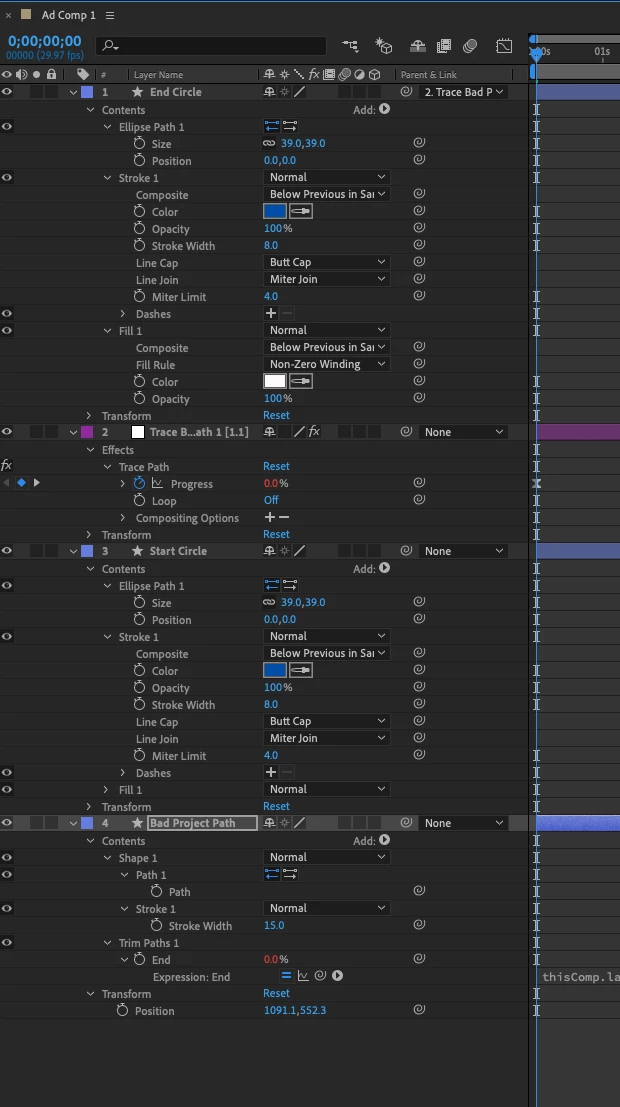
I created the animation by drawing the path and then creating a null layer following the path and then the circle is connected to it. Or parented I guess.  (See attachment on layers).

I need to do like 10 of these, different path being followed so I was hoping something easily repeatable. I've read bout "Basic Object Tracking" but I can't find it, only find 1 point motion tracking and that only works when the composition is rendered.

Also need to figure out why my colored background didn't render, he he. 😉

Thanks!!
    Correct answer Rick Gerard

    If you already have the motion path of the circle you want to keep centered there is nothing to track. You already have better data than you can get from a tracker.

    It looks like your comp has no 3D layers and no camera. If that is true then the way to get everything but the circle to move is to:

    1. Select the path layer's path and set a single keyframe
    2. Press Ctrl/Cmnd + x to cut that keyframe and store the path data
    3. Make sure that the circle layer's anchor point is centered in the circle - easy to do if the circle is a shape layer, just press uu and set the Transform>Ellipse 1>Postion to 0, 0
    4. Make sure the Circle layer is selected and press Alt/Option + P to set a position keyframe then Ctrl/Cmnd + V to turn the path you copied into position keyframes
    5. Check the timing and adjust it by dragging the last position keyframe left or right
    6. Add a new null to the timeline
    7. Make sure the CTI is set to the starting point of animation, hold down the Shift key and parent the Null to the circle layer
      (this moves the null to the same position, orientation and scale as the circle)
    8. Remove the parenting of the null, then select all layers except the null and parent them to the null
    9. Select the null layer and press A to reveal the anchor point
    10. Select the Circle layer and press P to reveal the animated position property
    11. Hold down the Alt/Option key and click the stopwatch on the Null's anchor point property to start an expression then drag the pickwhip to the position property of the circle layer. The circle will now stay in one place and everything else will move around the screen.
    12. Position the null where you want the circle to be or just reset the null's position to center the circle in the comp panel

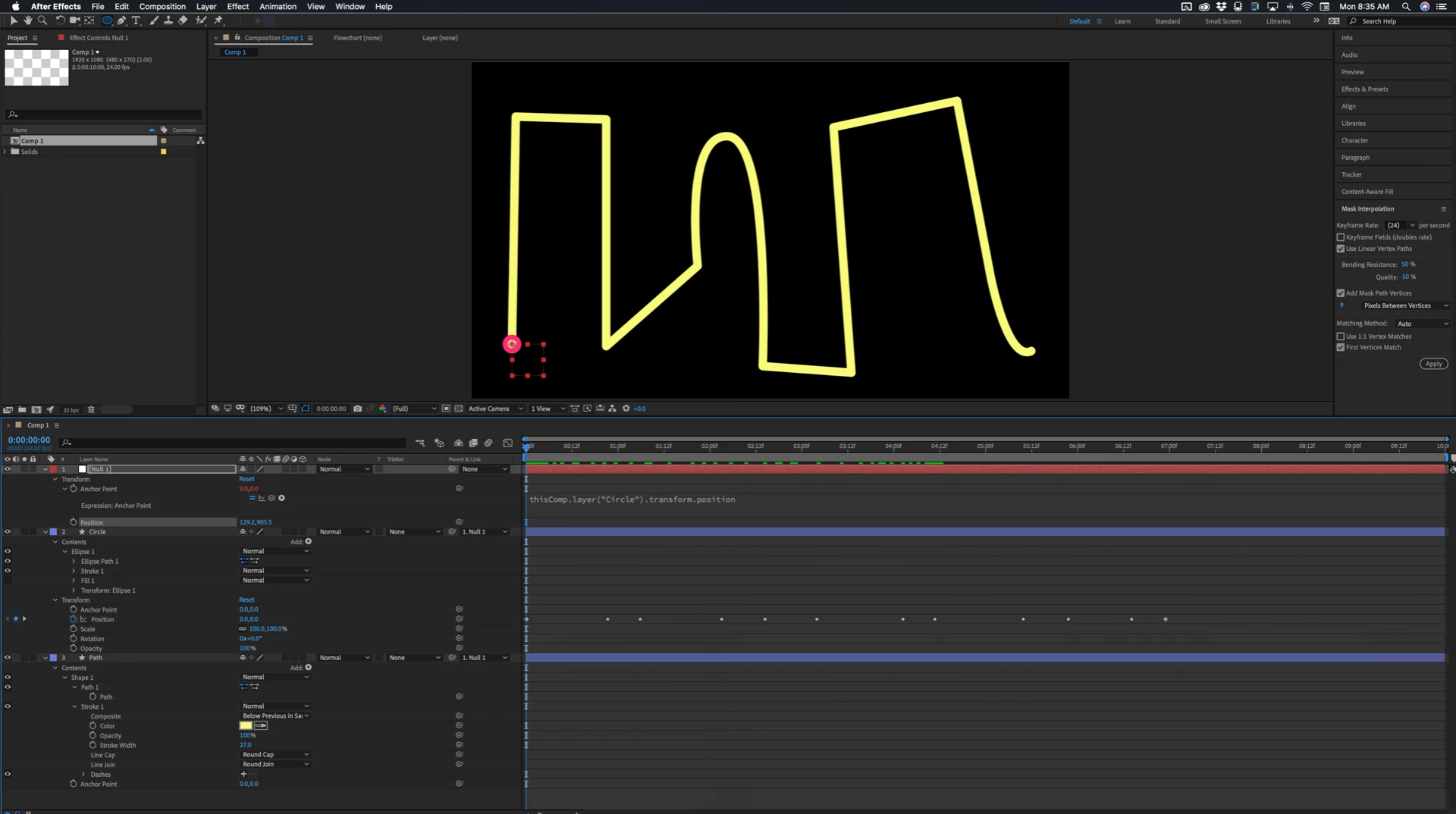
    Here's what it looks like with one path and one circle layer before I centered the null. All modified properties of all layers are shown (uu):

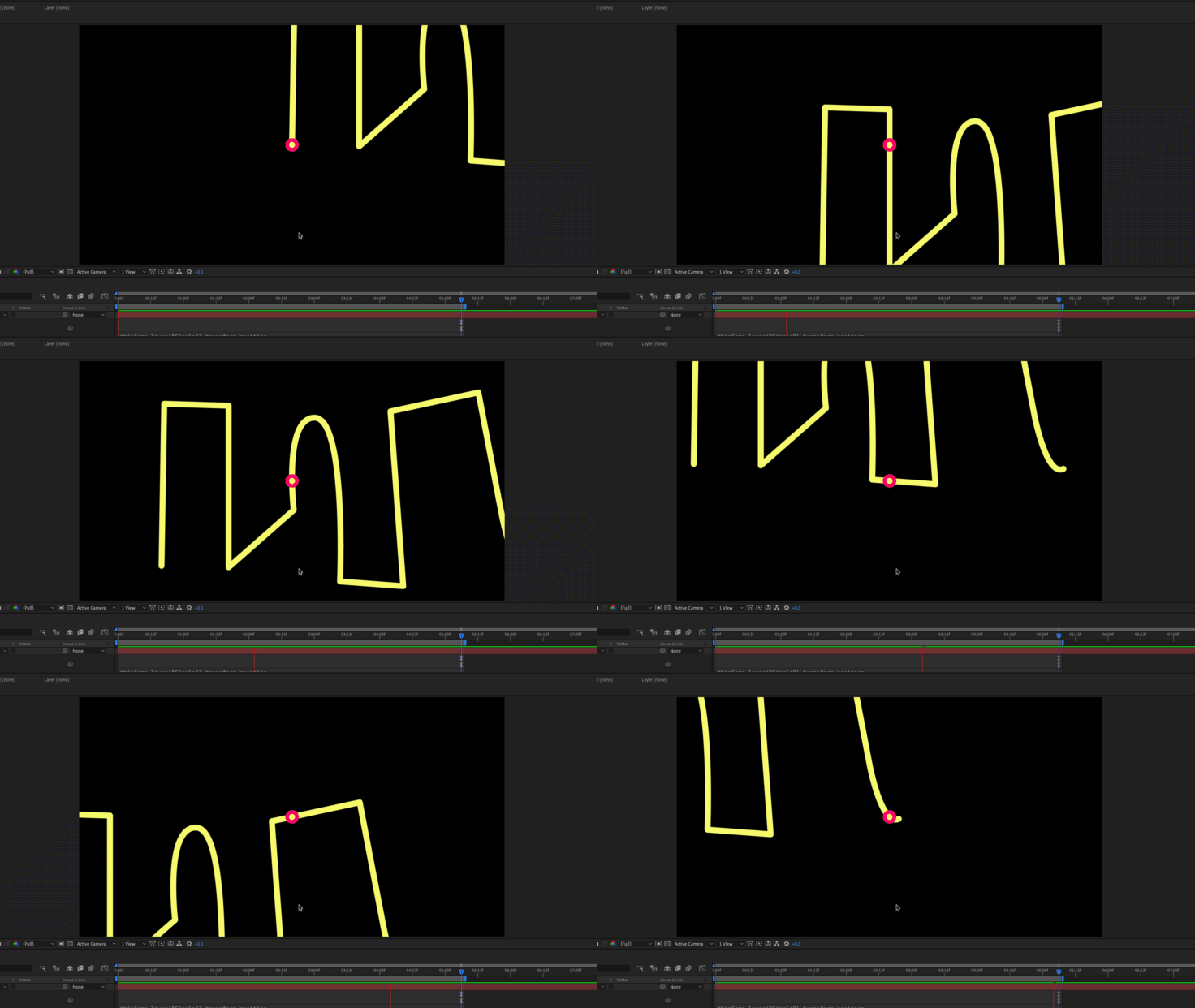
    After recentering the null and running a preview I get this:

    I don't like that look much. I think it could be improved if you added a bit of animation to the position of the null. Motion blur would also help.

    If you decide to go 3D you can use a similar trick. Parent the 3D null to the circle, then parent the camera to the 3D null. You might bet a better looking and easier to understand design using 3D layers.

    5 replies

    New Participant
    February 15, 2025

    Harka. Çok iyi.  Çalışıyor!!!!!! Çoğunlukla. He he. Bu talimatları göndermeniz çok hoş.   Terea

    Terea
    New Participant
    January 31, 2025

    https://historypeak.com/  Exploring the Wonders of Our Past

    New Participant
    January 30, 2025

    Make sure the CTI is set to the starting point of animation =  https://dizivar.pro/

    New Participant
    August 6, 2023

    If you already have the motion path of the circle you want to keep centered there is nothing to track. You already have better data than you can get from a tracker.

    https://dizipalfilmizle.com/

    Rick GerardCorrect answer
    Community Expert
    May 20, 2019

    If you already have the motion path of the circle you want to keep centered there is nothing to track. You already have better data than you can get from a tracker.

    It looks like your comp has no 3D layers and no camera. If that is true then the way to get everything but the circle to move is to:

    1. Select the path layer's path and set a single keyframe
    2. Press Ctrl/Cmnd + x to cut that keyframe and store the path data
    3. Make sure that the circle layer's anchor point is centered in the circle - easy to do if the circle is a shape layer, just press uu and set the Transform>Ellipse 1>Postion to 0, 0
    4. Make sure the Circle layer is selected and press Alt/Option + P to set a position keyframe then Ctrl/Cmnd + V to turn the path you copied into position keyframes
    5. Check the timing and adjust it by dragging the last position keyframe left or right
    6. Add a new null to the timeline
    7. Make sure the CTI is set to the starting point of animation, hold down the Shift key and parent the Null to the circle layer
      (this moves the null to the same position, orientation and scale as the circle)
    8. Remove the parenting of the null, then select all layers except the null and parent them to the null
    9. Select the null layer and press A to reveal the anchor point
    10. Select the Circle layer and press P to reveal the animated position property
    11. Hold down the Alt/Option key and click the stopwatch on the Null's anchor point property to start an expression then drag the pickwhip to the position property of the circle layer. The circle will now stay in one place and everything else will move around the screen.
    12. Position the null where you want the circle to be or just reset the null's position to center the circle in the comp panel

    Here's what it looks like with one path and one circle layer before I centered the null. All modified properties of all layers are shown (uu):

    After recentering the null and running a preview I get this:

    I don't like that look much. I think it could be improved if you added a bit of animation to the position of the null. Motion blur would also help.

    If you decide to go 3D you can use a similar trick. Parent the 3D null to the circle, then parent the camera to the 3D null. You might bet a better looking and easier to understand design using 3D layers.

    Juan Cano
    Juan CanoAuthor
    Inspiring
    May 20, 2019

    Thanks for the tips Rick; not working out so far, but keeping at it.

    Should I start anew with my file? When I copy/paste the path position into my circle keyframe, the path pastes in an odd spot on my screen, not where it used to be, and then is like madness. Thanks!

    Juan Cano
    Juan CanoAuthor
    Inspiring
    May 20, 2019

    Its working!!!!!! Mostly. He he. So nice of you to send these instructions.