


Inspiring
November 10, 2019
Question

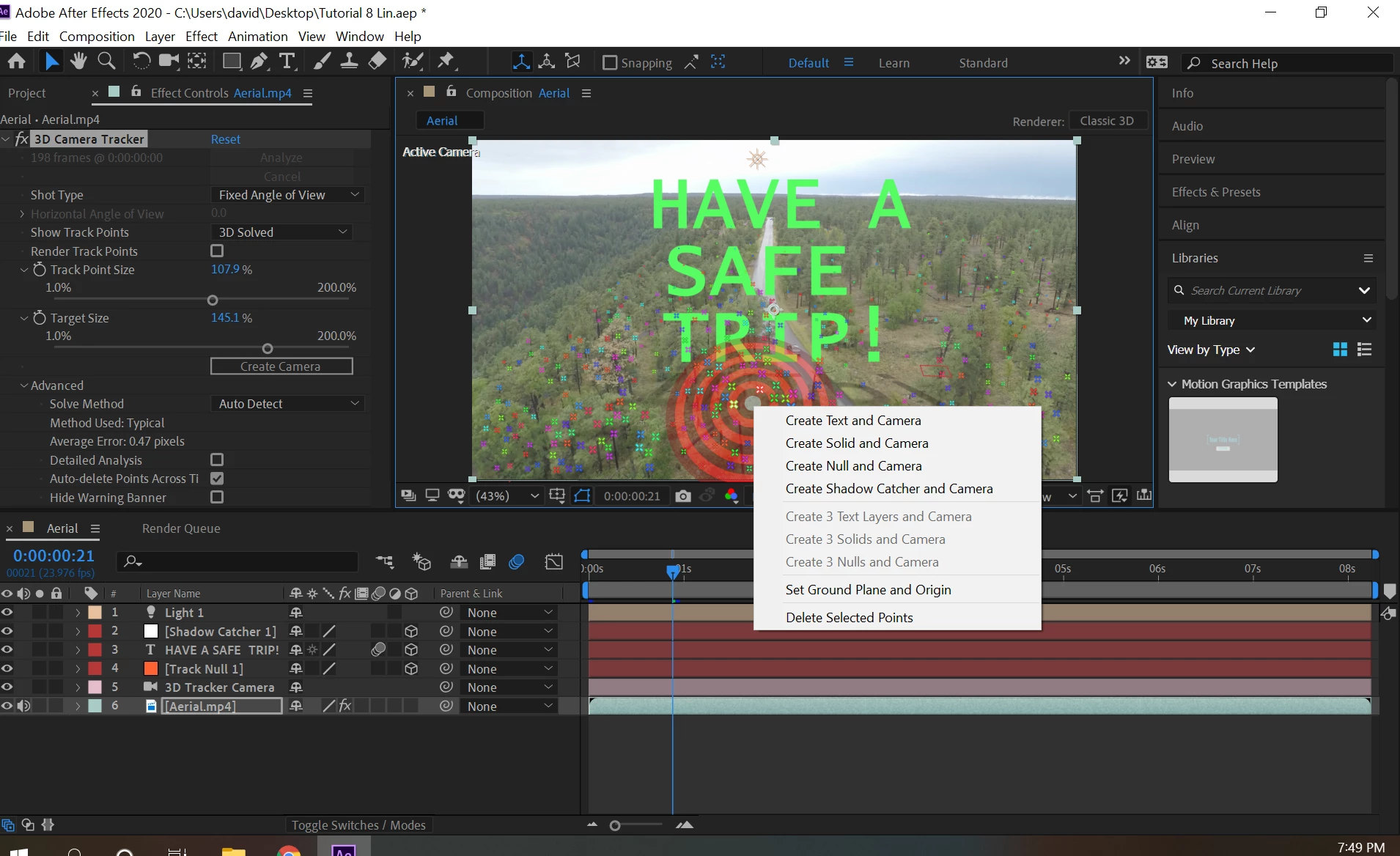
Trying to create "solid" instead of "Create solid and camera" in AE

  • November 10, 2019
  • 5 replies
  • 7314 views

I am reworking on this project in which I have to use 3D camera tracker and use a target and create something out of that target. I want to create a solid only after right-clicking an area in my footage among the tracker points and select an option. I expected to see "Create Solid" only, but now I only see "Create Solid and Camera" which is something that I don't want. Can anyone know how to fix this? 
5 replies

André2556840043sh
New Participant
August 8, 2022

Hello, I had this same issue and I sorted it out by fiddling with the "Quality and Sampling" options directly in the layers. Have no idea why this works. But for me it does. Where do you see those "/" symbols, once I had both the video and the camera tracking layer with the same symbol. I stopped having the option "Create Solid and Camera" and had the option "Create Solid". Again, no idea why this is the case but hope it helps. I am using the latest version of AE as of the date of this post. 


Participating Frequently
November 16, 2022

This gave me some hope that someone actually understood the problem...which it sounds like you do... but the "fix" doesn't work because the 3D Tracker Camera layer doesn't have a / next to hit, or the Quality and Sampling Switch.  Your screen shot doesn't show what's on the left of both layers with the switches.  See my image showing same.

ShiveringCactus
Community Expert
December 12, 2022

Some of my students are having this issue, but I do not have the same issue using the same footage on my machine. This really needs to be addressed.


I think there might be a misunderstanding here of what that switch represents.  It sets the render quality for any images or video layers.  So a virtual camera does not have a render quality.

Jeff Sengstack explains it here: https://helpx.adobe.com/uk/after-effects/how-to/set-scaling-bicubic-sampling-aftereffects.html


As far as I know, any camera created in After Effects does not have a quality checkbox.  The video layers should have a quality checkbox though.  (If users cannot see any checkboxes, that's a columns option - right-click on any heading in the timeline, go to Columns and choose Switches)


I think when André2556840043sh says they solved the issue by fiddling with the quality settings, they are referring to the changing the layer from sampling quality from bilinear (straight line) to bicubic (curved line) - this means AE is processing the video differently, with greater detail which is probably why this worked for them.  But, the overall best solution is still Rick's:

  • Once the track is completed, before you create a camera
  • Select three dots in a plain, holding SHIFT to add them to the selection
  • Once selected, right-click and choose Create Ground Plane and Origin
  • After that step, creating a camera and null should make a lot more sense.


I've also stumbled across this free script: Normalize Track: https://elementsupply.co/products/scripts/normalizeTrack 

This proports to reset measurements to a more appropriate AE space.


Participating Frequently
November 21, 2021

I know EXACTLY what you're talking about David and have been trying to resolve that problem for YEARS!  Just as can be seen in all the others who have responded to your question, no one knows what you're talking about.  While I haven't been able to get help from anyone who actually understands what the problem is, I have found a kind of work-around solution.  As long as your current project doesn't include layers using Blending Modes, you can select all of the layers already created AND the 3D Tracker Camera and precomp them. Then, back in the original composition, you can create a new solid AND camera.  The new solid will track with the new camera and you can start creating more solid or nulls, etc. without having to create another camera again.  The new camera is now the active camera with its own 3D solids and the "old" composition is now a precomp using the original camera.

The only problem I've had with this work-around is when I've had to use blending modes on footage with a black backgound, like "screen".  The layer's blending modes don't work in a multi-layer precomp and backgrounds are black again and back in the original comp they are black again.  To return the Blending Mode you have to turn on the Collapse Transformation switch but when you do that, the precomped layer in the original layer is no longer in the correct position.  I could use some help with that.

ShiveringCactus
Community Expert
November 21, 2021

I'm wondering if I've got this wrong, but if any new camera created will match the movement of the previous 3D camera.  So when you create a new "solid and camera", can you not just delete the new camera?

Participating Frequently
November 21, 2021

Sorry, that's wrong.  When the new camera is created, it isn't in the same location as the original camera.  You cand see this by looking in the Top View with both the 'old' and 'new' cameras selected.  Just copy/pasting the 'old' camera's position/orientation into the 'new' camera's position/orientation  moves the 'new' camera to the same position/orientation as the 'old' camera BUT....and this is the problem.  The location of the Track Points have been moved for the new camera.  Like it's using a different 3D Camera Solve to create the track points.

Result... all the old solids are only located where they are supposed to be when the 'old' camera is active but are relocated if the 'new' camera is active.  And, all the 'new' solids are where they are supposed to be when using the 'new' camera but are relocated if the 'old' camera is active.  Summary... Not only are the cameras different but the "world space" is different as well.  The closest if been able to come to creating a new Camera and Tracking Points that are the same oas the original is by recreating the Ground Plane and Origin before creating the new Solid and Camera but even then, it's not perfect.  Maybe need exact same frame and target points used to create Ground Plane and Origin used the first time...  

Community Expert
August 27, 2020

Camera tracking involves at least 3 steps and it should involve 4 for every shot you track that isn't a camera pan. Shots that solve as a camera pan have no depth information so the usefulness of a Camera Track as opposed to a Corner Pin track or track in Mocha AE. Here is the minimum workflow:

  • Shot Prep:
    1. Trim the shot to make sure you are not wasting time tracking frames that don't need tracking
    2. If there are things moving in the shot like people walking or cars moving, they will foul up the tracking so mask or rotoscope those elements so they cannot be seen
    3. If there is little detail in the shot add sharpness, curves, or other effects to the shot to increase the edge detail in the shot.
    4. If you need masking or color correction to improve the shot before tracking you need a duplicate of the footage with no effects and you need to pre-compose the copy with effects and masks to use that as the source for tracking. If I pre-compose I always set the layer to a guide layer after it is pre-composed.
  • Tracking:
    1. After Camera Tracker runs the first time check the average error. If it is higher than 1 pixel try running tracker again with detailed analysis
    2. After Camera Tracker is complete and the average error is acceptable scroll through the shot and look for a place where you can establish an Origin and Ground Plane for the shot. The origin and Ground plane should match a surface that you want to use as the starting point for building your 3D scene in the shot. When the frame has been established that you want to use for the starting point set a layer marker
  • Set the Origin and Ground Plane by picking as many points as you can that are all on the same surface, set the Origin and Ground Plane, then add a camera and a solid
    1. It is very important that you use the same points for the origin and ground plane, and it is important that you use a solid because you need to be able to verify the track
    2. I usually add a Grid to the solid and rotate the grid so that I can verify the grid lines up with the surface. I name the solid Origin, set it as a guide layer, and then verify that the track is good
  • Add as many additional Solids (better than nulls because you can easily see if they stick to the surface they are supposed to, set them as guide layers and verify your track


Follow those steps and you have a schene set up that you can use to add the other elements to the scene. Because you established an origin and ground plane and marked the start frame you can add any new 3D layer to the scene and it will be at 0, 0, 0, and lined up with the camera if you go to the marker. You can either Shift + Parent new 3D objects to the other reference tracker solids you added to the scene to move them into place, or you can use the position controls and the X, Y, and Z rotation properties to line up any new elements with surfaces in the scene. 


If you need to add additional reference solids (remember I don't like nulls because it's difficult to see how well they stick to the surfaces) all you have to do is select the Camera Tracker in the Control Panel, pick some new points and add the appropriate surface to the scene.


Failing to set an origin and ground plane and verify the track guarantees that it is going to be much more difficult to arrange the 3D layers in the scene correctly. If the scene is complicated I always keep my Track Solids set to guide layers and leave them in the comp just in case I need to return to the project and make changes later.


If you go back to Camera Tracker, select the new points on a surface, and do not have the opportunity to add just a solid or a text layer, the link between AE's Camera Tracker has been broken and you'll need to start all over. I have only had this happen once and I don't know what caused it. If it is happening to you every time then verify that AE is up to date and make sure that you have enough RAM assigned to other applications. AE likes RAM in multiples of 4 GB and so do other apps, so if you only have 8 GB or ram assign 4 to AE and 4 to other apps while you are tracking, and never assign less than 2 GB to other apps. 


I hope this helps. 

Participating Frequently
November 16, 2022

This is a very good list of steps for camera tracking but doesn't even come close to addressing the stated problem:  Being FORCED to create a new camera with a new solid AFTER a camera had already been created.  The new camera is oriented diffently than the old camera. New solids don't track with the old camera and old solids don't track with the new camera.  See video I uploaded previously.

New Participant
August 27, 2020

I'm having the same problem. Did you have any luck fixing this?


I can't figure out how to create Nulls or Solids that are automatically in the scene without having the 3d camera tracker effect selected.

Mylenium
Brainiac
November 10, 2019

Well, you already have a 3D camera fro ma previous solve, so I'm not sure why you would even need the internal options. You can just create any 3D layer in the comp and it should align just like thjat, give or take soem scale issues. It seems you are not understanding that once the camera has been converted to keyframes that's how it works. No reason to re-solve the camera unless you really need to.


Mylenium

New Participant
August 27, 2020

Can you create the Solids and Nulls based on the Camera track points as in the photo above?