


Participant
May 17, 2018
Answered

Au Fatal Error: Could not delete the file...

  • May 17, 2018
  • 8 replies
  • 7053 views

Hello!

No problems with Audition on the cloud until today. I am working on Windows 10 PC, core i5, 32GB RAM. The only changes that have occurred was that I closed down everything today and restarted my computer, and had to install a two factor authentication for Microsoft products. Now I am receiving the following error:
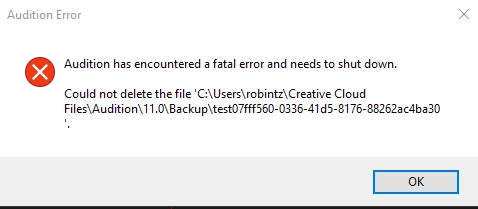
The error occurs after working in Audition for a few moments. It has shown up in various places, while working in the multi-track editor and while working in the spectral display cleaning up audio.

I've gone into the file path listed and physically deleted all the "test..." files that it says it can't delete, but that doesn't seem to do anything since it just creates new ones every time I reopen audition. Any help would be beyond appreciated!
This topic has been closed for replies.
Correct answer _durin_

Hi everyone,

We've investigated this and it appears a recent update to the Files Sync functionality in the Creative Cloud desktop application introduced this problem.  It's not a Windows issue, but has to do with how Audition tests if it can write to a directory (by creating, then deleting, a temporary file) and how quickly Creative Cloud Sync locks files for backup.

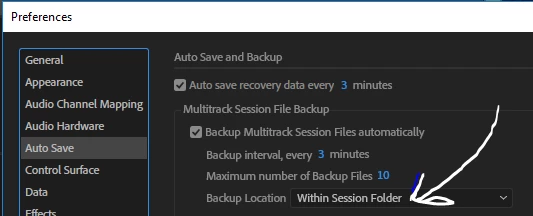
We're working with the CC team for a solution as quickly as possible.  In the meantime, if you launch Audition without opening a session, and follow Roger's suggestion to change your Auto-Save Backup Location to anywhere but the Creative Cloud Files folder, or disable File Sync in the Creative Cloud Desktop application, you should avoid the problem until a fix has been made available.

8 replies

_durin_
Community Manager
_durin_Community ManagerCorrect answer
Community Manager
May 25, 2018

Hi everyone,

We've investigated this and it appears a recent update to the Files Sync functionality in the Creative Cloud desktop application introduced this problem.  It's not a Windows issue, but has to do with how Audition tests if it can write to a directory (by creating, then deleting, a temporary file) and how quickly Creative Cloud Sync locks files for backup.

We're working with the CC team for a solution as quickly as possible.  In the meantime, if you launch Audition without opening a session, and follow Roger's suggestion to change your Auto-Save Backup Location to anywhere but the Creative Cloud Files folder, or disable File Sync in the Creative Cloud Desktop application, you should avoid the problem until a fix has been made available.

Participant
May 25, 2018

I have been having this problem too for just under a week. However, I already had my backup location set elsewhere due to a separate issue of back-ups actually not working/saving properly in CC folders. The issue at-hand (fatal error) occurs when I am just trying to save or save with a new filename into my Creative Cloud folders. So I have been saving and working elsewhere and it has helped.

Participant
May 24, 2018

I've been having the same problem, usually when it opens an .sesx file, but started doing it constantly, even to the point of crashing as soon as I open Audition, over and over. I tried the folder permissions and changing the backup location to no avail. Finally I tried running Audition as administrator and it opened and hasn't crashed since (fingers crossed!)

ZenGeekDad
Inspiring
May 25, 2018

Same problem, occurring since recent W10 Apr (2018) update got pushed.  Confusingly, onset of this problem (per project) is erratic, but once a given Audition project file gets this error message (usually after doing one or more dehummer) that project never opens thereafter; instead, it immediately error pop-ups and crashes closed.

But I fixed it when I changed the preferences > AutoSave from "Creative Cloud Files" to "Within Session Folder."

The other fix described above did not work for me.  W10 only looks at first like it is accepting my change of "...\Creative Cloud Files folders\11.0\Backup" to not being read only.  But when I close then re-open the folder's properties, they show once again as a soft checked "read only" status:

Baffling.  So, I'm glad the Preferences fix worked!

SteveG_AudioMasters_
Community Expert
Community Expert
May 25, 2018

ZenGeekDad  wrote

The other fix described above did not work for me.  W10 only looks at first like it is accepting my change of "...\Creative Cloud Files folders\11.0\Backup" to not being read only.  But when I close then re-open the folder's properties, they show once again as a soft checked "read only" status:

I've checked this, and it would appear that an 'indeterminate' status gets re-established if you close and restart your machine, yes. You have to bear in mind that this status applies to the files in the folder, and not the folder itself - so it's possible that the devs can come up with a fix for this at some stage. Until then, as you suggest, the option to use the Session folder is a good one.

lotusone89
Participant
May 19, 2018

i changed the backup files to another folder that i create, i think than worked for me.

SteveG_AudioMasters_
Community Expert
Community Expert
May 20, 2018

lotusone89  wrote

i changed the backup files to another folder that i create, i think than worked for me.

That will work fine, and that's why this didn't happen to me - I allocated a backup folder of my own making.

Participating Frequently
May 18, 2018

I'm having the exact same problem too. Happens when I want to start a new multi-track session.

SteveG_AudioMasters_
Community Expert
Community Expert
May 18, 2018

You either have to reset the the preferences (as per previous post) or allocate a new space for backups that Microsoft hasn't locked up.

Participant
May 18, 2018

Steve G was right.  Had a big MS update and this started happening.  It's working now so you'll have to go to 'C:\Users\XX\Creative Cloud Files\Audition\11.0\Backup' right click->Properties then uncheck Read-only and apply it to subfolders

Participant
May 23, 2018

This worked for me, just changing the permissions on the affected folder

SeaPortArts
Participant
May 17, 2018

I got the same error. just today. May 17th. Went to open a file and error code comes up.

Im a singer not a high tech guy so im lost here.  before it crashed it said there was some issue with my creative cloud backup. I checked and I have over 99gigs of space. So there may be some issue with that.

Adobe tech support says over and HOUR wait.  Is that what I can expect from this company?
I guess Im out of my element.
70 year old trying to learn how to record at home.

Any help would be appreciated. http://MauiSinger.com

Help please.

Kevin

Participant
May 17, 2018

This just started happening to me today as well. Tried to uninstall and reinstall with the same results

SteveG_AudioMasters_
Community Expert
Community Expert
May 17, 2018

Okay - a little more thought suggests that checking the permission status of the files in the affected folder might be a good start. It's perfectly possible that M$'s 'upgrade' has reset some permissions, either of the file or the folder.

And is this location one you have set yourself for backups?

SteveG_AudioMasters_
Community Expert
Community Expert
May 17, 2018

Since we don't know what the root of the this actually is, I suspect that the best course of action would be to do what it says here: Audition Crashed. Now what? and send the results to the developers at audbugs@adobe.com - the developers will be able to get a much clearer idea of what is happening from them.