


Known Participant
May 1, 2022
Question

Bridge fails to give me thumbnails

  • May 1, 2022
  • 1 reply
  • 307 views

When opening a folder with Photoshop files, Bridge only give me thumbnails of roughly half the files. I've tried refreshing the view, resetting preferences and also changed the preferences on how big a file to process the thumbnails. Nothing makes it show up. Pic attached to what I see
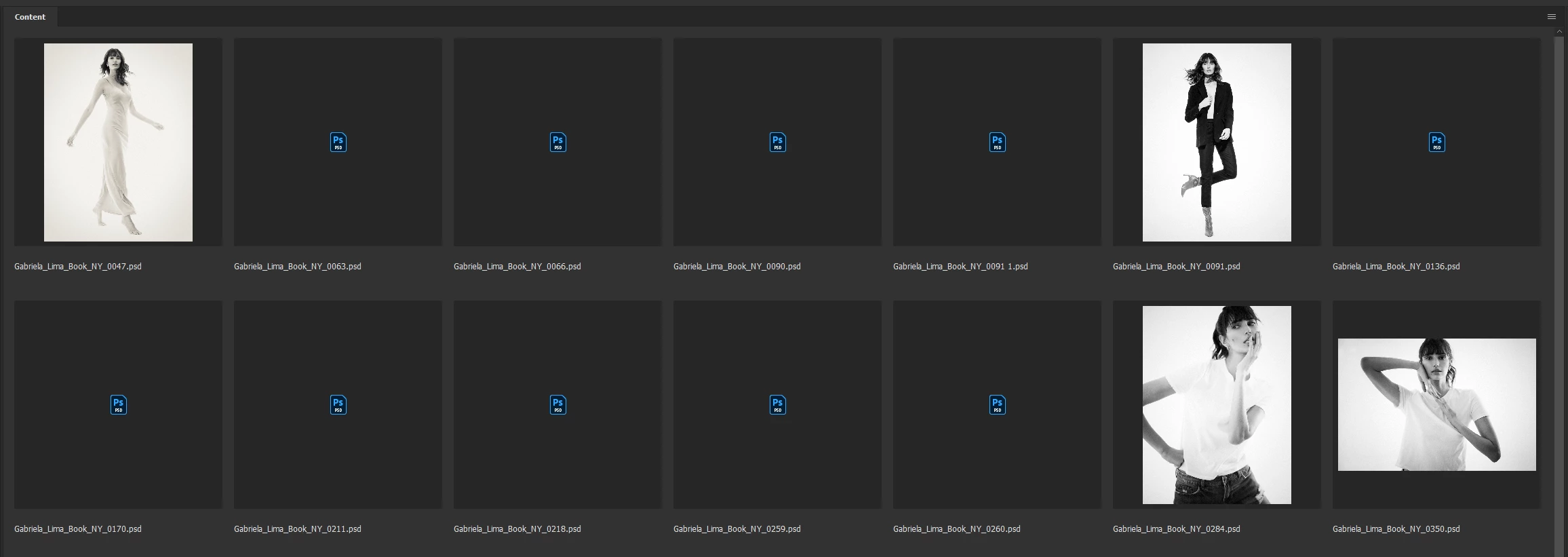
This topic has been closed for replies.

1 reply

gary_sc
Community Expert
Community Expert
May 1, 2022

Have you tried to rebuild the Cache of that folder? (Tools (menu) -> Cache -> Purge Cache for "X" folder.


If that doesn't work:


What is your OS (and what release), where are the files located, what version of Bridge is this, and what version of ACR is being used?


Thanks!

Known Participant
May 1, 2022

Yes, I've tried rebuilding the cache. It happens on any folder with PSD files. Ridiculous to think that it doesn't happen with files that are not Adobe format (like Jpeg or TIFF) but happens with the format that Adobe software should know best (PSD).

I'm on Windows 10 ver 21H2. Bridge version is 12.0.1.246. Files are on an internal SSD (although, like said, it happens on every folder with PSD files, be it on the SSD, the system HD or any external HD). ACR is 14.3.0.1072

gary_sc
Community Expert
Community Expert
May 1, 2022

Hi Andre, that's bloody strange. 


About the ONLY other thing I can think of is to rebuild Bridge's Preferences but I do not hold any strong conviction that this will help. It's more of a last-minute gasp try.


Quit Bridge (if running). Just before clicking on Bridge in the Dock or double-clicking the application, for the Mac, press Command-Option-Shift. For PCs, press Control-Alt -Shift. Then open Bridge BUT KEEP your fingers on those keys until you see a window pop up. From the window, choose “Reset Preferences," "Entire Thumbnail Cache”, and/or "Reset Standard Workspaces.” In your case, choose "Reset Preferences."