


Known Participant
May 24, 2020
Answered

Bridge won't recognize my files in Desktop or Documents! Help!

  • May 24, 2020
  • 6 replies
  • 15091 views

Hi, 

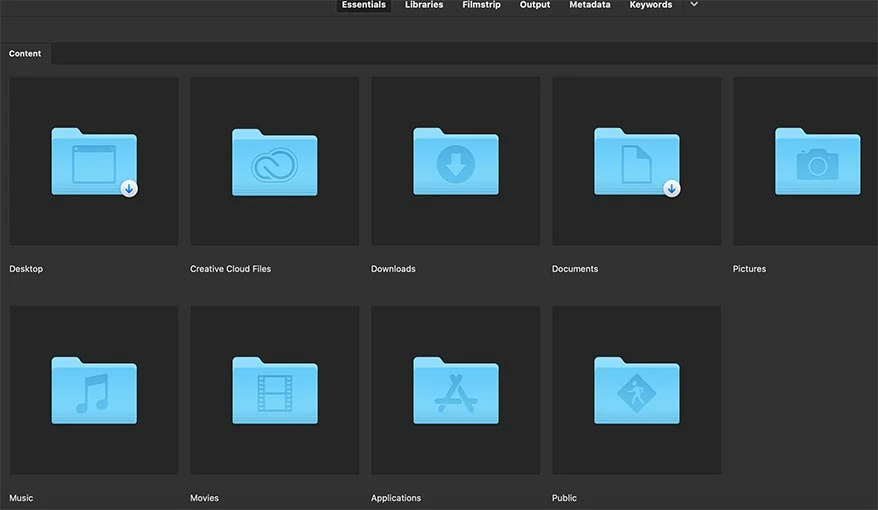
I just updated my Bridge to the latest version and now it won't recognize any of the files on my Desktop or Documents. There are a LOT of files in both places. Can anyone tell me why this is happening and how can I fix this? Also, Bridges shows arrows on top of the Desktop and Documents folders. I've never seen that before. Yet if I click on either of these folders, it won't recognize even one file inside them. I've never had this issues before. Please help?
 

Correct answer matthew_tapia

I also ran in to the same issue—inaccessible folders with a small arrow icon in the bottom corner of each folder. None of gary_sc's or PonyR's solutions worked for me. It turns out my issue was related to a Dropbox setting that automatically backs up my Desktop, Downloads, and Documents folders. The continuous connecting established by the backup was preventing Bridge from accessing the files. I changed the Dropbox setting and Bridge works fine. It's possible that similar automated functions for other programs that establish a continuous connection to folders could be preventing Bridge from accessing in a similar way.


Would have been great to read this a few hours before I figured it out, so hopefully this is helpful to someone else out there.

6 replies

LIDBKLYN
Participating Frequently
October 22, 2022

I have been so frustrated for a long time when, after an update, the Adobe Bridge folder tree no longer corresponded to the location of files inside any of icloud synced Desktop/Document folders. Meaning that when I clicked a file/files from any of folders within icloud in Bridge Content window, the folder panel remains idel. Before, it would go to the location of that selected file. For whatever random reason, today, it finally occured to me to enable "Show Hidden File" under "View" dropdown manu. And, the problem was solved. It is a bit annoyed to see all the hidden files but, at least, now I can see where my file locates and can easily navigate to other folders directly on Folder Panel. I attached 2 settings for your reference if you encountered similiar issues and would like to give this solution a try. I am sure there is another way but, so far, I have not yet come across a solution without the clutters of hidden files. 


  • System preference - priavcy - Files and folders

  •  Bridge - View - Show Hidden Files


matthew_tapiaCorrect answer
New Participant
July 7, 2021

I also ran in to the same issue—inaccessible folders with a small arrow icon in the bottom corner of each folder. None of gary_sc's or PonyR's solutions worked for me. It turns out my issue was related to a Dropbox setting that automatically backs up my Desktop, Downloads, and Documents folders. The continuous connecting established by the backup was preventing Bridge from accessing the files. I changed the Dropbox setting and Bridge works fine. It's possible that similar automated functions for other programs that establish a continuous connection to folders could be preventing Bridge from accessing in a similar way.


Would have been great to read this a few hours before I figured it out, so hopefully this is helpful to someone else out there.

Known Participant
January 28, 2022

Thanks, this could be key for me. What setting did you use? Did you have to make Dropbox stop syncing your files altogether? This is happening in folders that I don't sync to Dropbox so I'm trying to see if this applies to my case.

New Participant
June 20, 2022

Right click Dorpbox icon—profile picture — Preference—backups —Manage backups—Adjust setting —change folders - unchecked related folders. Once you changed the settings those folders no longer sync via Dropbox 

New Participant
February 25, 2021

I am having the exact same issue with bridge and the small white arrows on the Desktop and Download folders. BEening using it ofr YEARS and all of a sudden last night, this issue arose.

I have read the entire chain below, tried all the steps and still the issue persists.


Has anyone found any solutions to this issue ????? 

Brainiac
October 6, 2020

Turn off iCloud storage of your Desktop and Documents.

New Participant
September 10, 2020

Hi Garyy,


Great answer! Very helpful! 


(Apparently, my lower-case "Y" isn't woking for this reply. Very Strange!)


Tanks!

PonyRAuthor
Known Participant
May 24, 2020

By the way, I am running Bridge 2020 on Mac OS Catalina 10.15.4

gary_sc
Community Expert
May 24, 2020

Hi Pony,


Thanks for adding your OS, I was about to ask for it when I saw you already did. That saves us one step!


Were you using Bridge prior to updating to Catalina? Have you ever given Bridge permission to access things on your computer and connected drives?


Oh, what happens when you mouse over one of the arrows or click on one of those arrows?


Let me know,

gary_sc
Community Expert
May 24, 2020

Hi Gary,

Thanks for responding! Yes, I've been using Bridge for quite a while before and after updating to Catalina and no issues whatsoever. I don't remember ever specifically giving Bridge permission to access anything in particular. It just always worked and recognized everything right off the bat.


If I click or mouse over the arrows on those folders, absolutely nothing happens. It's like the arrows are part of the folder graphic. Real strange.


Hi Pony,


OK, a quick caveat: I am using Mojave, I occasionally use some software that will not work in Catalina (I'm buying time). However, I've helped some who use Catalina and some of the basic problems are well known.


Let's try one or both of the following "solutions.":


IMPORTANT: If you do try #2, please be VERY careful about the "However" worning provided there. This is very very important. This is perfectly safe if you do this on files and documents but DO NOT do this to a folder with applications, scripts, etc.


#1)

Starting with Mojave (and double-downed in Catalina) you need to

1) go into your computers "System Preferences" (1) and then select the "Security & Privacy" option and select the "Privacy" (2) option.

2) On the left hand side scroll down until you see the option of "Full Disk Access" and click on that.

3) On the bottom left of the window you'll see a lock, click that and put in your administrator password.

4) Now, click on the "+" symbol that lets you add applications to the list on the right hand side of that window.

5) Find the Bridge application, select it, and click OK. Be sure that the check box next to it is checked.

When you close this window, the lock will automatically lock again so there's nothing to do there.


#1 part 2:


You can also see if selecting the "Accessibility" option as well, give that to Bridge.


Solution #2)

In the Finder select the folder that you're documents/images are contained in and press Command-i (i for information). A new window will pop up on the left side of the screen. On the bottom you will see a region called "Sharing & Permissions:"


To do anything here, you need to unlock the padlock on the bottom right. Click it and a window will pop up asking you for your authorization (your Mac password). Once that's done, click on the "Everyone" and on the right change "Read only," to "Read & Write."


Now, if there are folders inside this, go to the dropdown gear below and select "Apply to enclosed items..." and you can save yourself some time.


HOWEVER: be judicious when you do this. This should ONLY be done if there are nothing but documents inside these folders. Never EVER do this if there are applications or preferences or other application-related files. Don't ask me how I know this to be true. Otherwise, I do this all the time as necessary.


Let me know how it goes.