


Participating Frequently
April 23, 2012
Answered

Can you import metadata from an excel database to images (JPG, PSD, TIF) in bulk?

  • April 23, 2012
  • 3 replies
  • 42320 views

I am very new to working with metadata. I have a microsoft excel file with the IPTC Core fields I need for each image file.

(Creator, Headline, Description, Keywords, Title, Job Identifier, Credit Line, Source, Rights Usage Terms, Copyright Status and Copyright Notice)

Is there a way to get the metadata into the files without having to copy from a cell into each metadata field individually?

I am hoping some for sort of script, possibly...

Also, if only ONE of these fields needed updating in all of the files (i.e. Rights Usage Terms) can that be done?

I have Bridge 5.1 (and earlier versions CS3/CS4)
This topic has been closed for replies.
Correct answer Stephen Marsh

Perhaps try tab delimited format instead of comma separated value format.


Edit – Paul Riggott originally wrote the following instructions:


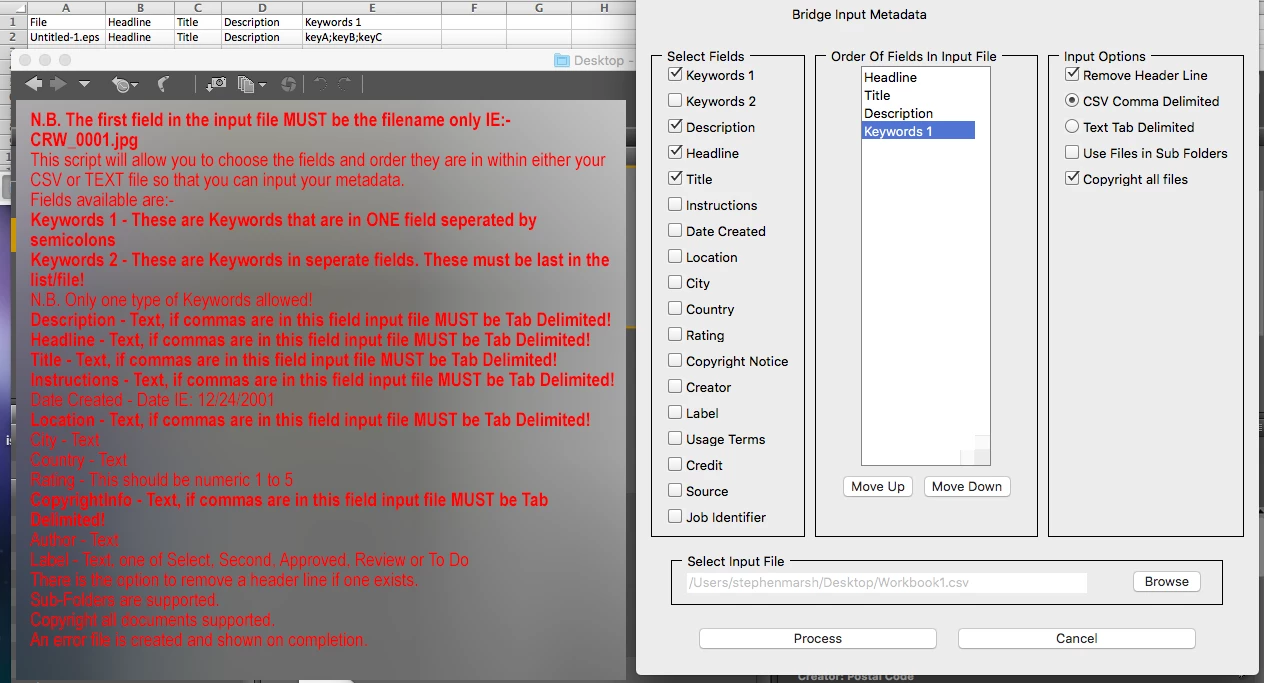
N.B. The first field in the input file MUST be the filename only IE:- CRW_0001.jpg

This script will allow you to choose the fields and order they are in within either your CSV or TEXT file so that you can input your metadata.

Fields available are:-

Keywords 1 - These are Keywords that are in ONE field seperated by semicolons

Keywords 2 - These are Keywords in seperate fields. These must be last in the list/file!

N.B. Only one type of Keywords allowed!

Description - Text, if commas are in this field input file MUST be Tab Delimited!

Headline - Text, if commas are in this field input file MUST be Tab Delimited!

Title - Text, if commas are in this field input file MUST be Tab Delimited!

Instructions - Text, if commas are in this field input file MUST be Tab Delimited!

Date Created - Date IE: 12/24/2001

Location - Text, if commas are in this field input file MUST be Tab Delimited!

City - Text

Country - Text

Rating - This should be numeric 1 to 5

CopyrightInfo - Text, if commas are in this field input file MUST be Tab Delimited!

Author - Text

Label - Text, one of Select, Second, Approved, Review or To Do

There is the option to remove a header line if one exists.

Sub-Folders are supported.

Copyright all documents supported.

An error file is created and shown on completion.

3 replies

Known Participant
November 7, 2018

Hi!

Can we use the exact same script for EPS files? I noticed that in Bridge CC 2019 when we click a EPS we can edit it's metadata (title, description, keywords) directly in Bridge.

Knowing this, would a script be possible to read a CSV and import those fields into a EPS instead of a JPG?

Stephen Marsh
Community Expert
Community Expert
November 7, 2018

Hi!

Can we use the exact same script for EPS files? I noticed that in Bridge CC 2019 when we click a EPS we can edit it's metadata (title, description, keywords) directly in Bridge.

Knowing this, would a script be possible to read a CSV and import those fields into a EPS instead of a JP

Yes, the DIY Metadata script works with a Photoshop EPS file (I have not tested with Illustrator EPS):

And it also works for the VRA tool as well:

Known Participant
November 8, 2018

Ok, in the past I tried DIY Metadata script and I didn't seem to work with illustrator EPS (that is the kind of EPS I am trying to work on). I will give it another try along with VRA panel and will post here if it works with Illustrator EPS. Thanks a lot for the suggestion.

Stephen Marsh
Community Expert
Community Expert
April 14, 2016
Paul Riggott
Inspiring
April 23, 2012

This might be of use...

DIY Metadata.jsx


EDIT: the link is there now: DIY Metadata.jsx

Participant
December 9, 2017

Hey Paul, I'm trying to edit your script to fill in the "IPTC Subject Code" and keep getting an error from the log for my added input/variable. I basically used other fields as an example to edit the code. I can get your predefined fields to work when using a csv for the input, but can't get my own added IPTC Subject Code to to write. Please help 

Participating Frequently
February 7, 2019

If these “composite” tags have come from inspection with ExifTool, it should be noted that they are indrect “computed” tags that are generated on the fly from existing metadata and are not directly available in the file.


i was viewing the metadata export with MetaData++.  Now I am using ExifGUI.  The first program shows the GPS coordinate as DMS (degrees minutes seconds), BUT Exif GUI shows a complete section for GPS and it shows the GPS coordinates as Decimal Degrees.

So my question is how do I confirm what the actual data is in the images Exif?  I also need to figure out how to write the GPS data back to the image because that seems to be failing.

Data shown by ExifGUI

--------------------

---- EXIF ----

Image Description               : DCIM\100MEDIA\DJI_0002.JPG

Make                            : DJI

Camera Model Name               : FC6310

Orientation                     : Horizontal (normal)

X Resolution                    : 72

Y Resolution                    : 72

Resolution Unit                 : inches

Software                        : v01.07.1641

Modify Date                     : 2018:12:22 13:00:29

Y Cb Cr Positioning             : Centered

Exposure Time                   : 1/320

F Number                        : 5.6

Exposure Program                : Program AE

ISO                             : 100

Exif Version                    : 0230

Date/Time Original              : 2018:12:22 13:00:29

Create Date                     : 2018:12:22 13:00:29

Components Configuration        : -, Cr, Cb, Y

Compressed Bits Per Pixel       : 3.185197909

Shutter Speed Value             : 1/320

Aperture Value                  : 5.6

Exposure Compensation           : 0

Max Aperture Value              : 2.8

Subject Distance                : 0 m

Metering Mode                   : Center-weighted average

Light Source                    : Daylight

Flash                           : No flash function

Focal Length                    : 8.8 mm

Flashpix Version                : 0010

Colour Space                    : sRGB

Exif Image Width                : 4864

Exif Image Height               : 3648

Interoperability Index          : R98 - DCF basic file (sRGB)

Interoperability Version        : 0100

Exposure Index                  : undef

File Source                     : Digital Camera

Scene Type                      : Directly photographed

Custom Rendered                 : Normal

Exposure Mode                   : Auto

White Balance                   : Auto

Digital Zoom Ratio              : undef

Focal Length In 35mm Format     : 24 mm

Scene Capture Type              : Standard

Gain Control                    : None

Contrast                        : Normal

Saturation                      : Normal

Sharpness                       : Hard

Subject Distance Range          : Unknown

Serial Number                   : d3ea87f35e1f17805c95a554bba186a4

GPS Version ID                  : 2.3.0.0

GPS Latitude Ref                : North

GPS Latitude                    : 34.951873°

GPS Longitude Ref               : West

GPS Longitude                   : 89.930273°

GPS Altitude Ref                : Above Sea Level

GPS Altitude                    : 148 m

GPS Processing Method           : MANUAL

XP Comment                      : Type=N, Mode=P, DE=None

XP Keywords                     : v01.07.1641;1.2.0;v1.0.0

Compression                     : JPEG (old-style)

X Resolution                    : 72

Y Resolution                    : 72

Resolution Unit                 : inches

Thumbnail Offset                : 10240

Thumbnail Length                : 10203

Thumbnail Image                 : (Binary data 10203 bytes, use -b option to extract)