Inspiring
September 7, 2020
Answered

Magnifying glass instead of pointer in bridge

  • September 7, 2020
  • 1 reply
  • 2225 views

I am trying out the latest version of Bridge on Windows 10. I was trying to drag and drop an image into InDesign, when a magnifying glass appeared. Now I can't get my cursor back. Never had this happen before. Is there a way to deactivate it?


I'm not very agile in Bridge. Would appreciate your help--thanks!

This topic has been closed for replies.
Correct answer gary_sc

Did/does it look like this?
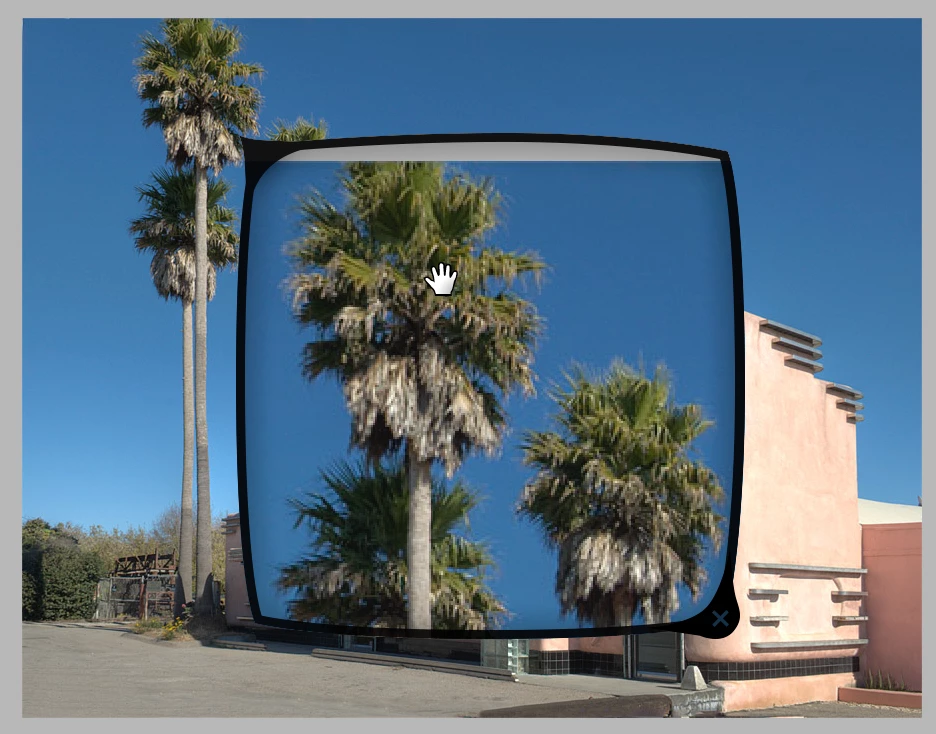
If so, to get rid of it click inside the lens area, it should go away.


Couple of things now: To prevent that from showing up again (unless wanted), go to your Preferences and click this option:
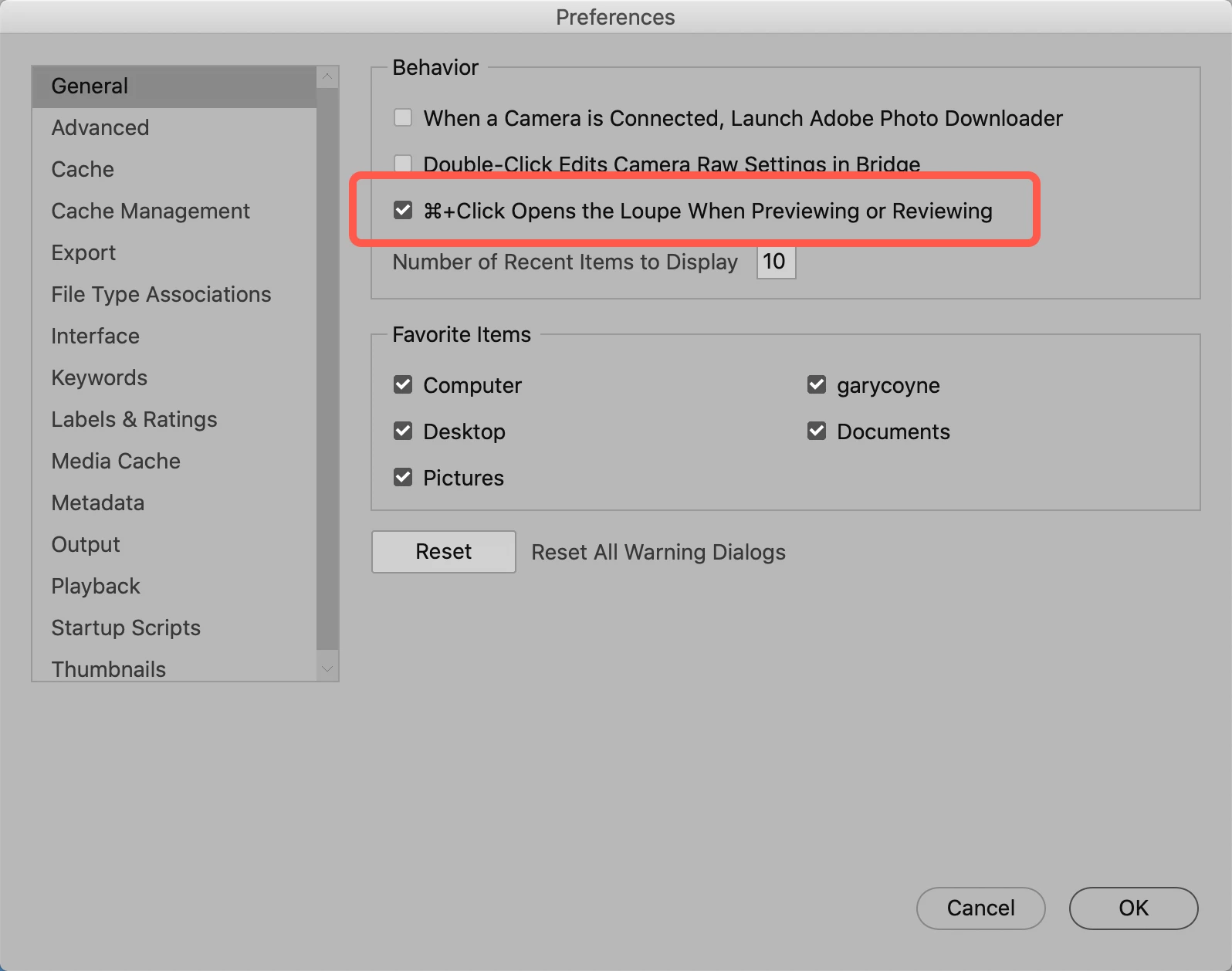
Lastly, the magnifying glass only comes up in the Preview Panel. BUT you cannot select or move an image from the Preview Panel, only the Content Panel. 


FWIW, the default Panel layout in Bridge is not very good. If I want to look at Previews, I was to SEE the Previews so I move the Preview Panel all by itself to the middle collumb in Bridge. If you grab (wiht the mouse) on the Tab name, you can move it anywhere in the Bridge window. I move it to the middle, all by its lonesome. Generally I have the Content Panel by itself on the right side (also by itself). Any other Panels I want to see are in two rows on the left side.


Let me know if this solves your problem.

1 reply

gary_sc
Community Expert
gary_scCommunity ExpertCorrect answer
Community Expert
September 7, 2020

Did/does it look like this?

If so, to get rid of it click inside the lens area, it should go away.


Couple of things now: To prevent that from showing up again (unless wanted), go to your Preferences and click this option:

Lastly, the magnifying glass only comes up in the Preview Panel. BUT you cannot select or move an image from the Preview Panel, only the Content Panel. 


FWIW, the default Panel layout in Bridge is not very good. If I want to look at Previews, I was to SEE the Previews so I move the Preview Panel all by itself to the middle collumb in Bridge. If you grab (wiht the mouse) on the Tab name, you can move it anywhere in the Bridge window. I move it to the middle, all by its lonesome. Generally I have the Content Panel by itself on the right side (also by itself). Any other Panels I want to see are in two rows on the left side.


Let me know if this solves your problem.

Inspiring
September 7, 2020

Thanks so much for your help! You've answered all my questions and given me some good advice. I always did think the Panel layout wasn't all that terrific. In fact, the older I get, the harder I find it to read text/commands in certain CC apps.
