


leahwoodphoto
Participating Frequently
July 6, 2020
Question

Missing dropdown Arrows in Bridge

  • July 6, 2020
  • 4 replies
  • 2108 views

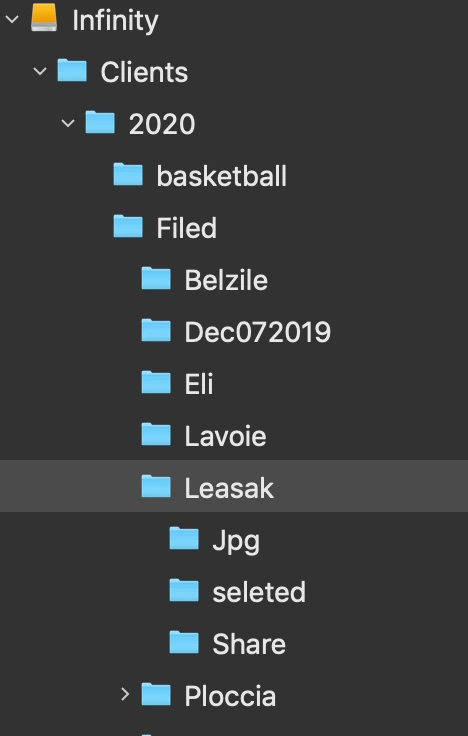
I noticed a few weeks ago my Drop down arrows disappeared inside bridge. I did some digging on this site, you tube and so on and have no found the answer. I did a factory reset on my bridge.  This didn't solve the problem. I find it hard to work within my folders without the drop down arrow. What is the answer to reseting this. I see some have them some don't. Usually a folder inside a folder would create an arrow. I could click on the arrow and see what was in the folder. Another arrow would tell me there was a folder and there is items inside the folder. No arrows usually tells me there is no items in the folder. I have no idea what happen. 


This topic has been closed for replies.

4 replies

giovannia98509741
Known Participant
December 21, 2021

I had a similar problem on Win10 after a Bridge cache cleaning.
To fix it I run the cache cleaning once again with the options shown in the attached image.

Good luck!

giovannia98509741
Known Participant
December 21, 2021

EDIT: You might have to click on the folders once to make the arrows disappear.

New Participant
September 14, 2021

I've been having the same problem for months and wondering if anyone's found a solution.  As you can see from the attached screenshot, whether I get an expansion carrot or not on a particular folder seems entirely random.  Under "2021" for example, July and September get arrows, and August doesn't, though all those folders contain similarly named subfolders.  And, mysteriously, all the subfolders in August that contain their own subfolders get expansion carrots.  I can expand a folder by double-clicking on it, but the expansion carrot is a useful visual clue and saves a click.  Help?

YThom
New Participant
October 27, 2021

I was experiencing the same issue in Big Sur. In Bridge, on the left panel, I show two tabs: Favorites and Folders. I was viewing my files with the Favorites tab selected and no down arrows showed at all. When I selected the Folders tab I can see all arrows in all folders and subfolders. I hope this helps somebody!

jbm007
Community Expert
March 15, 2021

If you select "reveal in explorer" do the show up correctly?

Short of un installing the app and reinstalling the app, not sure what else can be done.

 I am on Big Slur and its not a problem. Can't help you on this one.

Is this on a mounted drive or USB drive?


gary_sc
Community Expert
July 6, 2020

Hi Leah,


Just to make a fine-point on your last comment, a lack of an arrow implies that there is no sub-folder in that folder, there can be images but there would not be an arrow in the containing folder for that.


In your screenshot, Leasak SHOULD have an arrow, the three contained within (if all they have are images) would not have an arrow.


I am assuming I'm looking at the Folders Panel in Bridge in your screenshot?


What is your OS (and what release) and what version of Bridge are you using (and what release)?


And lastly, can you recall if you had done something to your computer and/or applications a couple of weeks ago that coincides with this change?


Oh, I'm assuming that if you click where the triangle should be, it acts correctly? 

leahwoodphoto
Participating Frequently
July 6, 2020

Sorry should have included my information. I'm using a Mac Mojave 10.14.6 and my bridge is 10.1.0.163. Everything is up todate. 


The only thing that comes to mind that happen was I let my adobe subscription lapse. So I went and paid for the new year and made sure to update everything. I have everything up to date and paid for and thought that was the problem. When it didn't fix my problem I then factory reset my bridge to make sure that wasn't the problem, if accidently clicked something I wasn't suppose to.


Leasak is the main folder should have a drop down arrow leading into my subfolders JPG, Select and share, but as you can see it doesn't.   

gary_sc
Community Expert
July 6, 2020

Hi Leah,


OK, I'm winging this here so bear with me. I recently upgraded to Catalina so I can't actually test this but some of Catalina's full-blown protection was started with Mojave. It seems from your screenshot that your files are on an external drive, yes?


The screenshot I'm shoing below is not actually showing what I want to show but I have this left around from before I moved to Catalina. You will have to hack around a bit. But the basics are that you want to go to your system's Prefs, go to Security and Privacy, then Privacy. Unlock the lock on the bottom left, then check out both Accessibility and more importantly, Full Disk Access. Make sure that Bridge and that hard drive can speak to each other. 


BTW, I gather you can access the images in these folders, only you cannot see all of the triangles, yes? If not, can you access the images in folders that you can see triangles in or not? (Assuming that you have both folders and images contained in those folders.)