chogall
New Participant
January 2, 2017
Answered

Organizing files when using both Bridge and Lightroom together

  • January 2, 2017
  • 3 replies
  • 6969 views

Hello,

I have been using Lightroom for quite a while and all my pictures are cataloged within Lightroom. Now I'm keen on using Bridge too, especially because I'm learning Photoshop and I heard it's a good app to organize the files and then from that app, open them in Photoshop.

My only concern now is how to organize my photos in Bridge? I saw that people usually have a very detailed and nice file structure, consisting of different folders with proper names (type of photo, country name, etc.) so that they can find their pictures very easily. Does it mean I have to copy/paste my pictures in another file structure, though it's already existing in the LR catalog ? If yes, I would have a problem with the storage...My LR catalog only has date folders (2016, then 2016mmdd for each different day), so it's not that detailed compared to what most people use as a folder structure in Bridge.

If anyone uses both together, kindly let me know how you guys organize your pictures so that you can see them in both.

Thank you!
This topic has been closed for replies.
Correct answer melissapiccone

I use both and I use them together. It took a while to get myself organized.

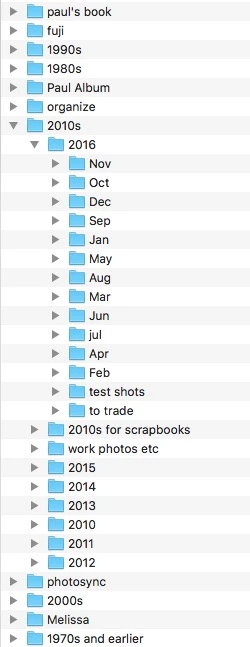
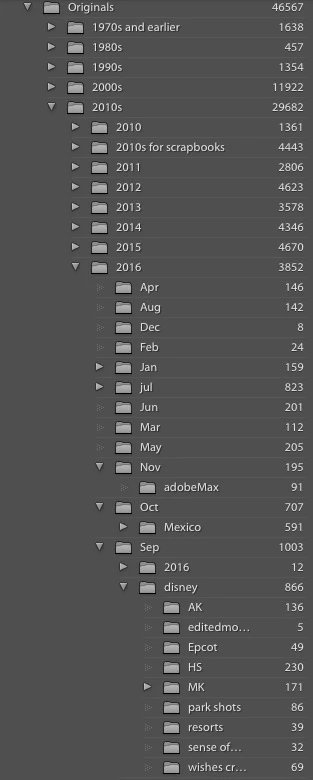
Importing and organizing and storage - belong to Lightroom. This is what my Lightroom looks like. It matches my hard drive. I am in control of where everything is and how it's organized. If anything bad happens to my LR catalogue, I would be sad, but it's OK, not devastating.

I finally learned how to use Lightroom the "right way". I save out copies of images I need for other things and toss the copies when done.

Let's say I want to make a digital scrapbook. I have all of my images in Lightroom, photos and scrapbooking supplies. I can use Lightroom to view everything, but honestly, compared to Bridge, LR sucks at this.

So... I start in LR, making a collection of the photos I want to use. I make all of my adjustments in LR, they are ready to be used. I can save them all to a new folder on my hard drive or use LR to just drag and drop them into PS as needed.

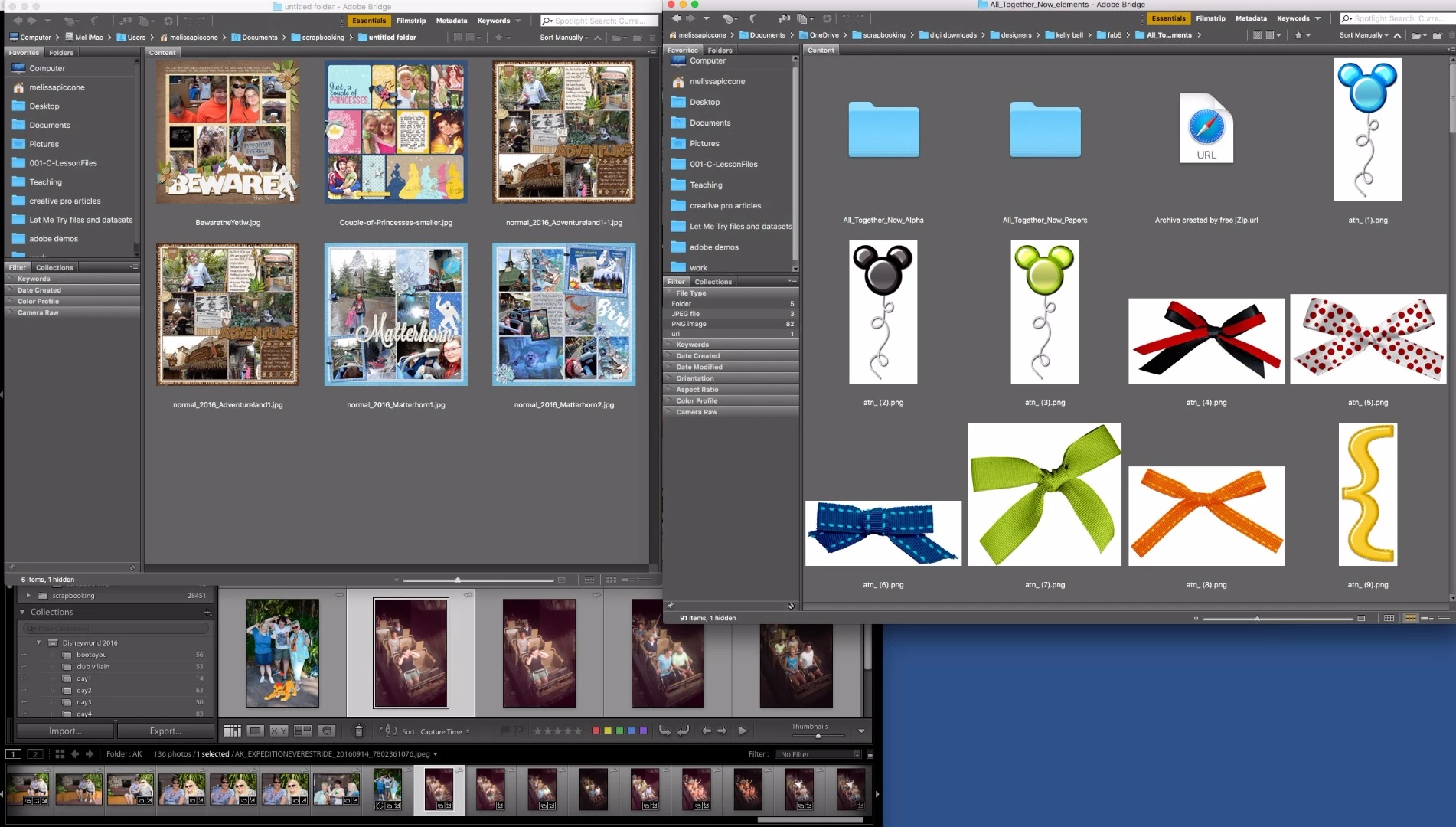
The scrapbook graphics are a little different. I have so many, I don't want collections and I can't look at the my pictures and graphics at the same time in LR, so I do this in Bridge. I do make collections in Bridge. So, I have a bunch of window open and I drag and drop everything. There so much functionality in Bridge that I wish LR could do... This is what my screen might look like: with multiple Bridge window open and LR in the background.

3 replies

melissapiccone
Community Expert
January 4, 2017

Create the sub folders from within Lightroom. You can see my folder structure in LR in the screenshot. 2016. Sep. Disney. then the park folders... just drag and drop your images to the new folders while in LR and your images will be moved on your hard drive.

Melissa Piccone | Adobe Trainer | Online Courses Author | Fine Artist
chogall
chogallAuthor
New Participant
January 5, 2017

Thanks for your reply melissa!

Oh ok, but I was scared that it would mess up Lightroom catalog by doing this way, i.e. drag & drop and creating subfolders. Maybe the idea of keywords would be more efficient, I have yet to try this.

Stephen Marsh
Community Expert
January 5, 2017

A lively discussion on the pros/cons of folders vs. keywords here:

Can Lightroom re-organize already-imported photos into dated folders?

You can of course use both methods, if so you’ll probably just need to ensure that the folders agree with the keywords to some loose degree.

Just make sure that you create the folders and move the photos inside Lightroom, not using your OS! Try a small test first so that you are happy that this works as described.

melissapiccone
melissapicconeCorrect answer
Community Expert
January 3, 2017

I use both and I use them together. It took a while to get myself organized.

Importing and organizing and storage - belong to Lightroom. This is what my Lightroom looks like. It matches my hard drive. I am in control of where everything is and how it's organized. If anything bad happens to my LR catalogue, I would be sad, but it's OK, not devastating.

I finally learned how to use Lightroom the "right way". I save out copies of images I need for other things and toss the copies when done.

Let's say I want to make a digital scrapbook. I have all of my images in Lightroom, photos and scrapbooking supplies. I can use Lightroom to view everything, but honestly, compared to Bridge, LR sucks at this.

So... I start in LR, making a collection of the photos I want to use. I make all of my adjustments in LR, they are ready to be used. I can save them all to a new folder on my hard drive or use LR to just drag and drop them into PS as needed.

The scrapbook graphics are a little different. I have so many, I don't want collections and I can't look at the my pictures and graphics at the same time in LR, so I do this in Bridge. I do make collections in Bridge. So, I have a bunch of window open and I drag and drop everything. There so much functionality in Bridge that I wish LR could do... This is what my screen might look like: with multiple Bridge window open and LR in the background.

Melissa Piccone | Adobe Trainer | Online Courses Author | Fine Artist
Stephen Marsh
Community Expert
January 3, 2017

Bridge is a file browser, not a database/catalogue. So Bridge only views the existing directory structure on your drive, not a virtual database catalogue structure as you may have created in Lightroom. So, where/how do you store your files on the drive/s? When you create your catalogue, do you COPY or MOVE or ADD the photos from the original location/s?

chogall
chogallAuthor
New Participant
January 3, 2017

Hi Stephen_A_Marsh,

So far I have always directly imported my pictures from the SD card directly into my Lightroom catalog. Not sure if it's the best way? Bridge makes me think that it would have been maybe better to import them into a more detailed and explicit folder structure and then Lightroom could catalog this directly on top? To your second question, I use the "Import" feature within Lightroom, so I guess it's an ADD? or COPY (from SD card to the catalog) maybe?

I don't know, it looks like both should not be used together, or are not meant to be used together. Looks like it's either one or the other, am I correct?

Stephen Marsh
Community Expert
January 3, 2017

OK that is not enough solid info to really advise, so let’s look at this a different way…

Go into Lightroom and find an example image in your catalogue, I am guessing by looking into folders, then a year, then a date etc.

Right click on the image and use the “show in Finder” command (presuming a Mac). You will then have a Finder window open with the folder containing the image, and you can then use the path button or cmd click/hold on the folder title to see the “breadcrumb” trail of the folder path.

You may find that Lightroom has already created a date based folder structure on your hard drive.